5 Methods to Download Songs from Apple Music to a Computer
Do you want to know how to listen to Apple Music offline? Well, Apple Music is an online-based tool that is capable of offering millions of audio content. The good thing is that listening to Apple Music offline is possible. With that, you can effectively play your favorite song anywhere and anytime. Thus, if you are interested in learning and hope to listen to Apple Music offline, you must visit this guidepost. We will show you how to achieve your main objective with and without the subscription plan. Without anything else, come here and learn more about the discussion.
Part 1. Can You Listen to Apple Music Offline
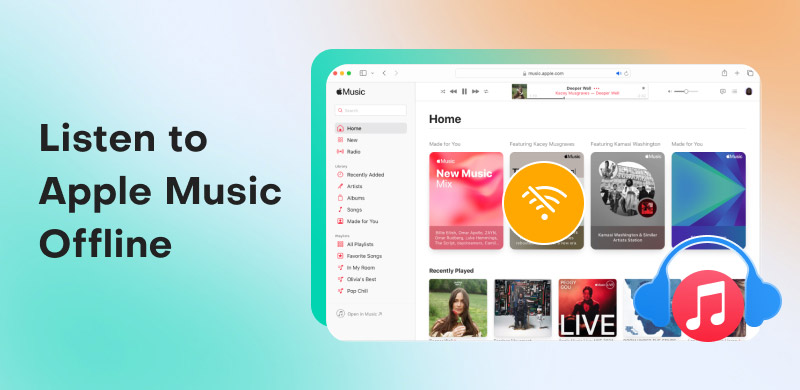
Can you listen to Apple Music offline? Well, the answer is yes. It is possible to listen to any songs from Apple Music as long as you have the subscription plan. Well, the plan can offer a download feature, allowing you to save and download songs from Apple Music, which is ideal for offline listening. The good part here is that you can enjoy the music since it has excellent quality.
After knowing it is possible to listen to Apple Music offline, you might wonder how. In that case, we suggest proceeding to the next section, as we offer all the best methods you can use to achieve your objective.
Part 2. How to Listen to Apple Music Offline with a Subscription
As mentioned, if you want to listen to your favorite music on Apple Music offline, you must have a subscription plan. The paid version of the platform offers a download feature, allowing you to download and save all the music you want. What makes the paid version better is that you can even create your own playlist, which is ideal for those music enthusiasts who want to organize their songs. If you want to learn the best way to listen to Apple Music offline with a subscription plan, check the methods below.
Listen to Apple Music Offline on Android/iOS
Step 1. The first thing to do is to launch the Apple Music app on your device. After that, start getting the subscription plan and proceed to the payment procedure.
Step 2. Go to the Search section and start browsing the music you want to save and download. Then, press the three-dot option and select the Add to Library button.
Step 3. Now tap the Library section below and press the music you want to download.
Step 4. Finally, click the Download symbol above to start downloading the song from Apple Music. Once done, you can find the song from the Library section and play it offline.
Listen to Apple Music Offline on Windows/Mac
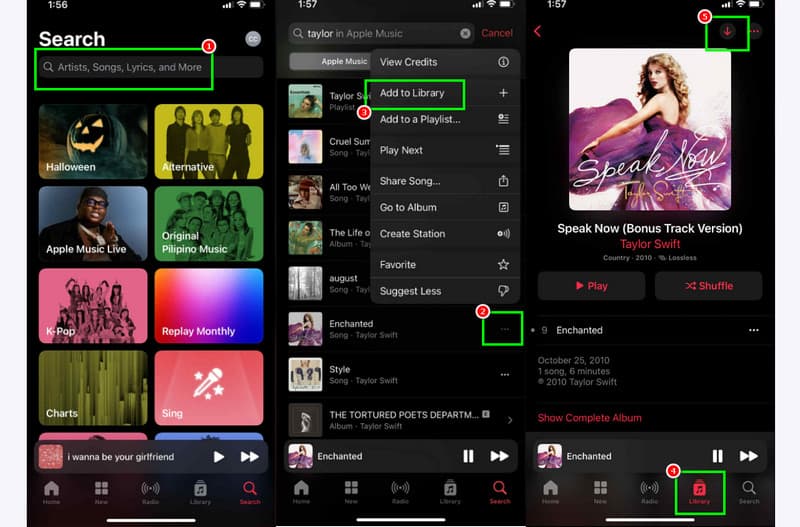
Step 1. Open the Apple Music software on your computer. After that, proceed to the left interface, click the Search function, and begin searching for the music you want to save.
Step 2. Then, click the three-dot option and tick the Add to Library option. Once done, go to the Library section.
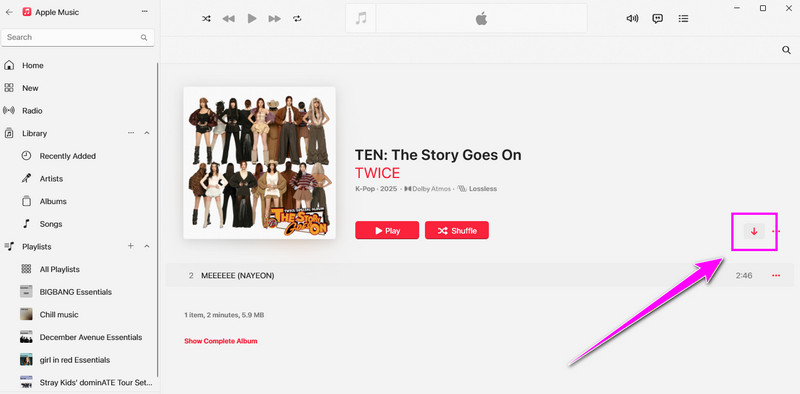
Step 3. Now, hit the Arrow Down button to start downloading and saving the music. After the process, you can now play the song anytime you want.
With these methods, you can now download songs from Apple Music on your desktop and mobile devices. You can even create your own playlist, making it more convenient. However, you must know that you can only use these methods when using a subscription plan. Once the paid version expires, all the saved music will also disappear.
Part 3. How to Listen to Purchased Apple Music Offline
Aside from subscribing to Apple Music, you can also directly purchase a specific song from the iTunes Store. The good part is that purchasing the music is simple, taking only a few taps to complete the process. What makes this method ideal is that after purchasing the music, you can play them forever without a subscription plan. Thus, if you want to start listening to the purchased Apple Music offline, follow the instructions below.
Listen to Purchased Apple Music Offline on Android/iOS
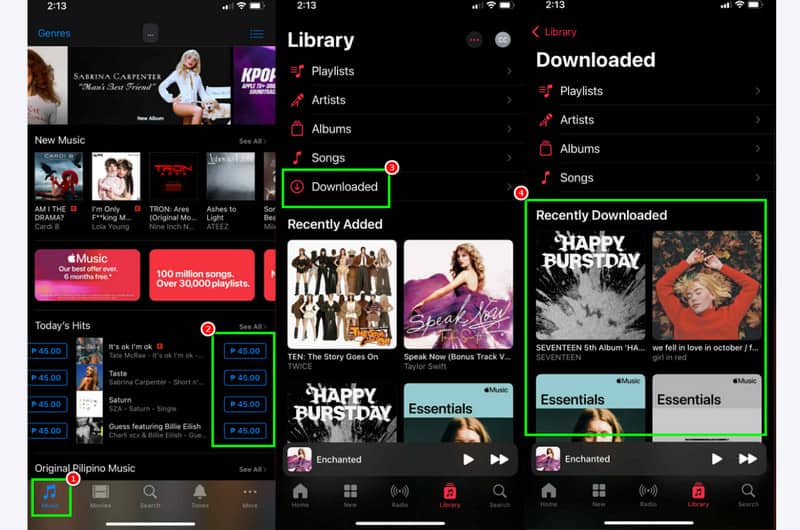
Step 1. On your mobile device, proceed to the iTunes Store. Then, proceed to the Music section and hit the Price to start purchasing the music.
Step 2. After purchasing the music, you can now open the Apple Music app. You can now navigate to the Library > Downloaded section.
Step 3. When the purchased music shows up, you can start playing the music.
Listen to Purchased Apple Music Offline on Android/iOS
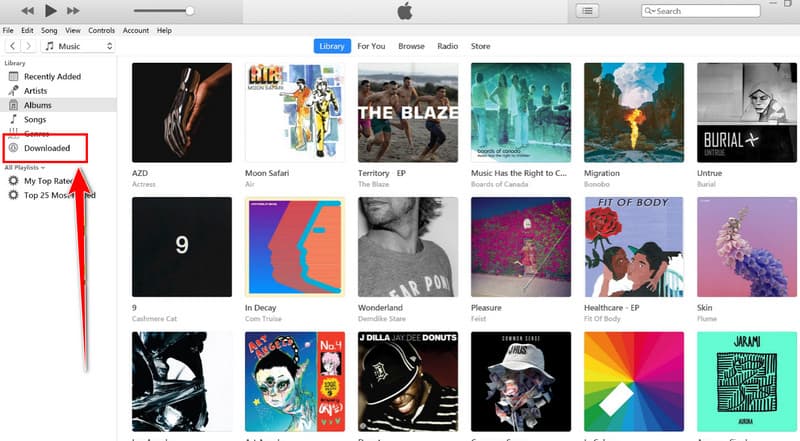
Step 1. Run the iTunes program on your computer. Then, proceed to the Music section and start purchasing your desired music.
Step 2. After that, navigate to the Downloaded section from the left interface to see all the purchased music.
Step 3. Now, you can start playing music on the Apple Music platform without relying on an internet connection.
To listen to Apple Music offline, you can use this method, especially if you just purchased the music from the iTunes Store. With that, consider using the provided method for an effective offline audio playback.
Part 4. How to Listen to Apple Music Offline without a Subscription
Do you want to listen to Apple Music without any subscription or paying a single penny? In that case, you must use TopVox All Music Converter. With this program, you can download and save all the songs from Apple Music permanently. The best part here is that it has a quick downloading process and can give you an excellent audio quality for up to 320 kbps. In addition to that, you can even save the music to various audio formats, such as FLAC, WAV, MP3, AIFF, M4A, AAC, and more. Thus, if you want the best program to achieve your desired outcome, it would be better to rely on this music converter and downloader.
Features
- The music downloader can offer downloading and conversion speeds up to 35 times faster.
- It can offer an exceptional audio quality.
- It is capable of converting numerous songs simultaneously.
- The software can download music from various platforms, including YouTube Music, Amazon Music, Spotify, and more.
To start listening to Apple Music offline without a subscription, use the process below.
Step 1. The first thing to do is to download TopVox All Music Converter. Run it to begin the procedure.
Step 2. After that, choose the Apple Music platform from the primary interface. Then, start inserting your Apple Music account.
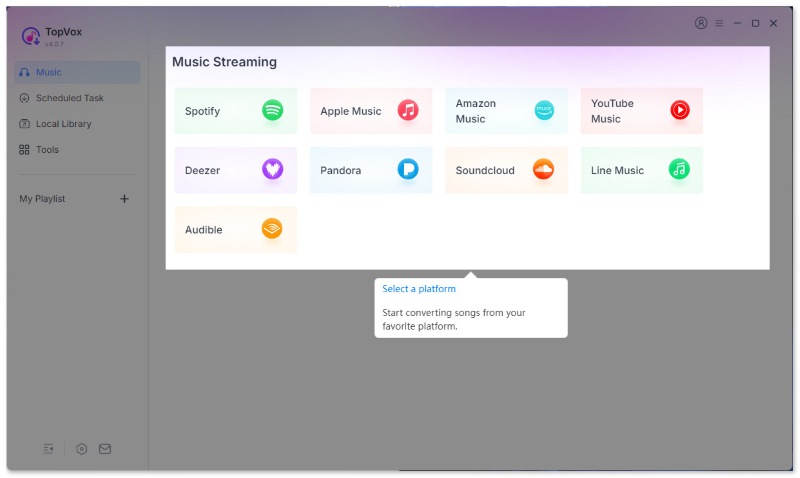
Step 3. Now, go to the Search section and browse the songs you want to listen to and download. Once done, tick the Add to Convert button. In the pop-up window, you can choose Add to Queue for adding other playlists and converting them later.
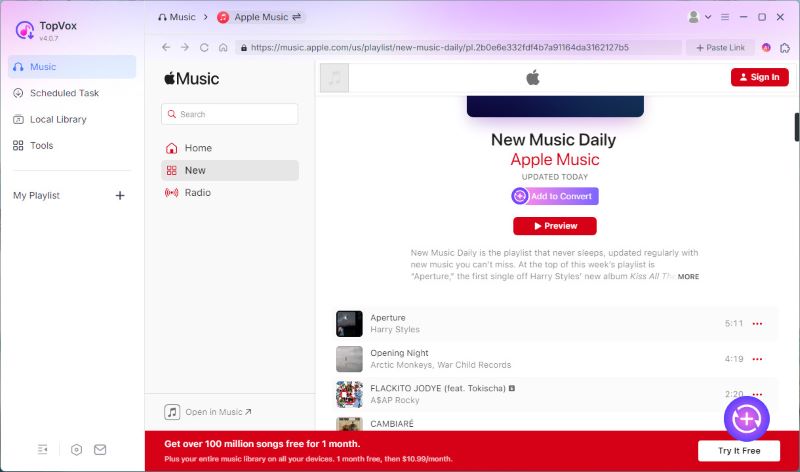
Step 4. Once finished, you can click Convert Now and turn to Scheduled Task list. After adjusting output parameters, click the Convert All and all the music will be saved in your file folder.
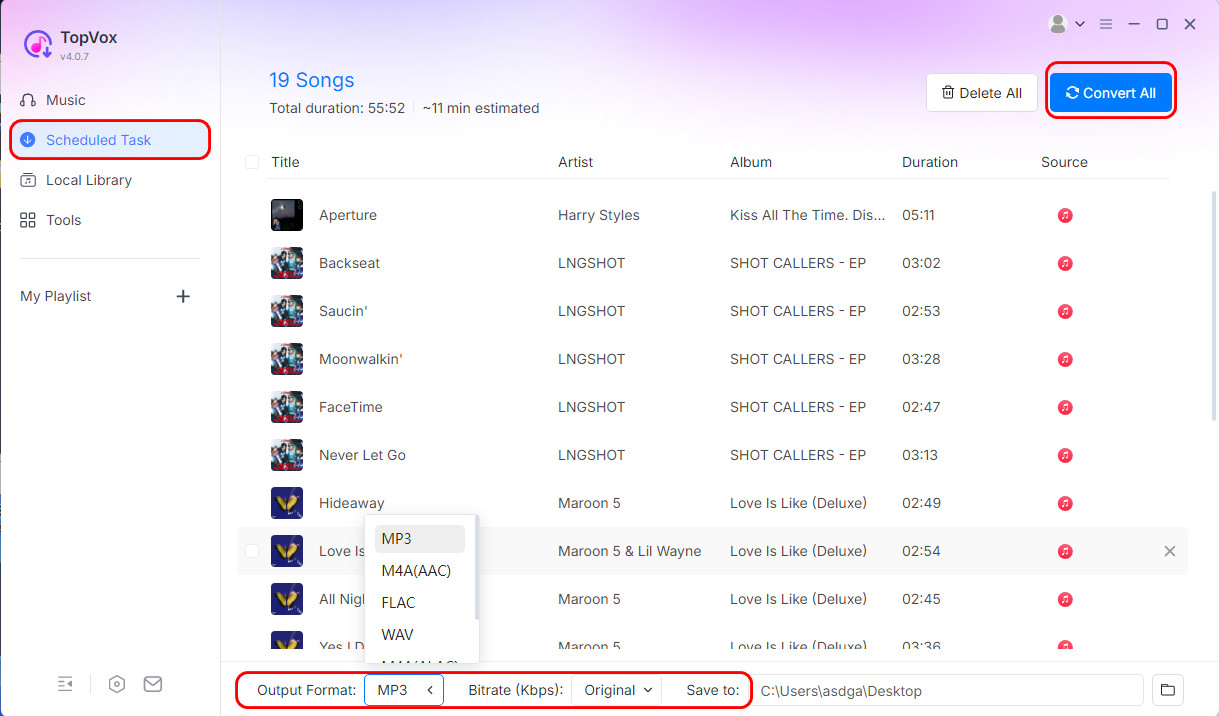
Thanks to this process, you can instantly download your favorite songs from Apple Music for free. You can even convert Apple Music to MP3, AAC, AC3, FLAC, WAV, and other formats. Thus, always use TopVox All Music Converter to listen to Apple Music without a subscription.
Conclusion
If you want to learn how to listen to Apple Music offline, you can use all the methods we have provided in this article. However, if you prefer the free methods of playing and saving music, we suggest using TopVox All Music Converter. With this program, there is no need for you to purchase the music and the premium version. You can download your music for free, making it more accessible to all users.
Owen Bannett
Owen Bannett is a music enthusiasm as well as a senior writer. He has paid close attention on the pros & cons of various audio formats, bitrate, sample rate and encoding methods. Always seeking the best listening experience, Owen has deep insights about lossless music and diverse music converters on the markets.




 by
by