Learn How to Turn Off Text-to-Speech on iPhone with Ease
Reading a lot of texts can be overwhelming at times, or for some people. It might also be boring, isn't it? That is why having a feature like text-to-speech on the iPhone is a great help; instead of reading a lot, you can simply listen to understand it. A save of effort and time indeed. Yet, when we ask for feedback from users, some find that the feature is not working properly and say it is not particularly useful to them. That is why they wanted to know how to easily turn off text-to-speech on the iPhone. Therefore, if you are one of them, then this guide is intended for you. Check these steps to make it possible with ease.
Part 1. What is Text to Speech on iPhone
One important accessibility feature on iPhones is Text to Speech, which reads text out from the screen to help users who are blind or visually impaired. For many users, capabilities like TTS are essential because at least 2.2 billion individuals worldwide suffer from some kind of vision impairment. Even while these functions are essential, they can occasionally be accidentally triggered, resulting in an unexpected audio narration of your screen.
In line with that, there are actually three different modes in iOs for text-to-speech, namely the VoiceOver, Spoken Content, and Siri Announcing Notifications. The first one is the VoiceOver which is Apple's most powerful accessibility tool. When users enable this feature, it reads everything on the screen aloud from buttons, icons, menus, notifications, and text. It also changes how touch gestures work. For example, tapping once selects an item, while double-tapping activates it. On the other hand, the Spoken Content or now called Speak Screen feature is a bit lighter and also a more flexible TTS option. Basically what it does is allowing users to select text and have it read aloud without changing how the iPhone behaves overall. Lastly, this mode gives permission for Siri to read notifications aloud through AirPods, Beats headphones, or supported audio devices. Messages, reminders, and alerts are spoken automatically when they arrive.
Whether on an iPhone, iPod touch, or iPad, users can more effectively utilize their device's accessibility capabilities by employing basic motions, such as swiping to navigate or using three-finger touch. Indeed, the iPhone is becoming more inclusive by allowing the visually impaired to still use their device in some way. But, is it really useful for everyone?
Part 2. How to Turn Off Text to Speech on iPhone
Method 1: Turning Off Voice Over on iPhone
Despite having a useful function, some users still show no interest in using text-to-speech features on the iPhone. Because, let us face it, the feature is not really essential for everyone. With that, if you are among those users who find the feature not useful, then here is a proper guide for you to turn it off. Please check the steps you need in order to make the process without complications.
Step 1. As we start the process, kindly unlock your iPhone and check out the Setting app on your iPhone’s home screen. It commonly comes as a gear icon. Once you open it, please scroll down until you find the Accessibility among the options.
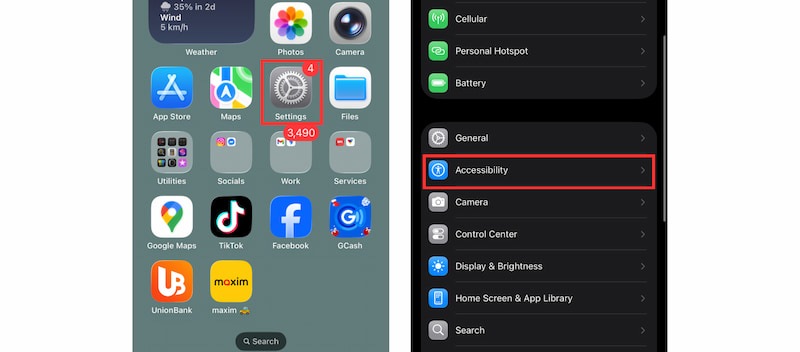
Step 2. You are now seeing some settings under the accessibility of your iPhone. To disable the text-to-speech feature, we can disable some features for it, namely the VoiceOver Read and Speak, and Live Speech. See them among the options and toggle them off.
Step 3. Check your Settings once again for Accessibility Shortcut that can enable Text to Speech features to be sure these features aren't accidentally reactivated.
Those are the steps you need to follow in order to disable the text-to-speech feature on the iPhone. The process is easy because everything you need to configure is in your Settings already. Also, as long as you are following the steps above, then you will not have an issue with it because these are approved by the Apple Support center.
Method 2: Disabling Speak Screen (Spoken Content)
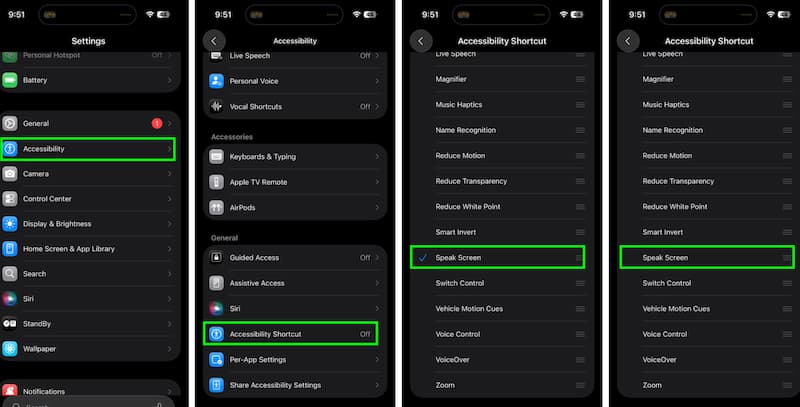
Step 1. Go to the Setting of your screen.
Step 2. After that, please scroll down and access the Accessibility option among the list.
Step 3. From there, scroll down again and click on Accessibility Shortcut.
Step 4. Then see the Speak Screen and uncheck it.
Method 3: Turn Off Siri Announcing Notifications
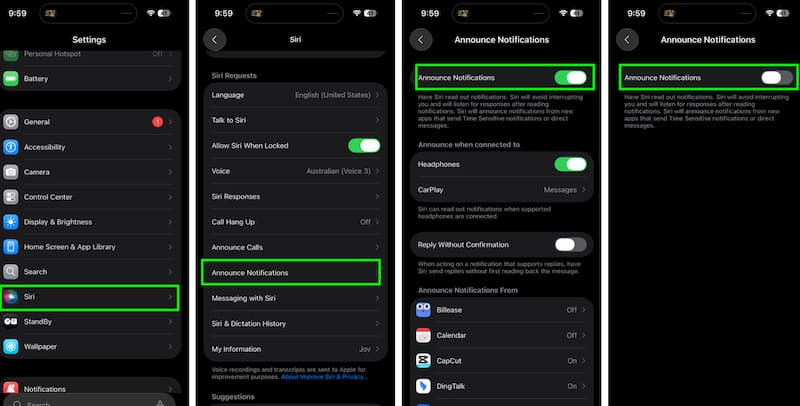
Step 1. Open your iPhone and click on Setting. From there, see Siri among the options.
Step 2. Next, scroll down and see Announce Notification.
Step 3. After that, toggle off the Announce Notification, and the features should be disabled.
Part 3. Talking about Features Related to Text to Speech
We talked under the steps that we have three features related to text-to-speech on iPhone. That is why in this part, it is essential to talk about them one-by-one to see their description and usage. We will also give you a comparison chart to understand them individually.
Voice-Over
Apple's full screen-reading accessibility function, VoiceOver, was created mainly for people with visual impairments. Everything on the screen, including buttons, text, icons, and notifications, is read aloud when it is turned on. Gestures like swiping to navigate between objects and double-tapping to choose are used by users to interact with the iPhone. VoiceOver makes the entire device usable without requiring the user to see the display by translating words on the screen into spoken feedback.
Read and Speak (Speak Screen and Speak Selection)
Users can hear specific text or the full screen read aloud with Read & Speak. When Speak Selection is enabled, users can mark particular text, like notes, articles, or messages, and then press Speak to have it spoken. When you swipe down from the top of the screen with two fingers, Speak Screen reads all of the content that is visible. This feature helps with learning, multitasking, and lessening eye strain when reading written material.
Live Speech
With Live Speech, users may input text and have the iPhone speak it aloud in real time. It is particularly beneficial for people who have temporary voice loss or speech problems. For faster communication during phone calls or discussions, users can either manually write messages or use pre-stored phrases. Live Speech facilitates more seamless communication without the requirement for face-to-face speech by translating written material into spoken words.
Comparison Chart of Text-to-Speech Features on iPhone
| Main Purpose | How It Works | Best For |
| VoiceOver | Full screen reading and navigation | Reads everything on the screen aloud and uses special gestures to navigate and select items | Users with visual impairments who need complete spoken access to the iPhone |
| Read & Speak | Reading text aloud | Reads selected text or the entire screen using simple gestures or text selection | Multitasking, learning, reading articles, or reducing eye strain |
| Live Speech | Speaking typed text aloud | Converts typed text or saved phrases into spoken speech in real time | Users with speech difficulties or temporary voice loss during conversations |
FAQs about How to Turn Off Text to Speech on iPhone
Will other voice features like Siri be impacted if Text to Speech is disabled?
No, Siri's functioning is unaffected by turning off Text to Speech functions like Speak Screen or Speak Selection.
How can I stop Text to Speech functions from automatically activating again?
To make sure Text to Speech features remain set up, update your iOS to the most recent version on a regular basis and check your Accessibility Shortcut settings.
What should I do if Text to Speech activates unexpectedly?
Check if an Accessibility Shortcut is set to activate Text to Speech features. You can adjust this in Settings then see Accessibility, and turn off the Accessibility Shortcut.
Can I customize the voice used for Text to Speech on my iPhone?
Yes, you can customize the voice in Settings, find Accessibility, then see the Spoken Content by selecting from various voice options and accents.
Conclusion
In conclusion, while text-to-speech on the iPhone is an effective accessibility function, not all users may find it useful. Fortunately, Apple's straightforward accessibility settings make it simple to turn off VoiceOver, Read & Speak, and Live Speech. Users can avoid unintentional activation and have a more seamless, customized iPhone experience that better suits their everyday tastes and usage patterns by following the right procedures.
Ethan Carter
Ethan Carter creates in-depth content, timely news, and practical guides on AI audio, helping readers understand AI audio tools, making them accessible to non-experts. He specializes in reviewing top AI tools, explaining the ethics of AI music, and covering regulations. He uses data-driven insights and analysis, making his work trusted.


 by
by