Turn Off Live Caption on Mobile Phone, Social Media, & more
Are you sick of watching films with captions all over your screen? Because they might seem to be annoying, especially if you understand the language that we’re using in the movie. Well, managing subtitles can improve how you use your device and make watching easier, whether you're in a peaceful place or want a screen free of distractions. Thus, if you are asking how to disable live captioning. Then we have all the answers for you.
In this post, we will examine the distinctions between subtitles, transcriptions, and captions. Let's also look at how to instantly disable live captioning on your phone, Facebook, YouTube, Mac, Windows, Android, and Chrome. Everything you need and want to know is here. Continue reading now to discover.
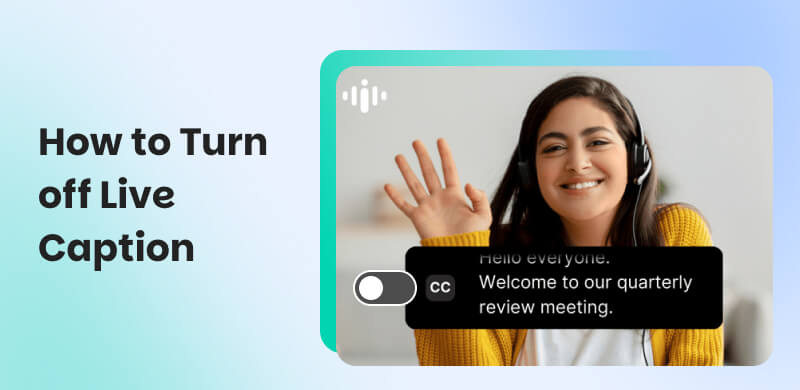
1. How to Turn Off Live Caption on Android
Do you want to control when text appears, especially to avoid distractions or when you don’t need them on your Android phone? As we mentioned above, disabling captions helps manage notifications and maintain a cleaner interface during media playback. With that, here are the three methods you can follow to ease it:
Method 1: Accessibility Setting
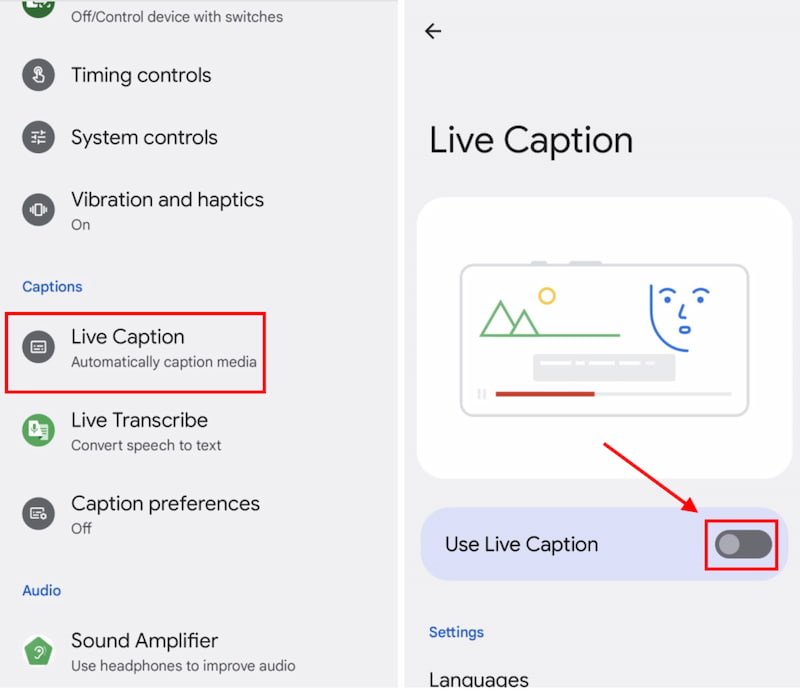
Step 1. Tap on your Android’s Settings icon. After that, please go to the Accessibility section.
Step 2. Find and select the Live Captions options.
Step 3. Finally, toggle the switch to turn off the Use Live Caption.
Method 2: Specific Steps for Samsung, Pixel, and OnePlus Devices
Specifically, the steps are not generic with all the Android phones, because some units might have different steps compared with others. Here is how you can switch off text on newer Samsung Galaxy, Google Pixel, and OnePlus Android devices.
Using Solume Shortcuts:
Step 1. Use the volume buttons to push the volume up or down.
Step 2. Tap the three dots over the volume bar.
Step 3. Click the option to turn it off.
Access Accessibility Settings:
Step 1. Open Settings on your mobile phone.
Step 2. Then, please scroll down and click Accessibility.
Step 3. Now, you go with clicking Hearing Enhancements. Tap on the option to turn it off.
2. How to Turn Off Live Caption on Google Chrome
If you are using Google Chrome and notice that Live Captioning is enabled, follow this guide. In addition, we will include a method that you can follow even in your Google Chromebook:
Turn Off Live Caption in Google Chrome
As we said, Google Chrome’s Live Captions feature automatically creates video text on the web that might be annoying for you, especially if you are working on an important matter. Therefore, disabling this option on Chrome prevents them from interfering during video playback. So you can avoid a poor browsing experience and enjoy distraction-free visual content.
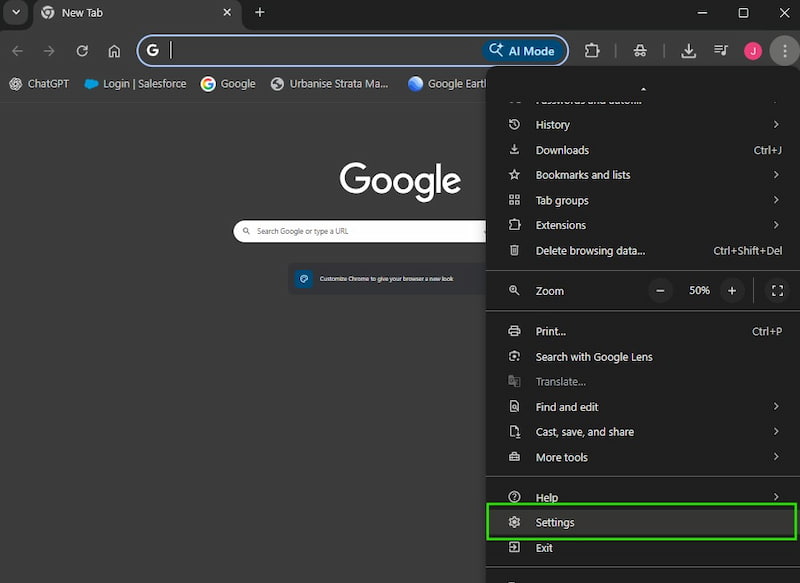
Step 1. Open Google Chrome on your computer. Then, please find the Settings icon. You can see it by going to the three-dot menu and selecting Settings.
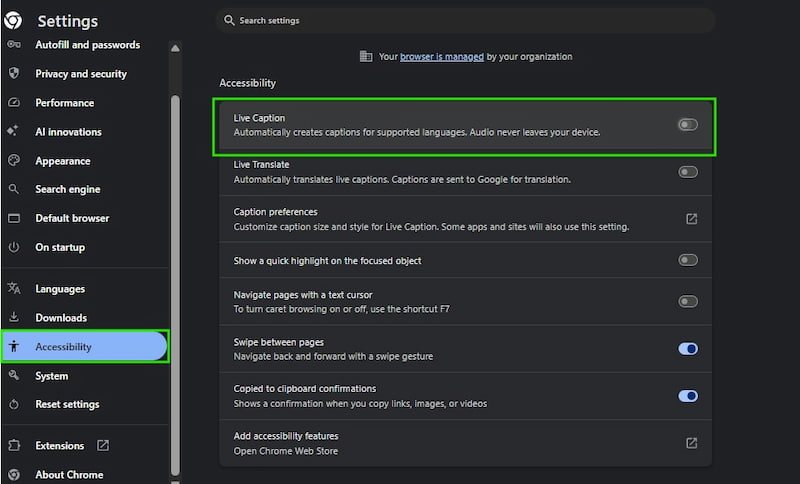
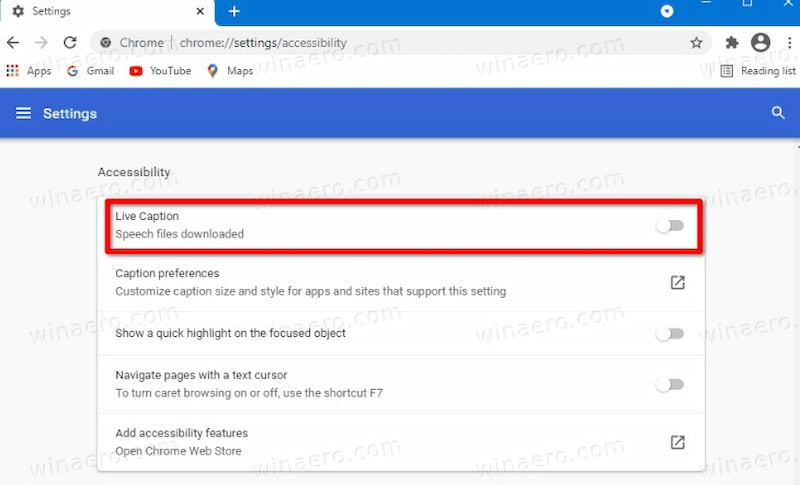
Step 2. Then, on the tab, scroll down until you see the Accessibility section.
Step 3. Finally, you can now toggle off this option.
Turn Off Live Caption in Google Chromebook
More than just the Chrome browser, here are the steps to turn off live captions on Chromebooks. The latter is a laptop running Chrome OS for web-based applications and cloud storage. As a result, you can enjoy a cleaner viewing experience on this device.
Step 1. First steps you need to do is to navigate to the lower right corner to click on the clock and then the Gear icon.
Step 2. The next thing will be scroll down and click the Advanced option, then please see Accessibility
Step 3. After that, please Manage Accessibility Features, you can do it by clicking this option for more settings.
Step 4. After that, you may now find Live Caption in the Audio and Captions section to turn off the option.
3. Turn Off Live Caption on iPhone/iPad
Your iPhone also supports a feature of Live Captioning, if you are an iPhone user who needs to disable live captions, here are the steps you need to take:
Step 1. Please go to the on your Settings.
Step 2. From the settings options, navigate to Accessibility to find the captions.
Step 3. Tap on the Live Captions option to turn it off.
4. Turn Off Live Caption on Windows/Mac
Turning Off Live Caption in Windows 10:
Step 1. Open the Start menu and then Settings.
Step 2. Navigate to the Ease of Access section.
Step 3. Open the menu to choose Captions. Toggle off this option.
Switching off live caption on Windows 11:
Step 1. Press the Windows + A keys on your keyboard to launch Quick Settings.
Step 2. Tap on the Accessibility option.
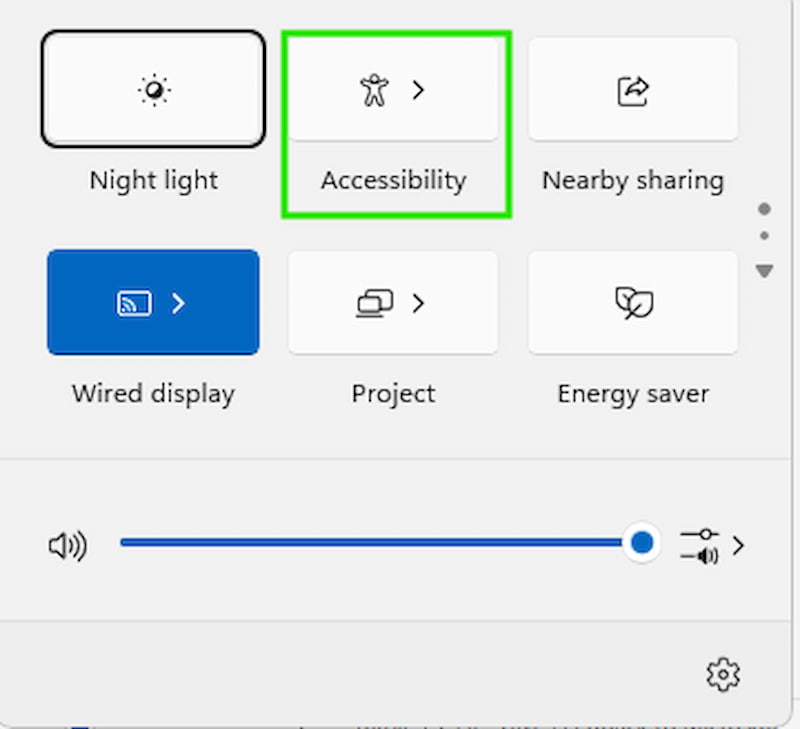
Step 3. Click the option to turn off the feature.
5. Turn Off Live Caption on Social Media
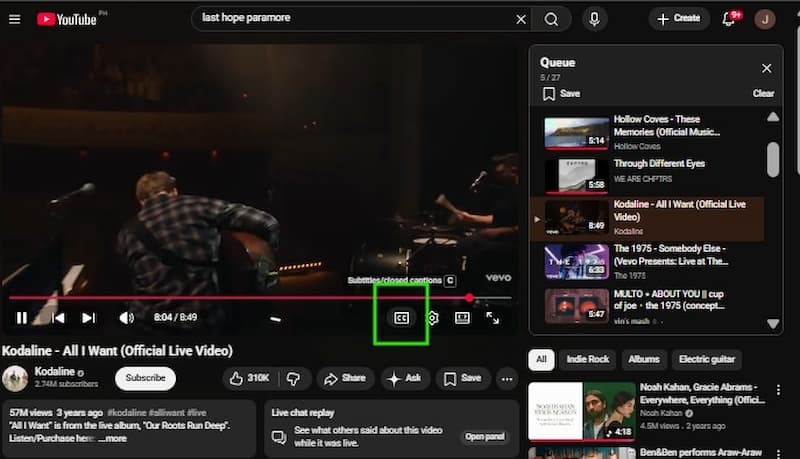
Turn Off Live Caption on YouTube
YouTube is a fun medium to watch entertaining videos, right? But did you know how to avoid distractions from auto-generated captions that might be distracting you from watching. Thus, do you think it is good to disable it to enjoy a more focused viewing experience when necessary? Good thing, you can maintain clarity by turning off YouTube captions, especially if they are not accurate or necessary. Here is the guide below to do it.
Step 1. Open YouTube on any devices that you are using. From then on, please play any YouTube video that you want.
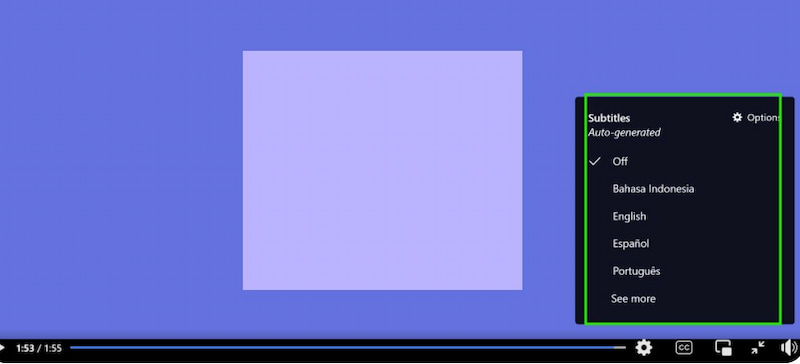
Step 2. After that, while the video is playing, please look at the bottom right of the video player to find the gear icon.
Step 3. At this point, you can now select the Subtitles/CC icon, normally it would come as a small box with CC letter on it. Click on it, and you will see it turn off immediately.
How to Turn Off Live Caption on Facebook
There is a feature in Facebook that automatically enables audio text on videos. Therefore, there might be time that you are watching and captions can really hinder you from seeing the full view from the screen. In line with that, you can disable Auto-Captions by opening the corresponding Facebook page’s settings. See full guide below:
Step 1. lease click your Profile Picture in the top right.
Step 2. After that, you can now select Settings & privacy in the top right corner and click Settings.
Step 3. At this moment, click Media in the left column by scrolling down.
Step 4. When available, click Off next to Always Show Captions to turn off the option.
FAQs about How to Turn off Live Caption
Why does live caption continue to activate?
Software updates, device malfunctions, or automatic accessibility settings may cause subtitles to continuously activate. Check your options and turn off auto-enable features to fix this problem.
Does Live Caption use up battery life?
Using Live Caption causes your battery to use more. Live Caption on your device automatically creates captions based on voice detection.
Are captions able to convey a narrative?
The story is told through captions. Effective captions have components that make it simple for viewers to recognize important features and the narrative context of a picture or video. The who, what, where, when, why, and/or how are those components.
Conclusion
To improve your viewing experience, you must know how to disable live captioning. In particular, turning off the subtitles keeps the screen clear and minimizes distractions. This is especially helpful when captions obscure visual material or in calm places like libraries and public transportation.
Ethan Carter
Ethan Carter creates in-depth content, timely news, and practical guides on AI audio, helping readers understand AI audio tools, making them accessible to non-experts. He specializes in reviewing top AI tools, explaining the ethics of AI music, and covering regulations. He uses data-driven insights and analysis, making his work trusted.


 by
by