How to Turn off Closed Captions Easily [Detailed Methods]
Closed captions are among the useful features for accessibility. However, they are not always needed and can sometimes get in the way of enjoying your favorite shows or videos. Whether you're streaming on various platforms, using devices like Roku or Smart TV, or watching on Android, Windows, or Mac, learning how to turn them off ensures a smoother viewing experience. This detailed guide will offer you the most reliable methods on how to turn off closed captions across different software and devices. With that, you can customize your setup exactly the way you want. Without anything else, see this post and learn how to deal with closed captions.
Part 1. What are Closed Captions and Why Turn Them Off
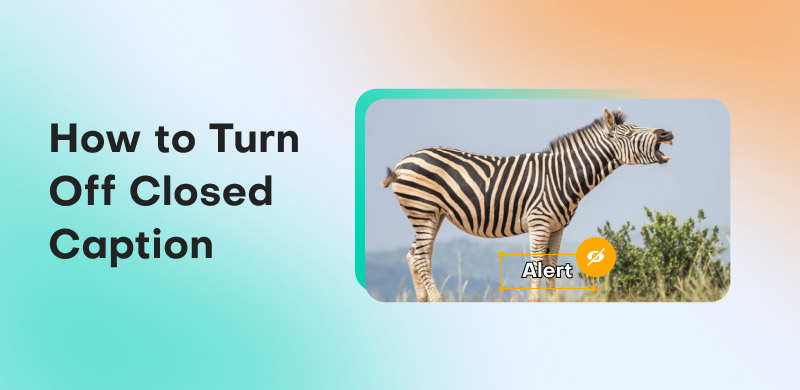
Closed captions are on-screen text that transcribes spoken dialogue, sound effects, and other audio cues in real-time. With this feature, videos will become more accessible to some people, especially those who are deaf or have a hearing problem. Plus, compared to subtitles, which usually translate speech into another language, closed captions offer a fuller experience through including non-speech elements, such as background noises, expressions, and music.
Why do some users want to turn them off? Even though the feature is essential, not everyone actually needs it. Some users prefer closing the closed captions since it might be distracting, overlap with the on-screen visuals, or they prefer a cleaner view for a better viewing experience. Thus, having the option to turn on and off the closed captions lets users customize how they engage with their content.
Part 2. How to Turn Off Closed Captions for Streaming Software
Want to turn off captions on various streaming platforms? Then, you can check all the steps we have provided below.
How to Turn Off Closed Captions on Netflix
To turn off the closed caption on Netflix, you have to:
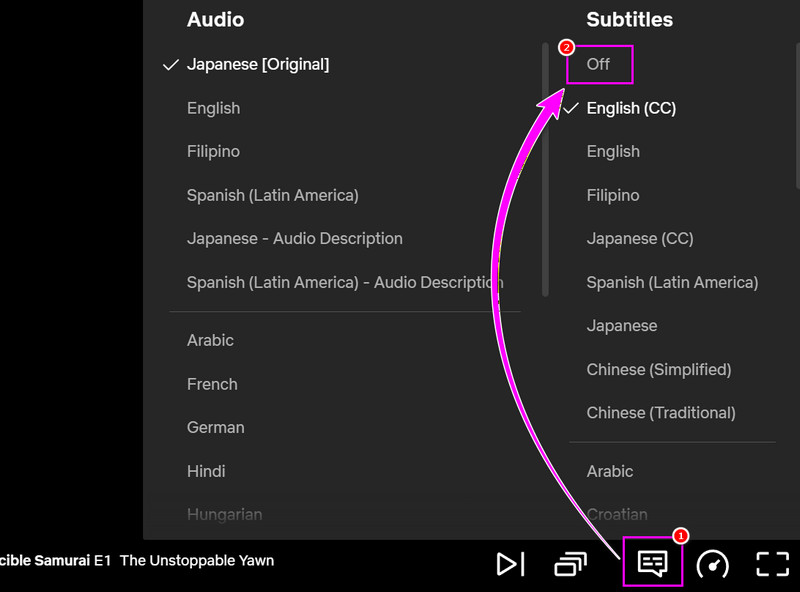
Step 1. Go to your Netflix and start watching the video you want to watch.
Step 2. After that, proceed to the Subtitle section and tap the Off option. Once done, you won't see any text or caption on your screen.
How to Turn Off Closed Caption on YouTube
You can use the instructions below to start turning off the closed caption feature.
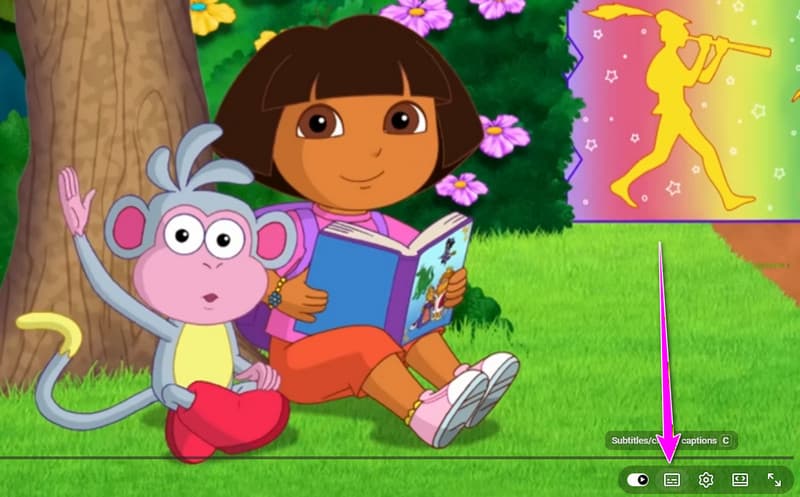
Step 1. Open your YouTube on your device or browser. After that, tap the Search button to search and watch the video.
Step 2. Then, from the lower layout, click the Closed Caption feature.
Step 3. Once done, the caption from your screen will be removed.
Turn Off Closed Caption on Amazon Prime
Do you want to turn off the closed caption on Amazon Prime? Then, you can follow the steps below.
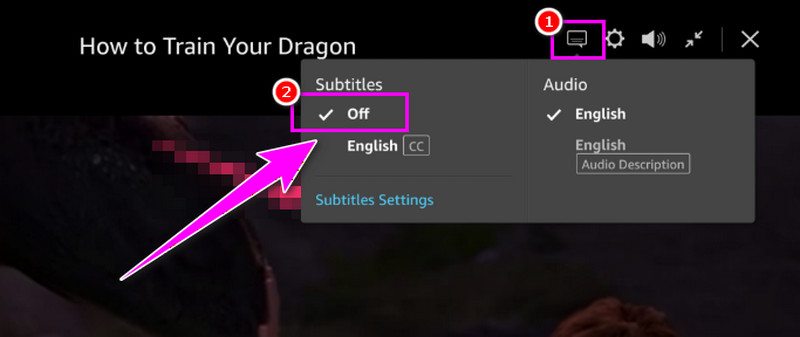
Step 1. On your Amazon Prime account, you can start watching the video you want.
Step 2. Then, from the top interface, hit the Subtitle/Caption feature. Then, hit the Off option.
Step 3. With that, you can watch the video without disturbing captions or subtitles on your screen.
How to Turn Off Closed Caption on Paramount+
If you want to turn closed captioning off on Paramount, you need to:
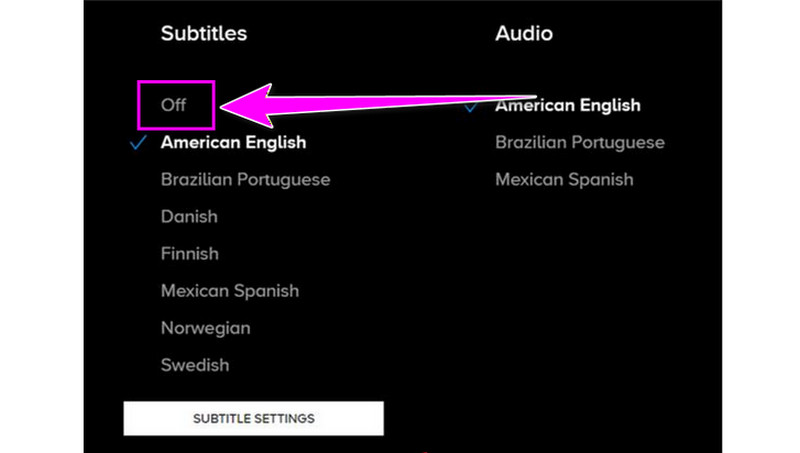
Step 1. Start watching the video you want on Paramount+.
Step 2. Then, on your screen, proceed to the Subtitle setting. Tap the Off option to remove the closed caption.
Step 3. After that, enjoy watching your favorite content.
Part 3. How to Stop Closed Captions on Smart TVs & Streaming Devices
Do you want to turn off captions on various Smart TVs and streaming devices? Then, you can use all the methods we have provided in this section.
Turn Off Closed Caption on Samsung TV
To turn off closed captions on Samsung TV, you can follow the steps below.
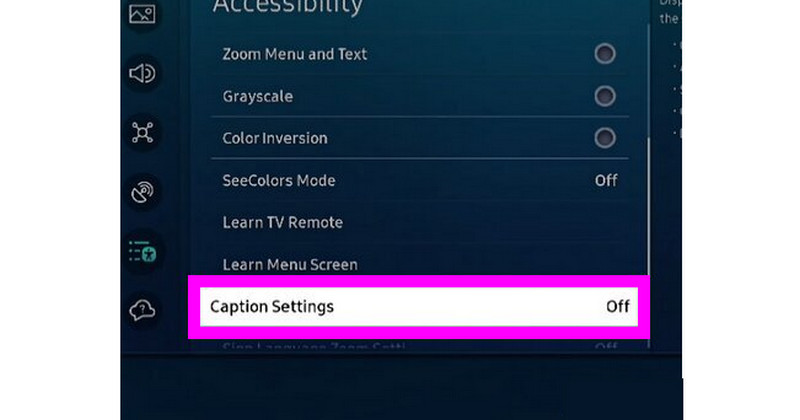
Step 1. From your Samsung TV, press the Menu option using your remote.
Step 2. After that, proceed to the Settings > General > Accessibility section.
Step 3. Go to the Caption settings and turn it off.
Turn Off Closed Caption on LG TV
To turn off closed captions on LG TV, you can follow the steps below.
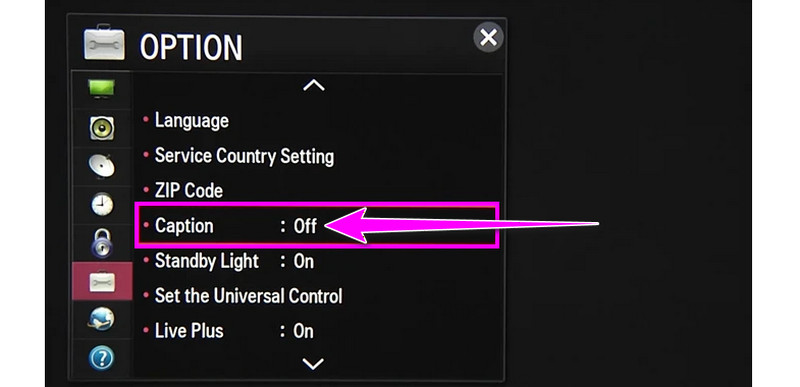
Step 1. On your LG TV, use your remote and press the Settings button.
Step 2. Then, go to the Accessibility section and find the Caption option.
Step 3. Toggle it off to remove the closed captions on your screen.
How to Turn Off Closed Captions on Android TV
To turn off closed captions on Android TV, you can follow the steps below.
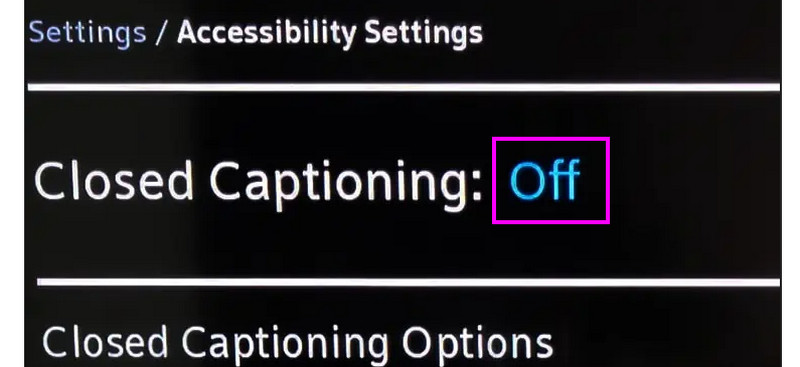
Step 1. When using an Android TV, all you need to do is proceed to the Settings section using your remote.
Step 2. Then, under that Accessibility section, find the Closed Captioning option and turn it off.
Turn Off Closed Captions on Apple TV
To turn off closed captions on Apple TV, you can follow the steps below.
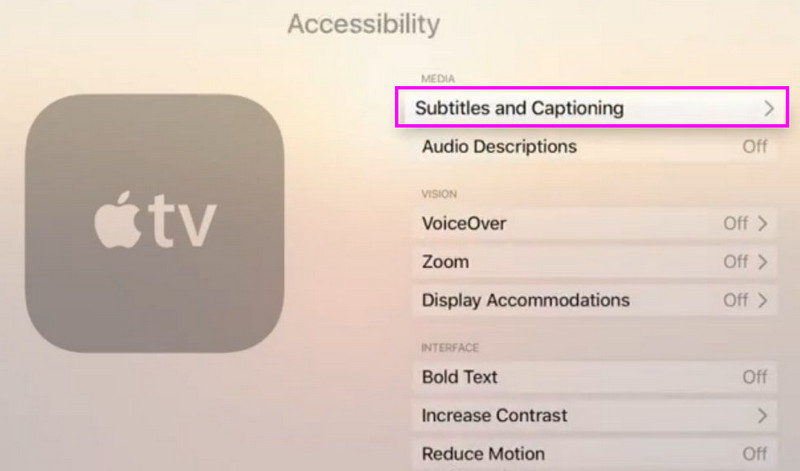
Step 1. On your Apple TV, use your remote and proceed to the Settings > Accessibility menu.
Step 2. Then, under the Hearing section, tap the Subtitles and Captioning option.
Step 3. Now, you can start turning off the Closed Captions feature.
How to Turn Off Closed Captions on Roku TV
To turn off closed captions on Roku TV, you can follow the steps below.
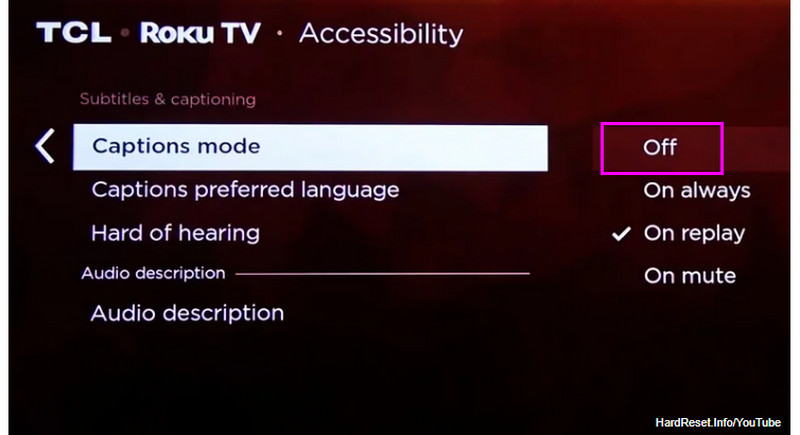
Step 1. Use your remote and proceed to the Settings > Accessibility section.
Step 2. After that, navigate to the Captions Mode under the Subtitles & Captioning section.
Step 3. Turn it off to start removing the closed captions on your screen.
How to Turn Off Closed Captions on Hulu
To turn off closed captions on Hulu, you can follow the steps below.
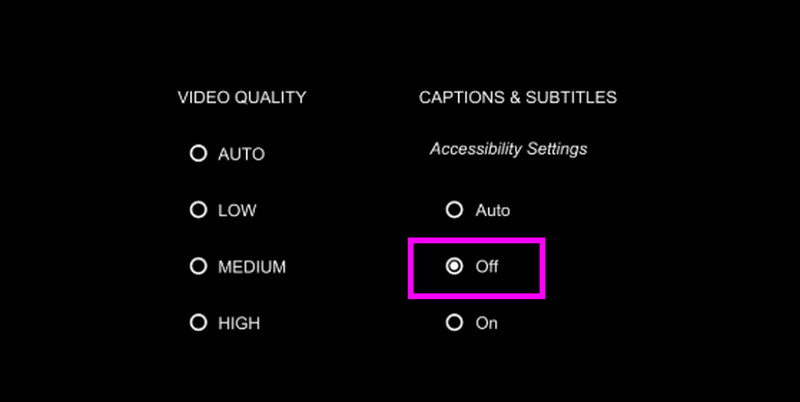
Step 1. Start playing the video or movie on Hulu. Then, tap the Pause option to navigate to the Settings button.
Step 2. After that, go to the Captions & Subtitles option and tap the Off option.
Step 3. You can now watch/play the video without any text or captions on your screen.
How to Turn Off Closed Captions on Peacock
To turn off closed captions on Peacock, you can follow the steps below.
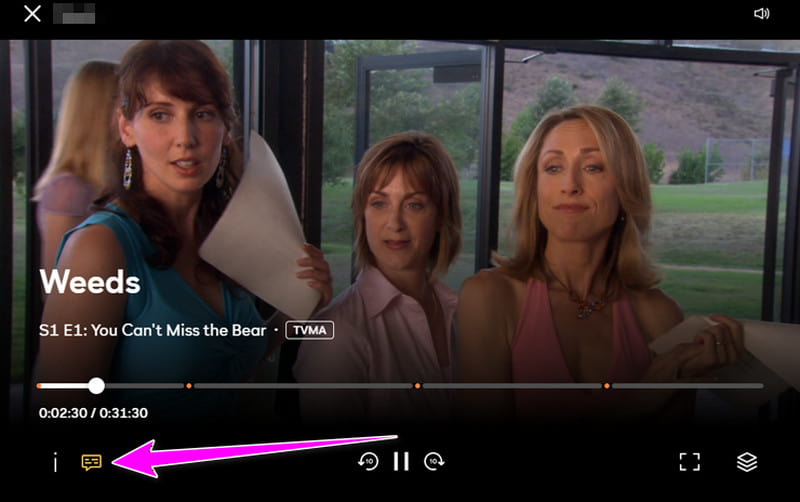
Step 1. Open Peacock and open the video you want to watch.
Step 2. Then, proceed to the lower interface and hit the Captions & Subtitles section.
Step 3. You can start turning off the caption to remove the caption and subtitles from your video.
Part 4. How to Turn Off Closed Captions on Android
Do you want to learn how to turn off closed captions on Android? In that case, you must read this section as we give the best method to effectively turn off the live caption on an Android device.
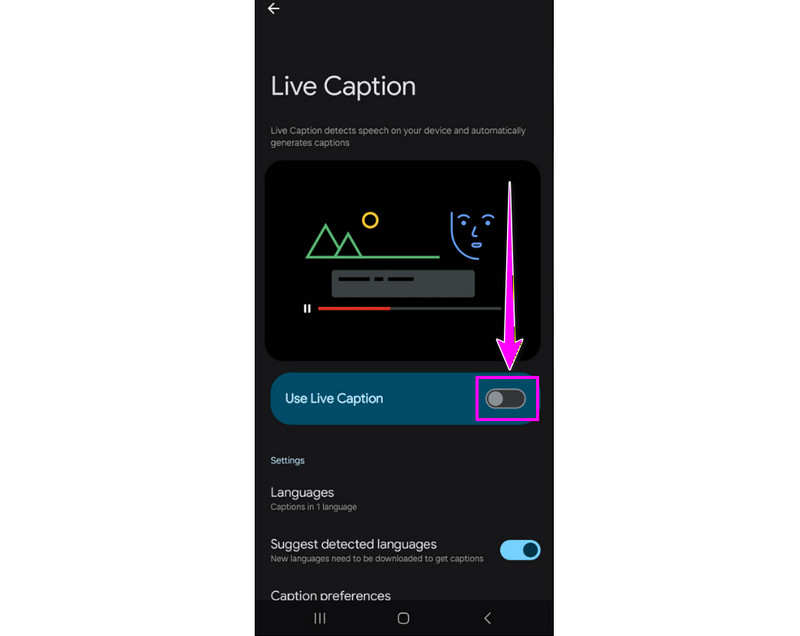
Step 1. From your Android, open your Settings application. After that, go to the Accessibility section.
Step 2. Navigate to the Hearing Enhancements section and tap the Live Caption option.
Step 3. Now, toggle it off to remove the caption on your screen.
Part 5. How to Turn Off Closed Captions on Windows/Mac
If you want to turn off captions on Mac and Windows, you can use the steps we have provided in this section.
How to Turn Off Closed Captions on Windows
To turn off closed captions on Windows, you can follow the steps below.
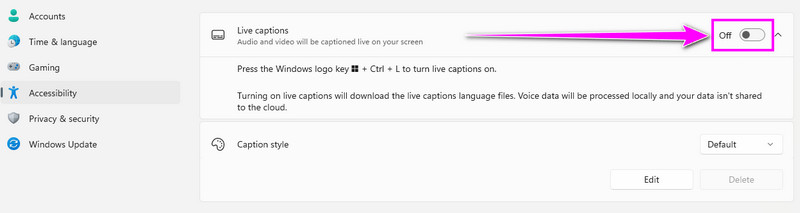
Step 1. On your Windows, proceed to the Settings app and click the Accessibility section.
Step 2. Then, scroll down and find the Live Caption section.
Step 3. Once done, toggle it off to close the live caption on your screen.
How to Turn Off Closed Captions on Mac
To turn off closed captions on Mac, you can follow the steps below.
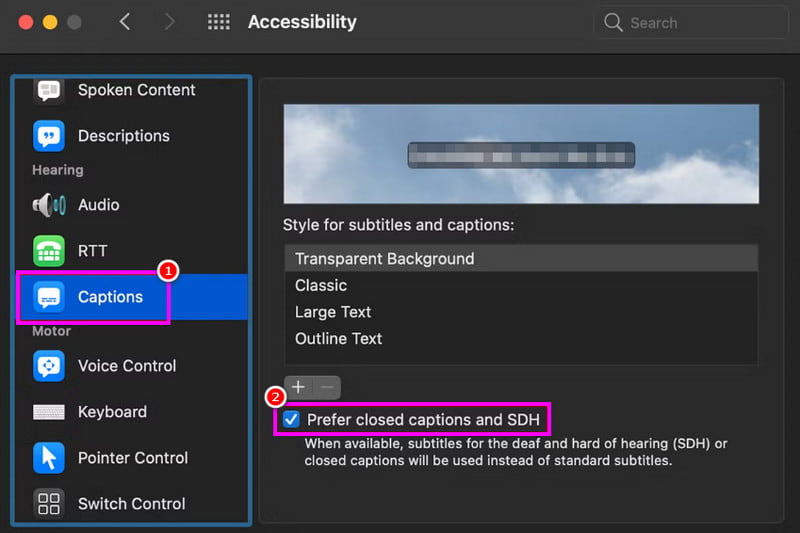
Step 1. Open your Mac and navigate to the Apple Menu > System Settings > Accessibility section.
Step 2. Next, select the Hearing > Captions options.
Step 3. For the last process, turn off the Prefer closed captions and SDH option.
Pay a visit: Check here and learn everything about live captions on iPhone.
Part 6. Troubleshooting Tips
If you want to explore some of the troubleshooting tips to deal with closed captions, you can check all the information below.
Captions Won’t Turn Off
- • Always check if the captions are enabled at the app level or system level.
- • Since App settings often override device settings, ensure that captions are turned off in both places.
Cations Reappear on new Content
- • Some apps reset captions when starting a new video or show.
- • On the Subtitle menu, always ensure that the caption is turned off and saved as a default.
- • You can manually turn off the caption to remove it from your video.
Language Mismatch Issue
- • If the language is not aligned, you can check the subtitle menu within the app.
- • Always ensure that the device’s system language is aligned with your preferred caption language.
- • On the streaming apps, you can switch to the correct language by adjusting the audio and subtitles.
Part 7. FAQs about How to Turn Off Closed Caption
Q: How to turn off closed captions on Google Chrome?
A: To turn off the closed captions on your browser, click the three-dot option and proceed to the Settings > Accessibility section. Then, turn off the Live Caption.
Q: Do I need to turn off captions separately for each app?
A: Often, yes. If you are using a certain app or streaming services, you can manually turn off the captions under the Captions and Subtitles section.
Q: What are the differences between the subtitles and captions?
A: The subtitle is about translating a spoken dialogue into another language. On the other hand, captions include dialogue, sound effects, and background noises.
Conclusion
Now you have learned how to turn off closed captions on various platforms. With that, you can ensure that you get rid of them for a better viewing experience. Thus, if you want to learn more about the methods of turning off all the captions on your videos, feel free to visit this post and learn the most suitable process.
Ethan Carter
Ethan Carter creates in-depth content, timely news, and practical guides on AI audio, helping readers understand AI audio tools, making them accessible to non-experts. He specializes in reviewing top AI tools, explaining the ethics of AI music, and covering regulations. He uses data-driven insights and analysis, making his work trusted.


 by
by