3 Methods in Adding Closed Captions to Video [Full Guide]
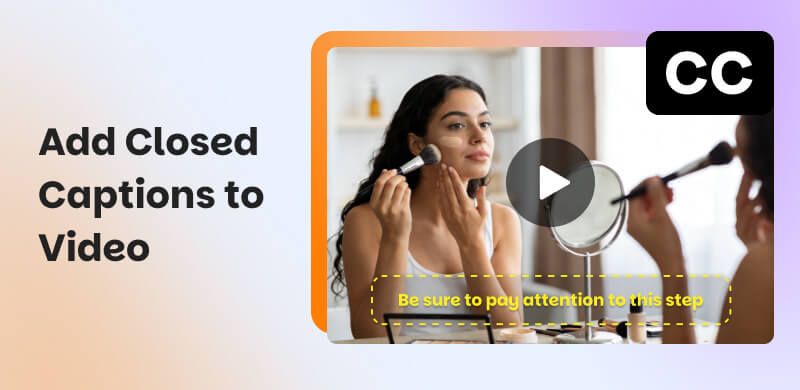
The effort we put into editing, adding effects, and transitions whenever you are editing a video is just the beginning of everything. Especially if you are a content creator on social media, it is important to know that engaging and ensuring that your contents are understood by your audience is crucial to make your videos thrive. That is why adding closed captions to your videos can be a great way to make them. This might be the reason why you are here in this article. Well, we are here to help you with it. Take a look below.
Part 1. What is Closed Caption?
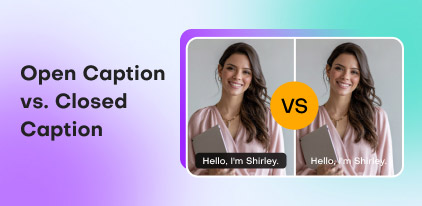
Despite their occasional interchangeability, captions and subtitles have distinct functions. Learn the difference between the terms that were used in closed captioning.
| Definition | Enable/Disable | Other Names |
| Captions | Assumes the audience cannot hear audio. Includes both spoken words and nonverbal sounds like applause or music playing. | Usually part of video settings. | General term for accessibility text. |
| Closed Captions (CC) | A type of caption that can be turned on or off by the viewer via remote, menu, or software. | Can be enabled or disabled. | Often marked with a CC icon. |
| Open Captions | Captions permanently embedded in the video. Cannot be disabled. | Always visible. | Also called burned-in or hardcoded captions. |
| Subtitles | Text translation or transcription of spoken language. Assumes the audience can hear. | Can sometimes be enabled/disabled. | Primarily for translation or transcription, not accessibility. |
Part 2. Why Should You Add CC to Videos
Adding subtitles to videos can change how your audience interacts with your video materials in a number of ways, from improving accessibility to expanding your audience. These are the three main advantages of doing it:
Increases Accessibility
By design, video content ought to be inclusive. People who are hard of hearing or deaf can still interact with your message without missing a beat, thanks to closed captions and subtitles. Additionally, they assist viewers with learning difficulties, non-native speakers, and anyone in a busy or quiet setting.
Higher Engagement for Silent Viewer
Let's say a user is perusing their feed at work, at a coffee shop, or while traveling by train. Your video grabs their attention even while their phone is on mute. They are more likely to watch the entire thing if they can follow along without turning up the volume, thanks to subtitles.
Improved Discoverability
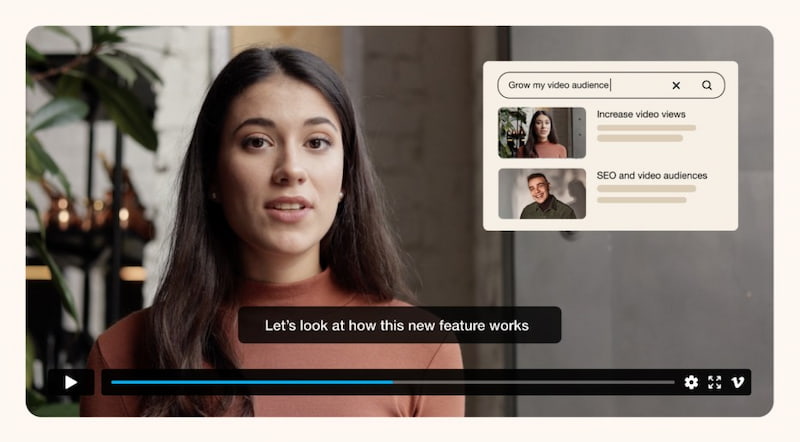
In addition to helping users, subtitles can benefit search engines. You supply text that search engines can scan and index when you add a caption to a video or upload a transcription of your video file.
Part 3. Ways to Add Closed Captions to Video
Way 1: How to Add Closed Captioning to a Video
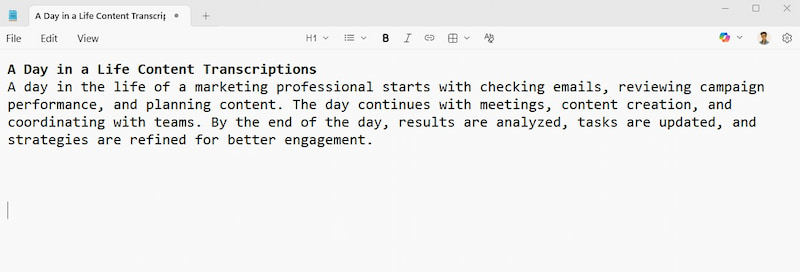
Step 1. Create a Transcript: The first step is to accurately transcribe your video content. You may accomplish this by utilizing a program like Riverside to automatically caption audio content or by manually transcribing it. This might make it quick and simple for you to get a written transcript.
Step 2. Save an SRT File: Your captions should then be saved and exported as a TXT or SRT file. SRT files are created especially for video use, whereas TXT files are text-only files. For dependable, smooth captions, SRT files are typically the best option. You can edit your SRT file by adding action and music tags to depict noises or fixing mistakes.
Step 3. Merge the Subtitle and Video Files: The last step is to add your subtitles to your video. Just upload the two files (video and SRT) to the publishing platform of your choice to generate closed captions.
Way 2: Use Automatic AI Captioning Tools
In this case, let us say that you are uploading videos on YouTube. Thus, these are the steps you need to add captioning automatically.
Step 1. Upload your video to YouTube as usual. Then, please go to YouTube Studio and select Content from the left menu.
Step 2. Click on the video you want to add captions to. After that, select Subtitles from the menu.
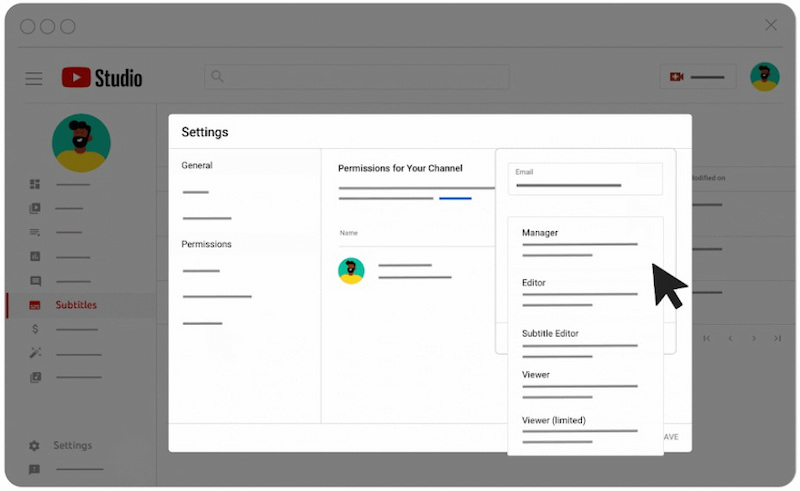
Step 3. Under Automatic captions, wait for YouTube to generate them. From there, click Duplicate and Edit to review and fix any errors. Finally, make sure the captions are accurate and synced, then publish them.
Way 3: Professional Human Transcription
Professional human transcription involves hiring trained transcribers to manually create captions or subtitles for your content. This method ensures high accuracy, proper grammar, and correct context, especially for technical terms, accents, or multiple speakers. Although it may take more time and cost more than AI tools, it delivers the most reliable and polished results for professional use. In line with that, here are the benefits you can get once we use professional human transcription over the AI features.
- • Highest accuracy.
- • Better context understanding.
- • Ideal for complex audio.
- • Professional-quality output.
Part 4. Tool for Adding Closed Caption for 99% Accuracy
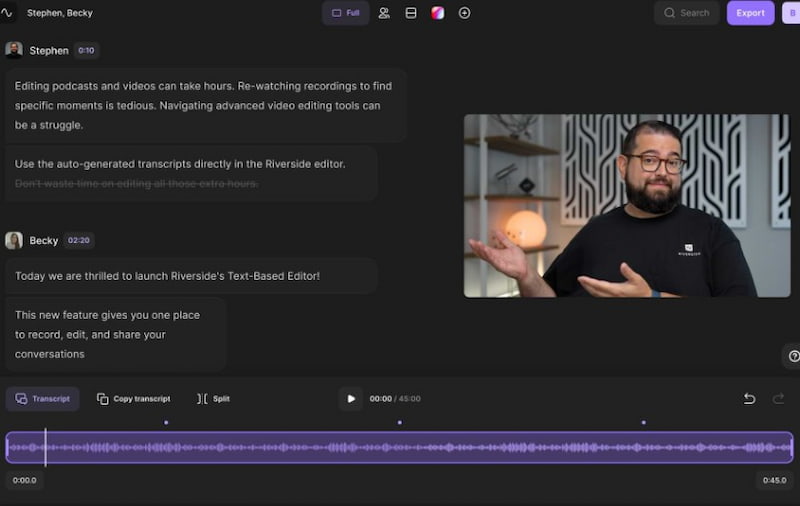
You can capture high-quality videos up to 4K with Riverside and post them to social media sites like Facebook, Instagram, YouTube, LinkedIn, and TikTok.
The ability of Riverside to produce precise transcripts in more than 100 languages that can be downloaded in SRT format is its biggest advantage. Additionally, these transcriptions distinguish between speakers so you can see who is speaking.
FAQs about Add Closed Captions to Video
Q: How precise are captions that are automatically generated?
A: Auto-generated captions have advanced significantly due to advances in AI and speech recognition. These days, sites like YouTube and Vimeo provide remarkably accurate auto-captioning. They are not perfect, though. They can still be confused by technical language, background noise, and accents. Auto-generated captions should therefore be reviewed and edited before being published.
Q: Is it possible to automatically add subtitles to a video?
A: You can automatically add captions to videos using a lot of systems. Captioning is now quicker, simpler, and more effective than it has ever been. Depending on the technology you're using, there are many methods for automatically adding subtitles to movies. Because of this, it's a good idea to check over the detailed instructions that your selected software application offers.
Q: What does your video's closed caption mean?
A: To make video content accessible to those who are hard of hearing or deaf, use closed captions. These people can follow along with the conversation, sound effects, and other auditory cues thanks to closed captions, which offer a synchronized, real-time depiction of the audio content.
Conclusion
Adding closed captions to your videos is no longer optional, it is a smart and necessary step for accessibility, engagement, and discoverability. Whether you choose manual captioning, automatic AI tools, or professional human transcription, each method offers unique benefits depending on your needs and budget. By using the right approach, you ensure your content is easier to understand, more inclusive, and better optimized for search platforms. Ultimately, closed captions help your videos reach and connect with a wider audience.
Ethan Carter
Ethan Carter creates in-depth content, timely news, and practical guides on AI audio, helping readers understand AI audio tools, making them accessible to non-experts. He specializes in reviewing top AI tools, explaining the ethics of AI music, and covering regulations. He uses data-driven insights and analysis, making his work trusted.


 by
by