Google Speech-to-Text Review for Students & Developers
Quick Summary:
- Best For: Developers needing scale and students using Google Docs for dictation.
- Accuracy Score: 92% for clear audio; 75% for noisy environments.
- Strength: Massive language support and seamless Google Workspace integration.
- Drawback: The Cloud API setup is complex for non-technical users.
Innovation continues to advance rapidly, reshaping how we work, study, and communicate. However, many students and professionals still struggle to type efficiently under pressure or when handling vast amounts of data. Fortunately, technology has also introduced powerful tools for converting spoken voice into written text. One of the most popular and widely used solutions for this purpose is Google Speech-to-Text. It is a speech recognition technology developed by Google that transforms audio into accurate, readable text. In this Google Speech-to-Text review, we’ll explore what makes this tool a valuable part of everyday life. We will cover what Google STT is, how it works, and how to set it up. Our aim is to help you understand whether it’s the right tool to improve your workflow and efficiency.
Part 1. What is Google Speech-to-Text?
Google Speech-to-Text is a cloud-based automatic speech recognition service developed by Google Cloud. It converts spoken language into written text using advanced machine learning. You encounter this kind of technology daily through phone transcriptions or live captions. Google offers two distinct versions: free consumer tools and enterprise APIs.
Consumer tools are user-friendly features built into products like Google Docs (Voice Typing) and the Google Recorder app. In contrast, the Speech-to-Text API is a developer-centric service. It allows businesses to integrate high-level speech recognition into their own software via Google Cloud. It uses a pay-as-you-go billing model.
Here’s a clear explanation of Google Speech-to-Text API pricing:
Standard recognition models
| Model | Price (USD) | Speech Duration |
Recognition
(sku:3099-B70F-0949) | Standard | $0.016 per minute/per month/account. | 0 minute to 500,000 minutes. |
| $0.01 per minute/per month/account. | 500,000 minutes to 1,000,000 minutes. |
| $0.008 per minute/per month/account. | 1,000,000 minutes to 2,000,000 minutes. |
| $0.004 per minute/per month/account. | 2,000,000 minutes and above. |
Standard dynamic batch recognition
| Model | Price (USD) |
Dynamic Batch Recognition
(sku:7700-6778-EF8E) | Standard¹ | $0.003 per minute/per month/account. |
Speech-to-Text V1 API
| Model | Price (USD) | Speech Duration |
Speech Recognition (with data logging)
sku:67F5-A183-E319 | Standard¹ | Free per minute/per month/account. | 0 minutes to 60 minutes. |
| $0.016 per minute/per month/account. | 60 minutes and above. |
Speech Recognition (without data logging)
sku:60AE-2FE3-C3D8 | Standard¹ | Free per minute/per month/account. | 0 minutes to 60 minutes. |
| $0.024 per minute/per month/account. | 60 minutes and above. |
Medical models
| Model | Price (USD) | Speech Duration |
Medical Dictation
(sku:6649-62EF-CB8F) | Medical² | Free per minute/per month/account. | 0 minutes to 60 minutes. |
| $0.078 per minute/per month/account. | 60 minutes and above. |
Medical Conversation
(sku:7247-19E1-FB4D) | Medical² | Free per minute/per month/account. | 0 minutes to 60 minutes. |
| $0.078 per minute/per month/account. | 60 minutes and above. |
Data Source: The pricing information in this section is referenced from the Google Cloud Speech-to-Text Official Pricing Page. Rates are subject to change based on official updates; please refer to the source for real-time pricing details.
Part 2. How to Use Speech-to-Text in Google Docs? [Consumer Level]
Google Docs’ Voice Typing feature lets you turn your spoken words into text in real time. It is perfect for writing articles, notes, emails, or assignments hands-free. It’s a free, built-in consumer tool powered by Google’s speech recognition technology.
Here’s how to do speech-to-text on Google Docs:
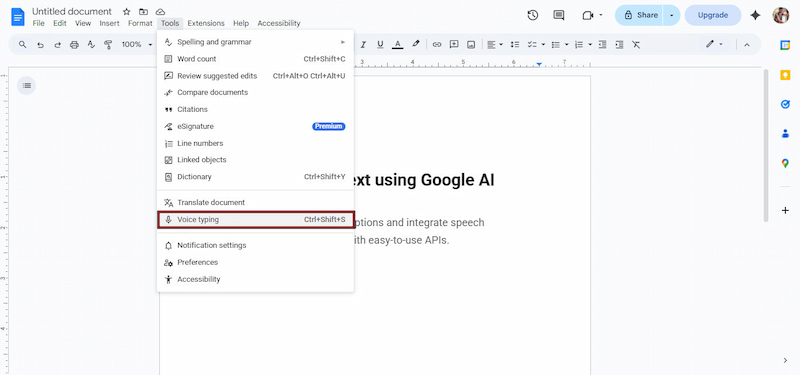
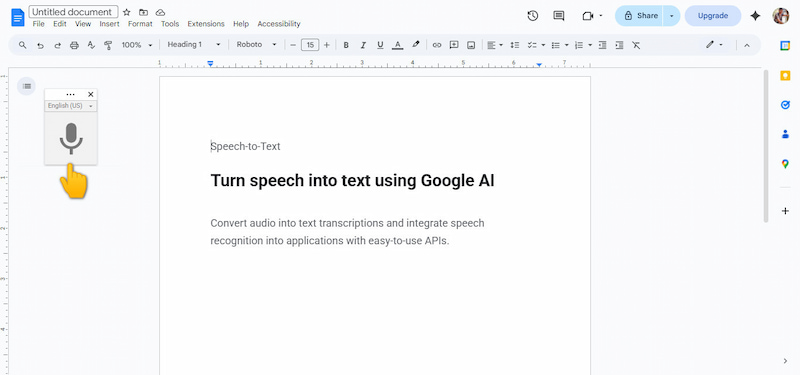
Step 1. Navigate to the Google Docs website and open a new or existing document. Click Tools and select Voice Typing from the pulldown menu. A Microphone button will appear on the left side of your document.
Step 2. Click the Microphone button and select the language you’ll be speaking from the dropdown list. Click it again to turn it red, indicating that Google Docs is listening.
Tips
- You can also format your document hands-free using voice commands. For example, you can say Bold, Italic, Underline, Heading One, Heading Two, Select Paragraph, etc. This is useful for quickly drafting long documents.
Step 3. Start speaking clearly, and you’ll see your words appear instantly in the document. Instead of typing punctuation, simply say it out loud, such as Comma, Period, New Line, etc.
Google Docs speech-to-text is best for drafting and speed writing. After dictation, do a quick review to fix names, technical terms, or formatting details. Additionally, Google Docs voice typing supports multiple languages and accents. To switch languages, click the Language pulldown menu on the Microphone and select the language you’ll speak.
Need quick transcription while moving? Use the iPhone voice-to-text in the Google Docs app.
Part 3. Google Cloud Google Speech-to-Text API: For Developers & Businesses
Google Cloud Speech-to-Text API is an enterprise-grade automatic speech recognition service. It allows developers and businesses to convert spoken audio into accurate, machine-readable text at scale. It is designed for application integration, high-volume processing, and production environments.
What to Expect:
- • Supports 100+ languages and regional accents.
- • Identifies who spoke when in multi-speaker recordings.
- • Adds commas, periods, and capitalization automatically.
- • Transcribe live audio streams or large pre-recorded audio files.
- • Improve accuracy for domain-specific terms (names, jargon, acronyms).
Common Use Cases:
- • Video captions and subtitles.
- • Meeting and lecture transcription.
- • Accessibility and compliance tools.
- • Voice-enabled apps and assistants.
- • Call center transcription & analytics.
Best Practices for High Accuracy:
- • Provide custom hints to help the model recognize domain-specific vocabulary more accurately.
- • Use clear audio with minimal background noise and prefer 16-bit, 16 kHz mono audio for best results.
- • Use default models for general speech and use enhanced or domain-specific models when available.
- • Test with real-world audio samples and compare batch vs streaming recognition depending on your latency needs.
Prerequisites & Requirements:
Before you begin, make sure you have:
- • Python 3.7+
- • A Google account
- • A Google Cloud project
Install Required Packages:
- • pip install google-cloud-speech requests
- • google-cloud-speech: Official Google Cloud client library
- • requests: Used to download or handle remote audio files
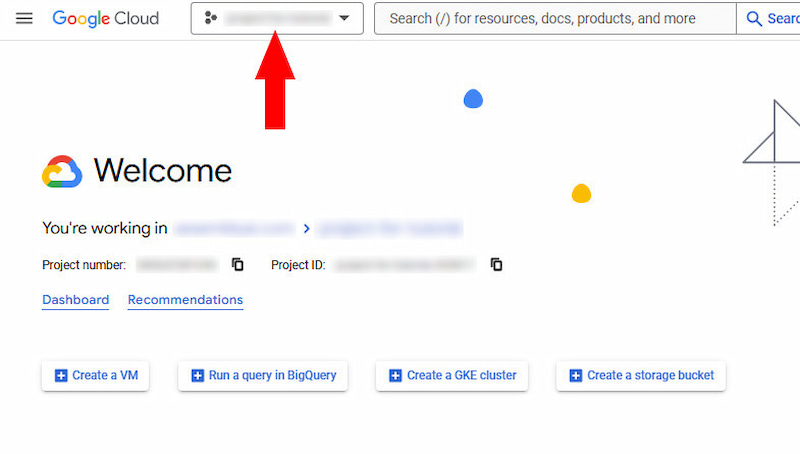
Step 1. Reach the Google Cloud Console and click the Project pulldown menu. Select New Project, enter a name, and click Create.
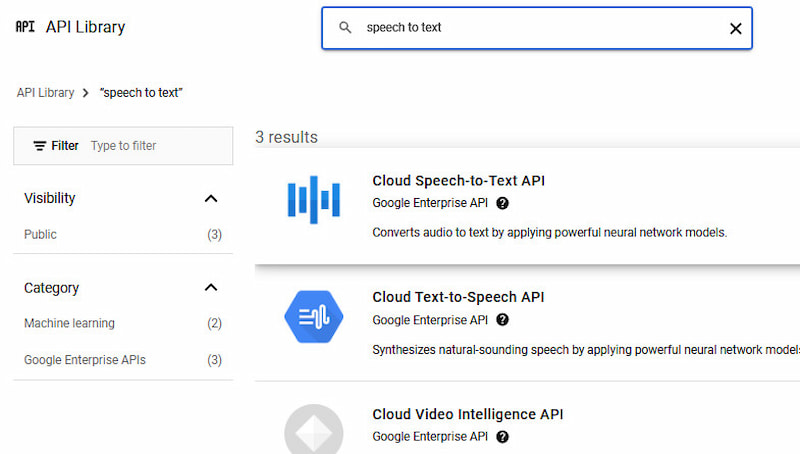
Select your project, open the API Library, and search for Search for Speech-to-Text API. Click the API result and click Enable to allow the project to send transcription requests.
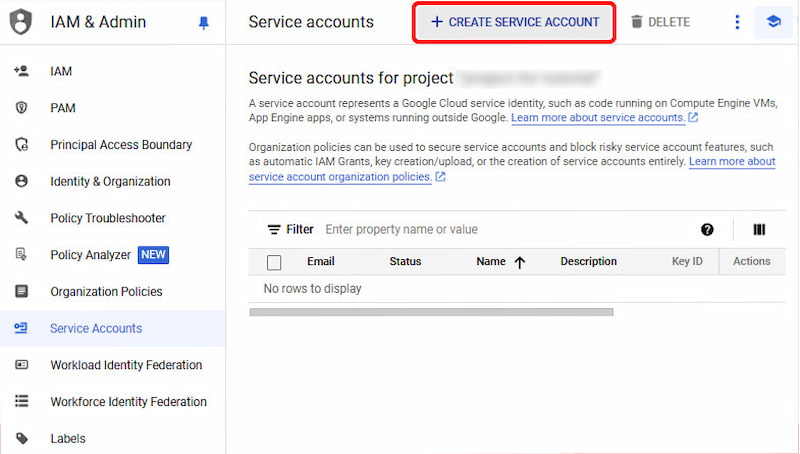
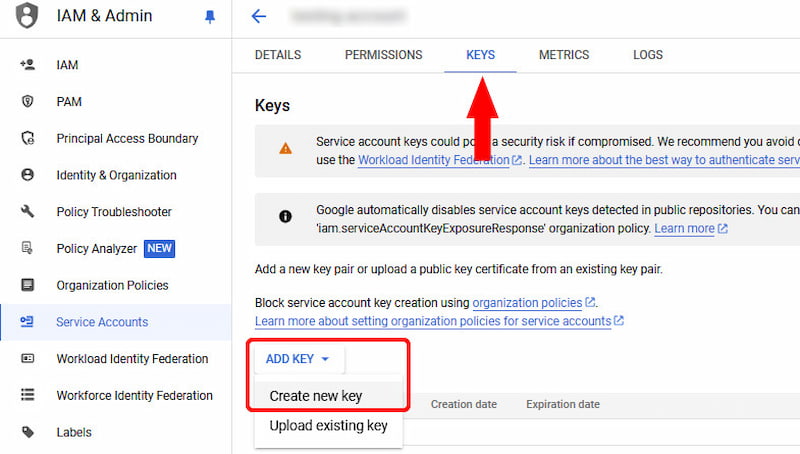
Step 2. Navigate to the IAM & Admin section and select Service Accounts to create a service account. Click the Create Service Account option, enter a name/description, then click Create and Continue. Skip optional steps and click Done.
Open the service account and click the Keys tab. Proceed to the Add Key section, click Create new key, and select JSON. Download and securely store the JSON key file. Please note that you do not commit it to source control.
Step 3. Set the credentials environment variable to point to the JSON key file. export GOOGLE_APPLICATION_CREDENTIALS="path/to/your/service-account-file.json". You can add this to ~/.bashrc to make it permanent. Your environment is now ready to send requests.
Google transcription service is a powerful solution that needs reliable, scalable, and accurate speech recognition. With proper setup, clean audio, and the right configuration, it can turn voice data into valuable, searchable text.
You may also be interested in whether Copilot can transcribe audio to text and how it compares to other transcription tools.
How We Tested:
We ran a 2-minute clip of a podcast with background noise. Google STT achieved a Word Error Rate (WER) of 8%, struggling only with brand names and specific technical jargon.
Part 4. Google Docs Voice Typing Vs. Cloud Speech-to-Text API: How to Choose
| Category | Google Cloud Speech-to-Text API |
| Target Users | Individual users | Developers, businesses, and enterprises |
| Use Cases | Dictating notes, letters, and essays | Transcribing audio at scale, call centers, and apps |
| Integration | Built into Google Docs | API integrated into software systems |
| Platform | Google Docs in browser (Chrome) or mobile app | Cloud-based API (REST/gRPC) |
| Setup Required | None | Requires Google Cloud setup and authentication |
| Audio Input | Live speech (microphone) | Live streaming or pre-recorded audio |
| Multi-Speaker Support | No | Yes |
| Language Support | Basic languages | Multiple language and accents |
| Punctuation and Formatting | Via voice commands | Automatic and configurable options |
| Accuracy Control | Basic voice recognition | Advanced models with tuning options |
| Pricing | Free | Pay-as-you-go |
| Best For | Personal productivity | Production apps, automation, and large workflows |
Part 5. FAQs about Google Speech-to-Text
Q: Does Google Speech-to-Text auto-detect language?
A: Yes. Google Voice transcription automatically detects the spoken language when you provide a list of possible languages. Instead of forcing a single language, you define multiple language options. The system will then analyze the audio and select the best-matching one during transcription.
Q: Is Google Speech-to-Text secure?
A: Yes. It follows enterprise-grade security standards. Audio and transcription data are encrypted in transit and at rest within Google’s global data centers. Access is controlled through Google Cloud’s Identity and Access Management.
Q: Does Google Speech-to-Text work offline?
A: It depends on the product. Google Cloud Speech-to-Text does not work offline because it is a cloud-based API. However, Android’s built-in Speech Recognition does support offline use once you download the offline language packs on your device.
Conclusion
In conclusion, Google Speech-to-Text is a reliable solution for converting spoken language into written text. It offers impressive accuracy, flexibility, and ease of use. From simple voice typing to the powerful Cloud Speech-to-Text API, the platform adapts to a wide range of needs and skill levels. Overall, this Google Speech-to-Text review shows that Google STT is not just a convenience tool. It is a practical productivity enhancer that helps users save time, reduce manual effort, and work more efficiently.
Ethan Carter
Ethan Carter creates in-depth content, timely news, and practical guides on AI audio, helping readers understand AI audio tools, making them accessible to non-experts. He specializes in reviewing top AI tools, explaining the ethics of AI music, and covering regulations. He uses data-driven insights and analysis, making his work trusted.


 by
by