Download Amazon Music to PC in 2026 [Official & Ultimate Way]
To download Amazon Music to your computer, use the Amazon Music desktop app for offline listening within the app. For permanent MP3 storage, a dedicated converter like TopVox All Music Converter is required to remove DRM and save files in universal formats like MP3.
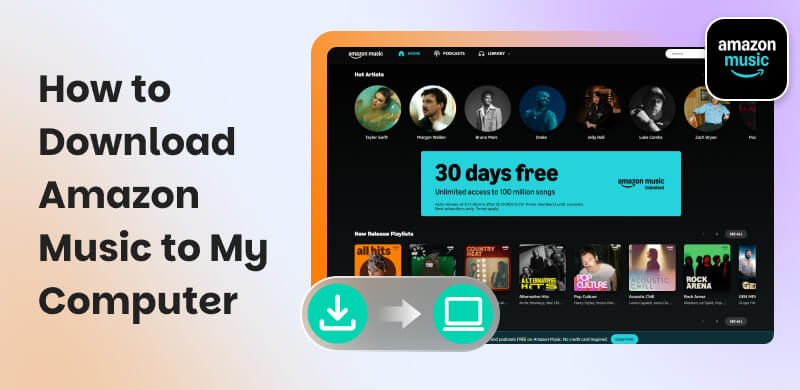
If you’re asking yourself, how can I download Amazon Music to my PC? You’re not alone. Streaming is convenient, but it comes with limitations, especially when your favorite songs disappear once your subscription ends or when you’re offline.
Many users want offline access and permanent storage without relying solely on the Amazon Music app. That’s exactly why this post exists. We will share 3 ways to download Amazon Music to your PC, including the official method, an online tool, and a dedicated music downloader. Choose the best fit, whether you want simple offline listening or long-term music ownership!
| Best For | Format | Permanent? |
| Amazon Music App | Offline Use | Encrypted | NO (App only) |
| TopVox All Music Converter | Content Creators | MP3, M4A (AAC), WAV, FLAC, AIFF, or M4A (ALAC). | Yes |
| KeepVid Amazon Music to MP3 | One-time downloads | MP3 | Yes |
Part 1. Can I download Amazon Music to a PC?
The answer is YES. You can download music from Amazon Music to a computer, but how do you do it? Basically, it depends on the method you use. Officially, Amazon allows users with Amazon Music Prime or Amazon Music Unlimited to download songs to the Amazon Music desktop app for offline listening.
However, here’s the catch: These downloads are protected by DRM and can only be played within the Amazon app. In such cases, if you’ve purchased any songs, you can download them as standard audio files and play them on any media player. Alternatively, third-party tools and online downloaders exist that can save Amazon Music as common formats for permanent use.
Part 2. Best Way to Download Amazon Music to Computer Forever [Windows/Mac]
TopVox All Music Converter is a one-stop music converter and downloader compatible with Windows and Mac. It provides access to major music streaming platforms, including Amazon Music, a highly popular Service. This software lets you download from Amazon Music to a PC without a subscription limit. With it, you can download any music in MP3, M4A (AAC), WAV, FLAC, AIFF, or M4A (ALAC). It ensures excellent audio performance, delivering up to 48,000 Hz and 320 kbps. Beyond Amazon Music, it also supports Apple Music, Deezer, Line, Music, Pandora, Spotify, SoundCloud, YouTube Music and Audible.
Features
- Fully compatible with Amazon Music Free, Prime, and Unlimited.
- Converts Amazon Music tracks into various DRM-free formats.
- Downloads songs, albums, playlists and podcasts in one go.
- Maintains original audio quality and complete ID3 tags.
- Supported batch downloading speed at 35× faster.
- Keep with the 99% success rate for conversion.
Here’s how to download Amazon Music to a PC forever:
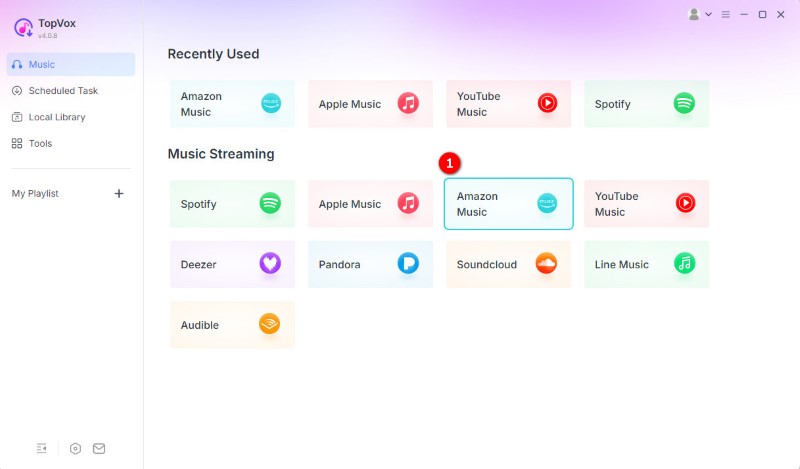
Step 1. Download and run the software to access its main interface. Click the Amazon Music to open and log in to its built-in browser.
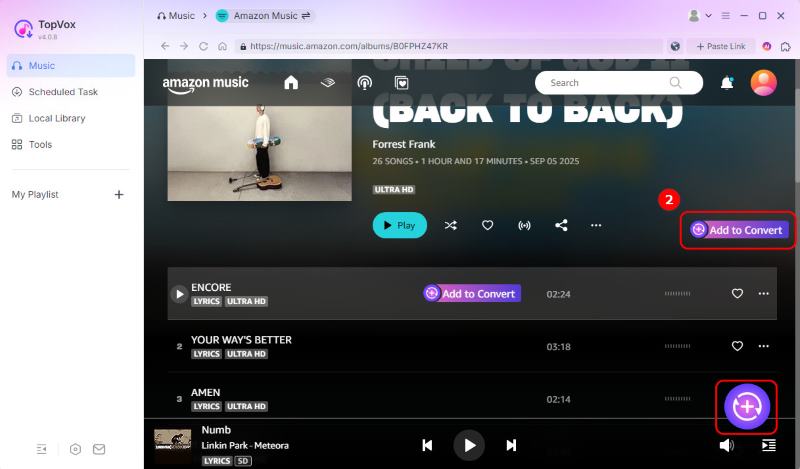
Step 2. Browse for the songs, albums, or playlists you want to download from Amazon Music. Click the Add to Convert button to import them.
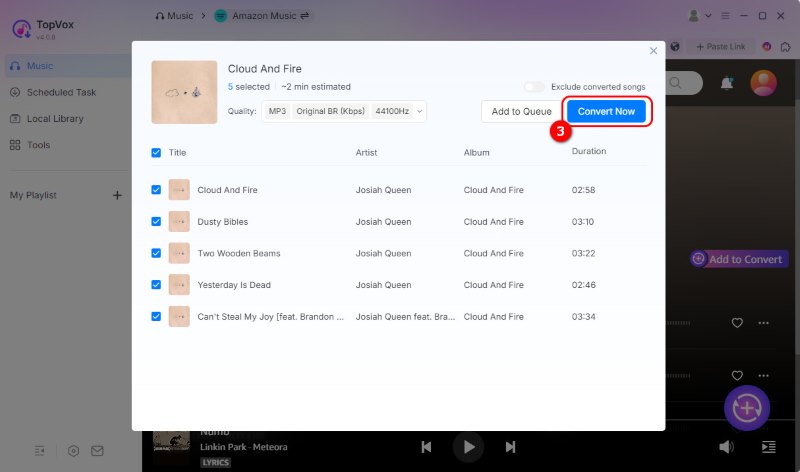
Step 3. By default, tracks will be downloaded in MP3 format (Original BR, 48,000 Hz). Still, you can change your output according to your preferences. After setting down, click Convert Now to start the process.
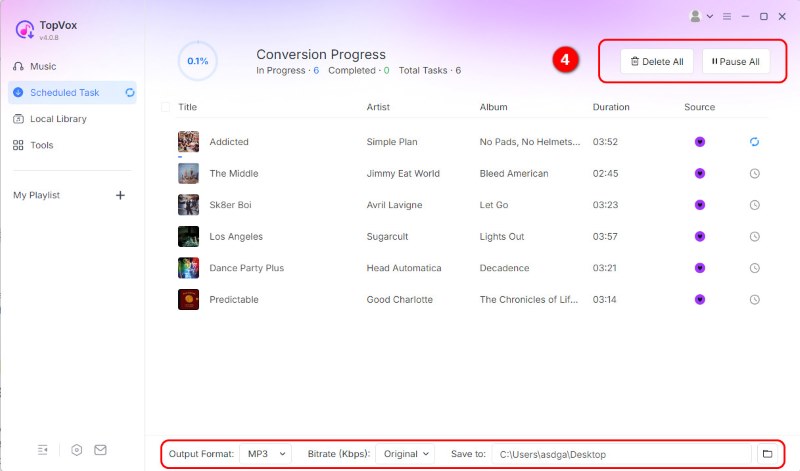
Step 4. You can choose to pause or stop the download at any time. The software will take the least time to download Amazon music to your PC.
User Review
TopVox All Music Converter is a reliable solution for downloading and keeping your favorite Amazon Music tracks forever, giving you the flexibility to save songs regardless of the plan you’re using. In our benchmark tests, we converted a 12-track Amazon Music Ultra HD playlist to 320kbps MP3 in just 85 seconds.
Part 3. Official Way to Download Amazon Music to a PC
If you’re using Prime or Unlimited, or you’ve purchased music directly from Amazon, there is an official way to download Music to your PC. Amazon provides built-in download options in its Amazon Music desktop app for purchased tracks, as well as in its web player.
Here’s how to download music from Amazon Music Unlimited to a PC officially:
Step 1. In the Amazon Music app for PC, sign in with your Amazon account that has an active subscription. Navigate to Home and locate the song, album, or playlist you want to download.
Step 2. Click three-dot menu next to the track or playlist and select Download. The selected music will be added to the download queue. After the download is complete, enable the Downloaded filter to view all offline content.
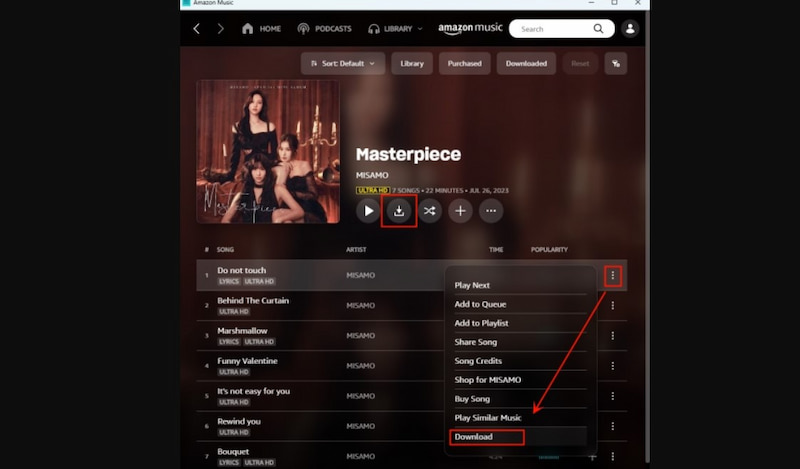
Important Note: . Music downloaded from Amazon Music Prime or Unlimited is available only for offline playback within the Amazon Music app. These files are protected and cannot be used outside the app, meaning you cannot listen to Amazon Music offline on other devices or players.
Part 4. Download Amazon Music to Your PC using Online Tool [Free]
If you want to download Amazon music without any payment, using KeepVid Amazon Music to MP3 to convert Amazon Music to MP3 can be a convenient alternative. It lets you convert Amazon Music songs to common audio formats directly in your web browser without installing other software.
Step 1. In Amazon Music, copy the link of the song you want to download. Then, switch to the KeepVid Amazon Music to MP3 site, paste the link, and click Start to load the music.
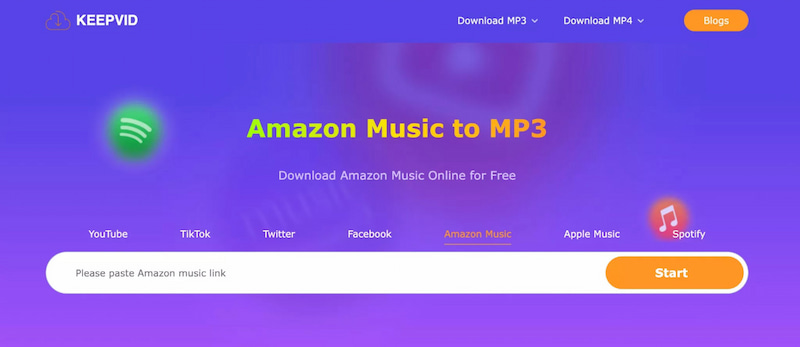
Step 2. Once the track is processed, click the Audio (.mp3) button to process the file. In a few seconds, it will begin downloading the Amazon Music file to your computer.
User Review
KeepVid Amazon Music to MP3 is easy to use and requires no installation. However, the download process requires multiple clicks and is unable to bulk download in one shot. And the site may redirect users to unknown or unrelated pages before the actual MP3 download begins. For high-volume downloads, we recommend desktop-based software with a verified security certificate like TopVox All Music Converter.
Part 5. Where is Downloaded Amazon Music Stored on your PC?
Downloaded songs from the Amazon Music app are not saved as regular audio files that you can freely access on your computer. Instead, all offline downloads are stored within the Amazon Music app itself. You can find them by opening the app, going to the Library, switching to the Songs tab, and then selecting the Downloaded filter.
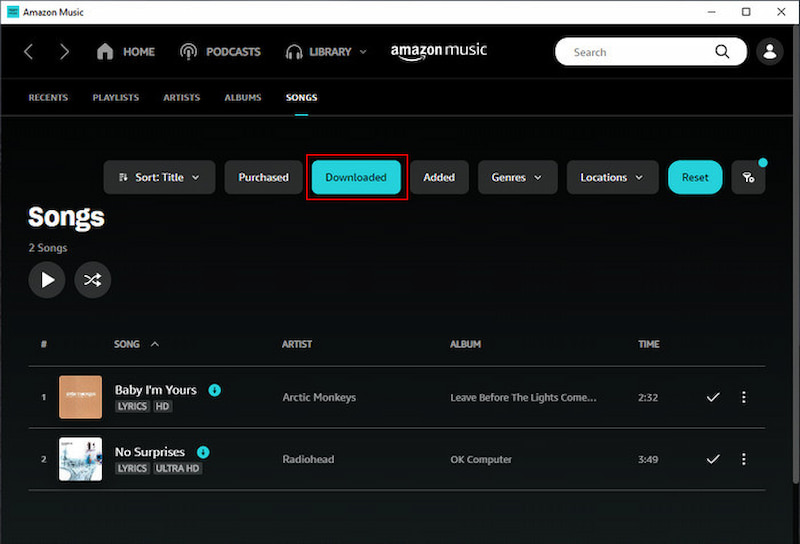
From there, all tracks that have been saved for offline playback. The files are stored in an encrypted, app-specific location and are protected by DRM. This means they cannot be moved, copied, or played using other media players. As long as your Amazon Music subscription is active and you remain logged into the app, you can access and play these downloaded songs.
If you download Amazon Music tracks to a PC via TopVox All Music Converter, the saved files are easy to locate. Turn to the Local Library, click a folder icon along with the title, and then you can find all songs in your target destination.
Part 6. FAQs about Downloading Amazon Music
Q: How to download Amazon Music to a mobile device?
A: Open the Amazon Music app and ensure you’re signed in with an active Amazon Music account. Tap My Music to access your library, then find the song, album, or playlist you want to save. Tap the three-dot button next to the music title and select Download.
Q: Where can I find purchased Amazon Music on my PC?
A: On Windows, purchased Amazon Music files are stored in the default music folder: This PC > Music > Amazon Music. On Mac, downloaded songs are located in Music > Amazon Music. Please note that these files are not DRM-protected.
Q: Why can’t I download a song on Amazon Music?
A: The most common cause is that the track is not included in your current plan, as some songs require Amazon Music Unlimited rather than Prime or Free. Downloads may also be unavailable if you’re using the web player, since offline downloads require the mobile or desktop app.
Q: Can I download Amazon Music to an external SD card or Hard Drive?
A: Yes, you can download Amazon Music to an SD card on Android devices. However, you must set the app's storage location to the SD card in settings, and these downloads are DRM-protected. This means they only work in the Amazon Music app and can't be transferred to hard drives as plain files.
Q: What is the difference between Amazon Music Prime and Unlimited download limits in 2026?
A: In 2026, Amazon Music Prime lets you download a limited number (around 15) of curated All-Access Playlists. Meanwhile, Amazon Music Unlimited lets you download any song, album, or playlist from its entire catalog (100+ million tracks) in HD/Ultra HD/Spatial Audio.
Conclusion
Your question about how to download Amazon Music to my PC is now resolved. Whether you’re using the official Amazon Music app, an online downloader, or a third-party tool, you now know the options available to get your favorite songs offline. While the official and online methods work for basic offline listening, they come with limitations. For complete control, permanent access, and high-quality downloads, TopVox All Music Converter is the best solution. It allows you to download and convert Amazon Music to multiple formats, preserving original audio quality and keeping ID3 tags intact. With TopVox, you can enjoy your entire music library offline, forever, without worrying about subscription limits.
Owen Bannett
Owen Bannett is a music enthusiasm as well as a senior writer. He has paid close attention on the pros & cons of various audio formats, bitrate, sample rate and encoding methods. Always seeking the best listening experience, Owen has deep insights about lossless music and diverse music converters on the markets.




 by
by