Convert M4P to MP3 with the Best M4P to MP3 Converters
M4P is also called MPEG-4 Protected. This format was designed by Apple, specifically for music purchased from the iTunes Store. The good thing about this format is that it can give you the best audio quality for a better listening experience. The only problem with this format is that it isn't very widely supported. It also has many restrictions due to Digital Rights Management (DRM). For smooth audio playback, the best option is to convert your M4P files to MP3. Well, we all know that MP3 is supported by more audio players, making it the best audio format. Do you want to convert M4P to MP3? Worry no more. This guidepost will teach you the most effective methods for transcoding your files. With that, read here and start with the best conversion processes.
Can You Convert M4P to MP3?
Converting M4P to MP3 is possible using various converters. Well, M4P is one of Apple’s audio formats. You can get this format when you purchase certain music from the iTunes Store. You can even enjoy this music on different Apple devices. The only drawback here is that you can’t play this format on non-Apple devices, which can lead to restrictions. With that in mind, if you want to listen to your favourite music anytime on any devices, converting iTunes to MP3 is the right choice. Thus, for an effective conversion process, read all the information in this article.
Part 1. Best Way to Convert M4P to MP3
If you need the best M4P to MP3 converter, you can access TopVox All Music Converter. With this program, you can have a smoother conversion process, thanks to its simple layout. In addition, you can achieve a high conversion rate, enabling you to achieve the results you need after the procedure. You can even obtain the best quality for up to 320 kbps for a better listening experience. You can even convert multiple M4P files, saving you more time.
Features
- Supports various audio formats like MP3, WAV, FLAC, etc.
- It can provide a 35x faster conversion process.
- It can convert music from various platforms, including Spotify, Apple Music, Deezer, and more.
- The program can save music with 320kbps audio quality.
If you want to start converting your M4P files to MP3, start using the instructions below.
Step 1. Download and run TopVox All Music Converter on your desktop. Use the buttons below for instant access.
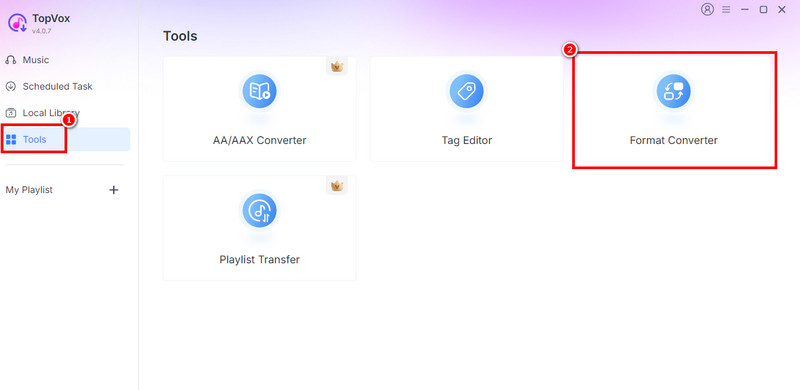
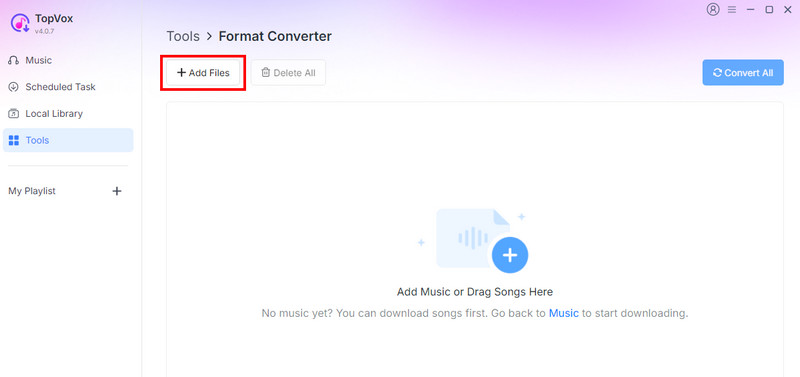
Step 2. Once done, from the main interface, go to the Tools section and select the Format Converter feature.
Step 3. Click the Add Files button to begin adding the M4P files that you want to convert. You can add as many files as you want, since it supports batch conversion.
Step 4. Then, proceed to the Output Format section and tap MP3. Once done, click the Convert All button above to start the M4P-to-MP3 conversion.
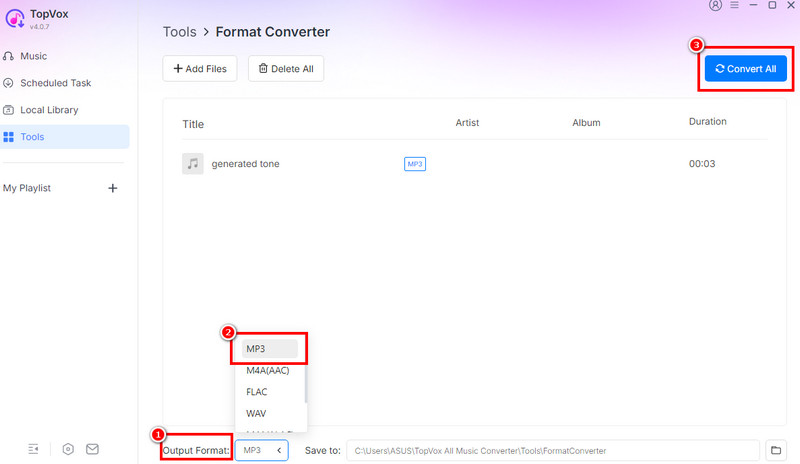
Thanks to this process, you can now convert your M4P file to an MP3, even Apple Music to MP3. With that, always rely on this tool to achieve your preferred output.
Part 2. Convert M4P to MP3 on Windows and Mac
Do you want another offline converter to convert M4P to MP3? Then, you must read all the details in this section.
1. Transcode M4P to MP3 Using NoteBurner
NoteBurner is among the reliable converters you can access on your Mac and Windows to transcode your files effectively. With its simple layout, even non-beginners can navigate all the necessary features to achieve the desired result. It can also support various audio formats, making it an ideal software for users. To test its capabilities, follow the methods below.
Step 1. Download and install NoteBurner on your computer. After that, run it to begin the process.
Step 2. Tap the Add button to add the M4P files. You can even add the music directly from your iTunes.
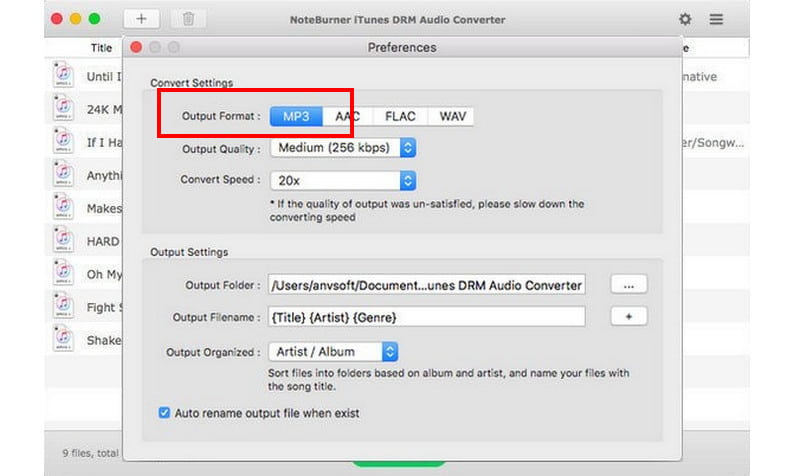
Step 3. Proceed to the Settings section and select the MP3 format. Once done, tap Convert to start the conversion process.
2. Change M4P to MP3 Using Easy M4P Converter
Another software you can use to transcode your M4P file to MP3 format is Easy M4P Converter. This program is designed to convert M4P files to various formats with the best quality. What makes it ideal is its smooth conversion process, thanks to its comprehensive layout. What's more, this is entirely free to use, so you can convert as many M4P files as you want without spending a penny. To know how to convert M4P to MP3, see the steps below.
Step 1. Access Easy M4P Converter on your computer. After launching it, select File > Open to add the M4P file.
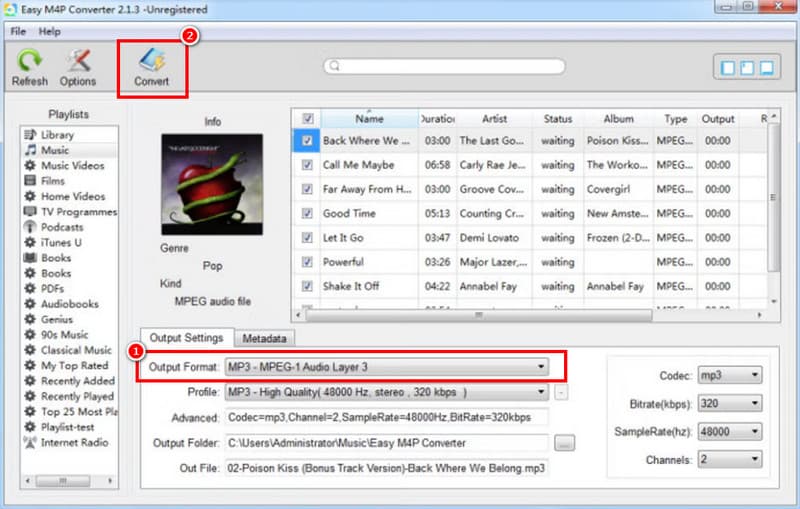
Step 2. Go to the Output Format section and choose MP3. You can also change your preferred codec, bitrate, sample rate, and more.
Step 3. Finally, tap the Convert button above to start the M4P to MP3 conversion.
Part 3. Online Method to Convert M4P to MP3
If you prefer an online method to convert your M4P files, look no further than FreeConvert. What we like about this tool is that it lets you convert files instantly, thanks to its simple UI. You can also enhance your audio by changing the audio codec, adding fade effects, and using reverse audio. The only problem here is that there are various disturbing ads on the screen during the process. To start the conversion process, follow the steps below.
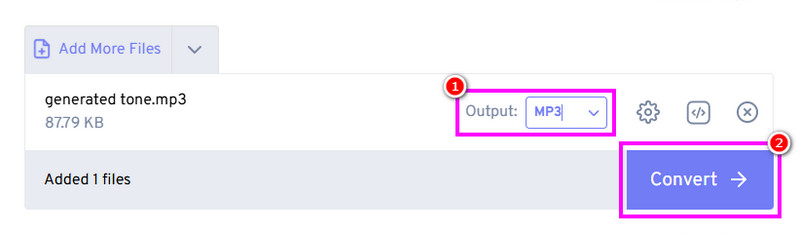
Step 1. Access the FreeConvert tool on your browser. Then, click the Choose Files to open your file folder. Add the M4P file that you want to transcode.
Step 2. Navigate to the Output Format section and select the MP3 format.
Step 3. For the last step, tap the Convert button to start. Once done, tap Download to save the file on your device.
Part 4. How to Convert M4P to MP3 via iTunes
If you have an iTunes song purchased before 2009, it will be saved as an M4P file. The good news is that you can convert an M4P file to MP3 by redownloading it and using an MP3 Encoder. With that, to learn how to convert your M4P files into MP3 for a better audio playback, you can use the simple instructions we have provided.
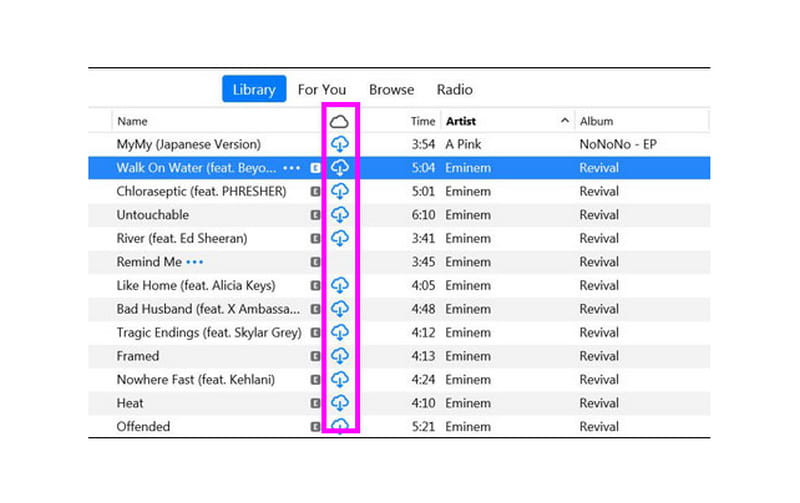
Step 1. The first thing to do is launch iTunes and go to File > Library. Then, go to the iCloud Music Library to match your existing library to the iTunes Store catalogue.
Step 2. Select and download the songs by clicking the iCloud Download button.
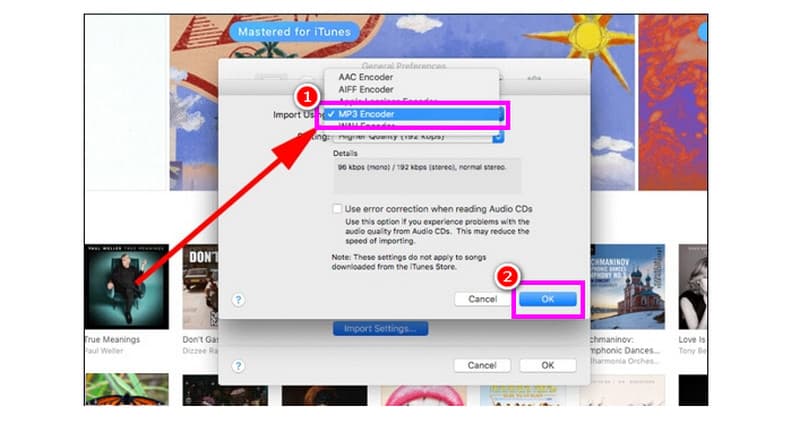
Step 3. Proceed to the File section and hit the Preferences option. After that, proceed to the General tab and tap the Import Settings button.
Step 4. Under the Import Using option, select the MP3 Encoder. Then, hit the OK button below the mini interface.
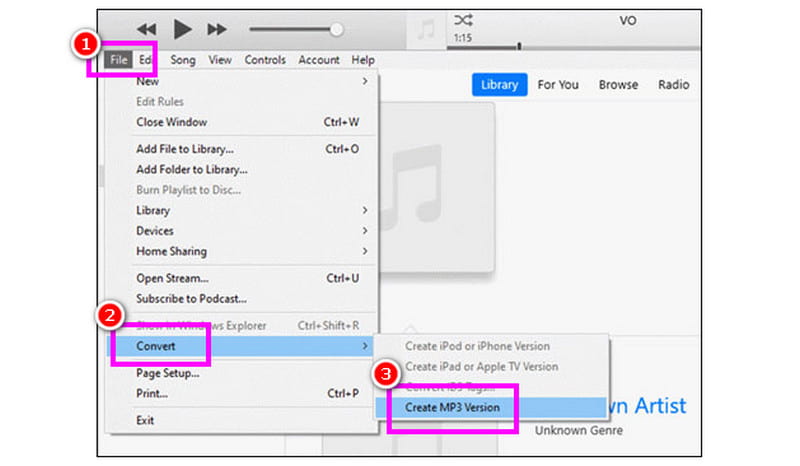
Step 5. Lastly, select the M4P file and tap the File function. Then tap Convert > Create MP3 Version to begin the conversion.
Part 5. Change M4P to MP3 via Recording
Other than converting, you can also turn your M4P file into an MP3 by recording. If you need the best recorder, you can use Audials Music (currently Audials One). With this software, you can record your M4P file and turn it into MP3 format for better compatibility. To start the recording process, proceed with the steps below.
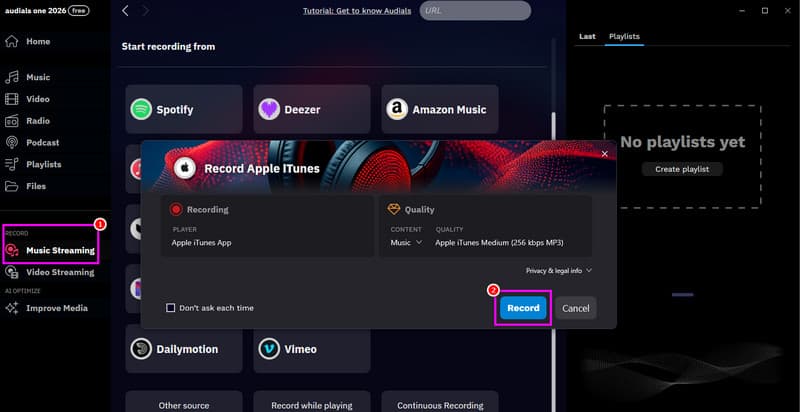
Step 1. Download and install Audials Music on your computer. Then, launch it to start the process.
Step 2. From the left interface, tap Record, then tap Audio Streaming. Hit the iTunes platform to access your M4P files. A mini interface with a Record button will appear on your screen.
Step 3. In iTunes, add your account and browse your music. Before playing, tap the Record button. Once done, stop the audio recording and save the file as an MP3.
Part 6. How to Convert M4P to MP3 Using VLC
VLC Media Player is not just an excellent video and audio player. It can offer its converter feature to effectively turn your M4P files into the MP3 format. The good thing about this platform is that you can access all the needed functions easily since its UI is easy to navigate. What's more, the software ensures it won't compromise the original quality, so you can play and enjoy the music during playback. Thus, to learn how to convert M4P to MP3, see the methods below.
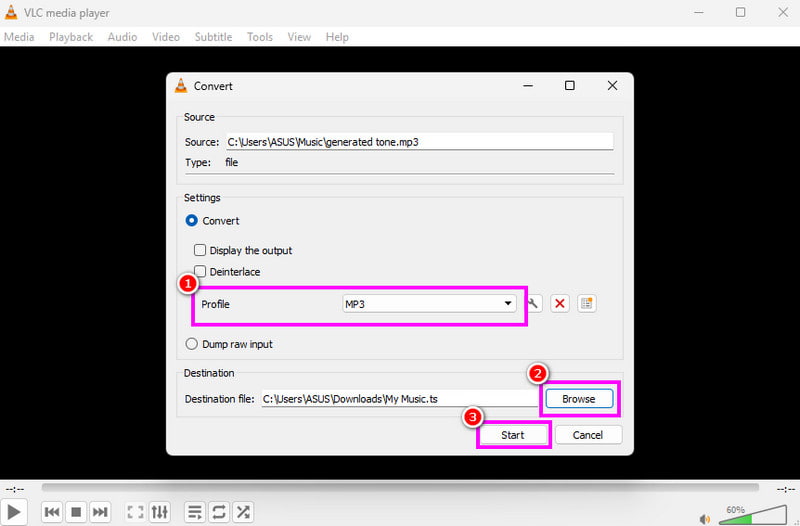
Step 1. After you downloaded the VLC Media Player, proceed to the Media section and tap the Convert / Save option.
Step 2. Then, from the mini interface, click the Add button to start inserting the M4P file from your device. Tap the Convert / Save option below to proceed to the next process.
Step 3. Go to the Profile section and choose the MP3 format. Then, tick the Start button to start the conversion process.
Conclusion
Converting M4P to MP3 is an ideal way to play your music on various audio players. With that, use all the instructions we have offered for an effective conversion process. Plus, if you need an excellent music converter, use TopVox All Music Converter. This program ensures you get the best audio quality for a better listening experience.
Luna Harper
Luna Harper is a passionate music lover and an inspiring content sharer. She has explored most of the music converters available on the market, acquiring thorough knowledge of their features, usability, and differences. Luna enjoys using her professionalism to help fellow music lovers get superior audio quality.




 by
by