What Does Closed Caption Mean: Usage and Comparison
Every professional working in the witty media industry of content creation knows that Closed captions are an essential feature that improves video accessibility, comprehension, and user engagement. In simple terms, these captions display spoken dialogue, sound effects, and audio cues as text, helping viewers understand the content without relying on sound. In addition, this caption is commonly used across videos, streaming platforms, and social media, closed captioning supports people who are deaf or hard of hearing and benefits viewers in sound-sensitive environments. In line with that, understanding what closed captions are, how they work, and how to add them is key to creating inclusive, effective video content. Let us learn more here in this post.
1. What are Closed Captions
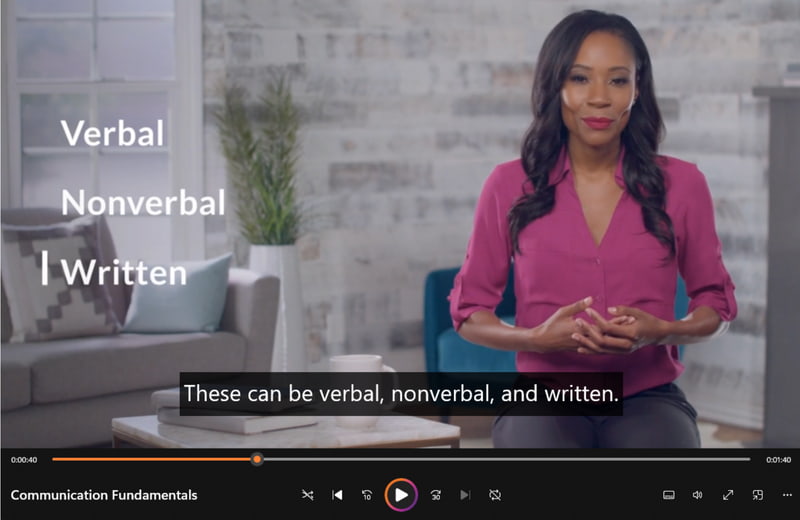
Closed captions are text-based representations of spoken dialogue, sound effects, and important audio cues in video content. Basically, they are designed to help viewers who are deaf or hard of hearing understand what is happening on screen. Unlike open captions, closed captions can be turned on or off by viewers and are commonly available on platforms such as YouTube, Netflix, and social media.
In addition, Closed captions benefit people watching videos in noisy or quiet environments, improving comprehension and accessibility. By providing accurate captions, content creators can reach a wider audience, enhance user engagement, and comply with accessibility standards. Overall, they are really helpful among viewers for different situations.
2. How Does Closed Captioning Work
After understanding the definition, let us now move on to the common question from users: how does Closed captioning work? To answer that, it converts spoken dialogue and important audio cues into synchronized text displayed on screen. First, audio from a video is transcribed, either manually by captioners or automatically using speech recognition software. The text is then time-coded to match the timing of words and sounds. This caption data is saved in caption files, such as SRT or VTT, and embedded or linked to the video. When viewers enable captions, the media player reads the file and displays text in real time, ensuring accessibility for deaf, hard-of-hearing, and multilingual audiences across devices, platforms, and different viewing environments worldwide today. It might be technical to understand everything, but that’s how Closed Captioning works.
3. Benefits of Adding Closed Captions
At this moment, it is important to bear in mind that Closed captions are more than just text on a screen. They make videos accessible to everyone, improve comprehension, and enhance engagement. By including captions, creators reach a wider audience, support learning, and increase discoverability, ensuring content is inclusive and user-friendly. With that, here are the specific benefits we can get from Close Captioning.
- • Enhances accessibility for deaf and hard-of-hearing viewers.
- • Helps in noisy environments or for viewers who prefer reading.
- • Improves comprehension and retention, especially for educational videos.
- • Assists non-native speakers in understanding content.
- • Boosts SEO as search engines can index caption text.
- • Encourages longer watch times and higher engagement.
- • Promotes inclusivity and a user-friendly viewing experience.
4. Closed Caption File Formats
As additional information, Closed caption files store video text and timing for accurate display. For that, different formats serve different platforms and needs, from simple web captions to professional broadcast-ready formats. Therefore, choosing the right type ensures captions appear correctly and enhance the viewer's experience. Here are the file formats we can use for Closed Captioning.
- • SRT or SubRip. Simple, widely supported across platforms.
- • VTT or WebVTT. Optimized for web streaming, allows styling.
- • DFXP or TTML. Professional broadcasting, detailed timing, and formatting.
- • SCC or Scenarist Closed Caption. Used in TV production, it supports multiple channels.
- • SBV or CAP. Platform-specific formats, for example, are YouTube.
5. Comparison: Different Types of Captions
Open Captions
Another common caption type is open captions. These captions are text burned directly into a video, ensuring they always appear, unlike closed captions, which can be toggled on or off. The creation process begins with transcribing audio into a text transcript, which is then synchronized with the video, including dialogue, sound effects, and music. Once finalized, open captions are embedded into the video file, making them universally viewable across devices and platforms. Open captions improve accessibility, user experience, and engagement while ensuring content is inclusive and universally understandable.
In line with that, here are some key points about Open Captions.
- • Fully compatible with all video players and devices.
- • Maintains consistent size, style, and visibility.
- • Ideal for social media autoplay videos, film screenings, and public displays.
- • Supports inclusive access for viewers with hearing loss.
- • Enables watching in noisy or quiet environments without audio.
- • Enhances accessibility for DVDs, physical media, and permanent video content.
Subtitles
The next type of caption is called Subtitles. Most commonly, people call every type of caption a Subtitle, which is a misconception. Thus, it is important to know that subtitles are text displayed on screen that conveys the spoken dialogue of a video, often in the same language or as a translation into another language. Unlike captions, standard subtitles usually do not include non-dialogue sounds like music, sound effects, or speaker identification. They help viewers understand content when audio is unavailable, such as in noisy environments or for audiences who speak a different language.
Here are some key points about Subtitles:
- • Combine standard subtitles with important audio cues such as sound effects, music, and speaker identification.
- • Serve viewers who cannot hear the dialogue.
- • Can be burned in, like open captions, or toggled on or off, like closed captions.
- • Allow translation into different languages while maintaining accessibility.
- • Enhance understanding and engagement for diverse audiences.
- • Subtitles, particularly SDH, ensure content is inclusive, accessible, and understandable
Comparison Chart between Closed Captions, Open Captions, and Subtitles
| Closed Captions | Open Captions | Subtitles |
| Visibility | On/off toggle. | Always visible. | On/off or burned-in. |
| Audio Info | Dialogue and sounds. | Dialogue plus sounds. | ●Standard is Dialogue.
●SDH areDialogue and sounds. |
| Customization | Size/font adjustable. | Fixed. | ●Standard will Depend on the player.
●SDH is sometimes adjustable |
| Device Support | Player-dependent. | All devices. | ●Standard, player-dependent
●SDH, wide support |
| Use Case | Streaming and TV. | Social media and public videos. | Translation and accessibility |
| File Type | Separate file. | Embedded or burned-in. | Separate or burned-in |
| Accessibility | High. | High and permanent. | ●Standard is moderate
●SDH is high |
6. How to Enable Closed Captions
Enable Closed Captions for YouTube
Step 1. Open a YouTube video.
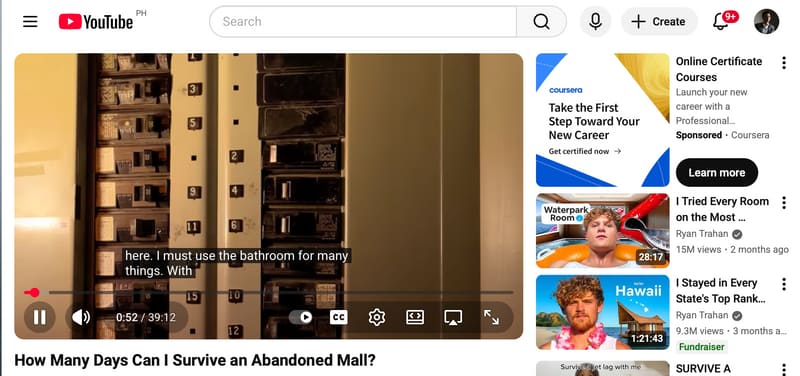
Step 2. Then look for the CC icon in the bottom-right of the video player. Click the CC button to turn captions on, click again to turn them off.
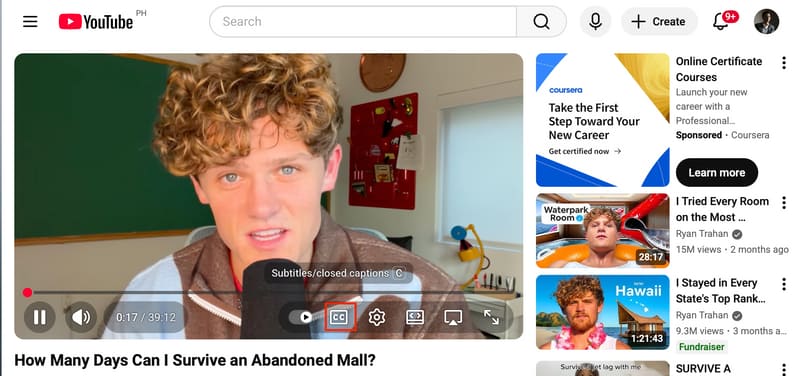
Step 3. To customize, click the Gear icon, click Subtitles/CC, and see Options to change font, color, size, and more.
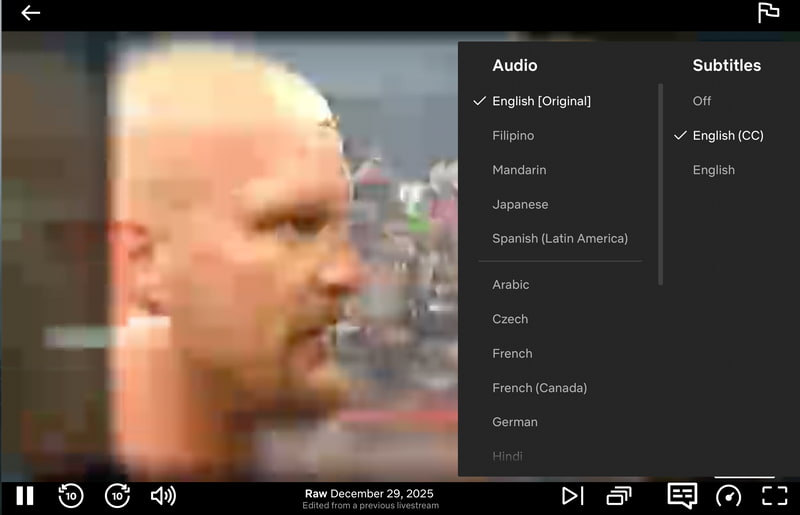
Enable Closed Captions for Netflix
Step 1. Open the Netflix app or website, and select a show or movie you would like to watch.
Step 2. Now, please tap or click the video to bring up the player controls.
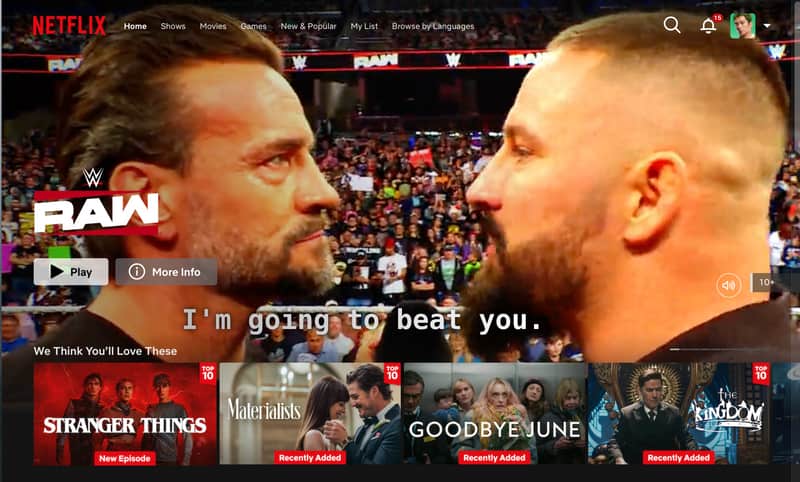
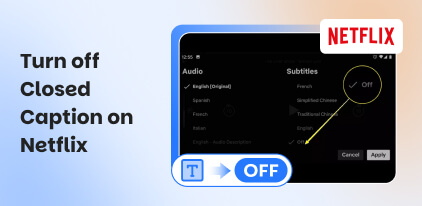
Step 3. Select the Audio & Subtitles icon that looks like a speech bubble or text box.
Step 4. Choose your preferred subtitle language or English (CC) for captions with sound effects.
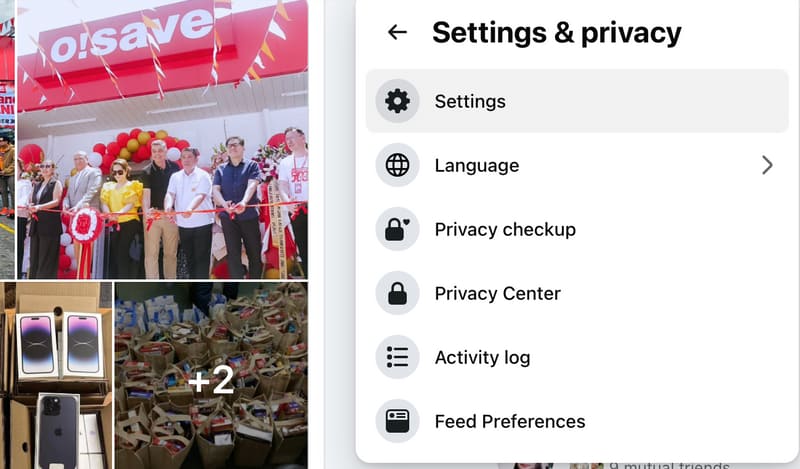
Enable Closed Captions for Facebook
Step 1. Click your Profile Picture, then select Settings & privacy to view Settings.
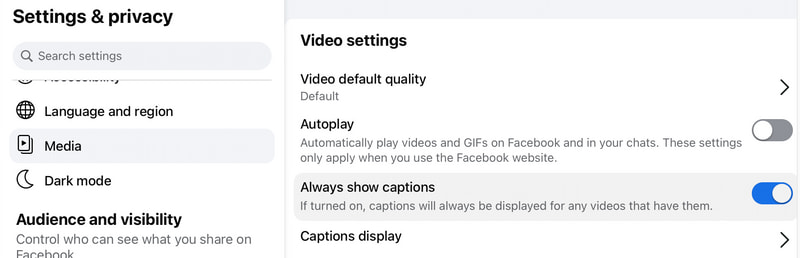
Step 2. Select Media from the left-hand menu.
Step 3. Toggle the switch next to Always Show Captions to turn it on.
Step 4. Play a video and see the captions.
7. How to Add Closed Captions to Your Videos
If you want to manually add captions to your video, then you have so many tool options to use. You can use Clideo for an easy process. Here is how you do it.
Step 1. Access Clideo and click Choose File to select the video you want to add a captions. Wait for the tool to load.
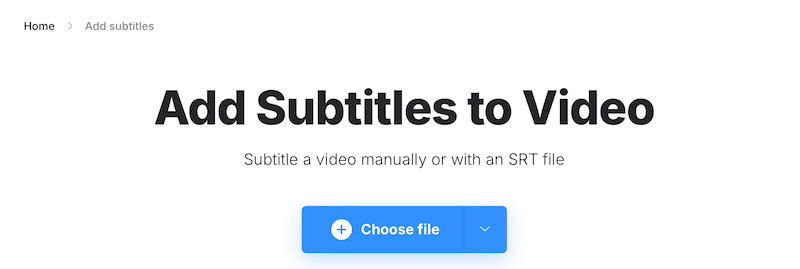
Step 2. In the new tab, you can add subtitles manually or upload a file. In this case, we will add manually.

Step 3. Type the captions on the Text Box.
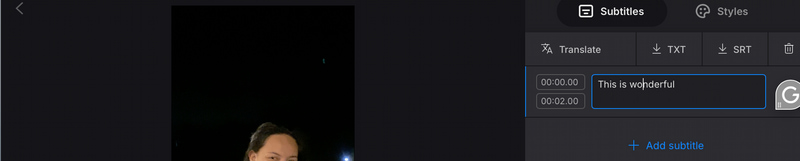
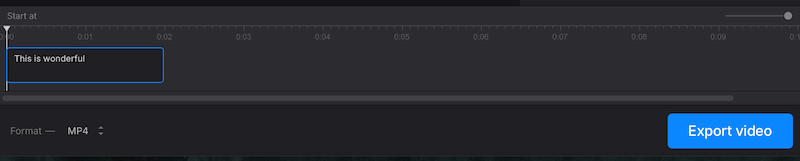
Step 4. Now, click Export to finish the process.
Conclusion
In conclusion, closed captions are an essential tool for making video content accessible, engaging, and inclusive. They help viewers who are deaf or hard of hearing, support learning, and improve comprehension for everyone. By displaying dialogue, sound effects, and audio cues as text, closed captions enhance user experience across devices and platforms. Adding captions also boosts discoverability and engagement, making your content more professional and user-friendly. Understanding how to use, enable, and add closed captions ensures your videos reach a wider, more diverse audience effectively.
Ethan Carter
Ethan Carter creates in-depth content, timely news, and practical guides on AI audio, helping readers understand AI audio tools, making them accessible to non-experts. He specializes in reviewing top AI tools, explaining the ethics of AI music, and covering regulations. He uses data-driven insights and analysis, making his work trusted.


 by
by