Top 3 Ways to Use CapCut Text to Speech
CapCut is a free, AI-powered video editing software developed by ByteDance. As a popular software for short video creation, someone may ask: Does CapCut have text-to-speech? Absolutely!
CapCut Text-to-Speech is a powerful AI voice generator that transforms written text into natural-sounding voiceovers. It allows creators to generate professional-sounding audio directly within the editing workflow, adding narration without recording their own voice. In this post, we will guide you to use this tool on your computer, mobile, and online. Moreover, there are 4 CapCut TTS alternatives to help you produce engaging videos with high-quality narration quickly and easily.
Part 1. CapCut Text to Speech on Mobile
On Mobile
Best For: Quickly add narration to short video content on mobile devices.
CapCut Text to Speech provides a fast and convenient way to convert text into natural-sounding Speech. It offers multiple voice styles, allowing you to match different types of content, perfect for quick social media posts, TikTok videos, narrations, or even voiceovers. You can generate TTS audio directly on your phone with just a few taps:
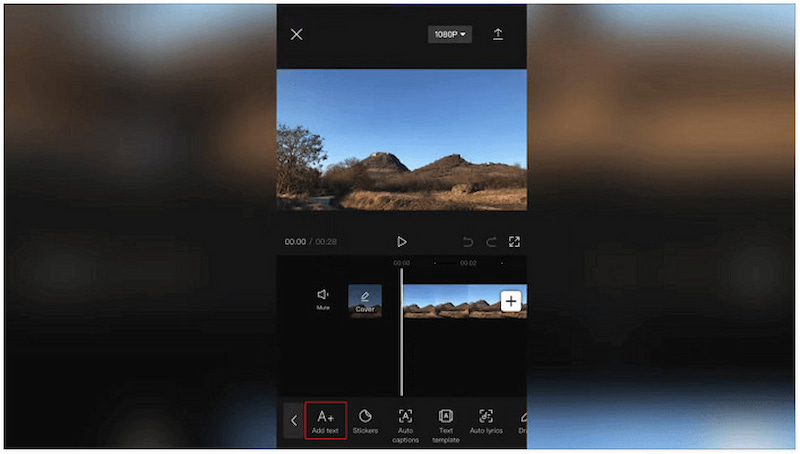
Step 1. In the CapCut mobile app, import the video you want to add text-to-speech narration to. Tap Text, select Add text, then type your desired script.
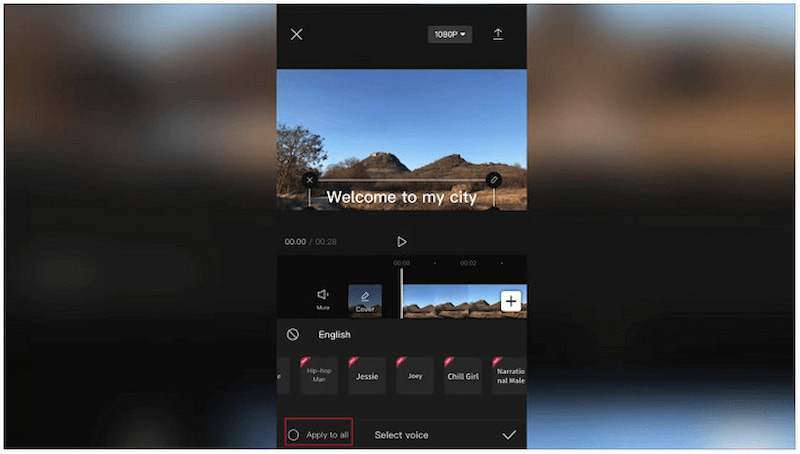
Step 2. Tap the text layer you just added. Next, tap the Text-to-speech option to view the available voice styles. Pick the voice you want to use, then tap the Apply to all button.
On Computer
Best For: Content creators who prefer editing more details on a larger screen.
CapCut offers more detailed timeline editing on the desktop version than the mobile app. It allows you to fine-tune text duration, transitions, volume, and alignment with improved accuracy. Your operation experience on a computer will be much better with a clean interface and direct access to multiple TTS voices. Here’s how to do text-to-speech on CapCut PC:
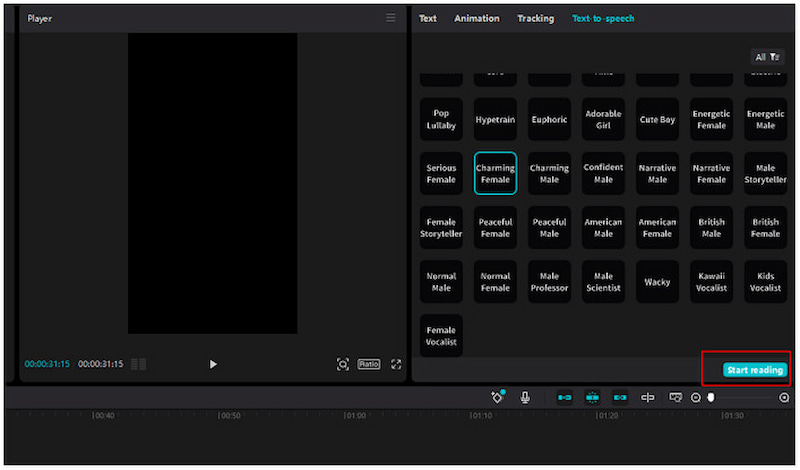
Step 1. In the CapCut for PC interface, navigate to the Text panel and drag Add Text onto the timeline. Then, type in your script and customize the font, color, and style if needed.
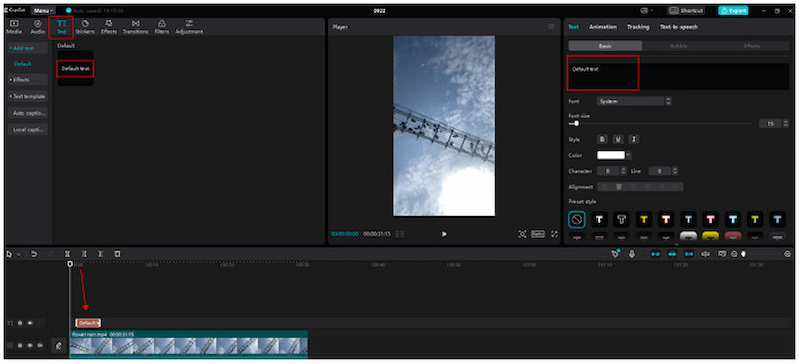
Step 2. Click the text on the timeline to select and move to the upper-right panel. Click the Text to Speech option, choose your preferred voice, and click Start Reading to generate it.
Online
Best For: Generate voiceovers without installing software or using the device’s resources.
CapCut’s online text-to-speech works in your browser, making it perfect for quick edits and lightweight devices. It runs smoothly under a fluent internet connection. However, since everything is done over the internet, large files take longer to upload and download. For long videos, it might feel less efficient than the desktop application.
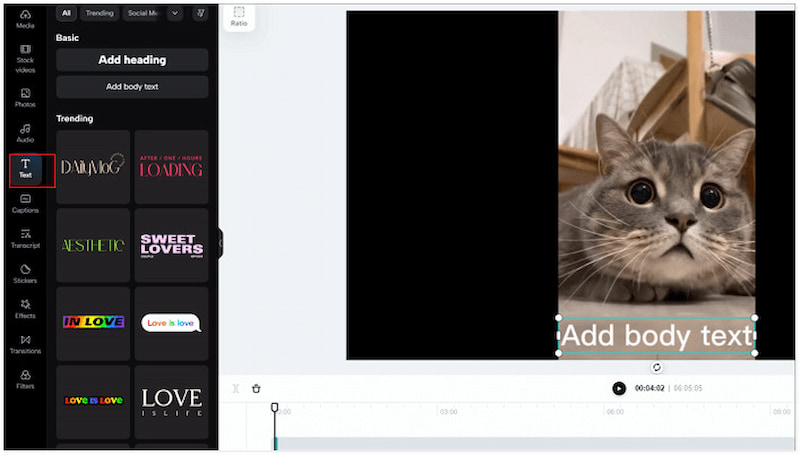
Step 1. On the CapCut homepage, choose a text style from the available templates on the Text panel. Type your script and select your preferred language.
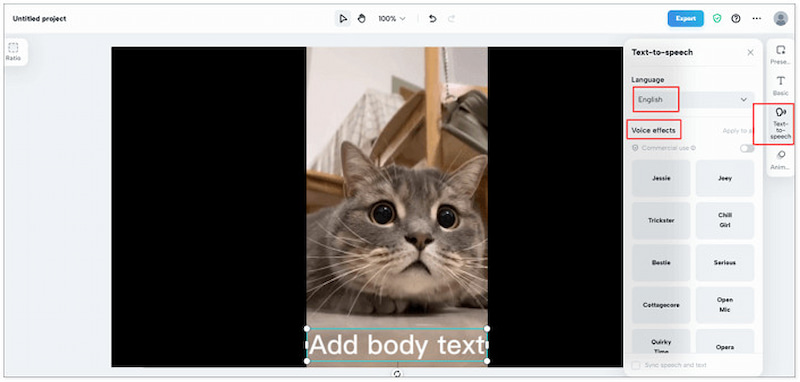
Step 2. On the right side of the screen, you’ll find the Text-to-Speech option. You can apply the AI voiceover to a single clip or the entire video, depending on your needs.
Part 2. Pros and Cons of CapCut TTS
Pros
- Ease of use with seamless integration
CapCut TTS is natively integrated into the editor, allowing you to generate audio with a few clicks without switching between apps. - Rich AI Voice Library
CapCut offers 276 AI-generated voices based on tones, gender, age, and style. - Supports Various Languages
Convert your text into different global languages, including Chinese, Malay, Vietnamese, Thai, English, Spanish, Japanese, and more. - Custom AI Voice As You Like
Freely adjust speech rate, pitch, and volume, while easily applying fade-in and fade-out effects.
Cons
- More Suitable for Short Videos
The web or mobile app may experience rendering lags or crashes when handling very long scripts (15+ mins). - Limited Voice with the Free Version
You have to pay for a Pro subscription to use more high-quality, natural-sounding AI voices. - Limited Professional Fine-tuning
It is still slightly inferior to professional AI voice generator software with ultra-realistic voices. - Robotic Intonation
When reading long, complex sentences, the sound is still slightly robotic or stiff.
Part 3. 4 CapCut Text to Speech Alternatives
TopVox Text to Speech AI ⭐⭐⭐⭐⭐ [Cost-Effective]
TopVox Text to Speech AI is an online, free tool to convert text to natural audio. It provides 300+ AI voices of different genders, ages, countries, and emotions, simulating breathing, pauses, and tones of human beings to avoid robotic sound. You can turn your message into 20+ languages, making it an ideal solution for global users seeking high-quality voiceovers. This tool allows you to have full control over speed, pitch, and volume, giving a seamless workflow for video content and daily learning.
Pros
- Free to use than premium TTS software.
- Ultra-realistic voices with natural tones and pauses.
- Massive voice styles and global languages.
- Supports business use on YouTube, ads, etc.
- Simplified workflow for every user.
Cons
- With a word limit for every text-to-speech process.
Step 1. Log in to your TopVox account first. Then type or paste the text you want to convert to Speech into the input box.
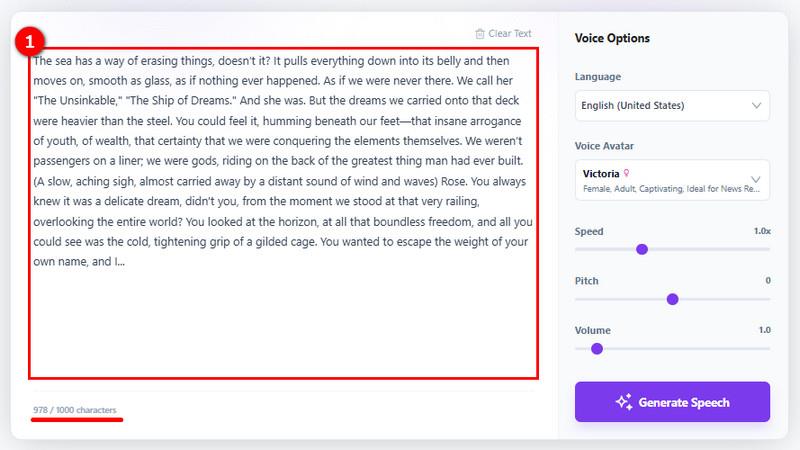
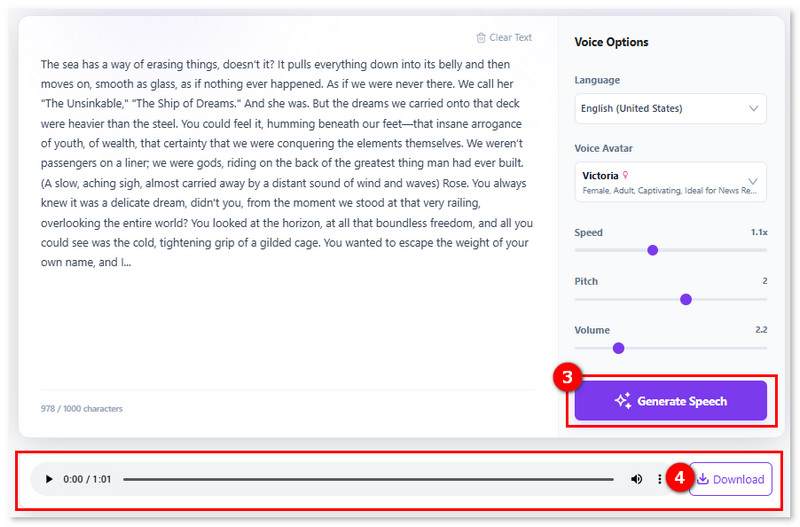
Step 2. Select your preferred language and voice avatar. And adjust the output settings like speed, pitch, or volume.
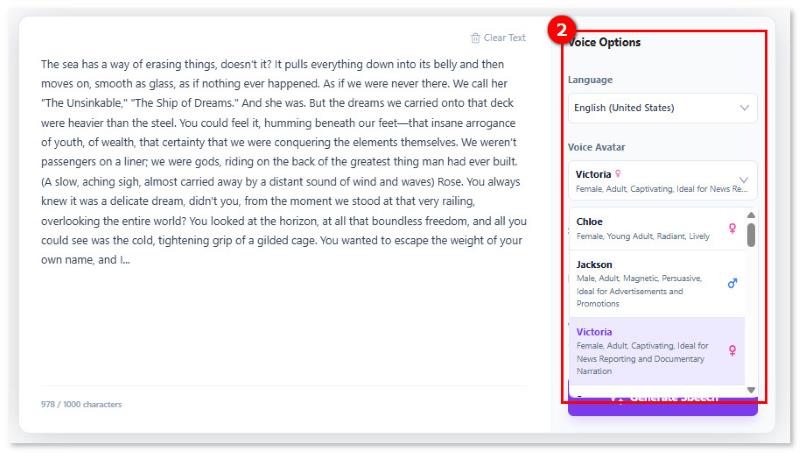
Step 3. Click Generate Speech > Download to save the high-quality MP3 file.
NaturalReader⭐⭐⭐⭐
NaturalReader is an AI text-to-speech tool designed for personal use that converts written text into spoken audio. It can transcribe typed text, documents, scanned images, and web pages using AI voices. It also lets you adjust speed, insert pauses, and customize pronunciation.
Here’s how to transcribe text to speech using the CapCut voice generator alternative:
Step 1. On the NaturalReader’s page, directly enter the text you want spoken. You can also upload supported file types, such as PDF, Word, PPT, EPUB, and more.
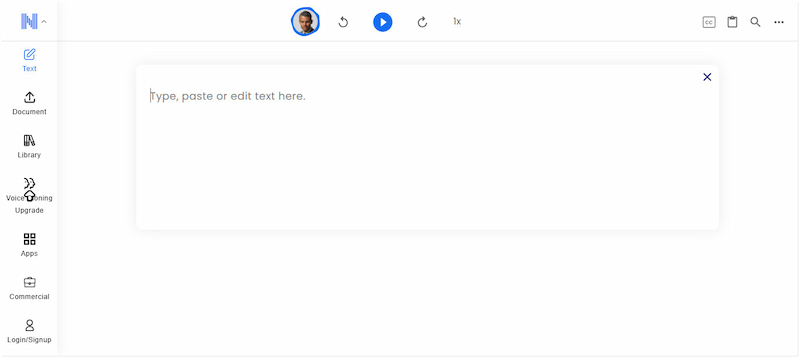
Step 2. Click the Voice button, select a language, then pick a voice from the list. Click the Play button to start the reading. You can pause, resume, or skip.
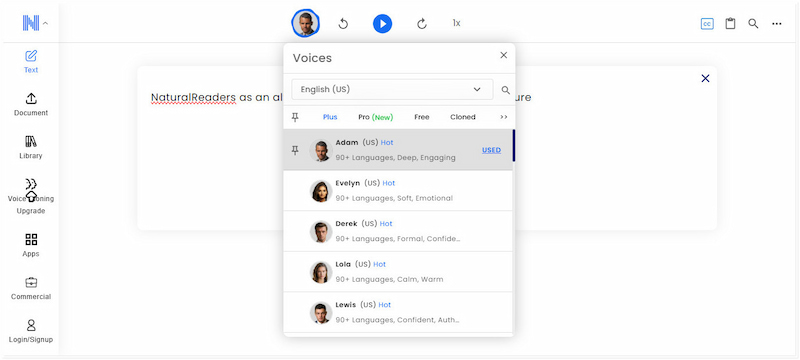
NaturalReader offers a variety of AI voices, including neural (plus) and HD (pro) voices. However, if you’re a free user, you won’t be able to convert your text into MP3 files for offline listening.
Related Article: NaturalReader Text-to-Speech Review: Features, Pros, & Cons
Panopreter Basic⭐⭐⭐ [Only Windows]
Panopreter Basic is a simple, beginner-friendly text-to-speech program for Windows. This software offers two main modes: Input and Speak or Read Batch Files. It is designed to read text aloud or convert written content into audio files.
Step 1. Choose the mode by clicking the corresponding Radio button at the top of the interface. In the Language List, choose the language that matches your text or files.
Step 2. After you pick a language, all compatible voices installed on your PC will appear. Select your preferred voice from the Voice Window. Click Speak to begin reading the text aloud.
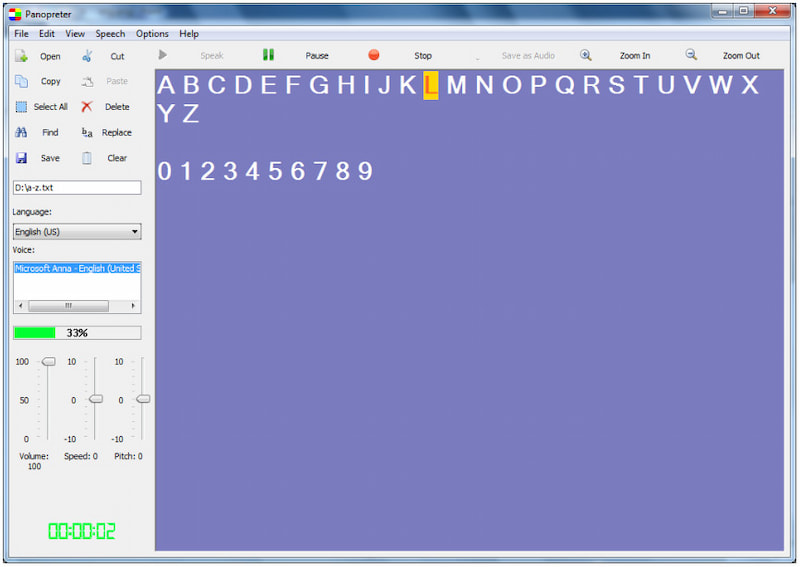
Panopreter Basic is free to use and runs locally on your Windows PC. However, if you choose the wrong language, the speech output will sound incorrect or distorted.
Speechify⭐⭐⭐⭐
Speechify is an internet-based AI-driven text-to-speech platform designed to listen to written content instead of reading it. It converts text from documents, web pages, images, or scanned books into spoken words. It is intended for those who struggle with reading or attention.
Step 1. In the Speechify webpage, select the Text to Speech tab and type or paste the text. You can also upload a file from your local drive. Be sure it is in PDF or DOCX format.
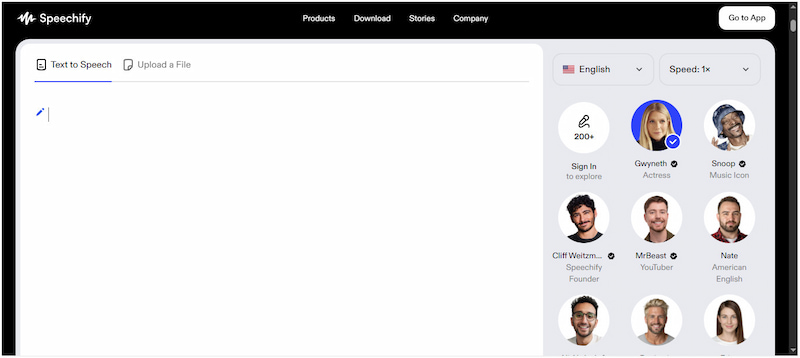
Step 2. Choose your preferred language, speed, and a Voice actor/actress. Click the Play button to start the text-to-speech narration.
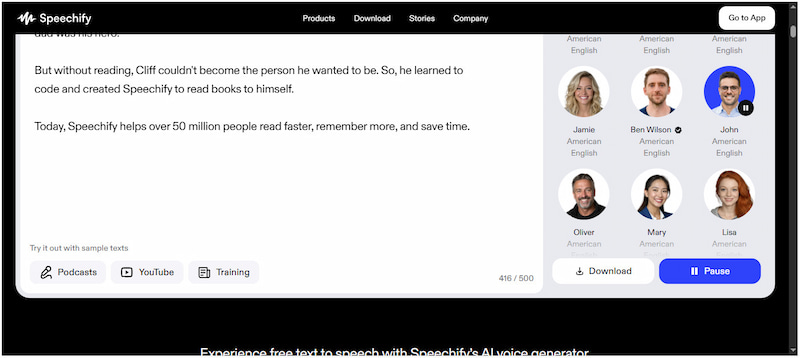
Speechify offers very realistic AI voices across many languages, making listening more comfortable. However, many of the premium voices are locked behind a paid subscription.
You can also upload a podcast with Speechify and change your voice. If you don’t know how to do so, download a Spotify podcast to MP3 first, then upload it to the platform.
Part 4. CapCut TTS vs. Other TTS Tools
| Best For | Voice Library | Language Supported | Custom Voices | Limitation | Pricing |
| CapCut | Add narration when editing videos. | 276 | 16 | Speech rate, volume, duration | 10000 characters | Free |
| TopVox Text to Speech AI | Creating short voiceovers for content creators & daily users on a budget. | 300+ | 26 | Language, voice avatar, reading speed, pitch, volume | 1000 characters | Free |
| NaturalReader | Cross-platform PDF & ORC reading | 225 | 40+ | Speed, language, volume, repeat, reading by sentence/paragraph | Free users can try Plus Voices for 5 minutes per day. | Commercial and public use: $49/Month |
| Panopreter Basic | Local TTS processing on Windows. | Male and female voices | 10+ | voice speed, pitch, and volume | Robotic sound | Free or $32.95/Lifetime |
| Speechify | High-productivity professionals & speed readers. | 200+ | 60+ | Voice speed | 500 characters | Free or $29/month |
Verdict:
CapCut Text to Speech is better at handling long text. If you want to read text on images or the screen quickly, NaturalReader and Speechify can meet your needs. Overall, for most daily users, like students, trainers, marketers, and social media users, TopVox Text to Speech AI stands out at the price and comprehensive features. It is more suitable to generate a lifelike AI voice and simple narration.
FAQs about CapCut Text-to-Speech
Q1: Is CapCut’s Text-to-Speech free for commercial use?
A: Depends on. Although most AI voices in CapCut are covered under a general commercial license for social media (TikTok, YouTube), you have to pay for a CapCut Pro subscription to ensure full rights to use them in large-scale offline TV commercials.
Q2: Is there a limit to CapCut text-to-speech length?
A: Yes. CapCut typically has a limit of 1,000 characters per text. If you have a long script, you need to split the text into multiple chapters and then generate audio clips together for a seamless narration.
Q3: What is the best free alternative to CapCut TTS?
A: TopVox Text to Speech AI is designed for converting short-form content to 300+ ultra-realistic AI voices and 20+ languages. It captures human nuances like breathing, emotional inflection, and natural pauses, making the generated sound superior for e-learning, storytelling, and brand presentation.
Conclusion
CapCut Text-to-Speech is a versatile tool that empowers creators to add clear narration to their videos. Whether you use the mobile app, desktop software, or the online version, the feature speeds up video creation. While there are limitations, they can be easily overcome with alternatives. For content creators who want to download music, podcasts, or other audio content to use with text-to-speech transcriptions, TopVox All Music Converter is highly recommended. It allows you to easily convert and save audio from multiple sources. This allows you to integrate background music, podcast clips, or sound effects into your videos or TTS projects.
Ethan Carter
Ethan Carter creates in-depth content, timely news, and practical guides on AI audio, helping readers understand AI audio tools, making them accessible to non-experts. He specializes in reviewing top AI tools, explaining the ethics of AI music, and covering regulations. He uses data-driven insights and analysis, making his work trusted.


 by
by