Best Way to Download MP3 from Amazon Music to Keep Songs
Streaming services such as Amazon Music have revolutionized the way we consume music, making it easier than ever to access millions of songs with a single click. But what if your internet connection fails, or you're working on a computer or mobile phone without Wi-Fi?
Amazon Music premium members have access to a download capability, which allows them to enjoy music anywhere, at any time, even without an internet connection. If you're wondering how to download Amazon Music to your devices, this tutorial will lead you through the many options. Whether you use Amazon Music Prime, Unlimited, or want a more flexible option to permanently save your music, you'll find the solution here.
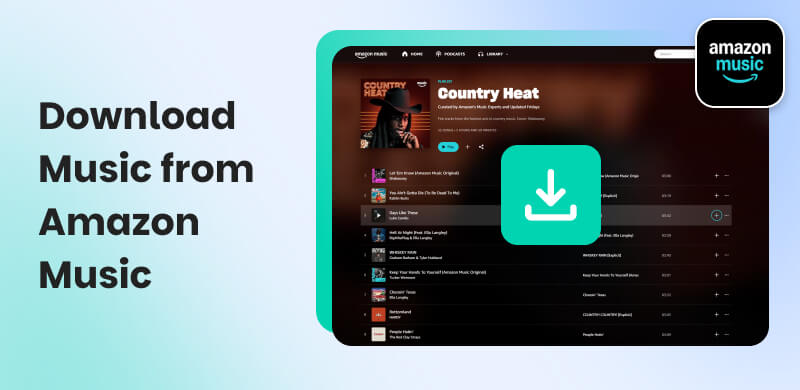
Part 1. Best Way to Download Any Music From Amazon Music Forever
We will start this article by providing you with the best of the best tools for downloading your favorite tracks from Amazon Music. TopVox All Music Converter possesses an easy, high-quality, and satisfying experience that we all want for a music downloader. In this tool, you will be able to do the process without complications. In addition, you will also notice that your downloaded music still possesses high-quality audio, just like the one we stream online. Indeed, if you want to permanently download and save Amazon Music tracks, TopVox All Music Converter is the best option. This powerful application allows you to convert and store Amazon Music songs, playlists, and albums.
Features
- Converts Amazon Music music into a permanent offline playback format.
- Maintains original audio quality and ID3 tags.
- Works with Amazon Music: Free, Prime, and Unlimited.
- Quick batch conversion with an easy-to-use UI.
How to Use TopVox All Music Converter
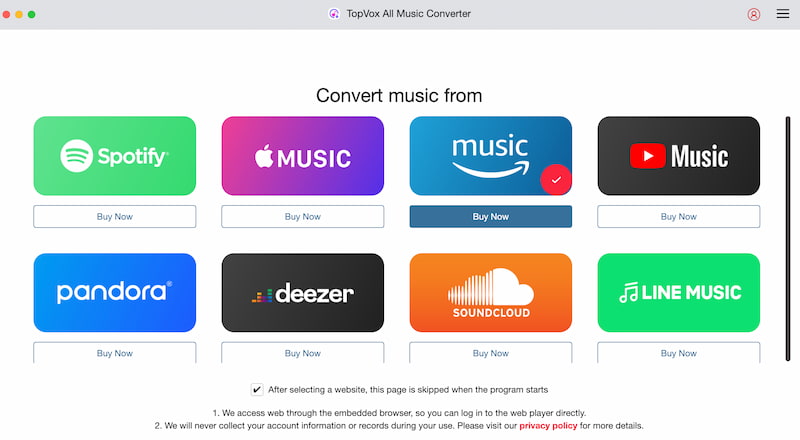
Step 1. Download and install TopVox All Music Converter to your PC. Then, launch the software. On the main interface, click the Amazon Music platform.
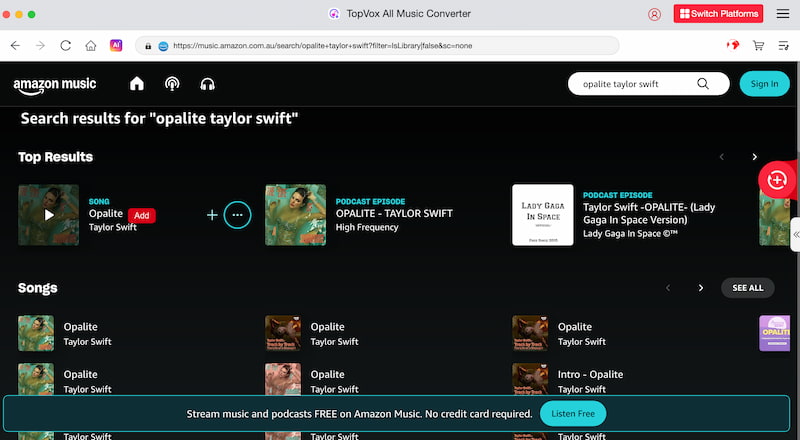
Step 2. Browse or search for the music or playlists that you wish to download from Amazon Music. To import them into the converter, simply click the Add button.
Step 3. Then you will now see the music on the Conversion List on the right side. Please click the Convert All button to begin downloading.
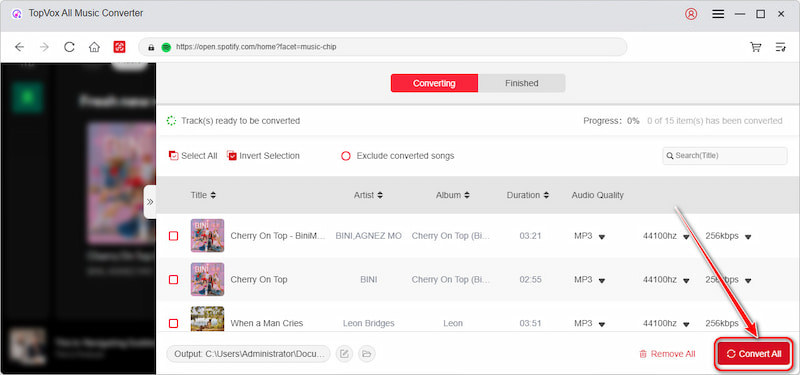
Once done, your downloaded music will be saved locally on your PC, ready to play whenever, whenever, even without the Amazon Music app.
Verdict: complete ownership and offline access to Amazon Music library. It's simple, effective, and ensures that your favorite songs stay with you forever.
Part 2. How to Download Music from Amazon Music to a Computer
Amazon Prime/Unlimited to PC
If you have an Amazon Music Prime or Unlimited subscription or have purchased tracks from Amazon, there are official ways to download Amazon Music on your PC via the Amazon Music app or web player. We will discuss the two techniques in detail below.
Step 1. Launch the Amazon Music app for PC and ensure that an active account is logged in.
Step 2. From the top menu, click Home to find the tune or playlist you wish to download.
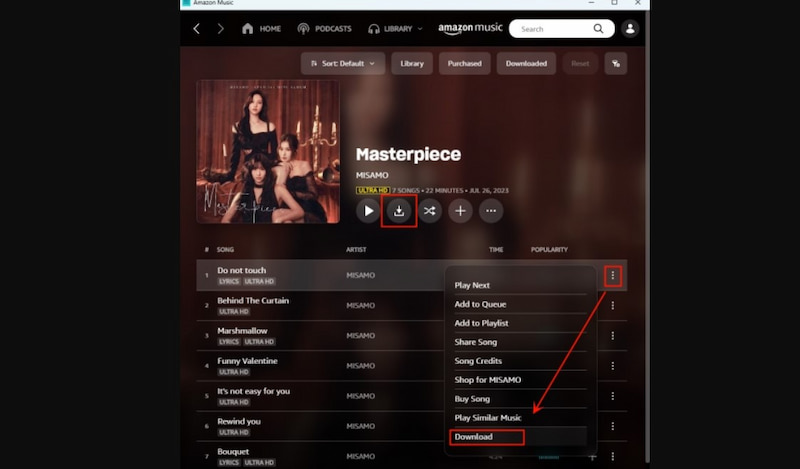
Step 3. Click on the Three Dots button next to the track or playlist.
Step 4. Select Download from the dropdown menu to add it to the download queue.
Step 5. Once downloaded, navigate to the Library, see Tracks, and select the Downloaded filter to see all downloaded tracks.
Downloading Purchased Amazon Music to PC
Another approach to store Amazon Music on your PC is to buy music from the Amazon Digital Music Store. Once you've purchased the digital songs, you own them and can download them as MP3s.
Step 1. Open the Amazon Music web player in a browser or launch the Amazon Music PC app.
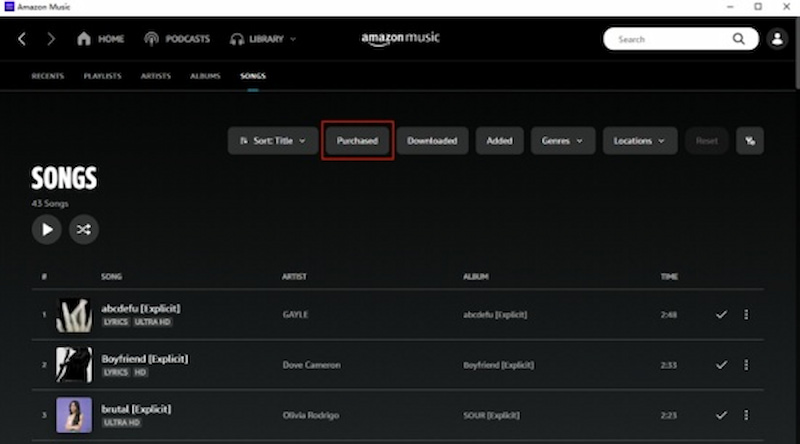
Step 2. Select the Purchased option on the Library menu, under the Songs or Albums area, to see all of the music you have purchased.
Step 3. Click on the More button next to the song or album and select Download.
Step 4. When the download is completed, the music will be saved to the My Music folder.
Part 3. How to Download Music from Amazon Music to a Phone
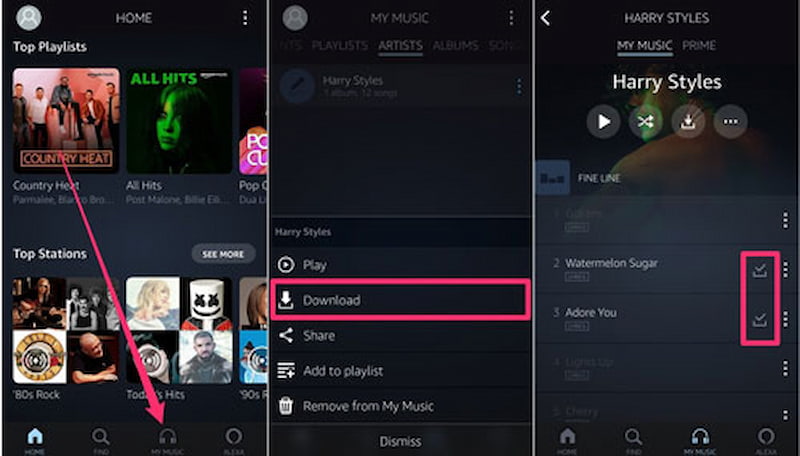
Amazon Music offers a variety of subscription options that are suited to different preferences and needs. Subscribers to Amazon Music Unlimited or Amazon Prime Music are fortunate since they have the option of downloading their favorite music. (Note: Amazon Prime Music subscribers can now only download All-Access Playlists.) Here are the steps for downloading Amazon Music to Android phones:
Download Music on Amazon on Android
Step 1. Navigate to the Google Play Store on your Android device.
Step 2. Enter Amazon Music into the search field to locate the Android Amazon Music app.
Step 3. When you find the Amazon Music app, press it to launch the store page. Then, press the Install button.
Step 4. Wait for Amazon Music to download and install. Following that, you will receive the Amazon Music app for your Android phone.
Download Music on Amazon on iPhone
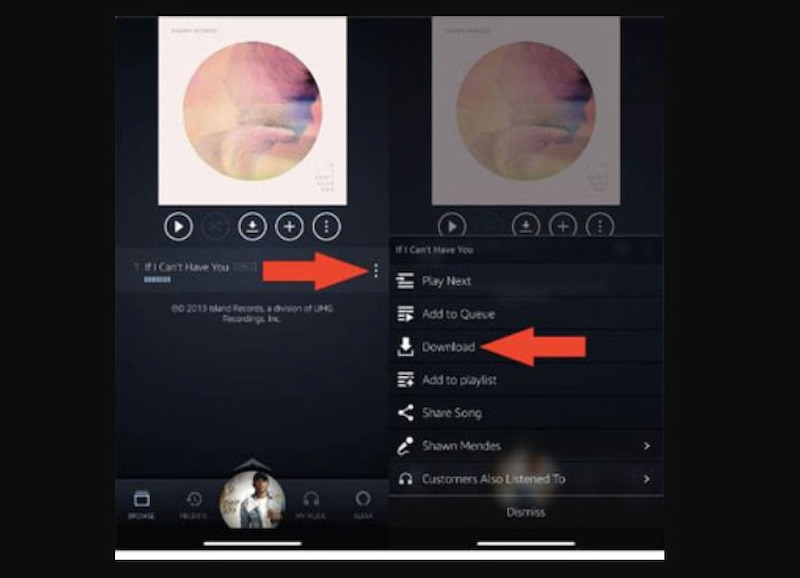
To complete the download process, regardless of the plan you use, you must first install and download the Amazon Music app for iPhone on your smartphone. You may get it from the App Store. Below is a step-by-step tutorial on how to download Amazon Music to your iPhone.
Step 1. Turn on your iPhone, then locate and click the App Store icon on the screen. It's a blue icon with a white letter A.
Step 2. Tap the Search icon, magnifying glass, then type Amazon Music into the search field and press the return key.
Step 3. In the search results, seek the official Amazon Music app. To access the app's site, tap the icon.
Step 4. On the Amazon Music app page, there is a Get button. Tap it to download and install the Amazon Music app for your iPhone.
Step 5. If prompted, enter your Apple ID password and use Face ID or Touch ID to verify the download. This step ensures the security of the installation procedure. Once completed, you will see the Amazon Music app icon on your homescreen.
Part 4. How to Download Music from Amazon Music via Web Player
Amazon Music Online lets you listen to the music without any download and install. In addition, If you want to download Amazon music to your computer without any third-party software, you can download from the online Amazon Music.
Step 1. Open Amazon Music's online player on your computer.
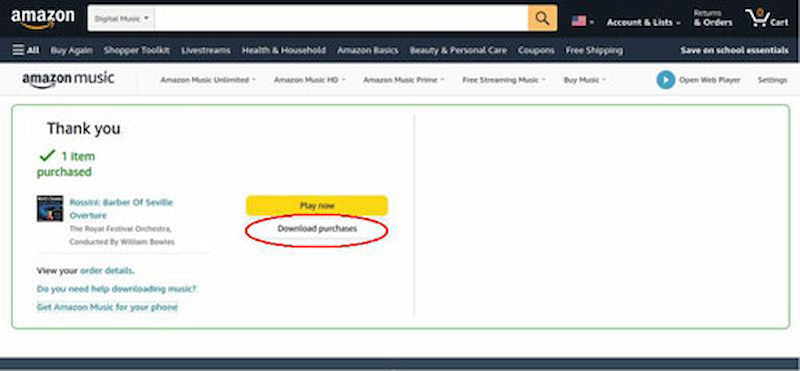
Step 2. Go to the Library, find the songs or albums you wish to download, and click Download.
Step 3. When offered to install the application, select No thanks, simply download the music files directly. Then, when prompted to open or save the music files, select Save.
Part 5. FAQs about Downloading Music from Amazon Music
Where does Amazon Music download to on the PC?
You may verify the download location in Amazon Music Settings. If you downloaded Amazon Music using a browser, it is saved in the Downloads folder. Furthermore, if you use the Amazon Music app, the purchased digital music is saved to the My Music folder on your computer.
How can I stop Amazon Music from launching automatically on my PC?
To access Settings, open the Amazon Music app on your PC and click your Profile in the upper-right corner. Scroll down until you see the Launch automatically on computer startup option. Turn it off by toggling it.
Is there an Amazon Music download limit on Mac and PC?
Yes. The number of songs or albums you can download may be restricted. Furthermore, Amazon Music often limits the number of devices from which you may download and save music.
Conclusion
To summarize, downloading music from Amazon Music is simple and flexible, whether you use the official app, web player, or a third-party application. However, if you want to preserve your Amazon Music tracks permanently, TopVox All Music Converter is the ideal answer. It allows you to save your favorite tunes in high quality for offline listening at any time, from anywhere. Try TopVox All Music Converter today and enjoy your Amazon playlists without restrictions.
Owen Bannett
Owen Bannett is a music enthusiasm as well as a senior writer. He has paid close attention on the pros & cons of various audio formats, bitrate, sample rate and encoding methods. Always seeking the best listening experience, Owen has deep insights about lossless music and diverse music converters on the markets.


 by
by