How to Turn on & Use iPhone Voice to Text? - Practical Tips
When you are busy taking the minutes or coming up with inspiration, it’s awkward that your typing can't keep up with your thoughts. iPhone voice-to-text is designed to settle these troublesome scenes. With the recognition capabilities of Apple, you can quickly and swiftly turn speech to text. In this article, we’ll share a detailed guide and notes on the usage of talk-to-text on iPhone, making your note-taking more efficient and reliable.
Part 1. What is iPhone Voice to Text?
iPhone Voice to Text, also known as Dictation features, is developed by Apple based on the iOS system and native apps. You can just talk to a microphone, and without any special software, your iPhone will type what you speak. It meets multiple scenarios, including messaging, quickly capturing ideas and interview content, real-time transcription for audio and etc. Dictation supports transcript text in many languages.
Please note that some features have specific device and system version requirements. For example, we list several practices and corresponding restrictions:
| Device Restrictions | iOS Version Restrictions | Additional Notes |
| Keyboard Instant Voice-to-Text | ❌ | ❌ | Built into the native keyboard. |
| Voice Memos Recording Transcription | iPhone 12 and later | English transcription supported on iOS 18; other languages require iOS 18.4 and later | Not supported in all countries or regions. |
| Notes App Recording Transcription | iPhone 12 and later | ❌ | Only available for specific languages. |
| Live Captions | iPhone 11 and later | iOS 16 and later | Only for English (United States) or English (Canada). |
| Call Recording Transcription | iPhone 12 and later | iOS 18.4 and later | Only supports Apple’s native calling feature. |
Dictate text anywhere you can type it with simple operations. Do you want to try hands-free texting? Read on.
Part 2. How to Turn on Voice to Text on iPhone?
Follow the step guide below to turn on voice-to-text on iPhone:
Step 1. Turn on the Settings app on your iPhone.
Step 2. Scroll down and tap General > Keyboard.
Step 3. Find an Enable Dictation option and switch it to green.
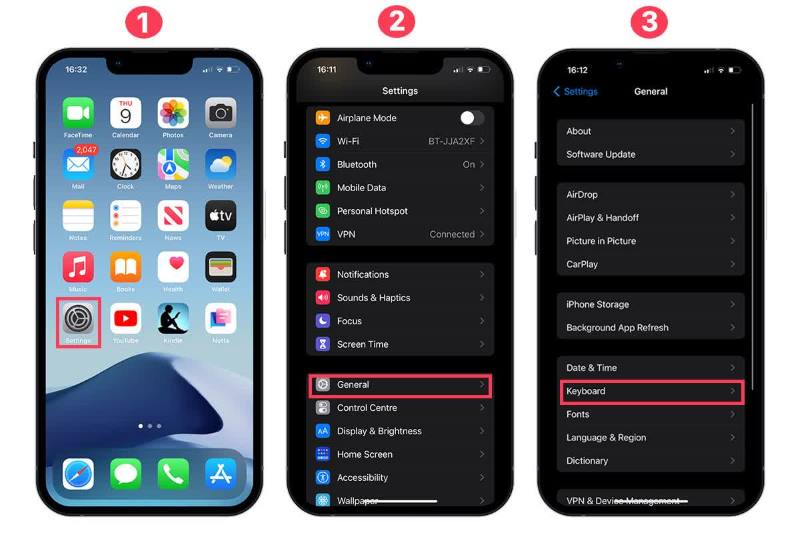
Step 4. In the pop-up prompt, click Enable Dictation.
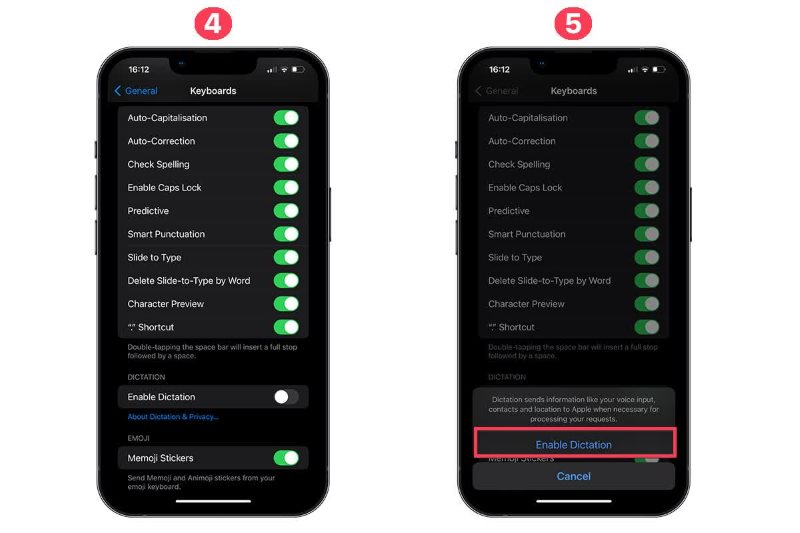
Step 5. Open the Auto-Punctuation and choose Dictation Languages as you like.
Now, you can speak to text on iPhone for converting speech to written text in seconds. To cover all of your daily needs, we advise you to update to the latest iOS version.
Part 3. How to Use Voice to Text on iPhone?
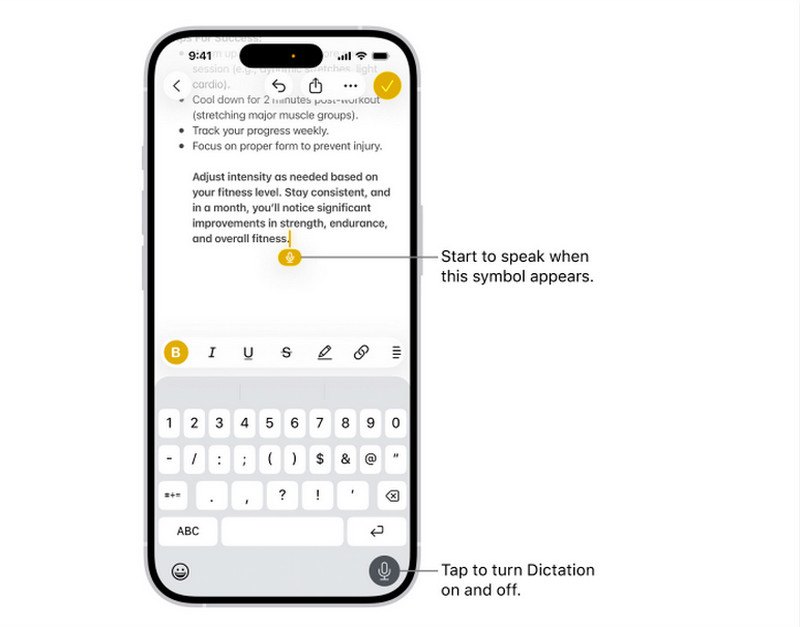
After knowing where to activate voice input, talking to text on an iPhone is very simple. You can open any app with a text field. Here we take Notes, for example.
Step 1. Open the app and place the insertion point where you want to type.
Step 2. On your keyboard, find and tap the microphone icon in the lower right.
Step 3. When a colored microphone icon displays on the screen, you start to talk. If you need to change the language, press and hold the icon to choose other languages.
Step 4. Click the microphone icon again or say stop dictation to end the process after finishing dictation. It will automatically close when you stop speaking to text for 30 seconds.
It’s necessary to check the content carefully before sending a message. So, how do you correct the misspelt text? If there are spelling mistakes, blue lines under the words suggest you delete or replace incorrect words. Press the underlined phrases and choose a correction option to revise your text. If any words or punctuation marks are missing, you can insert them directly using your keyboard or locate the insertion point and speak again.
If you don’t want to pay attention to editing, enable Auto-Correction and Predictive Text in Settings > General > Keyboard. This feature makes iPhone voice-to-text more accurate automatically.
Tips: Make Sure the Best Quality of Dictation
- Maybe you’ll see the text generated from your speech have errors, or even not be recognized, probably due to speaking too fast or the environment being noisy. Some tips help you to have a more accurate voice-to-text iPhone:
- Speak clearly and not too fast. Clear pronunciation enables the identification of each word. And a moderate speaking pace prevents omissions of text. You can pause briefly after each sentence.
- Keep a normal volume. Higher or lower volume may interrupt the microphone from effectively capturing speech content.
- Speak in a quieter environment. Background noise may interfere with the recognition of the target speaker, thereby affecting dictation accuracy.
- The microphone is kept about 6-10 inches from your mouth. It’s just like speaking at a proper volume.The microphone is kept about 6-10 inches from your mouth. It’s just like speaking at a proper volume.
- Utilize voice commands. We’ll talk more about this part later.
Part 4. Tips: Voice Commands for Better Speech Accuracy
Maybe you are confused about how to speak voice commands clearly and accurately for a smooth voice-to-text on an iPhone. If speech is not fluent or is always interrupted, dictation results will be poor. Voice commands require regular practice. Here are some common commands. When you finish a sentence or want to add some symbols or emojis, you can say like this:
| Punctuation | Prompt | Format |
| Period/Point/Full stop | . | Backspace/Delete | Delete Previous Word/Character |
| Comma | , | Undo | Restore content after accidental deletion or incorrect operation. |
| Question mark | ? | Redo | Restore the original content after undoing. |
| exclamation mark/exclamation point | ! | New line/New paragraph | Start a new line/paragraph. |
| Colon | : | Capitalize [word] | First letter capitalized (e.g., “Apple”) |
| Semicolon | ; | All caps [word/phrase] | All uppercase (e.g., "IMPORTANT") |
| Hyphen | – | Lowercase [word/phrase] | All lowercase (e.g., “note”) |
| Dash | — | Spell [word] | Spell the specific word (e.g., "A-P-P-L-E") |
| Quotation mark | “ ” | Insert [word] before/after [word] | Adds text in a specific location |
| Apostrophe | ’ | Select [word/phrase] | Highlights text for editing |
| Parentheses | ( ) | Bold/ [word/phrase] | Bold (e.g., Important ) |
| Ellipsis | … | Italic [word/phrase] | Italic (e.g., keywords) |
If you want to add some emojis, you can simply describe what they look like, such as the Laughing emoji 😂, the Cool emoji 😎, the Clapping emoji 👏, and so on.
Part 5. Troubleshooting: Why is iPhone Dictation not Working
1. Check if Dictation settings are correct (Settings > General > Keyboard > Enable Dictation).
2. If your microphone is wrong, it will also cause the issue. Clean the microphone and test its audio pickup again. Additionally, go to Settings > Screen Time > Content & Privacy Restrictions and confirm microphone access is set to Allow.
3. Check your internet condition: you can switch between Wi-Fi and cellular networks.
4. Siri or Bluetooth malfunctions may interrupt iPhone talk-to-text. You can reset Siri settings or turn off Bluetooth to avoid interference.
5. Sometimes, the System or iOS version will affect the function of dictation. We recommend you update to the latest version for a better experience.
6. Environmental noise or maloperation may affect performance. Refer to Tips: Make Sure the Best Quality of Dictation in Part 3.
7. If language settings are incorrect or lack of target language, refer to Part 2 to confirm.
8. When device storage is insufficient, clear redundant files to free up space. This will restore normal dictation functionality.
FAQs About Voice to Text on iPhone
Q1: Is iPhone Talk to Text accurate?
A: Yes. The iPhone voice-to-text offers high accuracy in most conditions. It recognizes various languages and removes noise for clear speech. However, many factors can also affect dictation accuracy, such as unclear speech, excessive speaking speed, or noisy environments, which should be avoided whenever possible.
Q2: Can I use speech-to-text offline?
A: It’s case by case. Basic keyboard voice-to-text works offline, but some advanced features, like multi-language translation or AI-powered features, may still work with an internet connection.
Q3: Can I switch to different languages when using voice-to-text on iPhone?
A: Yes. You can switch languages via Settings > General > Keyboard > Dictation Languages on your iPhone. Note that some languages or dialects need a specific device or iOS version.
Q4: Is iPhone Speech-to-Text Secure?
A: Yes. Although your voice is obtained by Apple, it’s only used for processing and improving dictation and Siri features. You can turn to the Apple Privacy website to learn about how Apple protects your information.
Conclusion
When you’re busy or don’t have free hands to type, mastering iPhone Voice-to-Text helps save you a lot of time and allows you to output content efficiently and accurately in daily life. This article shares specific usage methods and common issues of iPhone Dictation, hoping to improve your user experience!
Ethan Carter
Ethan Carter creates in-depth content, timely news, and practical guides on AI audio, helping readers understand AI audio tools, making them accessible to non-experts. He specializes in reviewing top AI tools, explaining the ethics of AI music, and covering regulations. He uses data-driven insights and analysis, making his work trusted.

 by
by