Top 3 Ways to Use CapCut Text to Speech
CapCut Text-to-Speech is a powerful feature that transforms written text into natural-sounding voiceovers. This feature makes it easy to add narration without recording your own voice. It allows creators to generate professional-sounding audio directly within the editing workflow. In this post, we will teach you how to use the Text-to-Speech feature effectively. We’ll cover three methods: using the mobile app, the desktop software, and the online version. Our aim is to help you produce engaging videos with high-quality narration quickly and easily.
Part 1. CapCut Text to Speech on Mobile
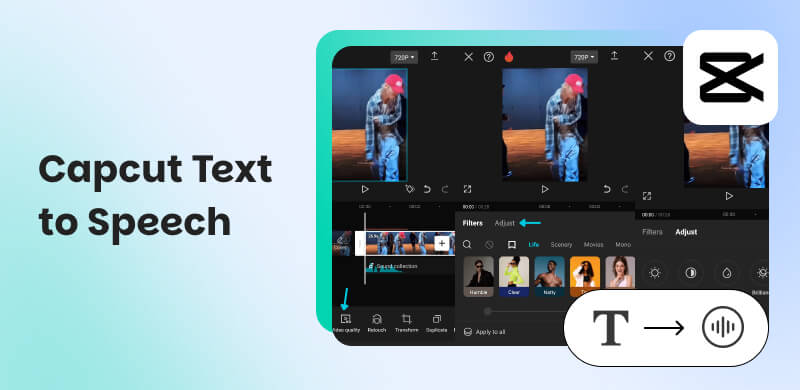
CapCut’s mobile app provides a fast and convenient way to convert text into natural-sounding speech. CapCut TTS is perfect for quick social media posts, TikTok videos, narrations, or even voiceovers. You can generate TTS audio directly on your phone with just a few taps.
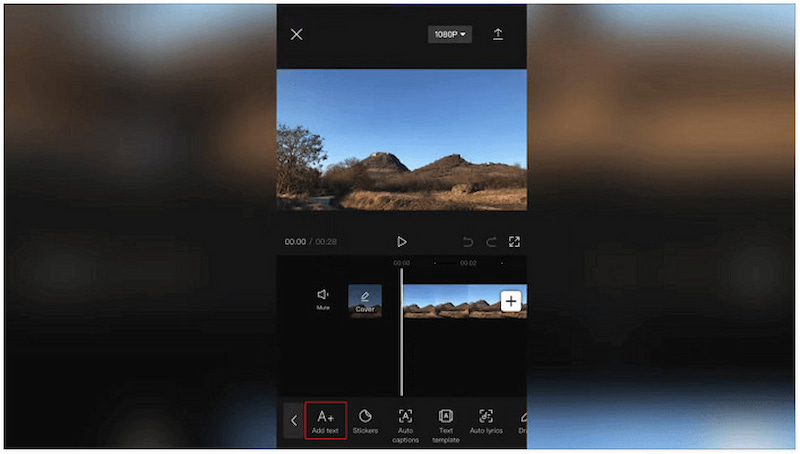
Step 1. In the CapCut mobile app, import the video you want to add text-to-speech narration to. Tap Text, select Add text, then type your desired script.
Step 2. Tap the text layer you just added. Next, tap the Text-to-speech option to view the available voice styles. Pick the voice you want to use, then tap the Apply to all button.
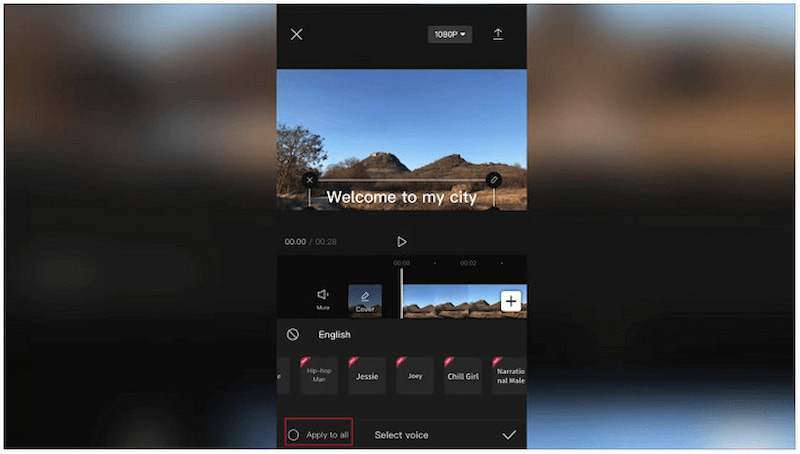
CapCut’s mobile app enables you to generate voiceovers anytime, making it perfect for quick edits. It offers multiple voice styles, allowing you to match different types of content. However, they may still sound slightly robotic compared to premium AI voice generators.
Part 2. CapCut Text to Speech on Computer
Generating text-to-speech on a computer is just as simple as doing it on mobile. CapCut for PC provides a clean interface and direct access to multiple TTS voices. This method works best for content creators who prefer editing on a larger screen.
Here’s how to use Text to Speech in CapCut PC:
Step 1. In the CapCut for PC interface, navigate to the Text panel and drag Add Text onto the timeline. Then, type in your script and customize the font, color, and style if needed.
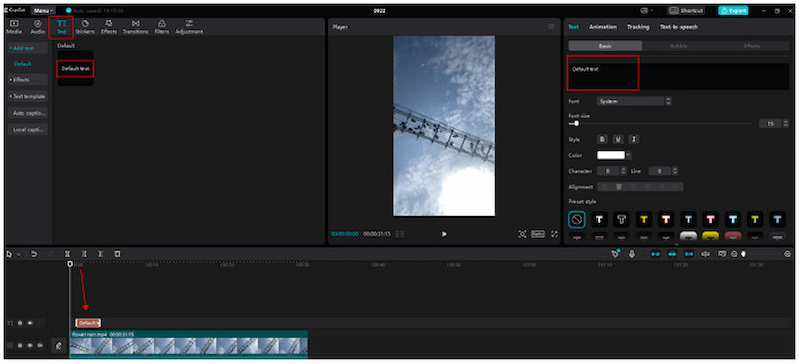
Step 2. Click the text on the timeline to select and move to the upper-right panel. Click the Text to Speech option, choose your preferred voice, and click Start Reading to generate it.
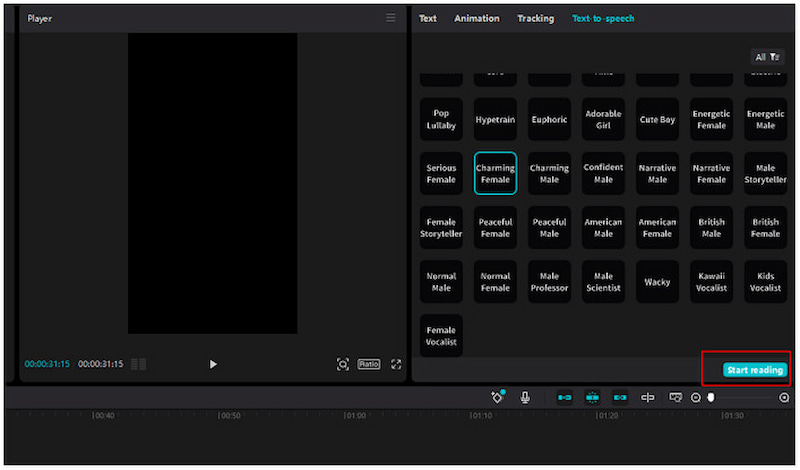
CapCut for PC offers more detailed timeline editing than the mobile app. It allows you to fine-tune text duration, transitions, volume, and alignment with improved accuracy. However, it falls short compared to specialized voice-generation platforms with ultra-realistic voices.
When CapCut’s TTS sounds too robotic, use a YouTube Music downloader to get the perfect voiceover from YouTube.
Part 3. CapCut Text to Speech Online
CapCut’s online text-to-speech allows you to generate voiceovers without installing software or using your device’s resources. Everything runs in your browser, making it perfect for quick edits and lightweight devices. With CapCut Online, you can turn written text into speech quickly.
Step 1. On the CapCut homepage, choose a text style from the available templates on the Text panel. Type your script and select your preferred language.
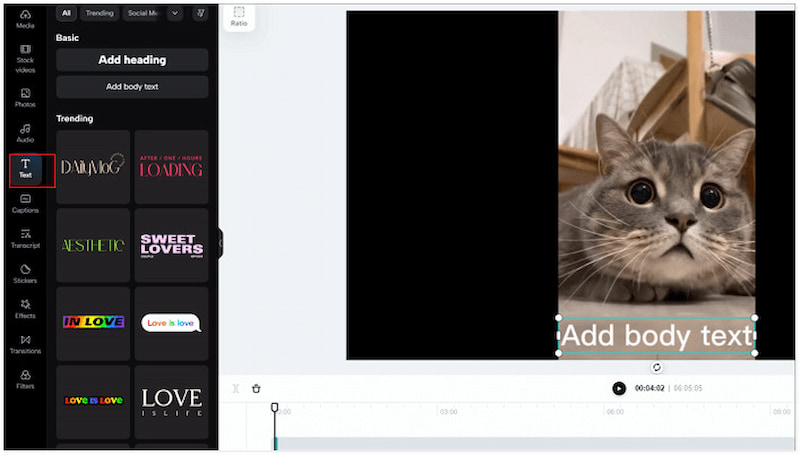
Step 2. On the right side of the screen, you’ll find the Text-to-Speech option. You can apply the AI voiceover to a single clip or the entire video, depending on your needs.
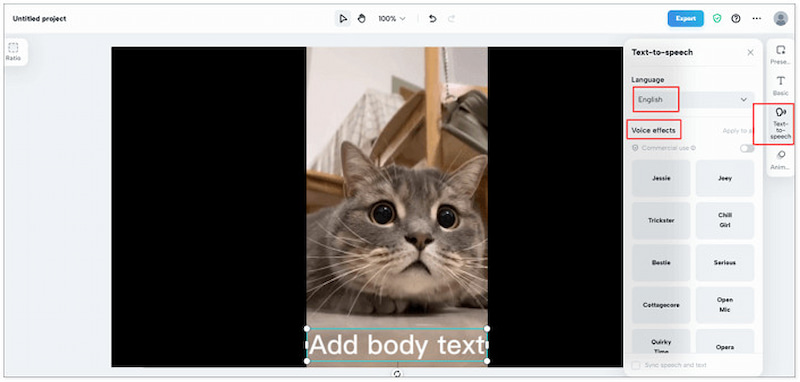
CapCut online TTS runs smoothly as long as you have a browser and an internet connection. However, there’s a catch. Since everything is done over the internet, large files take longer to upload and download. For long videos, it might feel less efficient than the desktop application.
Part 4. 3 CapCut Text to Speech Alternatives
NaturalReaders
NaturalReader is an AI text-to-speech tool designed for personal use that converts written text into spoken audio. It can transcribe typed text, documents, scanned images, and web pages using AI voices. It also lets you adjust speed, insert pauses, and customize pronunciation.
Here’s how to transcribe text to speech using the CapCut voice generator alternative:
Step 1. On the NaturalReader’s page, directly enter the text you want spoken. You can also upload supported file types, such as PDF, Word, PPT, EPUB, and more.
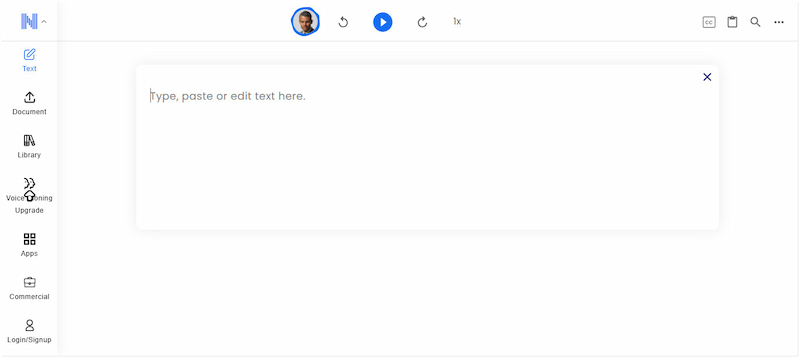
Step 2. Click the Voice button, select a language, then pick a voice from the list. Click the Play button to start the reading. You can pause, resume, or skip.
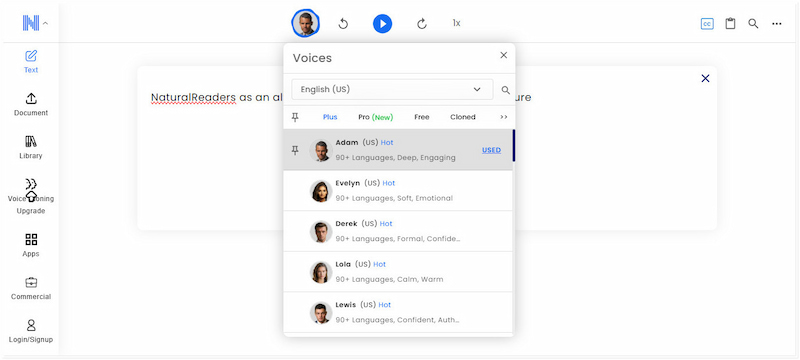
NaturalReader offers a variety of AI voices, including neural (plus) and HD (pro) voices. However, if you’re a free user, you won’t be able to convert your text into MP3 files for offline listening.
Panopreter Basic
Panopreter Basic is a simple, beginner-friendly text-to-speech program for Windows. This software offers two main modes: Input and Speak or Read Batch Files. It is designed to read text aloud or convert written content into audio files.
Step 1. Choose the mode by clicking the corresponding Radio button at the top of the interface. In the Language List, choose the language that matches your text or files.
Step 2. After you pick a language, all compatible voices installed on your PC will appear. Select your preferred voice from the Voice Window. Click Speak to begin reading the text aloud.
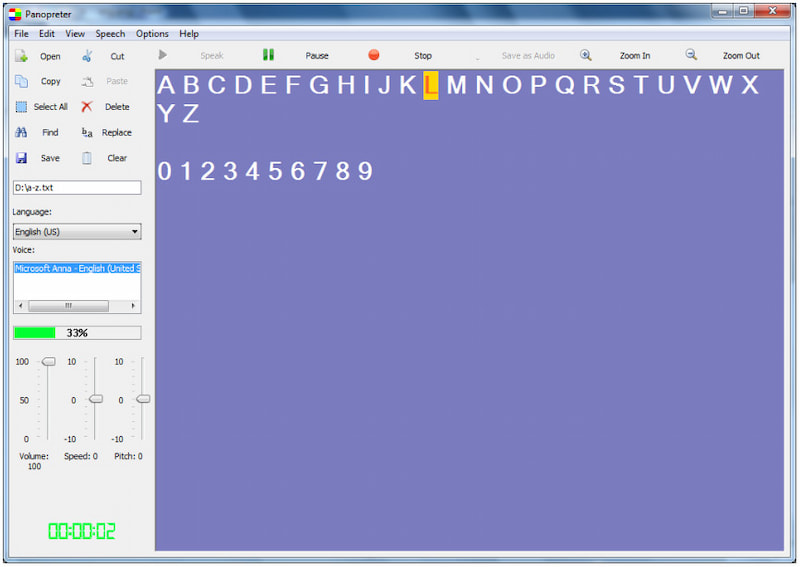
Panopreter Basic is free to use and runs locally on your Windows PC. However, if you choose the wrong language, the speech output will sound incorrect or distorted.
Speechify
Speechify is an internet-based AI-driven text-to-speech platform designed to listen to written content instead of reading it. It converts text from documents, web pages, images, or scanned books into spoken words. It is intended for those who struggle with reading or attention.
Step 1. In the Speechify webpage, select the Text to Speech tab and type or paste the text. You can also upload a file from your local drive. Be sure it is in PDF or DOCX format.
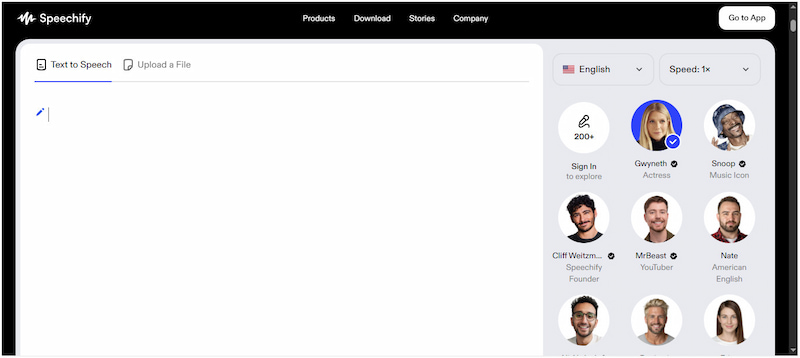
Step 2. Choose your preferred language, speed, and a Voice actor/actress. Click the Play button to start the text-to-speech narration.
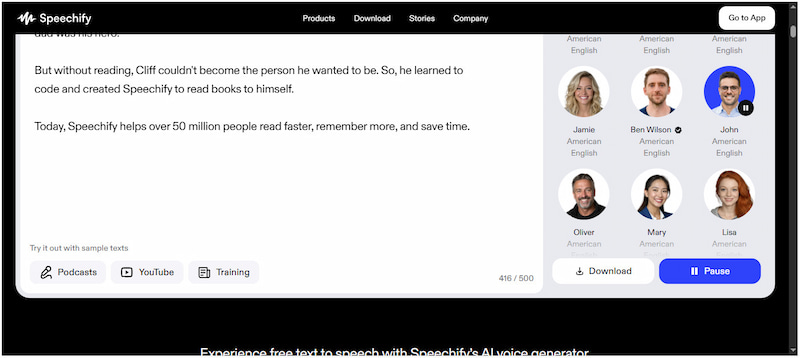
Speechify offers very realistic AI voices across many languages, making listening more comfortable. However, many of the premium voices are locked behind a paid subscription.
You can also upload a podcast with Speechify and change your voice. If you don’t know how to do so, download a Spotify podcast to MP3 first, then upload it to the platform.
Part 5. FAQs about CapCut’s Text-to-Speech
Q: How good is CapCut text-to-speech?
A: CapCut’s text-to-speech feature is high-quality for casual and content-creation purposes. It offers multiple AI voices with clear pronunciation and natural intonation.
Q: Is there a limit to text-to-speech length?
A: On the desktop version, each text segment is limited to roughly 500 words. Meanwhile, the mobile app has a 3,000-character limit per text-to-speech segment.
Q: What happens if a text message is too long?
A: If your text exceeds CapCut’s TTS limits, the system will not generate speech for the excess portion. You will need to manually divide long text and apply TTS to each separately.
Conclusion
CapCut Text-to-Speech is a versatile tool that empowers creators to add clear narration to their videos. Whether you use the mobile app, desktop software, or the online version, the feature speeds up video creation. While there are limitations, they can be easily overcome with alternatives. For content creators who want to download music, podcasts, or other audio content to use with text-to-speech transcriptions, TopVox All Music Converter is highly recommended. It allows you to easily convert and save audio from multiple sources. This allows you to integrate background music, podcast clips, or sound effects into your videos or TTS projects.
Ethan Carter
Ethan Carter creates in-depth content, timely news, and practical guides on AI audio, helping readers understand AI audio tools, making them accessible to non-experts. He specializes in reviewing top AI tools, explaining the ethics of AI music, and covering regulations. He uses data-driven insights and analysis, making his work trusted.

 by
by