2026 Guide: How to Download Apple Music Songs to A Computer
Apple Music can offer millions of songs you can listen to anywhere. Whether you are using a browser, a mobile device, or a computer, you can listen to your favorite music. However, you must have an internet connection for a smooth online playback. If you want to download songs from Apple Music to your computer for offline listening, I will share the safest official way and the best alternative tool to help you succeed in the download process.
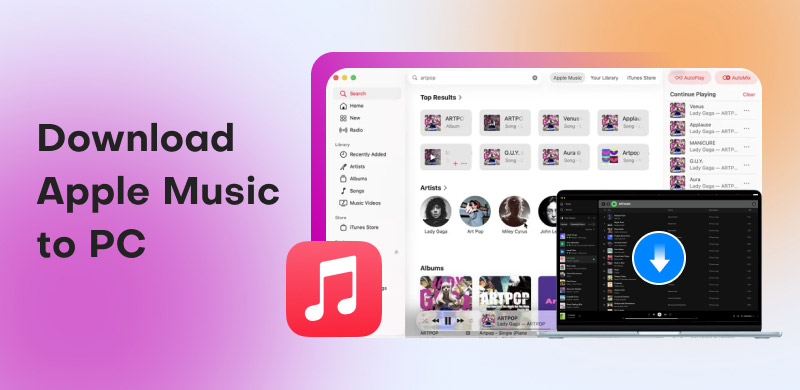
Part 1. The Best Way to Save Apple Music to PC: TopVox Apple Music Converter
Downloading and saving all your favorite songs from Apple Music is simple with a professional music downloader. With that, if you want the best program that can assist you in achieving your preferred outcome, look no further than TopVox All Music Converter.
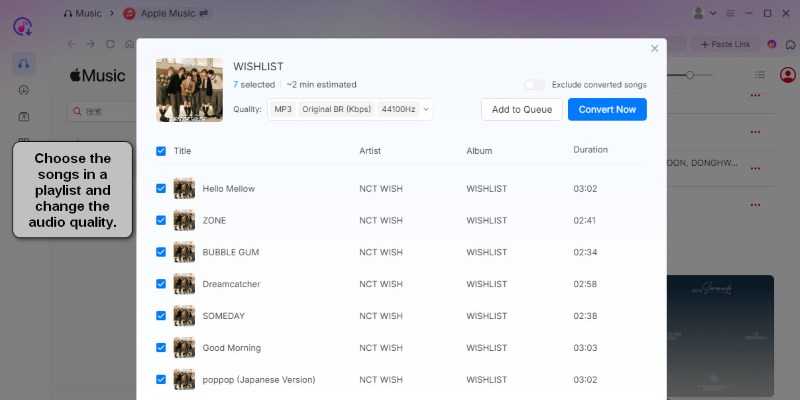
There’s no need to download the Apple Music app or open other browsers. The built-in web player enables you finish all operations in one program. With it, you can batch download songs, playlists, albums and podcasts to various formats, including MP3, AAC, FLAC, AC3, WAV, M4A, and more. Additionally, it offers a 35 times faster conversion speed. In our test, a playlist with 50 songs takes about 10 minutes. By default, the output audio quality remains Original BR and 44100hz. You can freely change the setting parameters before downloading.
Features
- Offers exceptional audio quality up to 320kbps and 48000Hz.
- Converts music in bulk at 35× faster speed.
- Supports DRM-free formats, such as MP3, M4A, AAC, FLAC, and more.
- Supports multiple platforms: Spotify, Apple Music, Amazon Prime Music, YouTube Music, Deezer, Pandora, SoundCloud, Line Music, or Audible.
- Preserves ID3 tags and other metadata.
- Provides a toolkit with Format Converter, Playlist Transfer, AA/AAX Converter, and Tag Editor.
Advantages:
• Easy to use on Windows and Mac.
• Download high-quality songs at a fast speed.
• Additional tools for advanced requirements.
• Safe with no ads and malware.
• 99% success rating for downloading.
To download songs from Apple Music to a PC, you can follow the instructions we have provided below.
Step 1. Access TopVox All Music Converter by clicking the Free Download buttons below. After installing it on your PC, launch it.
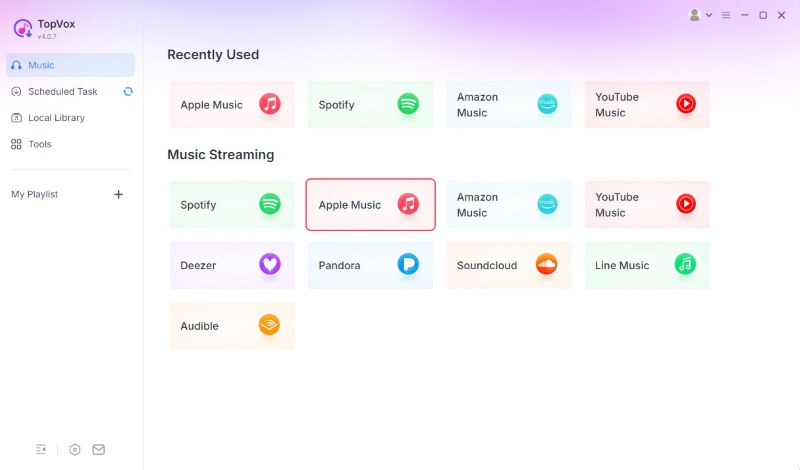
Step 2. Once the primary interface shows up, tap the Apple Music platform and start inserting your account. The main UI will pop up on your screen.
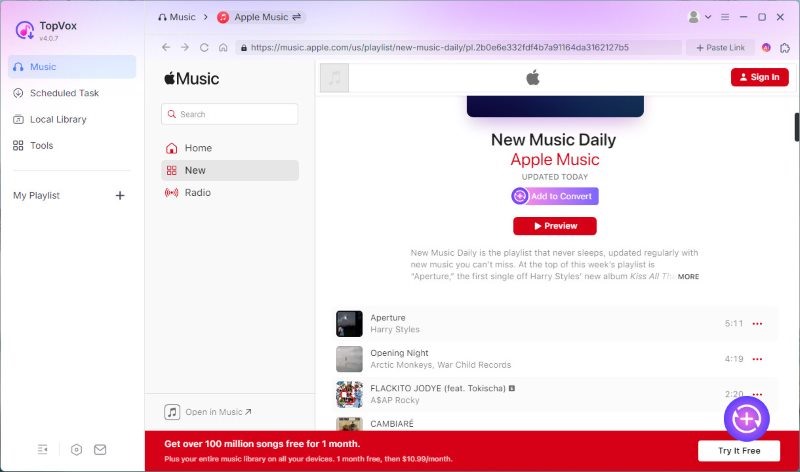
Step 3. From Apple Music, go to browse your favorite music from the Search section. After that, tap the Add to Convert option.
Step 4. Finally, click the Convert Now button below to start downloading and converting your favorite songs from Apple Music and keep them to your computer.
User Experience:
With this procedure, you can now listen to Apple Music offline. You can even save them in various formats for better compatibility. And you can rename ID3 tags for better management and recolonization using its Tag Editor. The only regret is that this tool can’t work on Android or iOS, but I find the VIP membership pricing will be lower if you open the BuyNow page on your phone. Thus, if you want a smooth downloading process, always rely on TopVox All Music Converter.
Part 2. Official Way to Download Apple Music to Your PC
Using the Apple Music app [Windows 11]
There’s no doubt that it’s straightforward to download Apple Music songs using the Apple Music app. You can save your customized playlist to M4P files with satisfying audio quality for a better listening experience. However, when using this app, you must have Apple Music's Premium version to access the download feature.
Step 1. Open the Apple Music app on your computer. After that, get the subscription plan and proceed to the main interface.
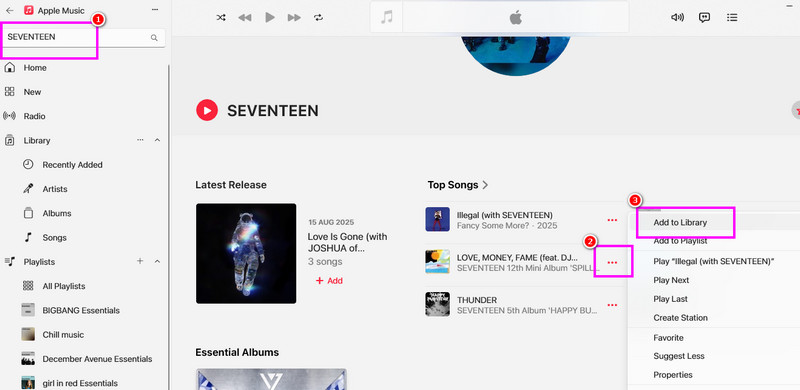
Step 2. Navigate to the Search section to start looking for the song you want to download. Then, tap the three-dots option and select the Add to Library option.
Step 3. Go to the Library section and click the music you have added. After that, tap the Download symbol to begin saving the music.
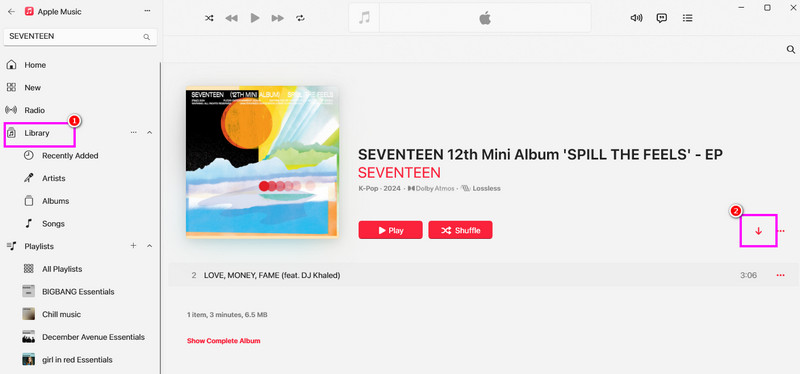
This process is perfect if you are a member of the paid version. However, take note that once the subscription plan expires, all the saved music will be deleted.
Tips
- If you find it troublesome to add and download songs manually, you can turn on automatic downloads on Apple Music. (Open Apple Music > Music > Preferences > General > Automatic Downloads.)
Using iTunes [Older Windows System]
iTunes is always a good option for managing your Apple Music library for Windows 10 or earlier.
You can easily access and download your tracks from Apple Music.
Step 1. Launch iTunes and log in to your Apple account.
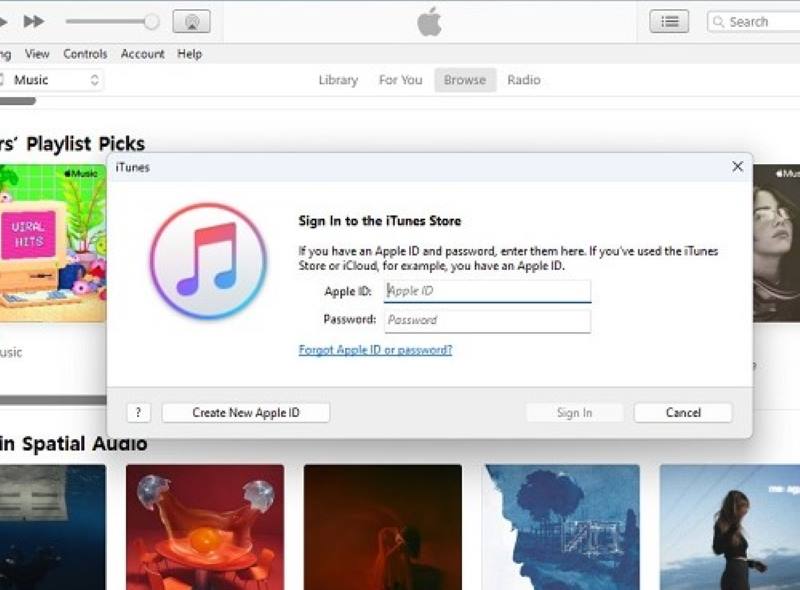
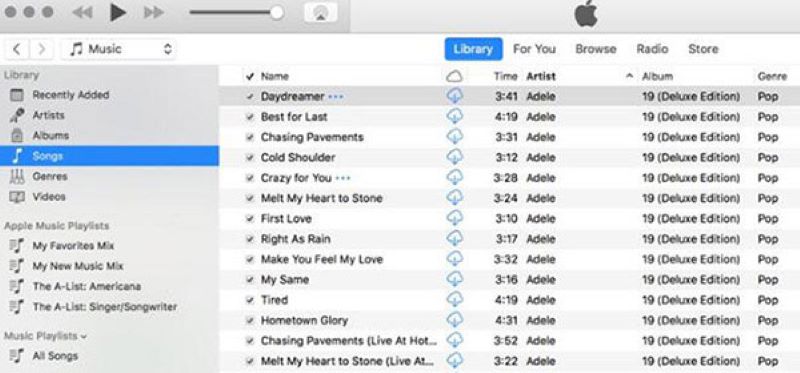
Step 2. Go to your Library and target the songs you want to save. Click the download icon to start the process.
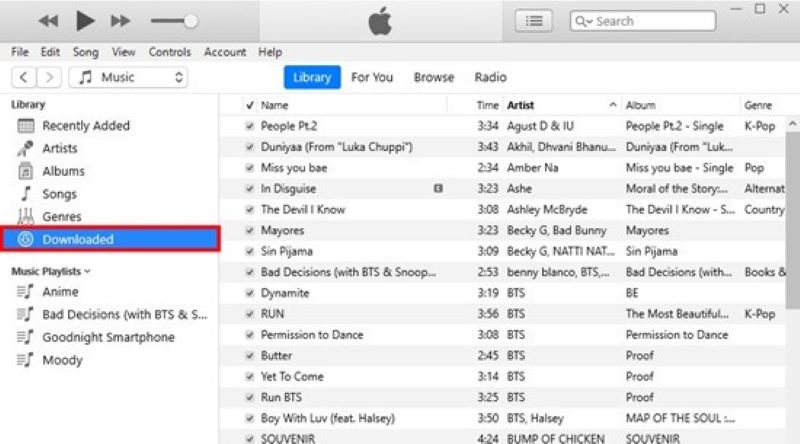
Step 3. After that, click the Downloaded button to find saved audio tracks.
User Experience:
All audio tracks from Apple Music are encrypted and playable through Apple-authorized applications or devices. Those downloaded songs will be deleted once your subscription ends. It means you can’t really save songs from Apple Music on your computer or transfer them to other devices. That’s why we recommend you use TopVox All Music Converter, which provides a seamless downloading process without any trouble.
Part 3. Comparison of 2 Download Modes: TopVox vs. Official Method
| Apple Music app / iTunes | TopVox Apple Music Converter |
| Output File Format | Encrypted M4P (Protected AAC) | MP3, FLAC, WAV, M4A, AAC, ALAC |
| Free-DRM | ❌ | ✔ |
| Playback Compatibility | Apple Music | Any players and devices (Car, MP3 player, TV, etc.) |
| Subscription Dependency | Required | One-time download and save permanently |
| Conversion Speed | Real-time | 35× |
| Change Metadata & ID3 Tags | ❌ | ✔ |
Key Takeaway
• Choose the Official way if you only plan to listen to music on your computer and intend to keep your subscription active indefinitely.
• Choose TopVox All Music Converter if you want to truly own your music, play it on non-Apple hardware (like a car stereo or Hi-Fi system), or keep your library forever without being tied to a monthly bill.
FAQs on Downloading Apple Music to PC
Q: How to download the entire Apple Music library?
A: Method 1: Open Apple Music and enable Automatic Downloads in settings. It may take several hours to finish. Method 2: Create a playlist that covers all the music in your library and download it at once. Go to File > New > Smart Playlist > Match for the following rule, and adjust the setting to Media Kind > is > Music. Then click the plus icon, choose Cloud Status > is not > Matched. After that, rename the playlist and click OK. Lastly, find and download it in your library. Method 3: Using a music converter software like TopVox All Music Converter. It allows you to batch download all playlists quickly.
Q: Can you download and keep songs from Apple Music forever?
A: Depends on. If you download songs using the Apple Music app, the answer is NO. The files from Apple Music are protected by DRM, and they will become unplayable after your subscription expires. If choosing other converter tools, you can save songs into common formats and enjoy them on other devices without DRM encryption.
Conclusion
To download a song from Apple Music to a PC, the official method or third-party software mentioned in this article is effective. In addition to that, if you want a free way to download any content from Apple Music, it is better to use TopVox All Music Converter. With its simple and fast downloading process, it is evident that this is the go-to program for both skilled and non-professional users.
Owen Bannett
Owen Bannett is a music enthusiasm as well as a senior writer. He has paid close attention on the pros & cons of various audio formats, bitrate, sample rate and encoding methods. Always seeking the best listening experience, Owen has deep insights about lossless music and diverse music converters on the markets.


 by
by