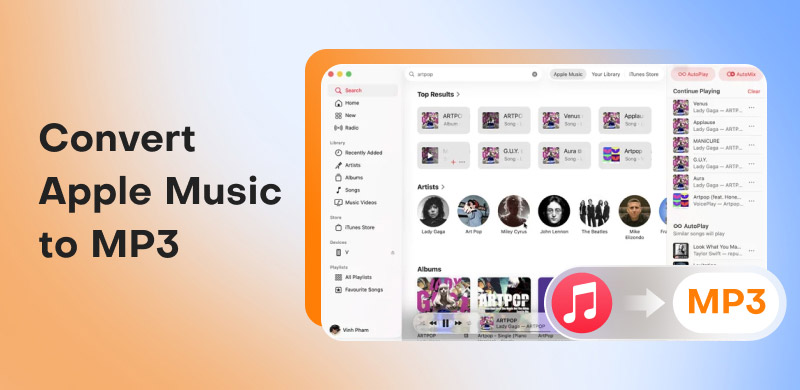
4 Efficient and Free Ways to Convert Apple Music to MP3
Apple Music offers high-quality music, but it’s annoying that songs are usually protected by DRM, hard to play on non-Apple devices. Many of us want to get rid of the platform restrictions and listen to our favorite playlists offline without any limits. MP3 format supports greater compatibility with other streaming players and devices. This makes it a good choice for Apple Music conversion. I’ll share 4 methods, including both the official way and third-party tools, to save Apple Music to MP3. Let’s take a look!
Part 1. Most Efficient Way to Convert Apple Music to MP3 [TopVox All Music Converter]
Recommended for: Users who want a fast, safe, and high-quality solution to convert Apple Music to MP3 with minimal hassle.
If you’re tired of converting Apple Music to MP3 from frustrated by DRM and want to keep the perfect sound quality, try TopVox All Music Converter—every music lover’s essential tool! TopVox All Music Converter supports converting protected Apple Music to MP3 with 35× faster conversion speed, taking songs in bulk instead of one-by-one downloads—a total lifesaver for busy days! The converted music can be output at 320kbps, retaining the original quality. ID3 tags will be retained, making them perfect for playing on your phone, in your car, or on other devices, and clearly distinguished and classified.
As important, it integrates multiple music browsers to simplify the process of switching between different music apps. All conversion processes are completed on a centralized platform. In all, TopVox All Music Converter is one of the best Apple Music downloaders and stands out with its seamless compatibility, fast performance, and high-quality output.
Why It Stands Out:
| Description |
| DRM Removal | Supports peerless DRM-removal technology. |
| Various Output Formats | MP3, WAV, FLAC, AIFF, M4A (AAC), or M4A (ALAC). |
| High-Bitrate Output | The quality of converted music is up to 320kbps and 48000Hz. |
| Fast Batch Conversion | Batch download music at 35× faster speed. |
| Metadata Preservation | Fully keeps and freely adjusts ID3 tags and more details. |
| Multiple Platforms Supported | Spotify, Apple Music, Amazon Prime Music, YouTube Music, Deezer, Pandora, SoundCloud, Line Music, or Audible. |
Pros
- Fast and reliable batch conversion.
- Supports Windows and macOS.
- Maintains original audio quality and metadata.
- User-friendly UI for beginners.
- High success rate for downloading and converting.
- No need to install the source music app.
Cons
- Only allows conversion of the first 3 minutes of each song during the free trial.
If you’d like to try the software, take a look at the detailed guide below to convert Apple Music to MP3 easily.
Step 1. Download TopVox All Music Converter on your computer; it supports both Mac and Windows.
Step 2. Sign up for the software and go to Apple Music to log in.
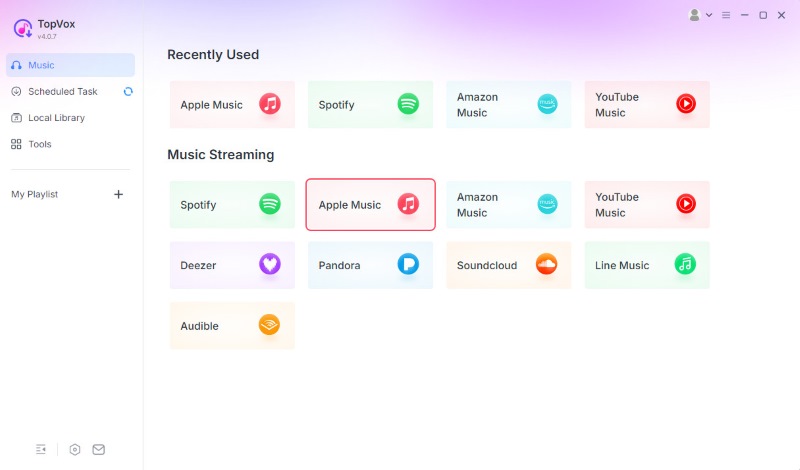
Step 3. Now, you can search for the songs you want to convert to MP3. Whether it is a single song, a playlist, or an album, you can click the Add to Convert button.
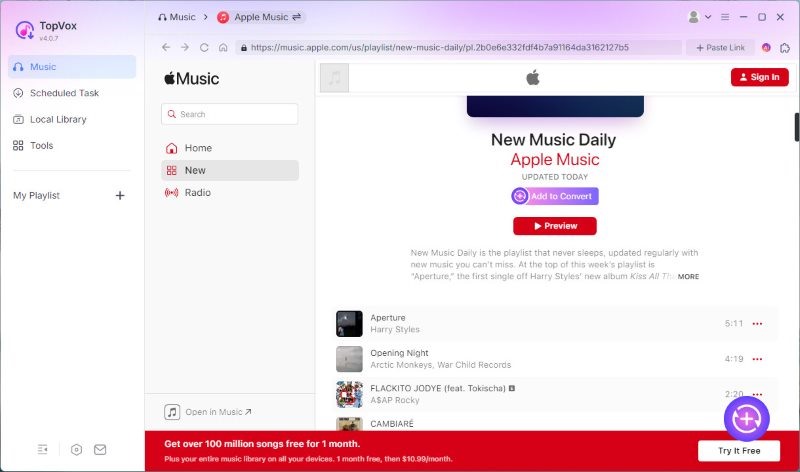
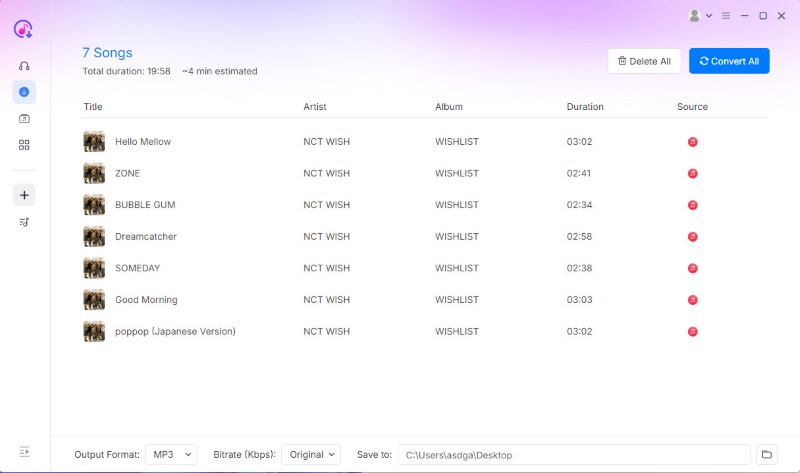
Step 4. Turn to the Scheduled Task list when all the songs have been added. Then select MP3 as the format and press the Convert All button. Then you can prepare to enjoy the converted music for a while!
Testing Experience:
It’s effortless to operate, and the download speed is very fast. No need to worry about any security issues. There are no ads or viruses. Whether you’re a commuter needing offline tunes, a music collector, or an audio editor, TopVox All Music Converter covers all bases.
Part 2. Ways to Convert Apple Music to MP3 Officially [Only DRM-free]
Recommended for: The safest and direct way to convert unprotected audio files from Apple Music.
Converting Apple Music to MP3 via Apple Music and iTunes is official without any security concerns. These approaches use iTunes’ built-in encoder for conversion. Please note that it only works for unprotected songs. If you want to remove DRM from songs on Apple Music and save them as MP3s, this method is not suitable for you.
Limitations:
• Cannot handle DRM-protected songs.
• Slower processing for large libraries.
• Metadata or playlists may not always be fully preserved.
Step 1. Launch Apple Music or iTunes on your Windows PC or Mac.
Step 2. Turn to Edit (Windows) or iTunes (Mac) and select Preferences.
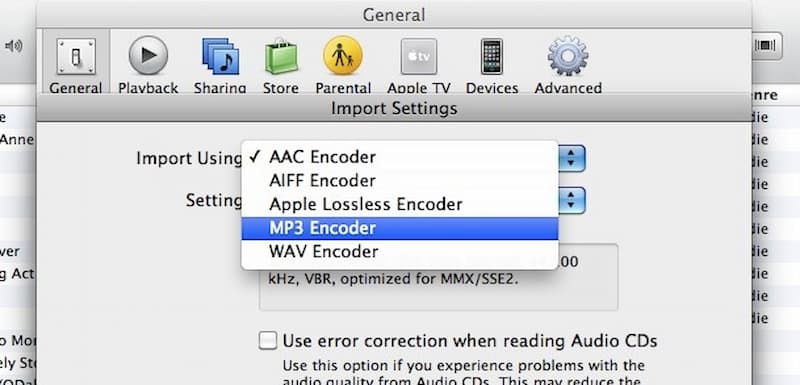
Step 3. In the Preferences window, find the General tab and tap Importing Settings, then set the export format to MP3 Encoder.
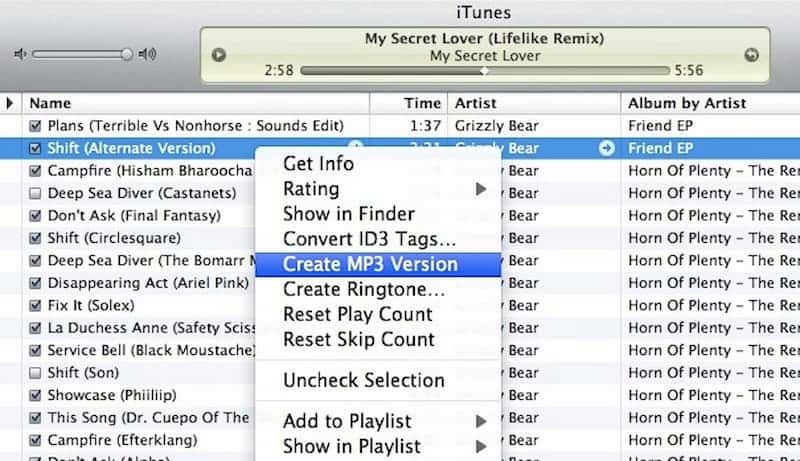
Step 4. Locate the songs you want to convert. Right-click File → Convert → Create MP3 Version. iTunes is going through a conversion. If the setting is unavailable, check if the MP3 Encoder is correctly set in Preferences.
Step 5. You will find the converted songs in your library or the output folder you set.
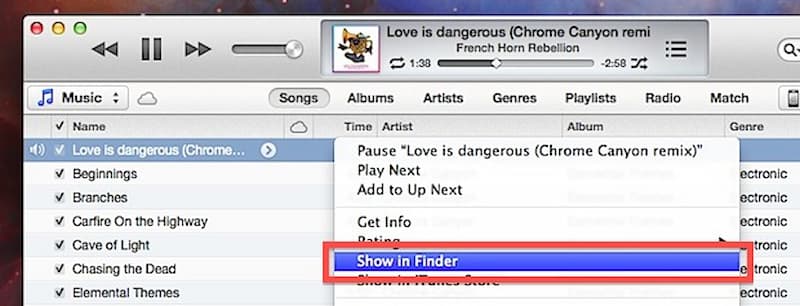
Testing Experience:
If you attempt to convert DRM-protected Apple Music songs, a prompt "Protected music files cannot be converted to other formats" will appear. Such songs require third-party converters.
Part 3. Use Free Apple Music to MP3 Converter [Online]
Recommended for: Users prefer online converters to avoid installing software.
Sometimes, we may understandably feel reluctant to download new software, but an online conversion tool can be a convenient alternative. Here we recommend Apple Music Downloader. This free tool is designed as an Apple Music to MP3 converter on the webpage.
Limitations:
• Supports single-song conversion only.
• Unreliable downloading process.
• Potential security risks.
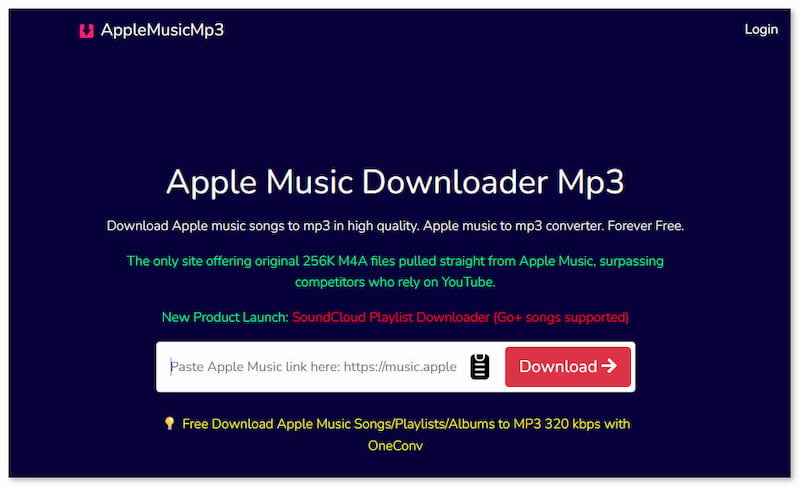
Step 1. Go to the browser and open the website Apple Music Downloader.
Step 2. Open Apple Music and copy the song link.
Step 3. Paste the link into the input field on the homepage.
Step 4. Click the right-side button Download to start the process.
Step 5. The tool will provide a new link. You need to save and download it again.
Testing Experience:
Although the tool is free from the constraints of the App, it can fill out one link at a time, which means it only finishes individual conversions. If you need to download a bulk of songs, the tool can be time-consuming. And online tools are not necessarily secure, easily affected by cyber threats, and often contain many ads. If you're concerned about this, consider alternative methods for converting Apple Music to MP3.
Part 4. Download Apple Music to MP3 via Recording Tool [Audacity]
Recommended for: Content creators who need to capture and post-process specific audio segments from Apple Music.
In addition to converting Apple Music to MP3, recording is also a good choice. Audacity is a free software for recording and editing audio. It can adjust various audio parameters, such as sample rate, bit rate mode, and other options, to make editing music simple. Instead of converting directly, Audacity helps record the whole song first and then save the recorded file in MP3 format.
Limitations:
• The audio quality will be compressed.
• The recording process is easily affected by the environment.
• Manual and time-saving operation.
Step 1. Download Audacity to your computer and log in.
Step 2. Click the Record button (a red dot). Play the song on Apple Music to start the recording. Stop the process as soon as the music finishes playing.
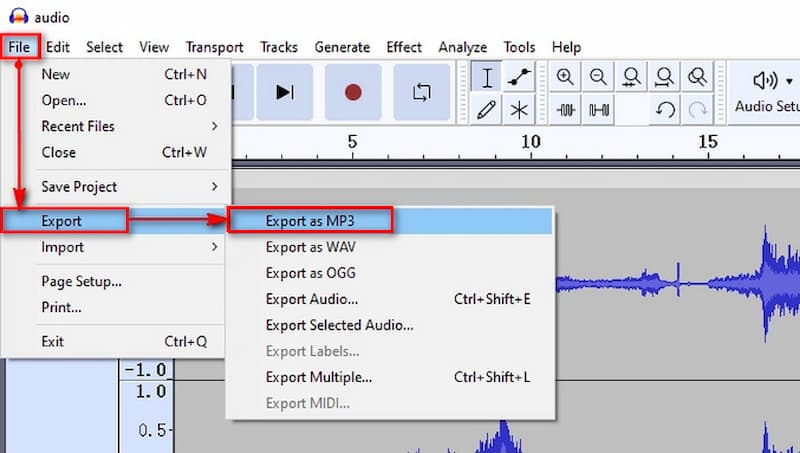
Step 3. Click the File and choose Export, select the MP3 format, and tap Export to finish saving.
Testing Experience:
Obviously, saving Apple Music to MP3 files through recording tools requires you to always keep an eye on the process. Wasting too much time and energy is not efficient, and the audio quality is usually not as good as the original. Although the method is straightforward, it’s better suited for those who don’t mind how long the tool takes.
Part 5. Comparison of 4 Methods to Download Apple Music to MP3
| TopVox All Music Converter | Apple Music (Official App) | Apple Music Downloader | Audacity |
| Primary Function | Pro Decryption & Batch Conversion | Streaming & Purchased Music Mgmt | Web-based Converter | Audio editing & Recording |
| DRM Removal | ✅️ | ❌️ | ✅️ | ❌️ |
| Audio Quality | Up to 320kbps | 256kbps AAC | Often 128kbps | Depends on the sound card |
| Conversion Speed | 35× | 1× | Slow (Parsing required) | Real-time |
| ID3 Tags & Lyrics | ✅️ (Full Meta) | ✅️ (In-app only) | ✅️(Unstable) | ❌️ |
FAQs on Apple Music to MP3
Q: Is online Apple Music conversion safe?
A: Only if you use trusted websites. Many online sites have annoying ads that cover the content of the page. And a wrong click may jump to another page. Avoid tools that require login credentials or expose files publicly.
Q: How to convert Apple Music to MP3 without losing quality?
A: To use a professional converter tool like TopVox All Music Converter, which supports high-bitrate MP3 output and preserves metadata. You can choose what you want to convert in the app and click Add to Convert > Quality > Bitrate/Sample Rate > Original.
Conclusion
Actually, converting Apple Music to MP3 is easy to achieve if you find the right way. I hope the article is useful to you. Every approach suits a different user. Official methods have limitations; they only work for purchased music. Online tools and recording tools are both time-consuming, and the audio quality can’t be guaranteed. Relatively speaking, if you are looking to convert music in bulk quickly and with original quality preserved, we highly recommend TopVox All Music Converter. Looking forward to your feedback.
Owen Bannett
Owen Bannett is a music enthusiasm as well as a senior writer. He has paid close attention on the pros & cons of various audio formats, bitrate, sample rate and encoding methods. Always seeking the best listening experience, Owen has deep insights about lossless music and diverse music converters on the markets.


 by
by