How to Convert iTunes to MP3 on Windows & Mac [2026 Guide]
Most iTunes music is DRM-protected and usually stored in M4A, AAC or M4P formats, which are unsupported by other software. As a universal media format, MP3 is compatible with almost all devices and players, while saving storage space. Therefore, it’s a key demand for many users to convert iTunes music to MP3. In this post, we will guide you to achieve successful conversion on Windows, Mac and mobile, enabling you to listen to iTunes songs freely without format and device limitations.
Method 1: Convert iTunes to MP3 using iTunes/Apple Music [Limited OS]
With a built-in encoder, we can directly use the iTunes or Apple Music app for conversion. But note that it’s allowed to convert DRM-free music files or ripped songs from CDs. And then you should make sure your system version is well-matched. Since iTunes and its features are split into Apple Music in macOS Catalina (10.15) and later. The method is suitable for older Mac and Windows systems.
How to convert iTunes songs to MP3 on Mac/Windows?
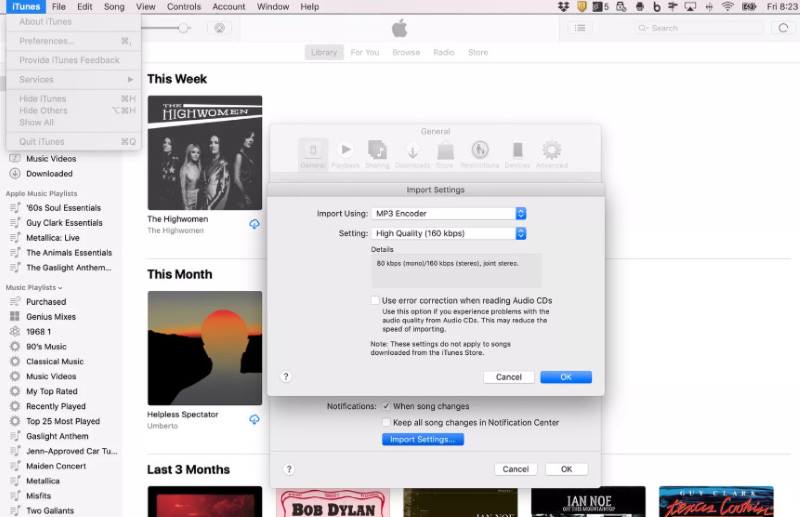
Step 1. Go to iTunes on your Mac. Click iTunes > Preferences > General. You can follow Music > Settings in Apple Music. For PC users, press Edit > Preferences > General.
Step 2. In the Import Settings, choose MP3 Encoder and preferred audio quality. And then click OK to save your changes.
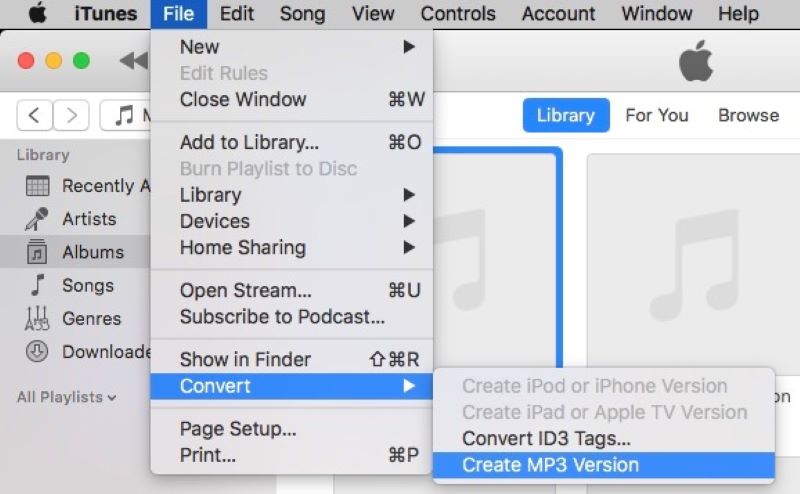
Step 3. Return to the library and find a single song or the whole album you want to convert. Click File > Convert > Create MP3 Version. Then the converted music will appear next to the original files in the library. If you want to delete AAC files, please check the filename extension through Song Info > File.
iTunes is powerless to convert DRM-protected songs. Although most iTunes content is DRM-free by Apple after 2009, tracks from Apple Music are also protected. Besides, converting iTunes music to MP3 will slightly lower the audio quality. Music in AAC format is a compressed version of the original files, which means the converted song cannot maintain the lossless quality.
Method 2: iTunes to MP3 via TopVox All Music Converter [Best]
If you want to remove DRM Protection from iTunes, you'll need a professional iTunes-to-mp3 converter. TopVox All Music Converter is an all-in-one tool for searching, listening and downloading music from major streaming platforms. With advanced DRM-removal technology, it can convert all of iTunes tracks in Apple Music to various formats like MP3. Moreover, you can one-shot convert them at 35× faster speed, rather than selecting each song manually. As for sound quality, TopVox will keep lossless details and clarity as the originals, making you have a pure listening experience.
Surprisingly, TopVox is rich with additional tools for better conversion, including AA/AAX Converter, Tag Editor, Format Converter, Playlist Transfer, while presenting itself in a more modern interface in the newest version. Try it now!
Features
- Downloads music at up to 320kbps and 48000Hz.
- Supports 8 music platforms, including Apple Music, Audible, Spotify, etc.
- Supports retaining or editing original ID3 tags.
- Batch download speed is up to 35 times.
- Transfer multiple audio files, including songs, albums, playlists, and podcasts.
- Convert songs to MP3, WAV, FLAC, AIFF, M4A (AAC/ALAC).
- Intuitive interface is easy to use.
How to transfer iTunes to MP3 using TopVox All Music Converter?
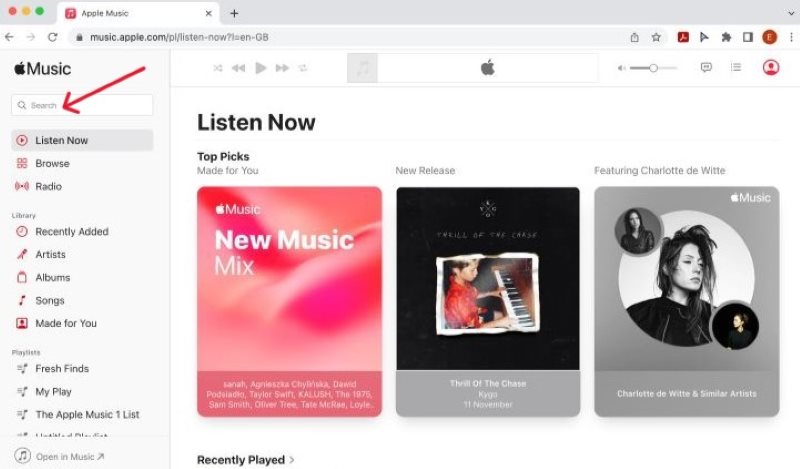
Step 1. Firstly, you have to transfer iTunes songs to Apple Music. Open the Apple Music Web Player and log in. Then copy the name of your songs from iTunes playlists into search box.
Step 2. Launch and log in the TopVox app and switch to Apple Music platform.
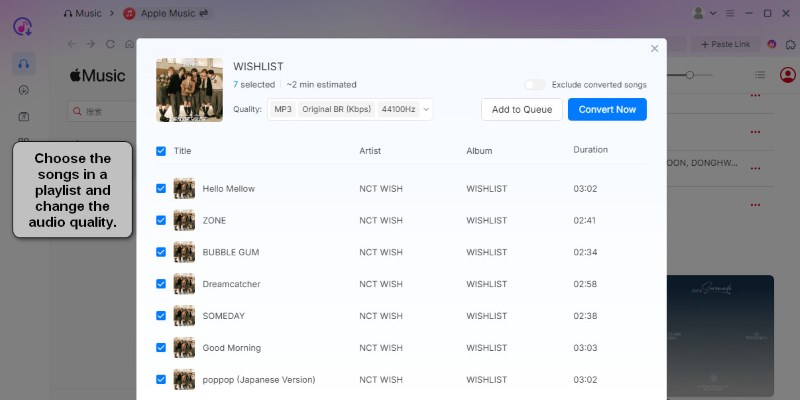
Step 3. Open a playlist, click Add to Convert. You also can tap Add at the bottom right, and the program will automatically detect and load songs.
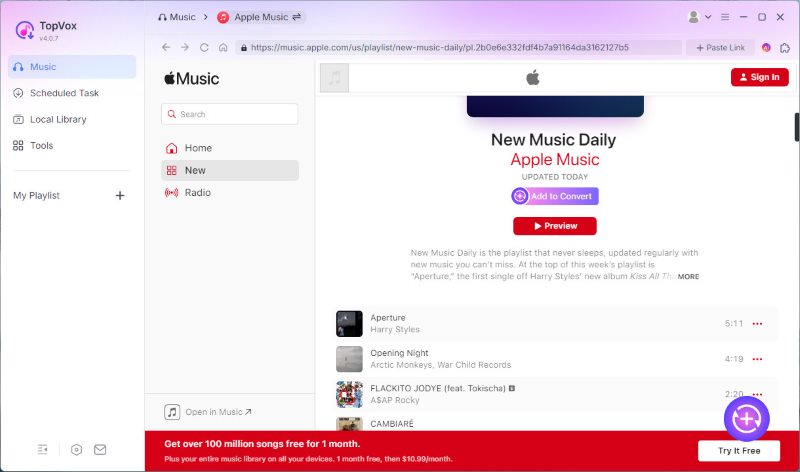
Step 4. Put the tracks into Scheduled Task list by tapping the Add to Queue button. If there are no other songs to be converted, click Convert Now.
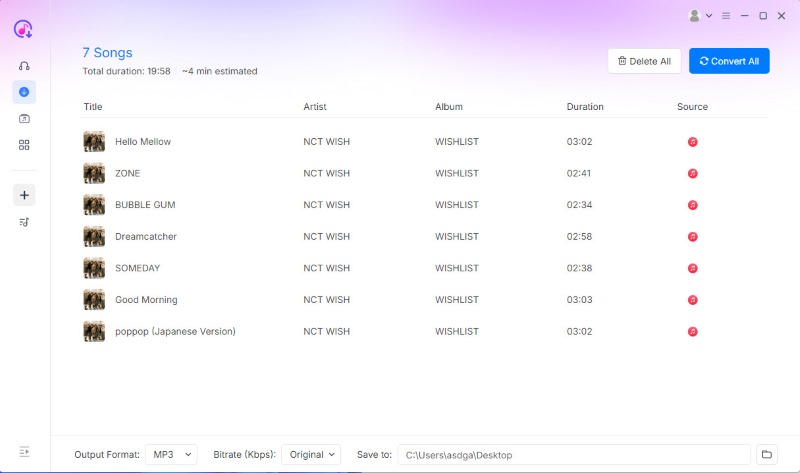
Step 5. Adjust output format and bitrate as you like. Then click Convert All to remove DRM from Apple Music and enjoy your MP3 files anywhere.
Method 3: Change iTunes to MP3 Using Other Third-Party Tools
DRmare Apple Music Converter
DRmare Apple Music Converter is a user-friendly music download tool. Relying on its built-in web player, you can directly convert iTunes files into MP3 and other formats. This tool can remove DRM from It converts high-quality audio files in batch at 30× speed, while automatically saving original data information. It’s a very convenient option for users who are seeking a simple operation.
Step 1. Click the Add files button to select music tracks in the web iTunes player, or drag and drop iTunes songs to the interface. You can also copy and paste the music link to it.
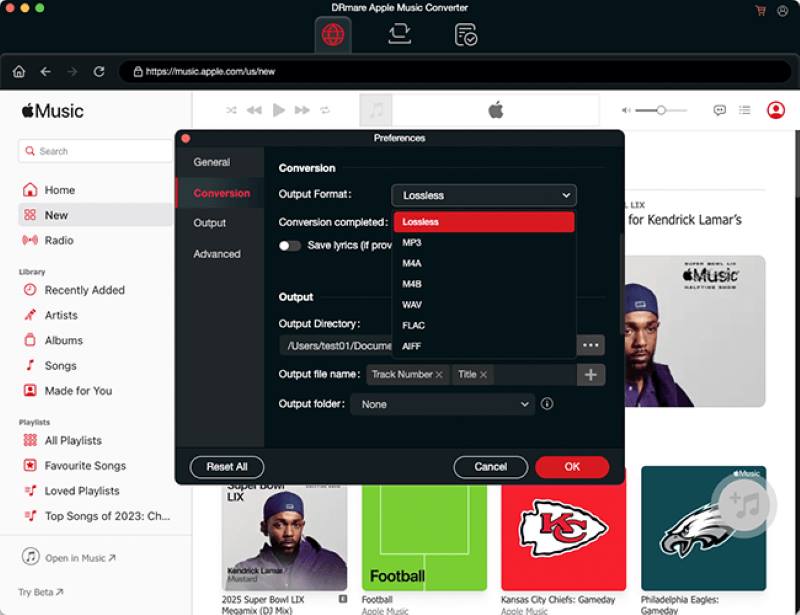
Step 2. Tap the audio icon to adjust audio parameters, like output format, codec, etc.
Step 3. After that, choose Convert to turn iTunes to MP3 format with no license required.
Zamzar
As a free website to convert various files, Zamzar allows you to transfer unprotected iTunes music to MP3 instead of installing other desktop software. However, this online converter tool can’t achieve batch conversions. You can’t control the file size and other parameters during the process. And the network environment can also affect the efficiency and success rate of conversion.
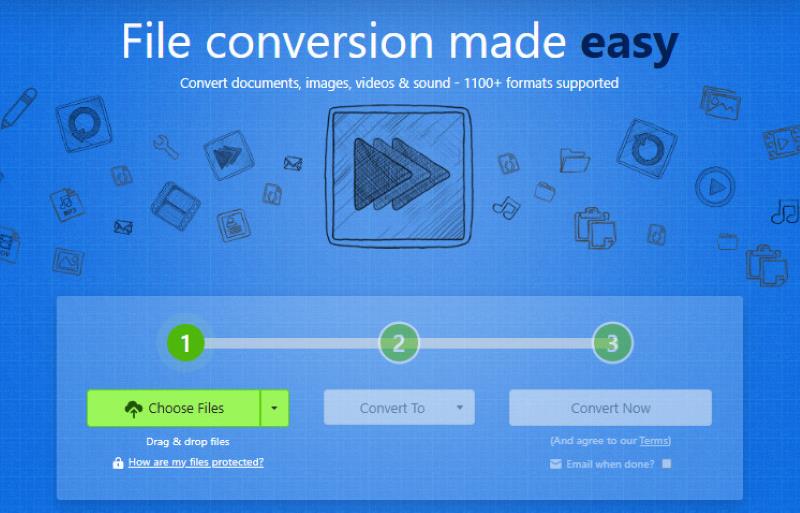
Step 1. Click Add Files to upload iTunes audio files locally into the program.
Step 2. Select MP3 as the output format.
Step 3. Fill in your email address to receive converted files and click Convert Now to start the process.
Audacity
In the context of iTunes to MP3, Audacity, an open-source audio editing software, acts as a digital recorder. This tool can capture any sound without noise on your computer and then save it as an MP3 file. But the conversion is a complete waste of time. This makes it a great free alternative for single tracks, though it is much slower than other batch conversion tools like TopVox All Music Converter.
Step 1. Open your iTunes app and play a song you want to convert.
Step 2. Turn to Audacity, click the record icon in the interface to capture the voice. Once that’s done, click the stop button.
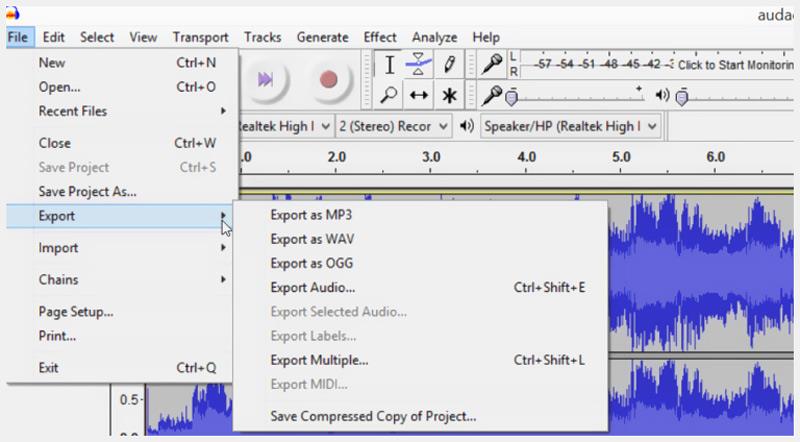
Step 3. Click File >Export and choose Export to MP3. You can output selected audio clips or the whole tracks. Then, tab on OK to store the file.
Comparison of 5 Ways to Change iTunes to MP3
| Best For | DRM-Protected Songs | Output Formats | Conversion Speed | Audio Quality | Batch Conversion |
| Topvox All Music Converter | Ultimate efficiency & Lossless quality | ✅ | MP3, FLAC, WAV, AIFF, ALAC, AAC | 35× | Up to 320 kbps | ✅ |
| iTunes / Apple Music | Converting purchased or non-protected M4A | ❌ | MP3, AAC, AIFF, WAV, Apple Lossless | 1×(Standard) | Compressed | ✅ |
| DRmare Apple Music Converter | Traditional desktop DRM removal | ✅ | MP3, FLAC, WAV, AAC, M4A, M4B | 30× | High Quality | ✅ |
| Zamzar | Occasional conversion of small, non-DRM files | ❌ | 20+ audio formats | Depends on your network and CPU. | Moderate | Limited |
| Audacity | free recording and editing | ✅ (via recording) | MP3, WAV, OGG, etc. | 1× (Real-time) | Compressed | ❌ |
FAQs on iTunes to MP3
Q: How to check if your iTunes tracks are DRM-protected?
Step 1. Go to your iTunes or Apple Music and select a song.
Step 2. Click File > Get Info.
Step 3. Look at Kinds in the Summary field. If it shows a Protected AAC audio file, the song is DRM-protected.
Q: Is converting Apple Music to MP3 legal?
A: Depends on. DRM-protected songs in Apple Music are not allowed to convert in many regions. For personal use, you can convert Apple Music to MP3 using the built-in features of Apple Music, or try a powerful third-party converter like TopVox All Music Converter.
Conclusion
The conversion way depends entirely on your needs. Converting iTunes to MP3 using iTunes or Apple Music can only handle unprotected audio files, and strict DRM restrictions make it useless for free users. Although some third-party tools can solve the issue, they often suffer from unstable connections, slow conversion speeds, or complicated setups. If you want a tool to convert iTunes music efficiently, Topvox All Music Converter offers a seamless experience. It not only bypasses DRM restrictions but also preserves full audio quality.
Luna Harper
Luna Harper is a passionate music lover and an inspiring content sharer. She has explored most of the music converters available on the market, acquiring thorough knowledge of their features, usability, and differences. Luna enjoys using her professionalism to help fellow music lovers get superior audio quality.


 by
by