
How to Fix Spotify Stuck in Offline Mode Using Easy Options
 by Owen Bannett | May 26, 2026 | How to
Why does Spotify say I am offline when my connection is stable to the Wi-Fi? This is a common question among Spotify users, as the error occurs only in the app, even though other software on your device works properly. With that in mind, this article will provide six straightforward solutions to fix Spotify showing as offline. We will provide quick troubleshooting guides for common errors, as well as a permanent third-party solution to avoid Spotify’s common connection issues from recurring.
100% Secure. No virus.
100% Secure. No virus.
Part 1. The Permanent Fix – Enjoy Spotify Music as MP3
Since Spotify’s offline errors are quite common and recurring, a good way to avoid them is to use music converter tools to download Spotify songs permanently for offline use. Fortunately, TopVox All Music Converter was designed to handle this, and downloading music from streaming apps protected by Digital Rights Management (DRM) will be easy.
With the help of our featured TopVox software, downloading Spotify media won’t be a problem anymore, and you will be able to open your albums, saved playlists, and downloaded music completely offline without relying on Spotify.
However, offline access is not the only feature you can enjoy when using TopVox All Music Converter for Spotify media. You can also convert the files during the download process to MP3, FLAC, M4A, or any other format you wish to use. You can also ensure that its quality is saved at 320kbps at minimum, all the way to lossless-quality audio.
To learn more about the program, you may read its key features below. You may also download it using the link and refer to our three-step guide to get started.
100% Secure. No virus.
100% Secure. No virus.
Key Features When Used as a Spotify Downloader:
- Batch downloads Spotify curated playlists, albums, collections, and more.
- Saves downloaded Spotify music into MP3, WAV, FLAC, AIFF, AAC, or M4A format.
- Bypasses Spotify media’s DRM protection to enable direct downloads.
- Preserves the original ID3 tags and metadata of downloaded Spotify media.
- Downloaded files may be saved at 320kbps quality audio or losslessly in WAV, FLAC, or ALAC format.
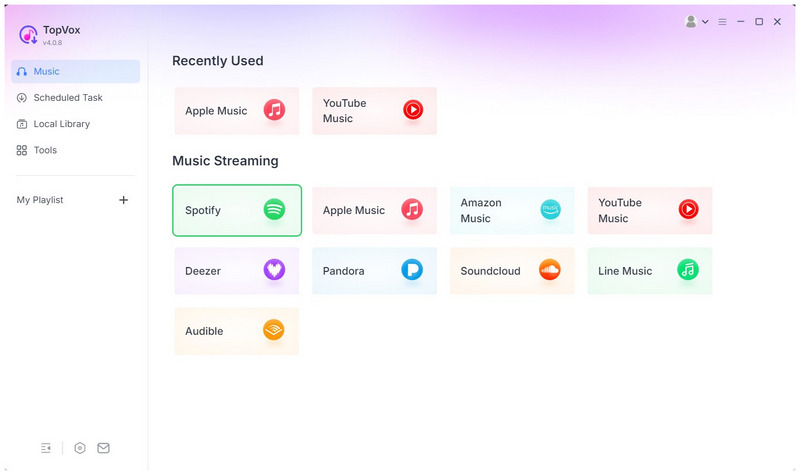
Step 1. Open TopVox All Music Converter, then select Spotify among the available streaming options
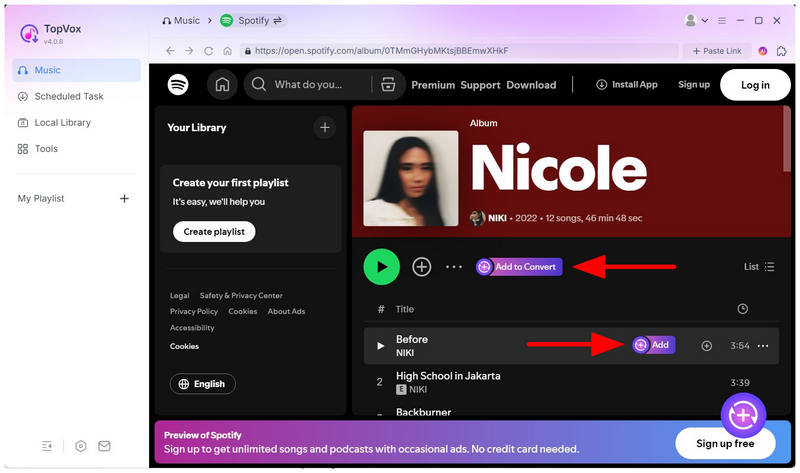
Step 2. Once you are in Spotify’s menu, find the album, playlist, or song you want to save offline. To add all the music in a playlist or album, select Add to Convert under the title. For single track selection, click on the Add button beside the song title.
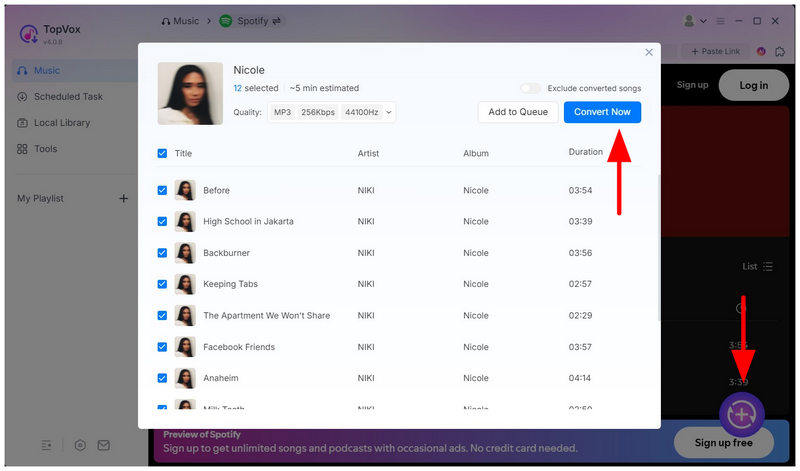
Step 3. After selecting the Spotify titles you want to download, select the Add button in the lower-right section of TopVox. In the menu that opens, select Convert Now to begin converting the DRM-protected files to MP3 format.
100% Secure. No virus.
100% Secure. No virus.
Part 2. Common Spotify Offline Errors
Fix 1 – Offline Mode Left On by Accident
Spotify has a built-in Offline Mode that can be enabled manually; with that in mind, it is quite common for most users to forget to turn it off, since it is very useful for saving data. If you are connected to a safe, stable network, double-check your settings to ensure Offline Mode is not active.
Fix 2 – Network Glitch or WiFi Restriction
When facing offline errors in unusual areas, the most common issue is that your internet itself is unstable. In data mode, make sure your network signal is strong and stable. When connected to WiFi, make sure the connection quality is good. Spotify may be configured to stay in offline mode if it detects an unreliable connection.
Fix 3 – Firewall Blocking Spotify on PC
When using the Spotify app on your computer, your device’s firewall or antivirus software can sometimes block Spotify from accessing the internet, triggering a persistent offline status. To fix this problem, open your firewall or security settings and change Spotify’s connection settings. Relaunch the app afterward.
Fix 4 – Data Saver or Cache Corruption
Going back to Spotify mobile, offline errors may be caused by corrupted cache files or data-saving features that may interfere with the syncing process. Fortunately, this can be solved by clearing the app cache, turning off Data Saver mode, or reinstalling Spotify if the problem continues.
Fix 5 – Spotify Server Down
Finally, the issue may also be on Spotify’s end. The most common cause of this issue is due to maintenance or outages. Check Spotify’s official service status or social media updates and wait until the servers are restored.
Conclusion
With the best solutions to fix Spotify’s offline mode error now discussed, we hope that this article has helped you learn how to deal with such issues. Unfortunately, this problem has been persistent and is now a common issue in Spotify itself. To prevent the problem from recurring, we recommend the drastic solution of simply downloading your Spotify media using TopVox All Music Converter, available for download using the link below.
TopVox Spotify Music Converter
Rated on Trustpilot >  4.8/5
4.8/5
- Download and convert Spotify songs, albums, playlists, etc., with a success rate of up to 99%.
- Keep original quality, retain ID3 tags, offer lightning-fast speed and lifetime updates.
100% Secure. No virus.
100% Secure. No virus.