
How to Download Songs to My Computer: Easy Step-by-Step Guide
 by Ethan Carter | June 25, 2026 | How to
Streaming services often rely heavily on a stable internet connection. Whether you are preparing for a long-haul flight, traveling through areas with poor signal, or simply want to save on data, knowing how to download music for offline listening can vastly improve your listening experience.
If you have been wondering how to safely download music to your laptop or desktop computer, this guide is for you. We will walk you through the safest and most efficient methods for obtaining high-quality music downloads on both Windows and Mac platforms, ensuring you can enjoy your favorite tunes with just a single click—whenever and wherever you like.
100% Secure. No virus.
100% Secure. No virus.
Method 1: Using Official Streaming Apps for Offline Listening
The most straightforward way to save music to your computer is by using the official desktop applications of major streaming platforms such as Spotify, Apple Music, and Amazon Music.
Downloading on Spotify or Apple Music Desktop
If you have a premium subscription to these services, downloading music for offline use is incredibly simple:
1. Open the Spotify or Apple Music app on your computer.
2. Navigate to the playlist, album, or song you want to save.
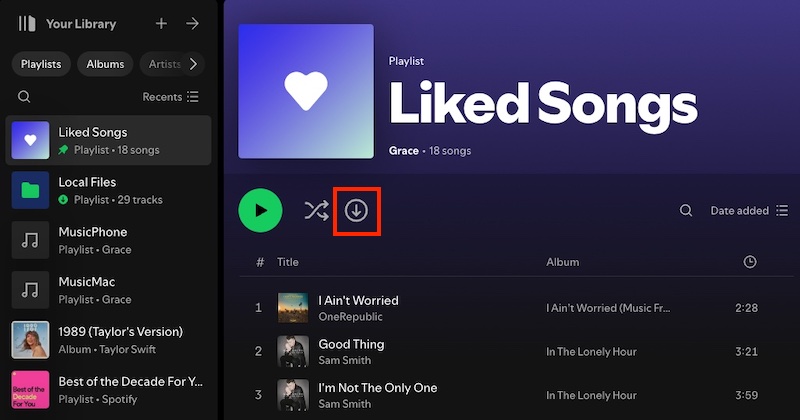
3. Click the Download icon (an arrow pointing downward) next to the album or playlist title.
4. Once the icon turns green or shows a completed status, your music is saved.
Limitations: While this method perfectly answers how to download music to listen to offline, it does not actually give you the raw audio file. The tracks are saved as encrypted cache files. This means you cannot transfer them to a USB drive, use them in video editing software, or play them on unauthorized media players.
Method 2: How to Download to MP3 or Whole Playlist to Your Computer
If your goal is to learn how to download music to a file so that you actually own the data and can play it anywhere, you need a dedicated extraction tool. Using shady online ripping websites often exposes your computer to malware and results in poor audio quality.
For a secure, high-quality, and lightning-fast solution, using a professional desktop music converter like TopVox All Music Converter is the gold standard.
100% Secure. No virus.
100% Secure. No virus.
Best Tool for Batch Conversion: TopVox All Music Converter
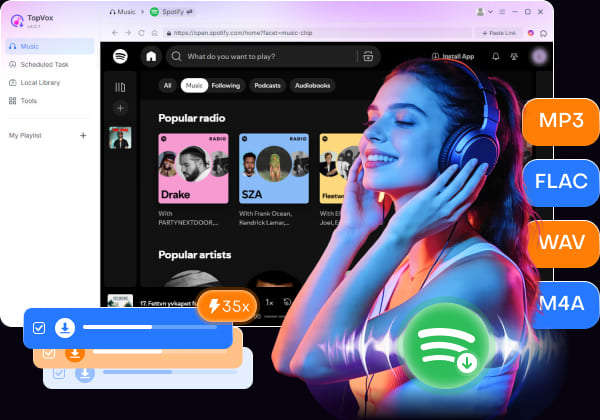
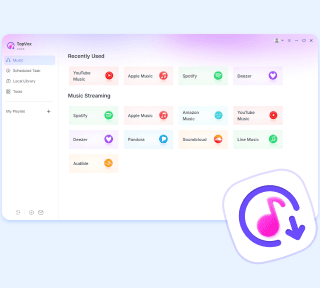
TopVox All Music Converter bridges the gap between streaming convenience and local file ownership. It allows you to bypass the encrypted cache limitations of 9+ major streaming platforms, enabling a true high-quality music download directly to your local drive.
Features
- Playlist to MP3 Downloader: Instead of downloading tracks one by one, TopVox acts as a robust playlist to MP3 downloader, allowing you to grab hundreds of songs simultaneously with a single click.
- Uncompromised Audio Quality: It preserves the original audio fidelity up to 320kbps or lossless FLAC, answering the need for how to download an MP3 without sacrificing sound richness.
- 35x Conversion Speed: It retains all original ID3 tags (artist name, album art, track number) while saving you hours of waiting.
How to Download Songs to Windows or Mac
Tap the button below to download the official version of TopVox All Music Converter and launch the program.
100% Secure. No virus.
100% Secure. No virus.
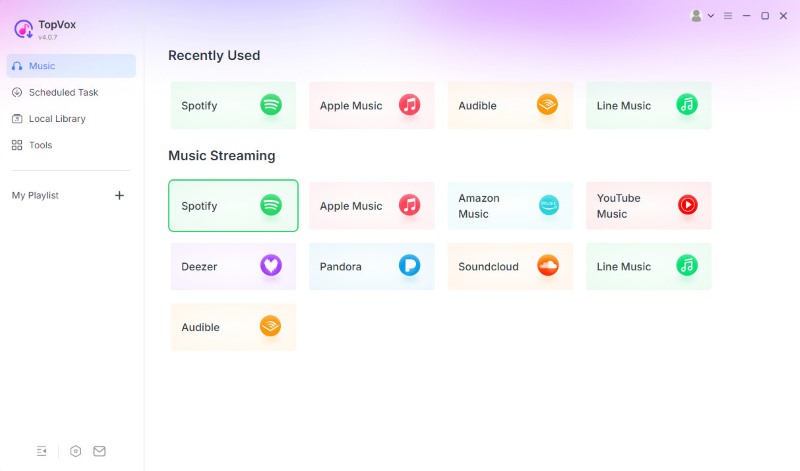
Step 1. Choose your preferred music service (e.g., Spotify) from the built-in web player interface and sign in to your account.
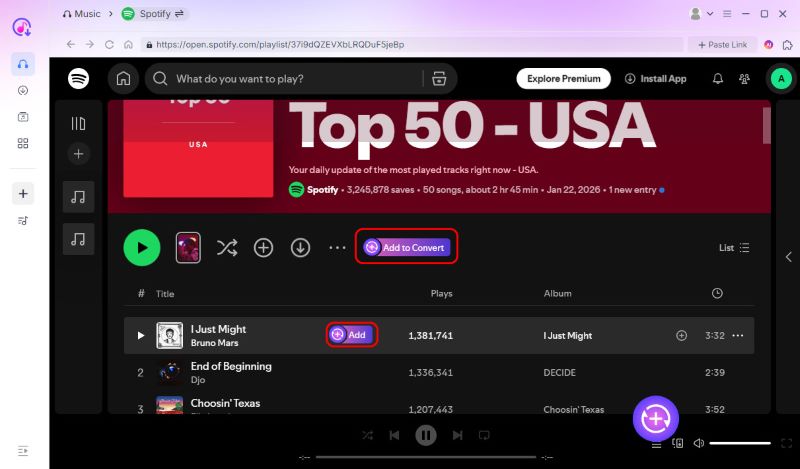
Step 2. Open the playlist or album you want to analyze. Click the floating "Add to Convert" button. TopVox will instantly analyze and list all the songs.
Step 3. Choose "MP3" (also FLAC, M4A, etc.) as your output format and set the bitrate to 320 kbps. Click "Convert All."
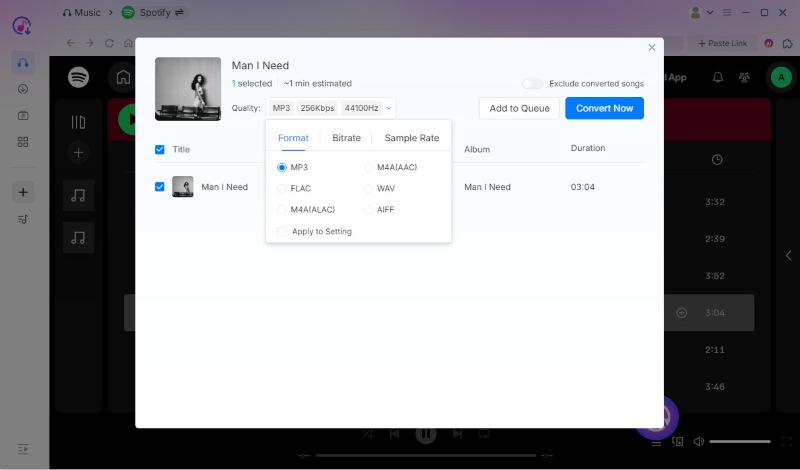
Following these steps simplifies the process of downloading songs to your computer's hard drive, automatically saving them to organized folders. This is by far the most reliable method for downloading songs to a computer, whether you’re using Windows or Mac.
100% Secure. No virus.
100% Secure. No virus.
Method 3: Using Online Tools to Download Songs
If you don’t use streaming services and want to find independent music to download directly from a browser, there are several legal repositories available:
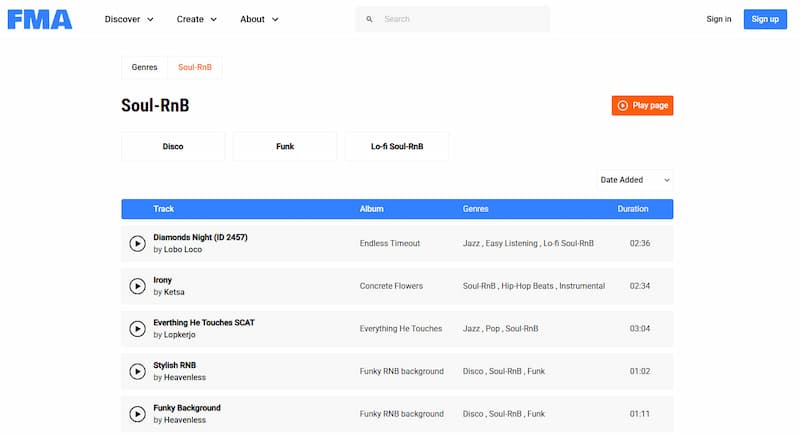
- • Free Music Archive: A legendary library of high-quality, legally free tracks directed mostly toward creators looking for background music under Creative Commons licenses.
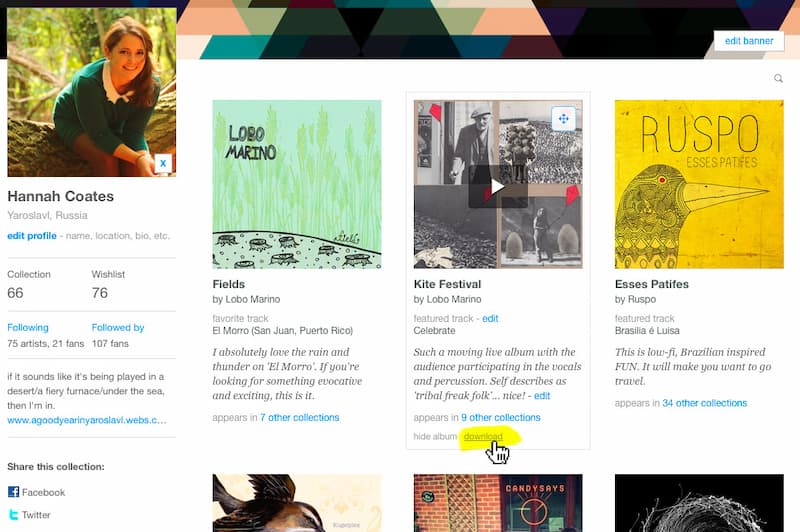
- • Bandcamp: This platform allows you to support artists directly. Many tracks are available under a "name your price" model, allowing you to download them for free or a small donation in pristine quality.
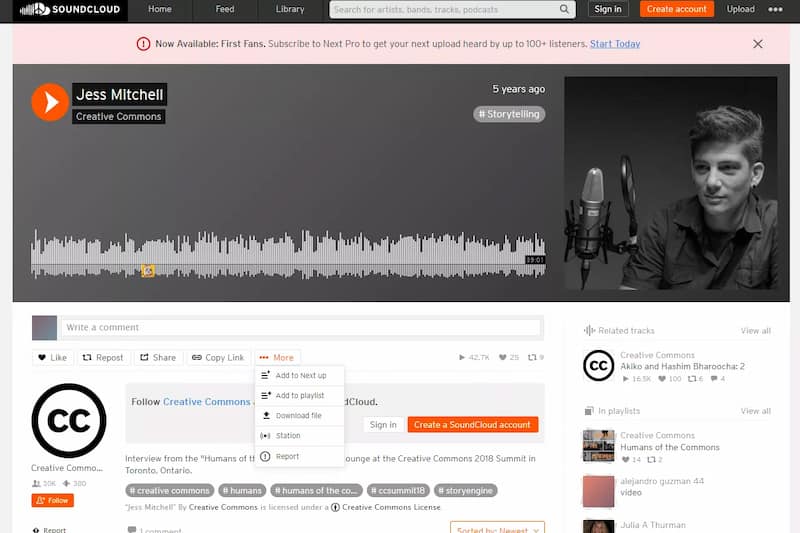
- • SoundCloud: Many independent artists upload their tracks to SoundCloud and enable a free "Download" button directly beneath the waveform for logged-in users.
FAQs on How to Download Songs to a Computer
Q: How do I save music to a specific file on my computer?
A: When using a browser, you can change your default download location in your browser settings. If you are using TopVox All Music Converter, you can click the Settings gear icon before converting to specify exactly which local folder or external hard drive you want your MP3 files saved to.
Q: What is the best format for a high-quality music download?
A: For the perfect balance of compatibility and sound quality, MP3 at 320kbps is the industry standard. If you are an audiophile with high-end audio equipment, downloading files in FLAC or WAV format provides lossless, studio-grade quality, though the file sizes will be significantly larger.
Q: How do I download music to a MacBook or Mac without the iTunes/Apple Music app?
A: If you want to download songs to a Mac but don't want them locked inside the native Apple Music library, you can use TopVox All Music Converter. It extracts tracks directly from the web player as independent audio files. Once downloaded, you can store them in any local folder, use them in third-party media players, or edit them in software like GarageBand without any DRM restrictions.
Q: Why can't I transfer my downloaded songs to a USB drive or MP3 player?
A: When you download music to listen to offline using official apps (like Spotify or Amazon Music), the files are saved in an encrypted, protected format. To transfer music to a USB flash drive, an old-school MP3 player, or a car audio system, you must first convert the tracks into standard, DRM-free files (like MP3 or WAV) using a dedicated tool like TopVox.
Conclusion
While official apps are okay for basic offline use, their restricted formats lock your music down. To truly master how to download songs to a computer, a professional playlist to MP3 downloader like TopVox All Music Converter is the most efficient and high-quality solution for both PC and Mac users.
TopVox All Music Converter
Rated on Trustpilot >  4.8/5
4.8/5
- Download and convert songs, albums, playlists, etc., with a success rate of up to 99%.
- Keep original quality, retain ID3 tags, offer lightning-fast speed and lifetime updates.
100% Secure. No virus.
100% Secure. No virus.