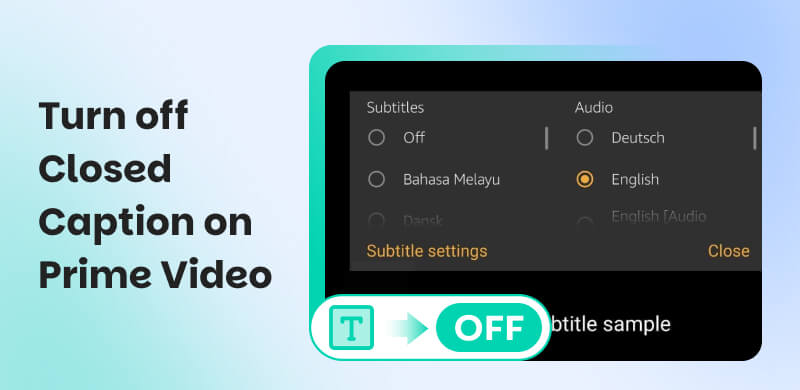
Turn Off Closed Caption on Prime Video on Every Device
Quick Fix: How to Disable Prime Video CC:
Smart TV: Press Down on the remote, select Subtitles, and choose Off.
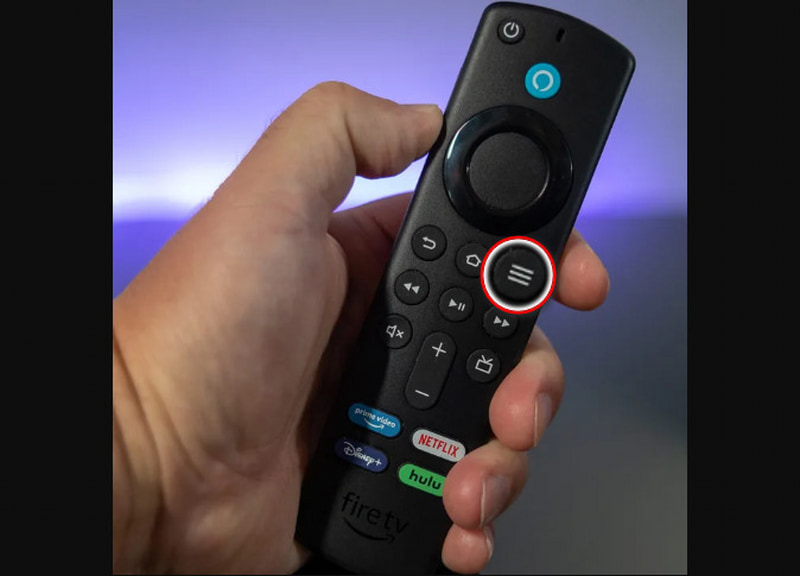
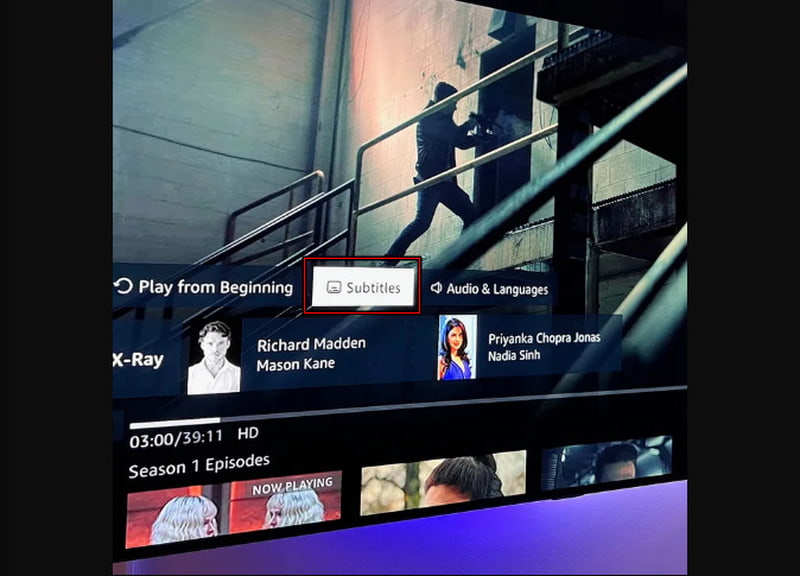
Fire TV Stick: Press the Menu (3 lines) button, choose Subtitles, and select Off.
Mobile/Tablet: Tap the Speech Bubble option, and select Off.
Closed captions (CC) are on-screen text that display spoken dialogue and important audio cues. Their purpose is to improve accessibility and understanding, making content easier to follow. Closed captions are a great feature for anyone, whether you’re watching foreign movies or keeping the volume low at night. However, there are times when you may want to watch Amazon Prime Video without on-screen text, especially if captions feel distracting or take away from the viewing experience. Fortunately, Amazon Prime Video makes it easy to turn off closed captions. In this post, we will guide you step by step on how to turn off closed captions on Prime Video across different devices. This includes Smart TVs, Fire TV Stick, and mobile phones or tablets. This way, you can enjoy your content exactly the way you prefer.
Part 1. Turn Off Prime Video Closed Caption on Smart TV
Closed Captions (CC) on Prime Video are helpful when you’re watching in a noisy environment. However, they can be distracting if you just want a clean, immersive viewing experience. On smart TVs like Samsung, Sony, and LG, turning off CC is quick and straightforward. You just need to navigate the CC option using your TV remote while a video is playing.
Here’s how to turn off closed caption on Prime Video on a smart TV:
Step 1. On your smart TV, be it Samsung, Sony, or LG, open the Prime Video app. Play the movie or TV show where closed captions are enabled.
Step 2. Press the Down button on your smart TV’s remote to bring up the playback controls. Navigate to the Subtitles option, press OK, and select Off.
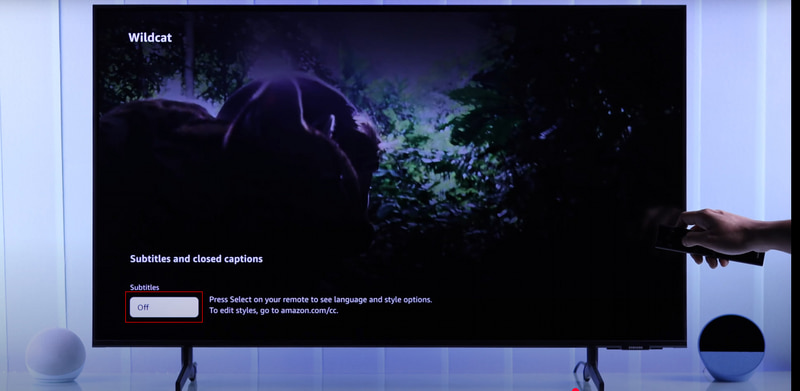
Interface Alert: In the latest Prime Video update, some Smart TVs have moved the subtitle menu. If pressing Down doesn't work, press Up to reveal the gear option. Subtitle controls are now nested under the Dialogue & Audio settings for a cleaner display.
Tips
- If closed captions don’t turn off immediately. Ensure the video is playing, then restart playback and restart the Prime Video app or your smart TV. Turning off Prime Video closed captions on smart TVs is simple once you know where to look.
Part 2. Turn Off Prime Video Closed Caption on Fire TV Stick
The Fire TV remote includes a dedicated Menu button. This shortcut lets you access subtitle and closed caption options instantly while a video is playing. It lets you disable closed captions during playback without digging into system settings.
Here’s how to turn off subtitles on Amazon Prime on Fire TV Stick:
Step 1. Play the movie or TV show on Amazon Prime Video. Press Pause on your Fire TV remote to reveal playback options. On your Fire TV remote, press the Menu button to open the quick settings menu for the video.
Step 2. From the menu, highlight and select Subtitles, and you’ll see the currently active option, such as English [CC]. Press the Select button on English [CC] to switch subtitles to Off. If captions don’t disappear right away, try turning them on and off again.
Tips
- Fire TV interfaces can vary slightly by model and software version. If you don’t see Subtitles, look for Closed Captions instead. If you prefer to watch the film in your native language without on-screen text, dubbing is an available alternative.
Part 3. Turn Off Prime Video Closed Caption on Mobile & Tablet
Closed captions on Amazon Prime Video are easy to control on mobile phones and tablets. Whether you are using a mobile phone or tablet, the Prime Video app follows the same basic layout. Once you know where to look, disabling captions only takes a few taps.
Here’s how to turn off closed captions on Prime Video on a mobile device and tablet:
Step 1. Open the Prime Video app on your device (mobile phone or tablet). Start playing the movie or TV show. As soon as subtitles appear, tap the screen and pause the video to reveal the player controls.
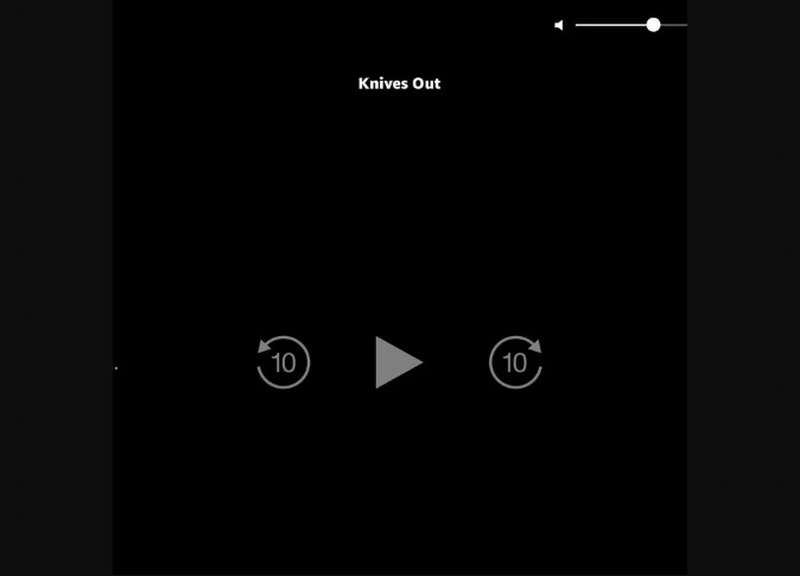
Step 2. Tap the Speech Bubble option to open the Subtitles and Audio menu. In the Subtitles section, you’ll see options like Off, English [CC], and another language. Tap Off to disable subtitles. If subtitles are already set to Off but still appear, switch to English [CC], then switch back to Off.
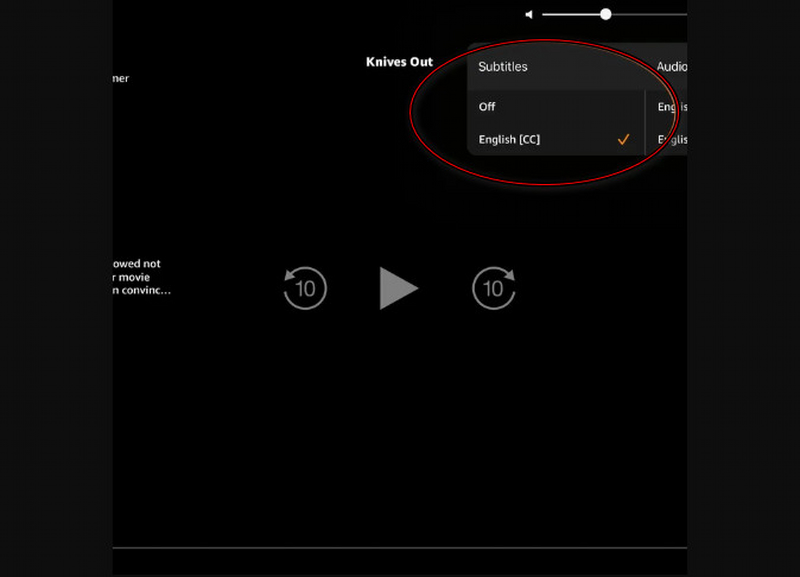
The Prime Video mobile app places subtitle controls directly in the video player. While the design may look slightly different depending on your device or app version, the speech bubble icon always leads to subtitle and audio settings.
Tips
- If your closed captions keep turning back on every time you start a new episode, you must change your Account-Level Presets. Open a web browser and go to the Amazon Subtitle Preferences page. Find Your Presets and edit Preset 1 to have 0% Opacity or a Transparent background. Save the changes. This will sync a Hidden caption style to all devices linked to your Prime account.
FAQs about Turning off Closed Caption on Prime Video
Q: Why do captions turn back on automatically?
A: Captions turn back on in Prime Video mainly because the app remembers your last-used subtitle setting. It applies it across devices linked to the same account. If captions were accidentally enabled on one device, Prime Video may re-enable them on other devices. In addition, system-level accessibility settings can override in-app controls and force captions on.
Q: How do I fix subtitles that are out of sync or showing garbled text?
A: For out-of-sync subtitles, use your video player’s built-in subtitle delay controls to quickly realign text with audio. For garbled or unreadable text, the problem is correct character encoding. Try switching the subtitle encoding to UTF-8 in the player or subtitle editor to resolve strange symbols or broken characters.
Q: How do I turn off CC on Amazon Prime Video on Roku TV?
A: On Roku devices, closed captions may be controlled at the system level. This means you often need to disable them in Roku settings, not just in the Prime Video app. First, press Home on your Roku remote and go to Settings. From there, select Accessibility, then choose Captions Mode, and make sure it is set to Off. This disables captions across Prime Video and other apps.
Q: Can I permanently disable Prime Video subtitles?
A: There is no single global switch to permanently disable subtitles across all Prime Video content and devices. However, turning subtitles off in the Prime Video player during playback usually keeps them off. That said, captions may still re-enable due to app bugs, device accessibility settings, or shared account activity.
Q: What is the difference between Subtitles and Closed Captioning?
A: Subtitles are primarily meant to translate or transcribe dialogue. They are intended for viewers who can hear the audio but may not understand the language. On the other hand, closed captions (CC) are designed for accessibility. It includes non-dialogue audio cues such as sound effects, background noises, and speaker identification.
Q: Why can't I turn off subtitles for certain scenes?
A: You are likely seeing Forced Narratives. These are used for foreign-language dialogue. Because these are essential to the plot, Amazon hardcodes them into the stream.
Conclusion
In conclusion, mastering how to turn off closed captions on Prime Video ensures that you’re never interrupted by unwanted on-screen text again. Throughout this article, we covered the different ways to turn off closed captions on Prime Video across devices. Whether you’re using Smart TVs, Fire TV Stick, and mobile phones or tablets, the process is simple once you know where to look. Having this knowledge lets you customize your viewing experience and enjoy Prime Video content exactly the way you want.
Ethan Carter
Ethan Carter creates in-depth content, timely news, and practical guides on AI audio, helping readers understand AI audio tools, making them accessible to non-experts. He specializes in reviewing top AI tools, explaining the ethics of AI music, and covering regulations. He uses data-driven insights and analysis, making his work trusted.

 by
by