Turn Off Netflix Subtitles on Any Device (Updated Guide)
Quick Fix: How to Toggle Netflix Subtitles:
Mobile (iOS/Android): Tap screen, choose Audio & Subtitles, and tap Off.
Desktop/Web: Click Dialogue Bubble and select Off.
Smart TV/Console: Press Up/Down/Arrow, select Audio & Subtitles, and choose Select Off.
Tip: Press S on your keyboard to instantly toggle subtitles on/off on a computer.
Subtitles can greatly enhance the Netflix viewing experience, especially when watching foreign-language films. Subtitles help viewers catch every word and stay engaged with the story. Because Netflix prioritizes immersive entertainment, many of its advanced playback settings are intentionally kept subtle. Rather than placing controls front and center, Netflix minimizes on-screen options so viewers can focus on the movie or TV show without constant visual interruptions. However, there are times when subtitles are no longer necessary. If you fully understand the language being spoken, you may prefer to enjoy the content exactly as it was filmed, without text overlays. Fortunately, turning off closed captions or subtitles on Netflix is quick and simple. If you’re wondering how to turn off subtitles on Netflix, you’ve come to the right place. This post will show you different ways to disable subtitles across multiple devices.
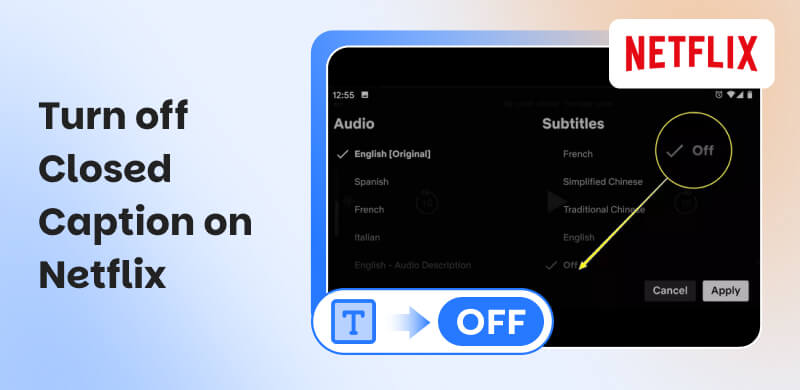
How to Turn Off Netflix Subtitles on Mobile [iOS/Android]
Subtitles can be helpful when watching foreign-language content or shows with heavy accents. However, there are times when you want to enjoy your best-loved series or movies without captions. Fortunately, Netflix makes it easy to turn off subtitles on both Android and iOS.
Here’s how to turn off closed caption on Netflix on Android/iOS:
Step 1. On the Netflix app, play the movie, series, or TV show you want to watch. While it plays, tap anywhere on the screen to bring up the playback controls.
Step 2. From the playback controls, tap the Audio & Subtitles option. Under the Subtitles section, select Off to disable subtitles. The subtitles will disappear from the screen immediately.
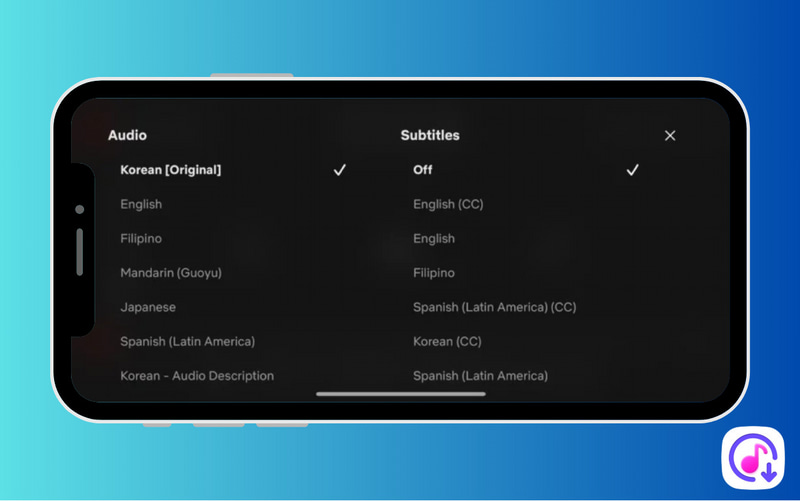
Turning off Netflix’s subtitles on Android is quick and hassle-free. If you ever need subtitles again, you can re-enable them at any time by following the same steps. Now you can enjoy your Netflix content without distractions and focus fully on the story.
How to Turn Off Netflix Subtitles on Desktop/Web
Netflix on a desktop or web browser gives a bigger screen and a more immersive viewing experience. While subtitles are useful for understanding dialogue, there are moments when you may prefer to watch without them. No matter which browser you’re using, the process is nearly identical.
Here’s how to remove subtitles from Netflix on Desktop/Web:
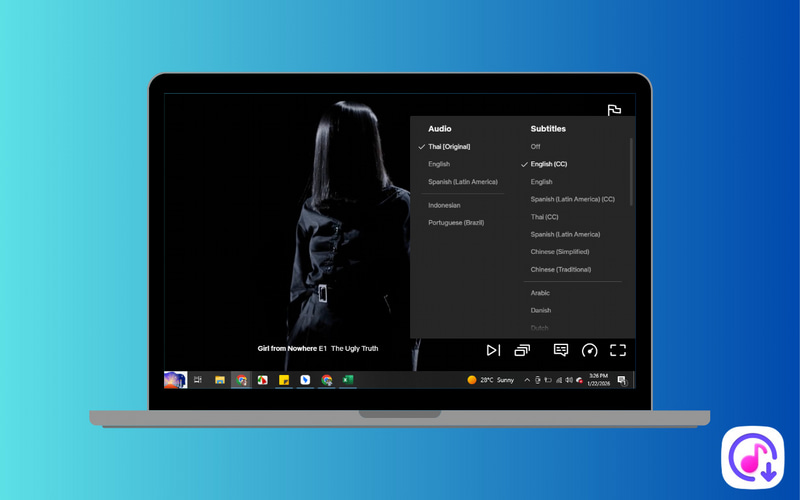
Step 1. Reach the official Netflix site and play the TV show, series, or movie you want to playback. While the video is playing, navigate to the lower-right corner of the video player.
Step 2. Click the Dialogue Bubble (Conversation) button to open the Subtitles section. Under subtitles, select Off to disable them. The subtitles will disappear while the video continues playing.
Tips
- Although Netflix allows you to change subtitle settings while the video is playing, it’s best to pause the show or movie before making adjustments. This helps you avoid missing important dialogue or plot details.
How to Turn Off Netflix Subtitles on Smart TV/Console
Watching Netflix on a Smart TV or streaming device offers a comfortable, big-screen experience. While subtitles or closed captions (CC) can be helpful, they’re not always necessary. The good news is that turning off Netflix subtitles on Smart TVs and consoles is easy.
Important Note: Whether you’re using Chromecast, Google TV, Apple TV, Roku, or similar devices, the steps are generally the same.
Here’s how to turn off subtitles on Netflix on Smart TV/Console:
Step 1. Open the Netflix app on your Smart TV or console and play the series, TV show, or movie you want to watch. Using your remote control, press any Arrow button (Up, Down, Left, or Right). This will bring up the Netflix playback controls on your screen.
Step 2. Scroll through the playback menu until you see Audio & Subtitles. Select it, and a menu will appear showing available subtitles and language options. Under the Subtitles section, choose Off. Once selected, the subtitles will disappear from the screen immediately.
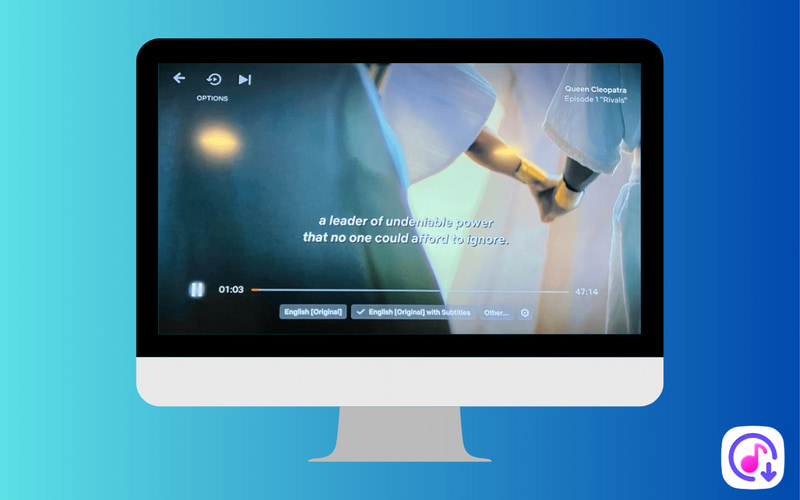
After turning subtitles off, you can enjoy your Netflix content without any on-screen distractions. Keep in mind that the exact steps may vary slightly depending on your Smart TV brand or streaming device. If you’re still unable to disable subtitles, check your TV’s accessibility settings.
Troubleshooting: Why Won’t Netflix Subtitles Turn Off
Netflix subtitles won't turn off? If subtitles keep appearing on Netflix even after you’ve turned them off, don’t stress out. This issue is usually caused by system-level settings, app glitches, or Netflix’s built-in subtitle rules. We’ll break down each of these causes below to help you resolve the issue.
Forced Narrative Subtitles Cannot Be Turned Off:
In some Netflix shows and movies, subtitles appear automatically during foreign-language dialogue or important on-screen text. These are known as forced-narrative subtitles and are intentionally built into the content. Netflix uses them to ensure viewers understand critical dialogue when characters switch languages or speak in ways that aren’t easily understood.
Important Note: Since these subtitles are part of the video’s storytelling, they cannot be disabled. This behavior is normal and does not indicate a settings issue. If subtitles bother you, switch to dubbed audio instead. Discover the difference between dub vs. sub here.
App or Account Sync Issues (Log Out or Refresh Netflix):
Sometimes, subtitles remain on due to temporary app glitches or account synchronization issues. This can happen after an app update, device restart, or switching between multiple profiles. Logging out of your Netflix account and logging back in can reset subtitle preferences and resolve the issue. On web browsers, simply refreshing the page may fix the problem.
System-Level Accessibility Settings Are Overriding Netflix:
Why can’t I remove subtitles on Netflix? On devices like Apple TV, Roku, Chromecast, and Smart TVs, system-level accessibility settings can override Netflix’s subtitle controls. If closed captions or subtitles are enabled in the device’s main accessibility or caption settings, Netflix may automatically display subtitles regardless of what you select in the app.
Important Note: Apple TV has a global Closed Captions + SDH setting, while Roku includes a system-wide captions preference. When these options are enabled, Netflix follows the device’s instructions rather than its own subtitle settings.
If you see subtitles only when a character speaks a foreign language, you are seeing Forced Narratives. These are embedded in the video file to ensure the plot remains understandable. If these are distracting, try switching the Audio Language to the specific language being spoken.
FAQs about Turning Off Closed Caption on Netflix
Q: Why does my Netflix keep defaulting to subtitles?
A: Netflix may default to subtitles when a title does not offer SDH or Closed Captions. In these cases, Netflix automatically enables standard subtitles that display only spoken dialogue and exclude contextual audio cues such as background sounds or music.
Q: What is the difference between subtitles and closed captions?
A: Subtitles are designed to translate spoken dialogue into another language. It is designed to make content accessible to viewers who don’t understand the original audio language. Meanwhile, closed captions are in the same language as the audio and include additional information. This includes sound effects, music cues, or speaker identification.
Q: Did Netflix subtitles change?
A: Yes, Netflix updated its subtitle options to better distinguish between standard subtitles and closed captions. You’ll now commonly see English, which displays only spoken dialogue, and English CC, which includes both dialogue and descriptive audio cues.
Conclusion
Subtitles are powerful tools that make Netflix more accessible and enjoyable for viewers of all kinds. However, when you want a cleaner, more immersive viewing experience, knowing how to turn off subtitles on Netflix can make all the difference. As this guide shows, Netflix lets you easily disable subtitles across various devices, including mobile phones, desktop/web browsers, and smart TVs/consoles. By understanding where subtitle controls are located, you can quickly customize your playback to match your preferences.
Ethan Carter
Ethan Carter creates in-depth content, timely news, and practical guides on AI audio, helping readers understand AI audio tools, making them accessible to non-experts. He specializes in reviewing top AI tools, explaining the ethics of AI music, and covering regulations. He uses data-driven insights and analysis, making his work trusted.

 by
by