
How to Transfer Spotify Playlists to a USB Drive [Ultimate Guide]
 by Ethan Carter | May 28, 2026 | How to
TopVox Spotify Music Converter
Frustrated that you can't copy Spotify songs to a USB flash drive for your car? TopVox can be your best solution to convert Spotify playlists to MP3 effortlessly.
100% Secure. No virus.
100% Secure. No virus.
"Quick question: How do I copy my Spotify playlist to a USB flash drive so I can play it in my car? I have a long road trip coming up where cellular service is terrible. I tried digging through my computer folders to find where my downloaded songs are stored, but all I found was a bunch of random, unplayable cache files. Is there any way to get actual MP3 files out of Spotify, or am I stuck?"
If you have ever scrolled through Reddit or community forums looking for a way to take your music offline, this scenario probably sounds familiar. It is one of the most common frustrations among music lovers. You pay for a premium subscription, you click the "Download" button, and you assume those songs belong to your storage.The hard truth is that Spotify does not allow you to export actual, open-source music files. If you want to play your favorite soundtracks through a physical USB drive, you need a workaround. This guide will explain why standard downloads fail and provide a complete, step-by-step solution to successfully transfer your Spotify music to any USB drive.
100% Secure. No virus.
100% Secure. No virus.
Part 1: Can You Download Spotify Music Directly to a USB?
The short answer is: No, not through the official Spotify application. Spotify operates on a rental model. When you pay for your monthly subscription, you are paying for the right to access their massive library of music, not to own the individual tracks. Spotify wraps all of its streaming audio in a protective layer known as DRM (Digital Rights Management).
Why Official Downloads Fail on a USB Drive
- Format Incompatibility: Standard media players—like the one built into your car’s dashboard, a smart TV, or an offline speaker—are not able to decode Spotify’s DRM encryption. They look for clean audio streams.
- Account Verification Restrictions: Spotify’s offline mode requires your device to connect to the internet at least once every 30 days. This connection verifies that your subscription is still active. A USB drive has no internet capability, meaning it cannot validate your subscription status.
- App Reliance: The encrypted cache files require the Spotify environment to play. Because you cannot install the Spotify app directly onto a standard USB stick, the stick cannot execute the playback command.
To successfully move your music to an external drive, the songs must be decrypted and converted into a standard, open audio format—most notably MP3.
Part 2: Complete Solution to Download Spotify Playlists to MP3
Since the native platform locks its files down, the most efficient way to liberate your playlists for personal use is to use a dedicated, third-party audio converter. TopVox Spotify Music Converter stands out as a reliable and highly effective tool designed specifically for this task.
What is TopVox Spotify Music Converter?
TopVox Spotify Music Converter is a specialized desktop software developed to help users download songs for personal archiving and offline playback. It can cleanly convert Spotify songs, complete albums, custom playlists, and podcasts into unprotected audio formats without losing sound quality.
100% Secure. No virus.
100% Secure. No virus.
Key Features of TopVox
- • Lossless Audio Quality Retention: TopVox maintains the original audio fidelity, allowing users to output files at a 320kbps bitrate with a 48kHz sample rate, ensuring high-quality sound in your car or home stereo.
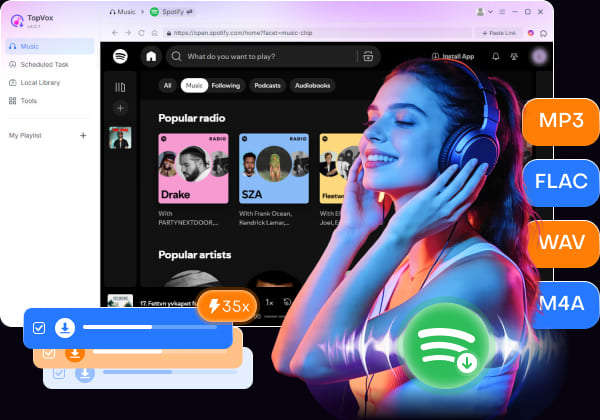
- • High-Speed Batch Conversion: Converting a massive playlist track-by-track would take hours. TopVox utilizes advanced hardware acceleration technologies to convert files at up to 35x speeds, handling entire playlists simultaneously.
- • Preservation of ID3 Tags and Metadata: When you transfer music to a car stereo, you want to see the song title, artist name, album cover art, and track number on your dashboard screen. TopVox automatically retains all vital ID3 tags and metadata during the conversion process.
- • Multiple Output Formats: Beyond standard MP3, the software supports converting music to M4A, WAV, FLAC, AIFF, and ALAC, giving you flexibility depending on what devices you plan to use.
Step-by-Step Guide: How to Convert Spotify Playlists Using TopVox
Follow these straightforward steps to turn your encrypted streaming playlists into standalone MP3 files:
100% Secure. No virus.
100% Secure. No virus.
Download the official version of TopVox Spotify Music Converter. Install the application by following the on-screen prompts, then launch it on your computer.
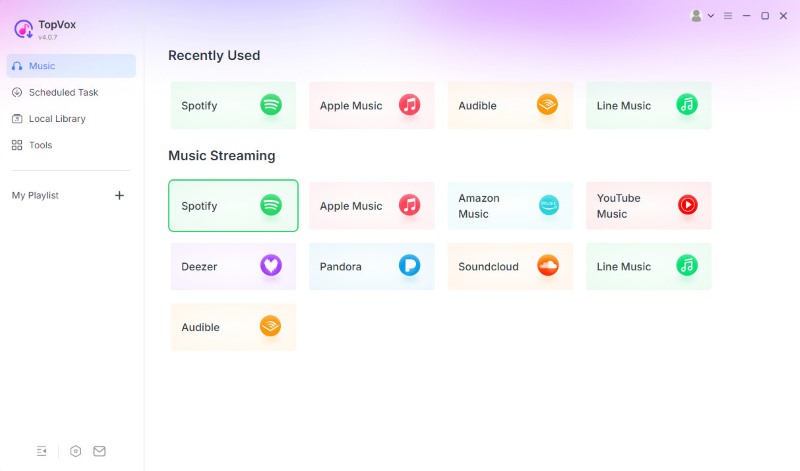
Step 1. Access the Built-In Web Player
Choose the Spotify platform on the main interface. Log in to your Spotify account (both Free and Premium accounts work).
Step 2. Select Your Desired Playlists and Tracks
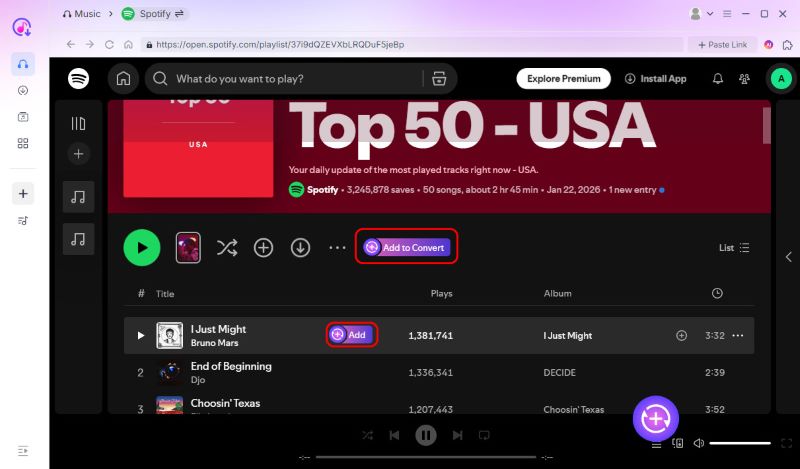
Navigate the playlist, album, or artist profile you wish to transfer, and click the Add to Conversion button.
Step 3. Configure MP3 as the Output Format
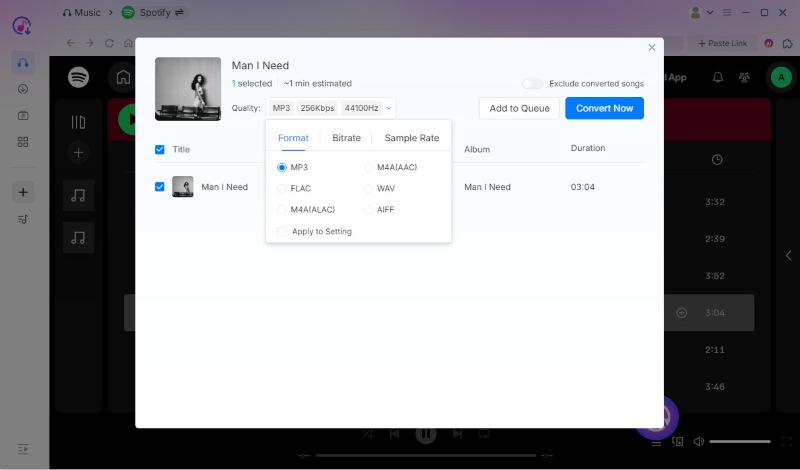
Set the Output Format to MP3, and adjust the Bitrate to 320kbps for the highest possible audio resolution. Once your configurations are set, click the "Convert Now" button.
The software will begin downloading and converting your selected tracks at high speed. You can track the progress of each song in real time. Once finished, the files will be safely stored in your computer's local storage directory as standard MP3s.
100% Secure. No virus.
100% Secure. No virus.
Part 3: How to Transfer Spotify Music to a USB Drive
Once your music has been safely decrypted and saved to your desktop or laptop, the final phase is moving those files onto your physical USB drive. There are two primary methods.
Method A: Traditional Desktop Transfer (Drag-and-Drop)
If you have already converted your files to your local hard drive, follow these steps to move them over manually:
1. Insert the USB Flash Drive into your computer and locate it.
2. Open a second window and navigate to the local folder where TopVox saved your newly converted MP3 music files.
3. Highlight the folders or individual song files you want to copy, then right-click and select Copy. Navigate to the USB drive window, right-click, and select Paste. Alternatively, you can simply drag directly from the local folder and drop it into the USB drive window.
4. Wait for the transfer progress bar to complete. Once finished, right-click the USB icon and select Eject before physically unplugging it to prevent any file corruption.
Method B: Direct-to-USB Export (More Efficient)
A faster, more direct approach removes the middleman of your local hard drive entirely - save your converted tracks straight onto the USB drive as they are being processed.
1. Plug your USB drive into your computer before opening TopVox or starting a new batch.
2. Open TopVox and navigate to the Preferences or Settings menu (indicated by a gear icon). Locate the field labeled Output Folder. Click the "Folder" button next to it.
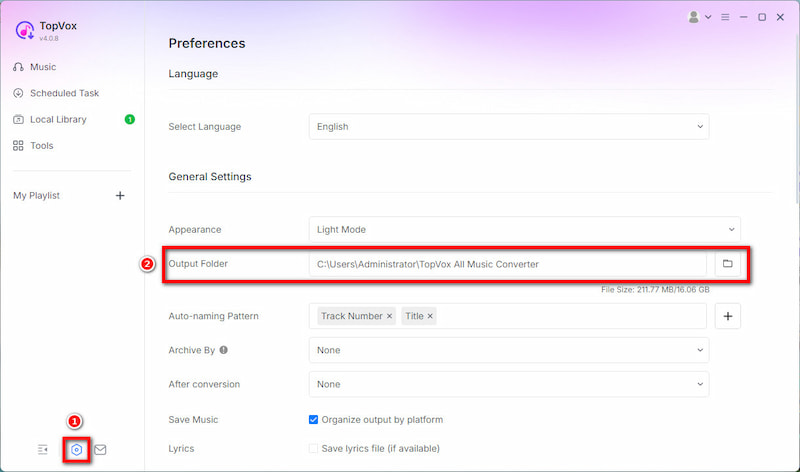
3. In the pop-up file browser, navigate to your connected USB flash drive, and click "Select Folder".
Now, you can proceed with your normal playlist conversion. TopVox will decode the streams and write the resulting MP3 files straight onto your USB stick, saving local disk space and eliminating the need to drag-and-drop later.
100% Secure. No virus.
100% Secure. No virus.
Conclusion
By converting your favorite playlists into open-source MP3 files through a tool like TopVox Spotify Music Converter, you can easily bypass compatibility roadblocks. Whether you choose to convert files locally first or save them directly onto a USB drive, you will end up with a fully portable music library.Simply eject your USB stick, plug it into your vehicle's audio system, an offline media player, or an alternative computer, and enjoy an uninterrupted, high-quality audio experience wherever your travels take you.
TopVox Spotify Music Converter
Rated on Trustpilot >  4.8/5
4.8/5
- Download and convert Spotify songs, albums, playlists, etc., with a success rate of up to 99%.
- Keep original quality, retain ID3 tags, offer lightning-fast speed and lifetime updates.
100% Secure. No virus.
100% Secure. No virus.