
How to Rip Audiobook CD to MP3 With Full Chapters
 by Luna Harper | May 13, 2026 | How to
TopVox Audible Converter
Ripping audiobook CDs to MP3 lets you digitize and back up your collection for easy playback on any device. However, DRM protection, multiple discs, and missing metadata can complicate the process. Converting files to DRM-free MP3 format using TopVox Audible Converter helps solve these issues. It can make audiobooks more accessible, organized, and convenient for offline listening.
100% Secure. No virus.
100% Secure. No virus.
Many audiobook lovers want to burn their favorite titles to CDs as a physical backup or as a meaningful gift for fellow bibliophiles. At first, the process seems simple, but it is actually more complex than expected. Most audiobooks, especially from services like Audible, are protected by DRM. It restricts copying, converting, or burning files, even if you legally own them. Because of this limitation, many users struggle to move audiobooks freely across devices or formats. In this post, we will help you overcome these limitations by guiding you through the proper way to rip audiobook CDs to MP3. We will show you how to convert audiobooks to DRM-free formats and burn them to a CD. We will help you make your audiobooks more accessible, portable, and compatible with any device you choose.
100% Secure. No virus.
100% Secure. No virus.
Part 1. Can You Rip an Audiobook CD to MP3
As for the question above, the answer is YES. You can rip an audiobook CD to MP3. Not to mention, audiobook CDs use the same format as standard audio CDs. To rip an audiobook CD to MP3, you need three things: a computer, a CD/DVD drive, and CD ripping software.
Important Note: Many modern laptops no longer include built-in disc drives. However, an external USB CD drive works perfectly for this task.
Part 2. Convert Audiobook Files to MP3 With TopVox
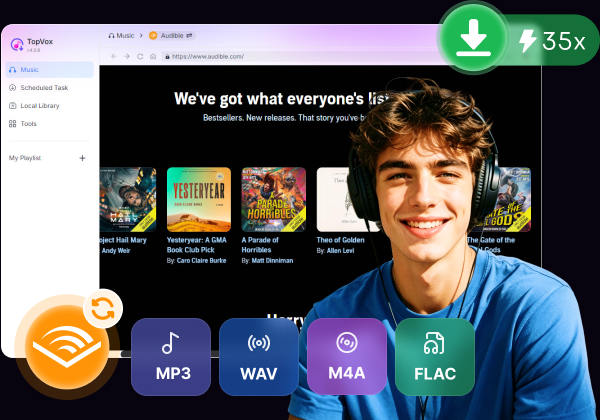
TopVox Audible Converter is a powerful tool that converts Audible audiobooks to CD-compatible audio formats for offline playback and burning. It lets you convert audiobooks to standard audio formats, such as MP3, FLAC, M4A (ALAC/AAC), WAV, and AIFF. It also supports batch downloading, allowing you to convert multiple audiobooks and chapters up to 35× faster.
Remarkably, it preserves high audio quality up to 24-bit/320Kbps/48000Hz. To make library management easier, TopVox can retain full ID3 tags, including title, author, chapter information, and cover art. Beyond Audible, it also supports many major streaming platforms. It includes Amazon Music, Apple Music, Deezer, Pandora, SoundCloud, Spotify, Line Music, and YouTube Music.
100% Secure. No virus.
100% Secure. No virus.
What to Look Forward to With TopVox Audible Converter:
- Download multiple audiobooks simultaneously with up to 35× faster conversion speed.
- Converts Audible audiobooks into a standard audio format for permanent offline access.
- Automatically keeps important ID3 details such as audiobook title, author, and cover art.
- Preserve chapter information to easily navigate long audiobooks without losing progress.
Step 1. To start with, download the TopVox Audible Converter for free. Install the Audible converter and wait for the installation process to complete. After you finish the setup process, open the software to access its main dashboard.
100% Secure. No virus.
100% Secure. No virus.
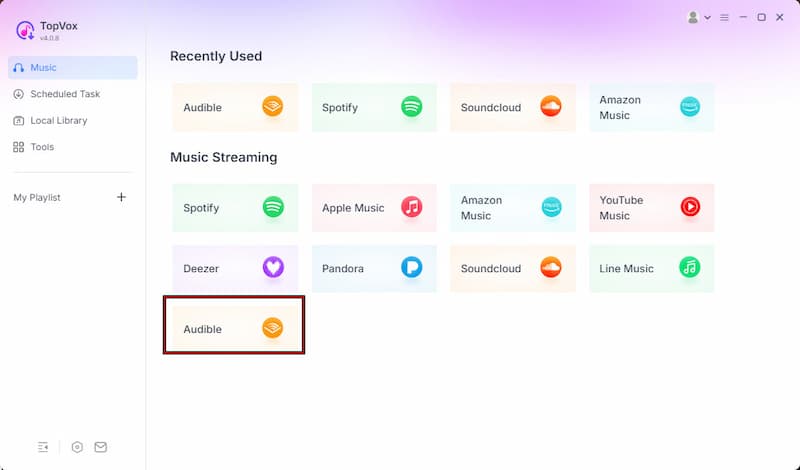
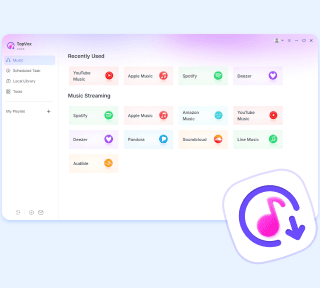
Step 2. After launching the software, you will see multiple supported streaming platforms on the home screen. Click the Audible tile to open the built-in Audible web player. Then, sign in using your Amazon or Audible account credentials.
Step 3. Open your Library, browse your library, or search for the audiobook, and click + Add to select it. If you prefer not to log in directly, TopVox also allows link conversion. Copy the URL from the Audible website, click + Paste Link, and paste it to load the audiobook instantly.
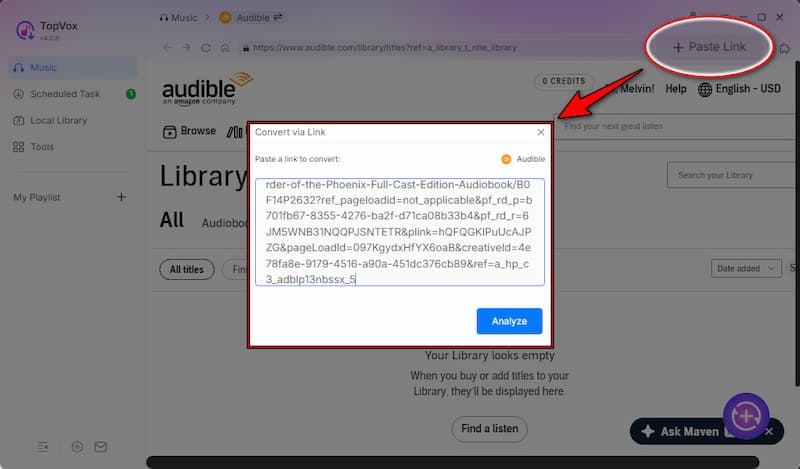
Step 4. By default, the software rips audiobooks as MP3 files, preserving the original sound quality. You can also customize the output format, bitrate, and sample rate. After adjusting the settings, click Convert All to start ripping your audiobooks.
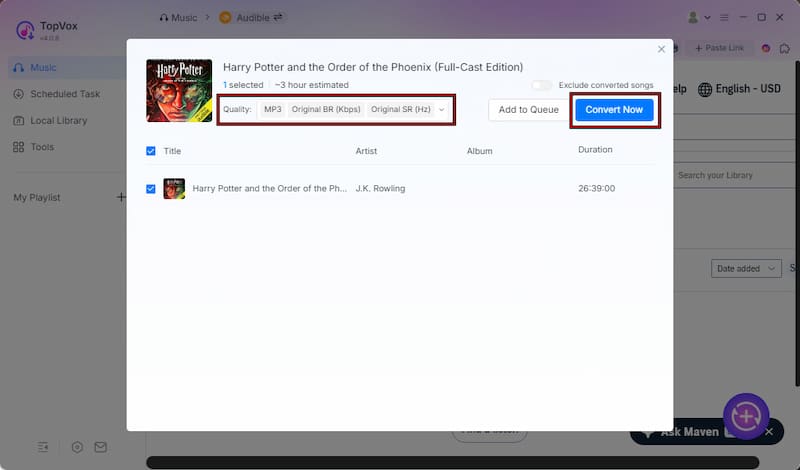
With TopVox All Music Converter, you can go beyond basic offline listening by ripping audiobooks into DRM-free audio files for CD burning. If you're wondering how DRM affects audiobook playback and sharing, explore the meaning of DRM here to understand it.
100% Secure. No virus.
100% Secure. No virus.
Part 3. Rip Converted Audiobook MP3 Files to a CD
After converting your audiobook to MP3 format, the next step is to burn the files to a CD. Both iTunes/Apple Music and Windows Media Player provide simple built-in tools to help you create an Audio CD without installing extra software.
Here’s how to rip an audiobook CD to MP3:
Method 1. iTunes/Apple Music (Mac & Windows)
iTunes and the Apple Music app make it easy to organize audiobook chapters before burning them to a CD. This method is useful for users who want better playlist management and chapter arrangement during playback.
Step 1. Open iTunes, click File, then choose Add File to Library to import the converted audiobook MP3 files. Create a new playlist and drag all audiobook tracks into it.
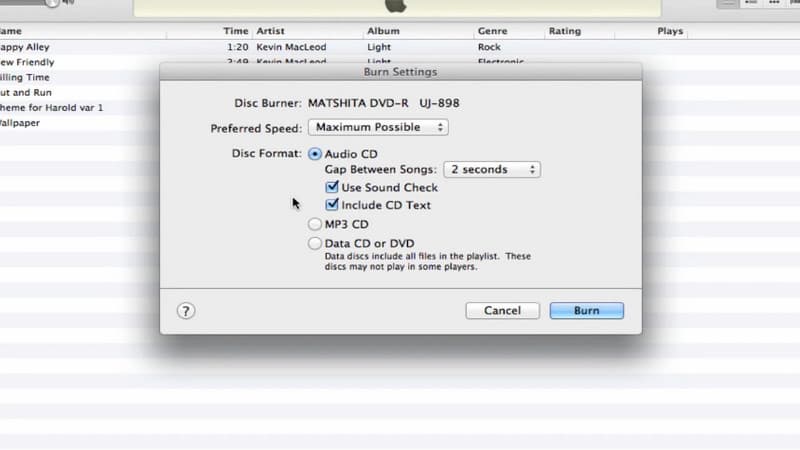
Step 2. Insert a blank CD into your computer. Right-click the playlist you created, then select Burn Playlist to Disc. In the burn settings window, choose Audio CD as the disc format.
Method 2. Windows Media Player (Windows)
Windows Media Player offers a quick and beginner-friendly way to burn audiobook MP3 files to a CD. Since it's preinstalled on most Windows computers, you can start burning immediately without downloading additional programs.
Step 1. Insert a blank CD into your disc drive (or an external disc drive), then launch Windows Media Player. In the Burn tab, drag your audiobook MP3 files into the burn list panel.
Step 2. Click the Burn options menu to select the type of disc you want to create. After confirming the settings, click Start burn to begin writing the audiobook MP3 files onto the CD.
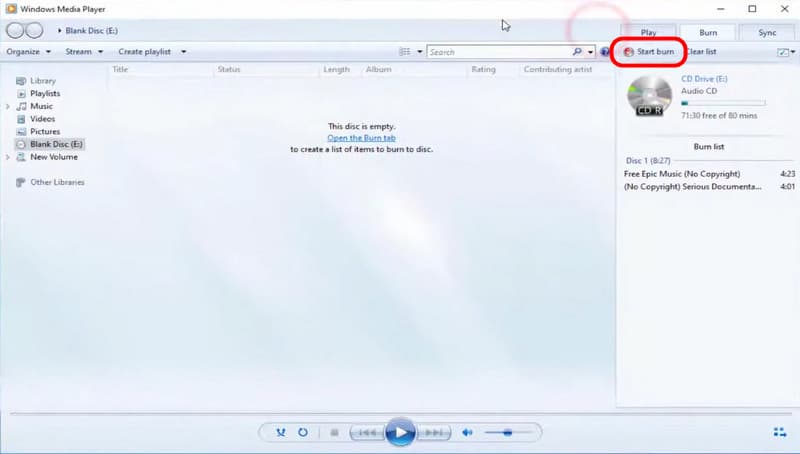
Both methods make it simple to burn converted audiobook MP3 files to a CD. Whether you use Apple Music/iTunes or Windows Media Player, you can quickly create audiobook CDs. Before burning, converting your audiobooks to MP3 files ensures smoother playback, better compatibility, and easier file management.
Part 4. Common Problems When Ripping Audiobook CDs
Ripping audiobook CDs can be useful for creating digital backups and enjoying your books on modern devices. However, the process is more complicated than it seems. Many users run into practical challenges when converting multi-disc audiobook sets into usable audio files. Here are some of the most common problems people experience:
- • High time commitment: Ripping audiobooks with 10+ discs can be repetitive and time-consuming, especially when done track-by-track.
- • Fragmented output: The result becomes hundreds of small audio files instead of a smooth, continuous audiobook.
- • Metadata gaps: Important details like artist, title, and chapter information are often missing, requiring manual tagging and organization.
- • Hardware scarcity: Many modern laptops no longer include built-in CD/DVD drives, making external drives necessary just to get started.
Conclusion
In conclusion, learning how to rip audiobook CDs to MP3s lets you enjoy audiobooks on any device while bypassing DRM restrictions. It makes your audiobooks more flexible and accessible for offline listening. To simplify the entire process and remove technical barriers, use TopVox Audible Converter. It is a powerful tool that can help you convert audiobooks quickly and efficiently, without restrictions.
TopVox Audible Converter
Rated on Trustpilot >  4.8/5
4.8/5
- Download and convert Audible tracks, audiobooks, albums, playlists, etc., with a success rate of up to 99%.
- Keep original quality, retain ID3 tags, offer lightning-fast speed and lifetime updates.
100% Secure. No virus.
100% Secure. No virus.