
How to Share a Spotify Playlist Using 3 Solutions (2026)
 by Owen Bannett | May 28, 2026 | How to
Spotify has managed to get on top of the music streaming scene thanks to the program’s superb simplicity and practicality in creating playlists. However, creating playlists is not enough, since sharing them with your loved ones is a good way to share a piece of yourself. With that in mind, learning how to use the program’s official playlist-sharing methods is important for Spotify users. In addition to these official methods, we will also discuss the best third-party option for sharing Spotify playlists via downloaded files. This method will be made possible by TopVox All Music Converter.
100% Secure. No virus.
100% Secure. No virus.
Part 1. How to Share a Spotify Playlist with Anyone – Even Non-Spotify Users
Although Spotify was designed as a music streaming service, its popularity led it to adopt social media elements, such as playlist sharing. However, sharing music collections in the program is limited to its users. As such, you need to use a music converter tool to enable playlist sharing via downloaded Spotify media. In this case, you have to learn how to use TopVox All Music Converter.
To easily share Spotify playlists with non-users, a good option is to batch-download the albums and playlists for easy media file sharing. Once they are downloaded as DRM-free media, you can now share them just like any other files.
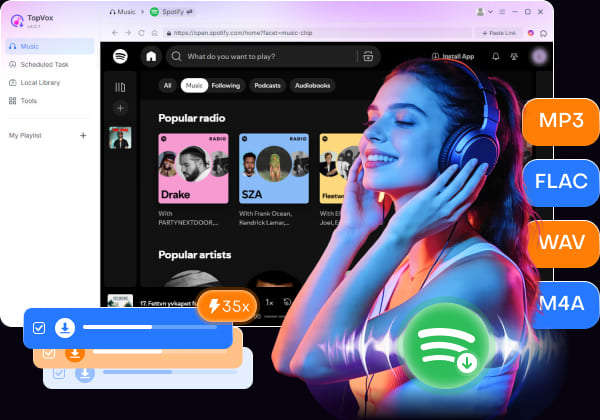
To support the program’s DRM-free downloads, files downloaded by TopVox can be saved in popular audio formats, including MP3, M4A, FLAC, ALAC, and more. These files can also be saved from standard 128kbps to high-quality 320kbps, and even in lossless quality.
To learn more about the software, make sure to read the features of TopVox All Music Converter, all designed for offline Spotify playlist sharing.
Key Features:
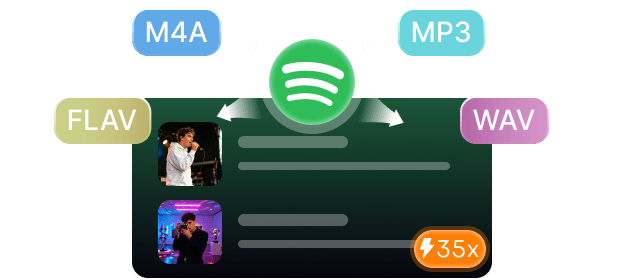
- Converts Spotify tracks into MP3, M4A, WAV, FLAC/ALAC, or AIFF audio files.
- Downloaded Spotify media in 320 kbps high-quality or lossless audio quality.
- Batch converts Spotify albums, playlists, podcasts, and audiobooks for bulk downloading.
- High-performance GPU acceleration system for download and conversion speeds 35× faster than standard.
- Preserves ID3 tags and metadata, including album artwork, artist names, album details, and more.
100% Secure. No virus.
100% Secure. No virus.
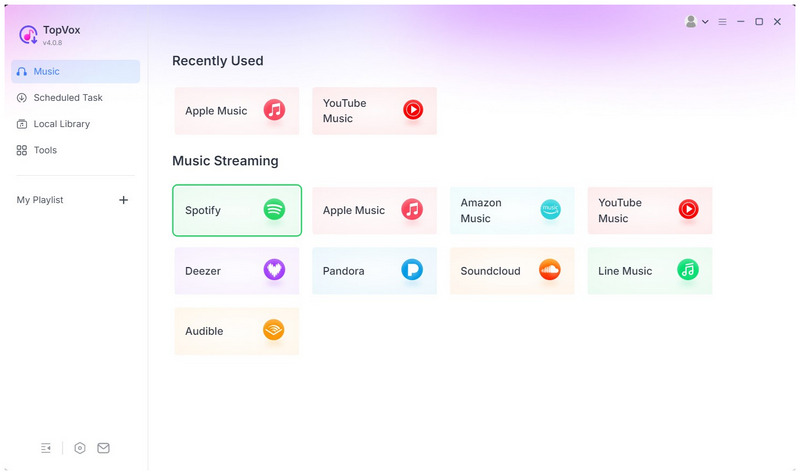
Step 1. Open TopVox All Music Converter, among the available streaming apps, select Spotify.
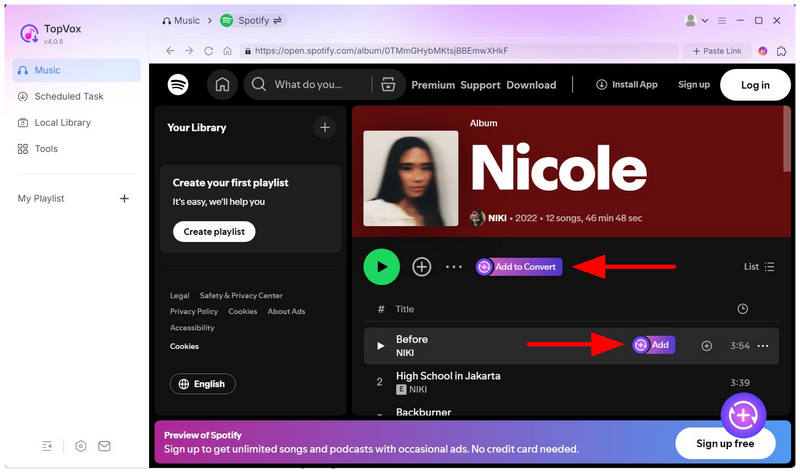
Step 2. Find the Spotify playlist or album you want to share. To add the entire list to the download queue, select Add to Convert under the Playlist or Album name. Alternatively, you may also click on the Add button beside each title to add individual songs.
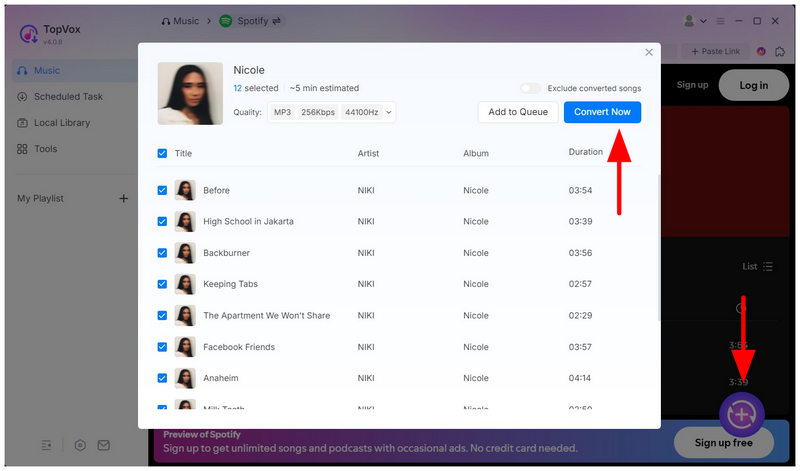
Step 3. With the playlist now added for conversion, click the Add button in the lower-right section of TopVox. In the pop-up menu, select Convert Now to begin saving your Spotify files as audio files that are easier to share.
100% Secure. No virus.
100% Secure. No virus.
Part 2. How to Share Spotify Playlists from the Spotify Music App
With the best third-party solution for sharing playlists now discussed, let us proceed to Spotify’s official in-app playlist-sharing options. Before proceeding to each guide, keep in mind that these require the user to be online and in the Spotify app to listen.
Sharing Via Copy Link (PC/Mobile)
Step 1. Open Spotify and go to the playlist you want to share.
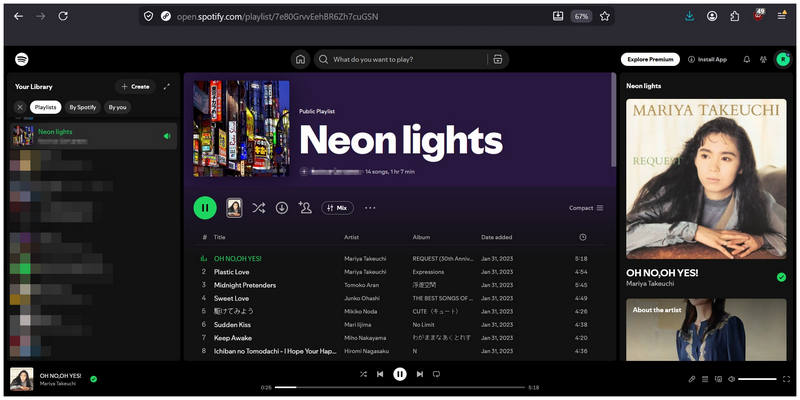
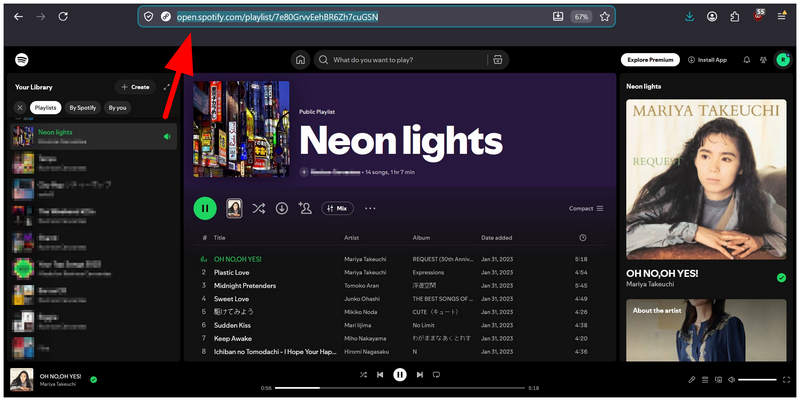
Step 2. If you are using Spotify Web Player, simply copy the playlist link to your clipboard. Then, paste the link to the platform you want to share it on.
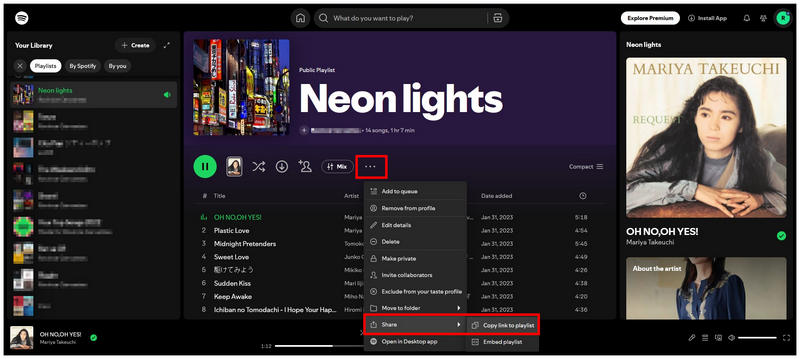
Step 3. Alternatively, click on the three-dot button under the playlist name. Hover on Share in the dropdown menu, and select Copy Link to Playlist.
Sharing Via QR Code (Mobile)
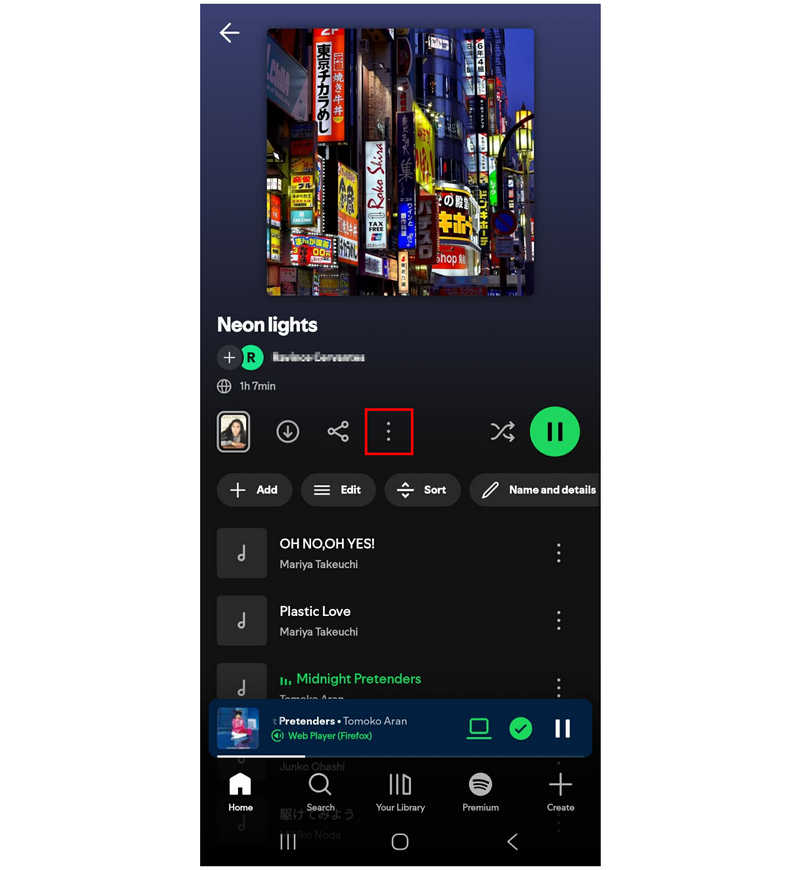
Step 1. Open Spotify Mobile and go to the playlist. Then, select the three-dot option.
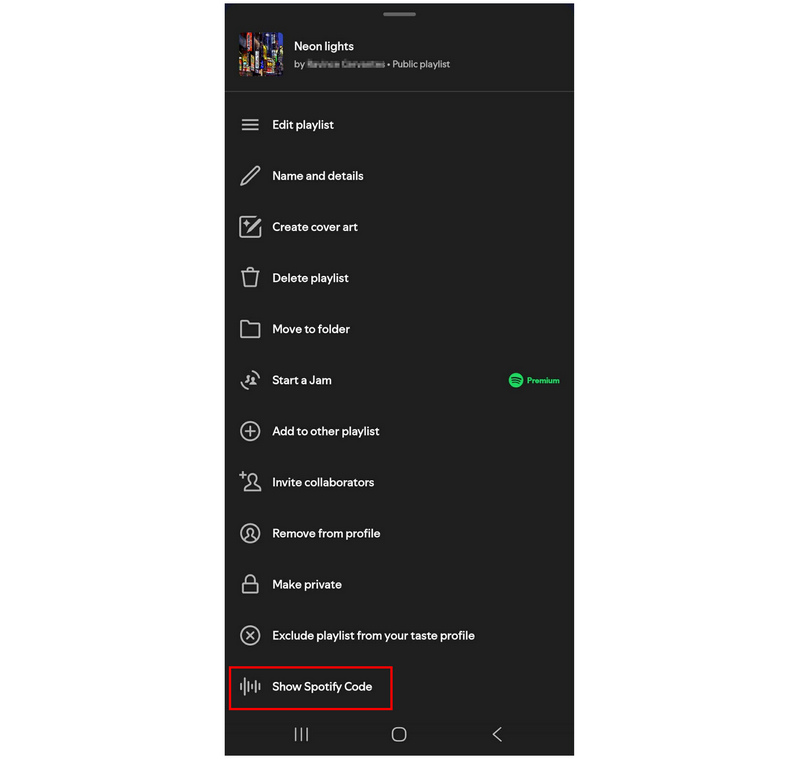
Step 2. In the menu that will open, scroll all the way down and select Show Spotify Code.
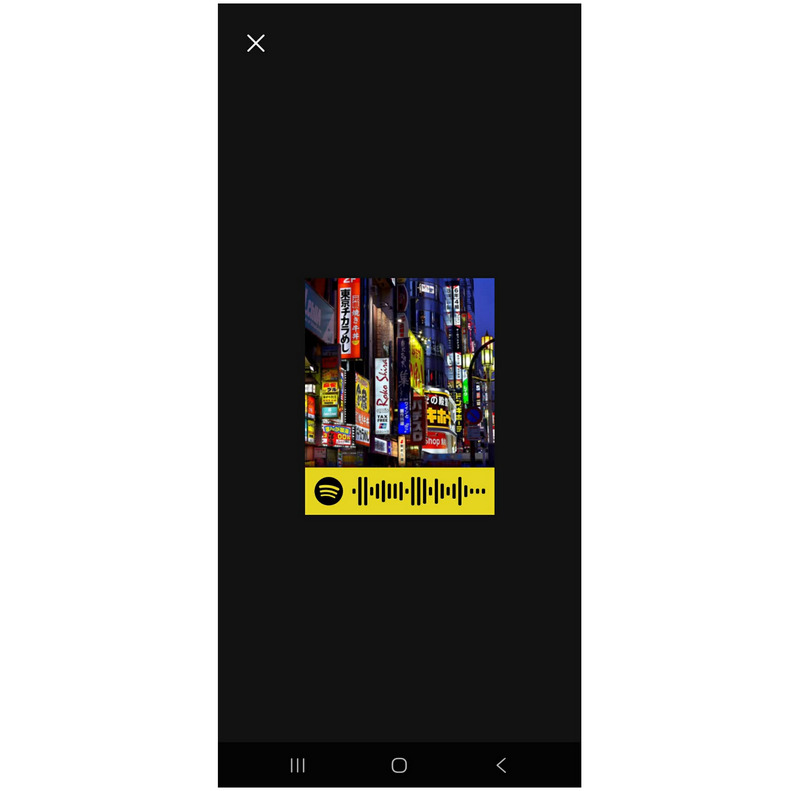
Step 3. After selecting the Show Spotify Code option, the app will generate the QR Code that you can share and scan.
Direct to Social Media Messaging or Email
Step 1. Open your Spotify app, open the playlist, then select the Share button.
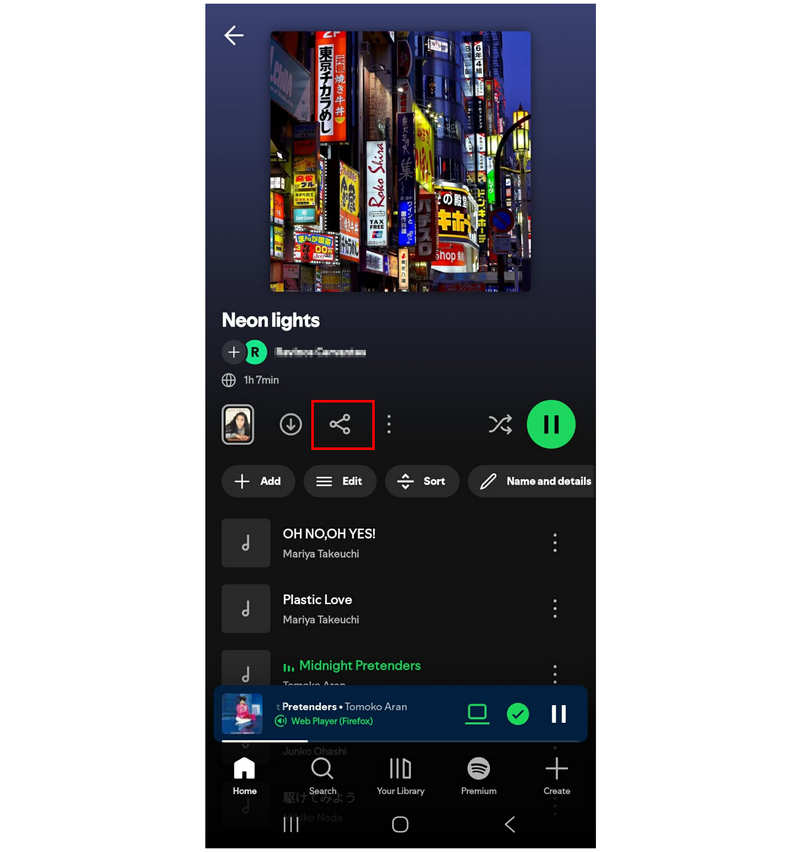
Step 2. In the menu that opens, select the messaging option you want to use to share your playlist.
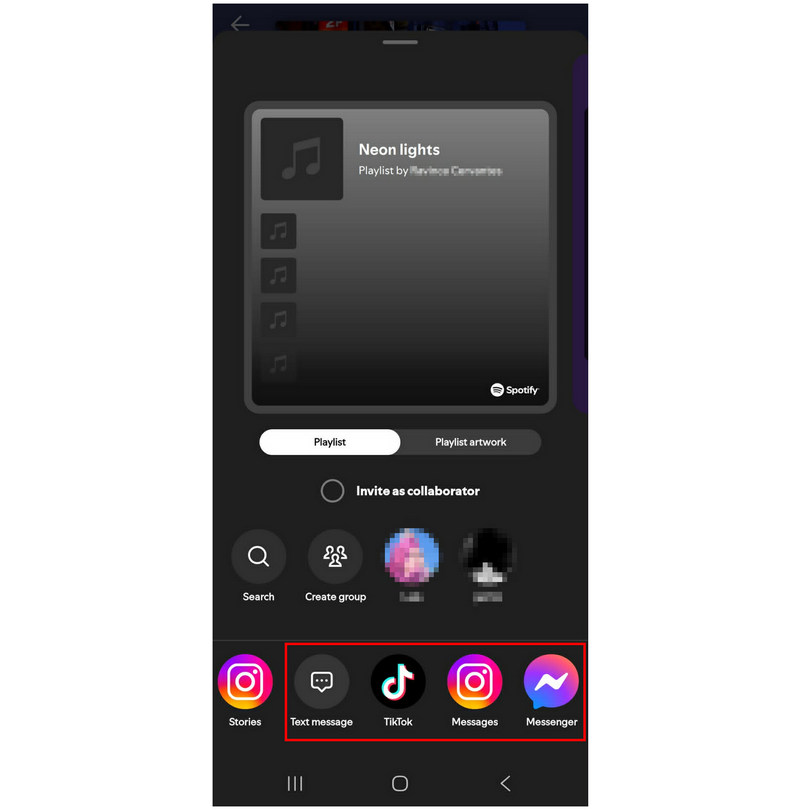
With these playlist sharing options now discussed, always remember that Spotify playlist sharing does not directly share audio files, as Digital Rights Management heavily protects these media. You can only access shared playlists in the Spotify app.
Conclusion
Now that we have provided our readers with the best options for sharing Spotify playlists via built-in solutions and download tools, we hope you can easily share a piece of your music with the people you care about. For more practical sharing, consider using TopVox All Music Converter to access music files more easily. You may download the program using the link below.
TopVox Spotify Music Converter
Rated on Trustpilot >  4.8/5
4.8/5
- Download and convert Spotify songs, albums, playlists, etc., with a success rate of up to 99%.
- Keep original quality, retain ID3 tags, offer lightning-fast speed and lifetime updates.
100% Secure. No virus.
100% Secure. No virus.