How to Download Music from Spotify to iPhone in 4 Easy Ways
 by Luna Harper | May 22, 2026 | How to
TopVox Spotify Music Converter
A desktop converter offers the most reliable way to download Spotify music to the iPhone. It provides high audio quality, fast batch downloads, and stable performance. Siri Shortcuts allow direct iPhone downloads but are complicated, unstable, and lower in quality. Online tools are simple, browser-based, but limited by ads, slow speeds, and inconsistent results. Telegram bots offer quick, chat-based access, but they are unreliable, vary in audio quality, and may stop working unexpectedly.
100% Secure. No virus.
100% Secure. No virus.
Many users find it difficult to download music from Spotify to an iPhone due to strict platform restrictions. These challenges include offline limitations and the inability to export songs outside the app. Even with a Premium account, downloaded tracks remain locked within Spotify. This limitation makes it hard to enjoy true offline freedom across other apps or devices. The best solution is to convert Spotify songs into a standard audio format and then transfer them to an iPhone for unrestricted playback anytime. This post will guide you on how to download music from Spotify to an iPhone. It includes using desktop converters, Siri Shortcuts, online tools, and Telegram bots. We will help you overcome Spotify's limitations and find the most reliable way to convert, download, and enjoy music offline on your iPhone.
100% Secure. No virus.
100% Secure. No virus.
Part 1. Download Spotify Music to iPhone Via TopVox [Best]
Why use desktop software when I can use the dedicated app? Well, desktop software is far more stable and efficient than relying on iPhone-only methods. It offers faster conversion speeds, better audio quality control, and batch downloading.
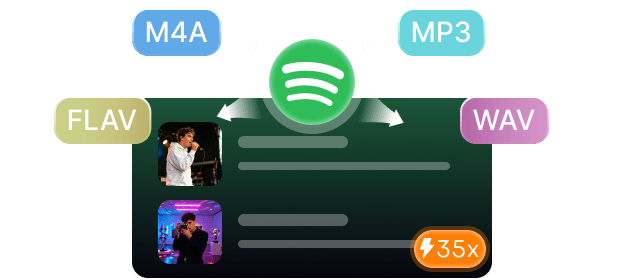
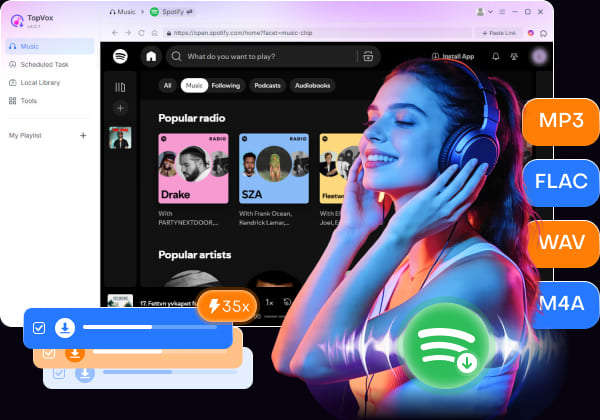
TopVox Spotify Music Converter is desktop software that lets you permanently save Spotify tracks for easy transfer to your iPhone. It can convert and download Spotify tracks into DRM-free formats such as MP3, FLAC, M4A (ALAC/AAC), WAV, and AIFF. It supports batch downloading of multiple songs, albums, and playlists at up to 35× the speed.
Best of all, it preserves original audio quality up to 24-bit/320Kbps/48000Hz. Additionally, it retains important ID3 tags like title, artist, album artwork, genre, and track information. Aside from Spotify, TopVox also supports other major streaming services. It includes Apple Music, Amazon Music, YouTube Music, Deezer, Pandora, SoundCloud, Line Music, and Audible.
100% Secure. No virus.
100% Secure. No virus.
What to Look Forward to with the TopVox Spotify Music Converter:
- Built-in Spotify web player for direct music browsing and downloading.
- Download Spotify in DRM-free formats, including MP3, FLAC, M4A, WAV, and AIFF.
- Offline playback on iPhone, Android, MP3 players, USB, smart TVs, and car stereos.
- Keep songs forever and play them on iPhone without the app or Premium subscription.
Here's how to download music from Spotify to an iPhone via TopVox:
Step 1. Begin by downloading the TopVox Spotify Music Converter on your system for free. Install the Spotify music downloader and allow the setup process to finish. After the installation is complete, open the software to access its main dashboard.
100% Secure. No virus.
100% Secure. No virus.
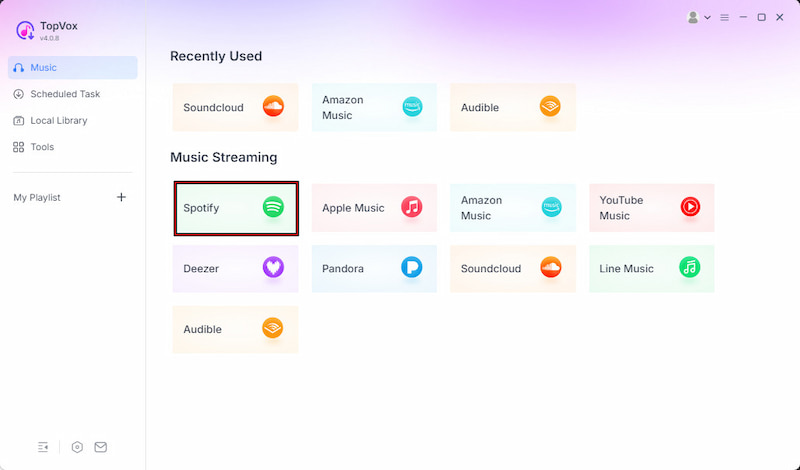
Step 2. In the Music section, select Spotify from the supported streaming services. The built-in Spotify web player will open directly inside the software. Log in to your Spotify account and browse the music you want to download to your iPhone.
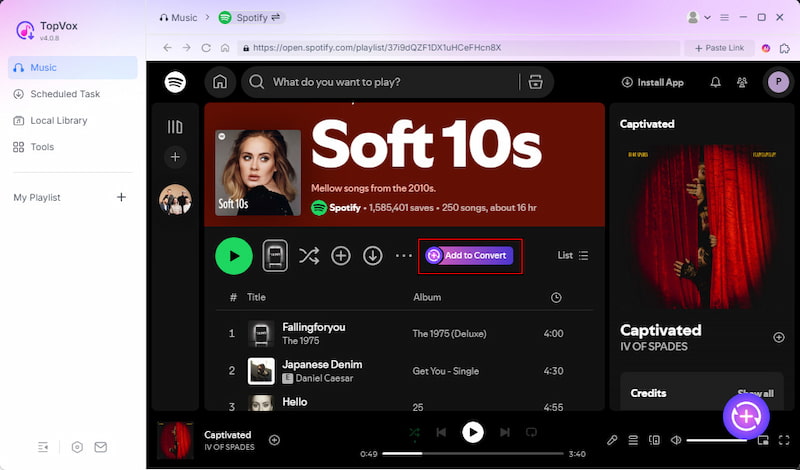
Step 3. Once you find the music you want, click the + Add button to select individual songs. If you want to download an entire playlist or album, choose + Add to Convert instead. TopVox will import all selected tracks into the conversion queue.
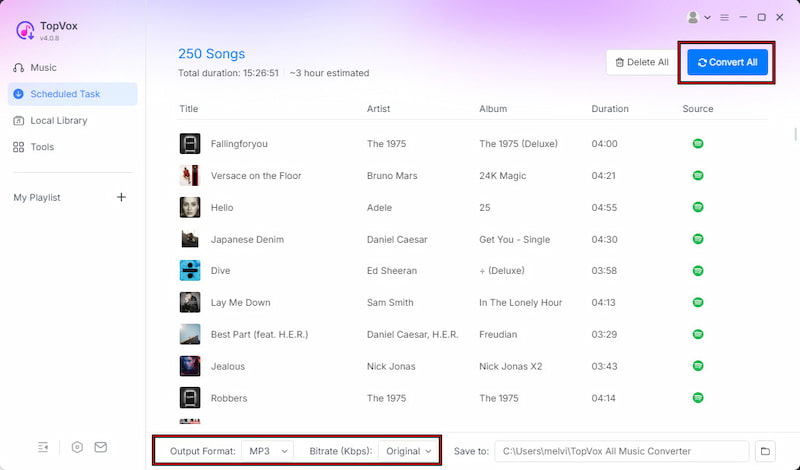
Step 4. Before starting the download, customize the output settings. MP3 is the default format, which works perfectly with iPhone devices. After adjusting the bitrate and sample rate, click Convert All to batch-convert Spotify songs.
After you download songs on Spotify, connect your iPhone to the computer using a USB cable. Open Apple Music/iTunes to sync the downloaded Spotify MP3 files to your iPhone. Once transferred, you can listen to Spotify music offline without the Spotify app or an internet connection.
100% Secure. No virus.
100% Secure. No virus.
Part 2. Other Ways to Download Music from Spotify to iPhone
Method 1. Download Music from Spotify to iPhone via Siri Shortcut
Siri shortcuts, such as Spotify Playlist DL or Spotify to M4A, let you download music from Spotify to your iPhone. These shortcuts are community-made automation tools that can grab audio from Spotify links and convert tracks into downloadable files.
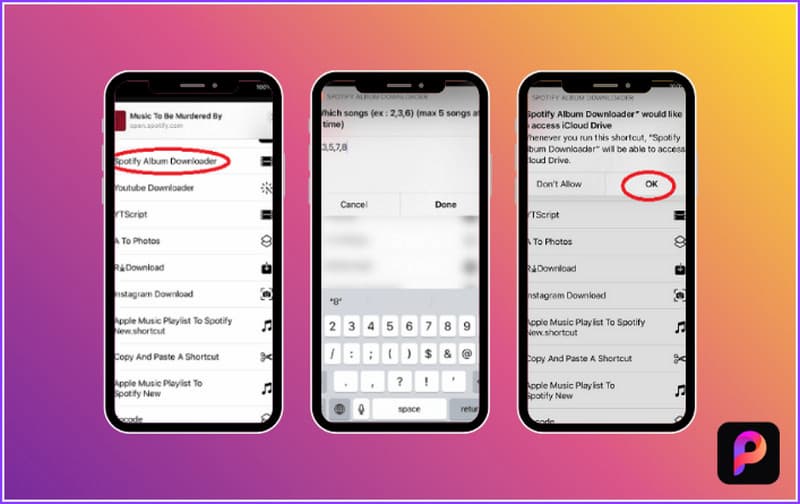
Step 1. In Settings, navigate to Shortcuts and enable the Allow Untrusted Shortcuts option. Then, install Spotify Playlist DL or Spotify to M4A shortcut from a trusted source.
Step 2. Open the Spotify application and proceed to the playlist you want to download. Tap Share and select the installed shortcut from the iPhone share menu.
Using Siri Shortcuts is a convenient way to download music from Spotify to an iPhone. It allows quick conversion of Spotify playlists into MP3 or M4A files. However, the setup process is complicated, as it requires enabling untrusted shortcuts and manually configuring permissions.
Method 2. Download Track from Spotify to iPhone via SpotiDownloader
SpotiDownloader is an online Spotify downloader that lets you save Spotify songs without installing apps. It works in a web browser, making it accessible on iPhone and iPad. It converts Spotify track links into downloadable MP3 files for offline listening.
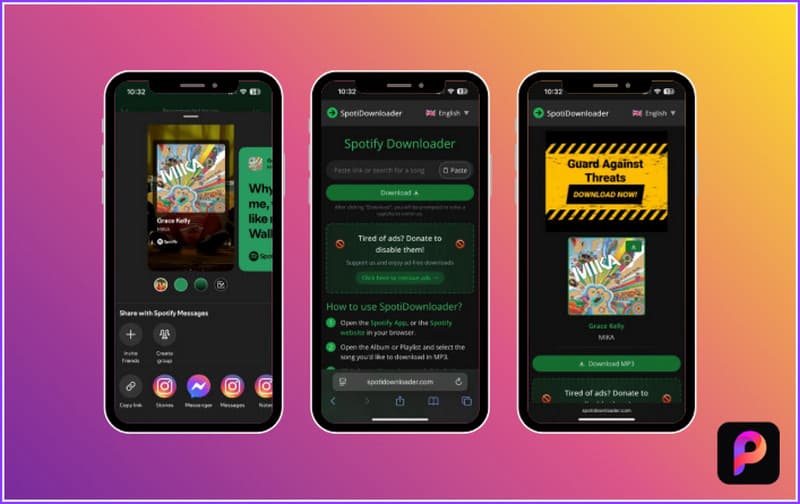
Step 1. On the Spotify app on your iPhone, find the song you want to download. Tap the Share button and select Copy Link.
Step 2. Launch Safari or another browser and visit the SpotiDownloader page. Paste the copied Spotify link, then tap Download to process it.
SpotiDownloader is a handy tool as it requires no app installation. However, it takes multiple attempts to download Spotify music as MP3s successfully. Additionally, it contains intrusive ads, redirects, and unstable servers.
Method 3. Download Song from Spotify to iPhone via Telegram Bot
Telegram bots are another simple way to download Spotify music directly on an iPhone. It can fetch tracks, albums, and playlists from Spotify links and provide downloadable MP3 files. One popular option is SpotifySaveBot on Telegram.
Here's how to download music from Spotify to an iPhone via a Telegram bot:
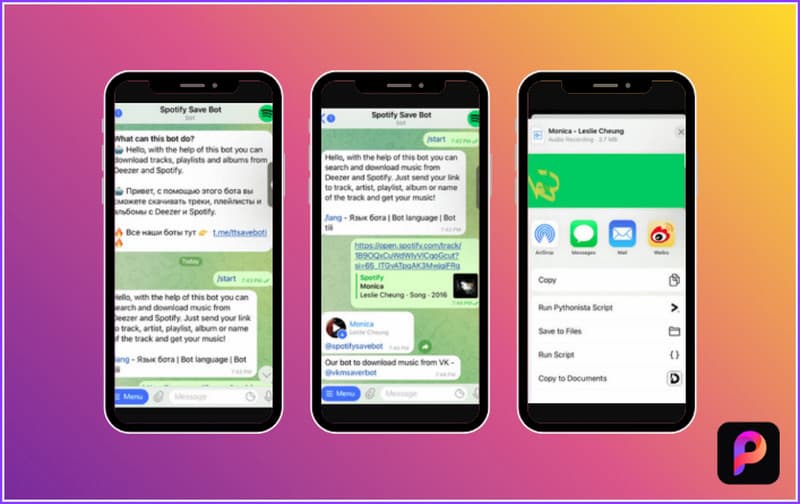
Step 1. On Telegram, search for Spotify Downloader Bot or use bots like SpotifySaveBot. Start a chat with the bot to access its downloading features.
Step 2. Send the command/start in the chat window. Then open Spotify, copy the song's URL, and paste it into the Telegram chat to process your request and send a download link.
Telegram bots are easy to use, but they also have several limitations. Many bots are unstable and may stop working due to Spotify restrictions or copyright issues. Additionally, some bots limit playlist downloads and fail to process certain tracks.
Part 3. Comparison of 4 Ways to Download Spotify Music
| Spotify Music Converter | Platform | Sound Quality | Conversion Speed | Batch Download | ID3 Tags Retention | Security | Ease of Use |
|---|---|---|---|---|---|---|---|
| TopVox Spotify Music Converter | Windows and Mac | 24-bit/320Kbps/48kHz | Up to 35× | ✅ | ✅ | ✅ | Easy (guided UI) |
| Siri Shortcuts | iPhone | 256Kbps/44.1kHz | Slow | ❌ | ❌ | ❌ | Intermediate |
| SpotiDownloader | Web | 256Kbps/44.1kHz | Depends on server | ❌ | ❌ | ❌ | Easy |
| Telegram Bots | iPhone and Android | 128Kbps/44.1kHz | Slow | ❌ | ❌ | ❌ | Easy |
Verdict: If you compare all four methods, TopVox delivers the most complete experience. It delivers high-quality audio, ultra-fast conversion speeds, and reliable batch downloading. Other methods like Siri Shortcuts, online tools, and Telegram bots are useful for quick or occasional downloads, but they come with limitations in quality, reliability, and security.
100% Secure. No virus.
100% Secure. No virus.
Conclusion
In conclusion, knowing how to download music from Spotify to an iPhone helps you bypass streaming limits and enjoy true offline playback. While several methods exist, they often come with restrictions in quality, speed, or stability. For the most reliable experience, use TopVox Spotify Music Converter to convert and transfer Spotify music to iPhone easily, with high-quality and fast downloads.
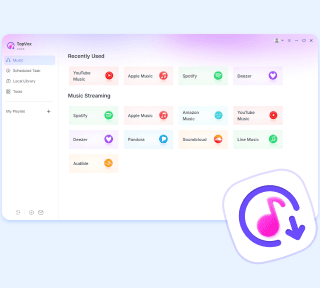
TopVox Spotify Music Converter
Rated on Trustpilot >  4.8/5
4.8/5
- Download and convert Spotify songs, albums, playlists, etc., with a success rate of up to 99%.
- Keep original quality, retain ID3 tags, offer lightning-fast speed and lifetime updates.
100% Secure. No virus.
100% Secure. No virus.