
How to Burn Music from YouTube to a CD
 by Luna Harper | May 13, 2026 | How to
TopVox YouTube Music Converter
Burning music from YouTube to a CD involves converting tracks into CD-compatible formats and using Windows Media Player or iTunes to create an Audio CD. With TopVox YouTube Music Converter, you can quickly convert YouTube Music into high-quality files. It makes the process faster, easier, and more efficient for offline listening and long road trips.
100% Secure. No virus.
100% Secure. No virus.
CD burning might sound a bit old-school. But you know what? Many people still prefer listening to music on CDs, especially during road trips when internet access is limited or unstable. A physical CD can be more reliable and convenient when streaming is not an option. At some point, you've probably asked yourself: robably asked yourself: ? Well, this guide is here to answer exactly that. This post will teach you the complete and proper way to turn YouTube Music into a playable CD. But before jumping into the process, there's one essential step you need to understand first. To make everything work smoothly, read this guide to the end so you can successfully burn YouTube Music to a CD without missing any important details.
100% Secure. No virus.
100% Secure. No virus.
Part 1. Can You Burn Music from YouTube to a CD?
Referring to the outlined question, the short answer is yes. You can burn tracks from YouTube to a CD, but not directly from the website. YouTube itself does not include a built-in CD burning feature. You must first convert YouTube to MP3 or another CD-compatible audio format. After the conversion, you can then use standard CD-burning software to create your disc.
Part 2. What You'll Need (Quick Checklist)
Before you start burning YouTube Music to a CD, ensure you have all the required tools and hardware ready. Preparing everything in advance will make the process faster and smoother. Here's what you'll need:
- • Windows PC or Mac.
- • CD/DVD drive (external if needed).
- • Blank CD-R disc.
- • TopVox YouTube Music Converter.
- • Windows Media Player or iTunes (free, already installed).
Part 3. Convert YouTube Music to MP3 With TopVox
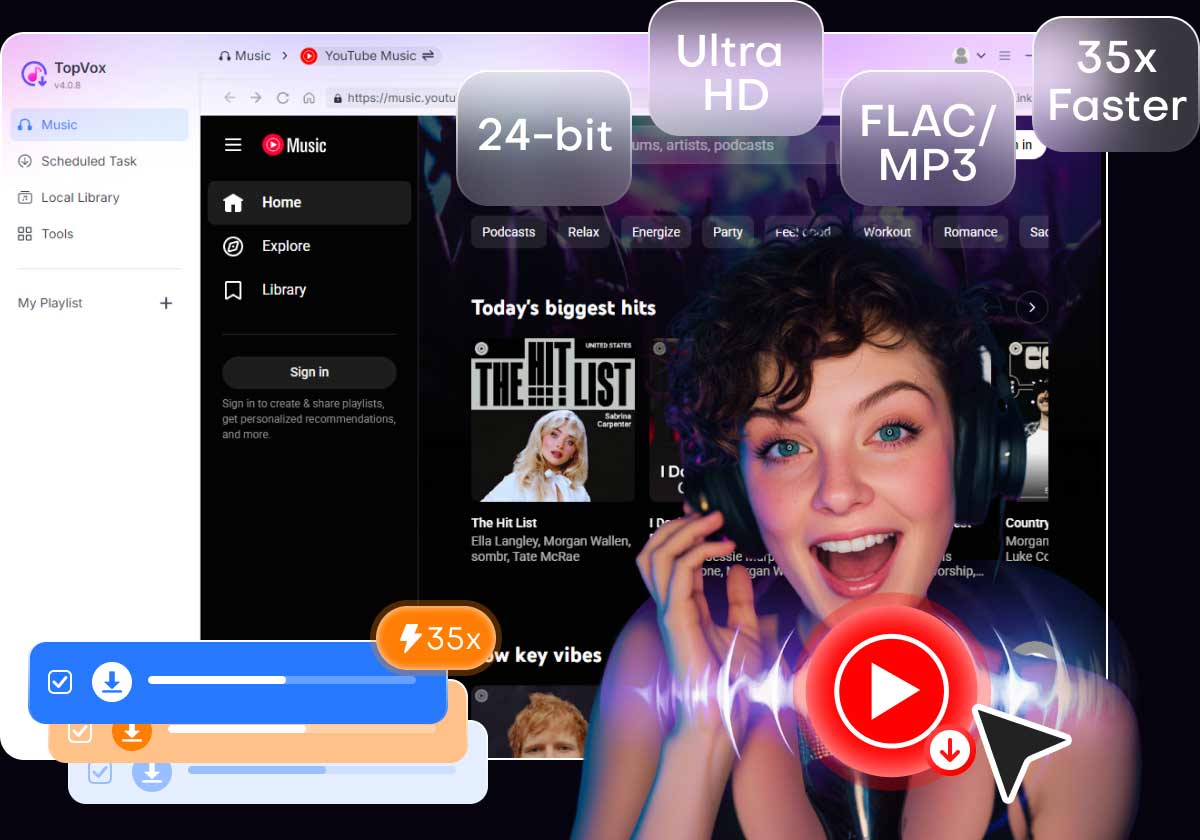
TopVox YouTube Music Converter is a dedicated tool that lets you convert YouTube Music to a CD. It lets you convert YouTube Music songs to MP3, FLAC, M4A (ALAC/AAC), WAV, and AIFF formats. It supports batch downloading of multiple tracks, albums, and playlists at up to 35× faster speed. The software can also export audio in high quality up to 24-bit/320Kbps/48000Hz.
100% Secure. No virus.
100% Secure. No virus.
In addition, it retains important ID3 tags such as title, artist, album, and artwork. It helps make music organization much easier after conversion. Beyond YouTube Music, TopVox also supports other major streaming platforms. This includes Amazon Music, Apple Music, Deezer, Pandora, SoundCloud, Spotify, Line Music, and Audible.
What to Look Forward to With TopVox YouTube Music Converter:
- Bypasses DRM protection and other content restrictions efficiently.
- Downloads songs in batches with up to 35× faster conversion speed.
- Converts YouTube Music into MP3 and other CD-compatible formats.
- Get YouTube Music songs, albums, and playlists even without a Premium subscription.
Step 1. To get started, you must first download the TopVox YouTube Music Converter for free. Install the YouTube Music downloader and complete the installation. After you complete the setup, launch the software to access its main dashboard.
100% Secure. No virus.
100% Secure. No virus.
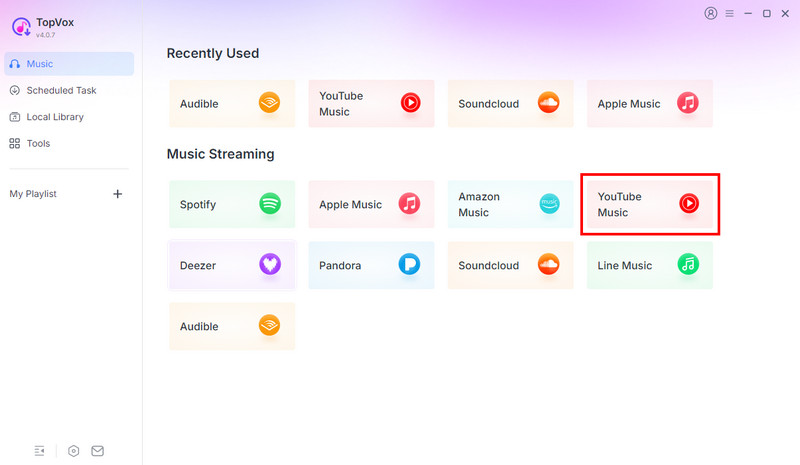
Step 2. After opening the software, it will enter the Music section. Click the YouTube Music tile to access the built-in YouTube Music web player. Sign in to your YouTube Music account, then search for the songs, albums, or playlists you want to convert to MP3.
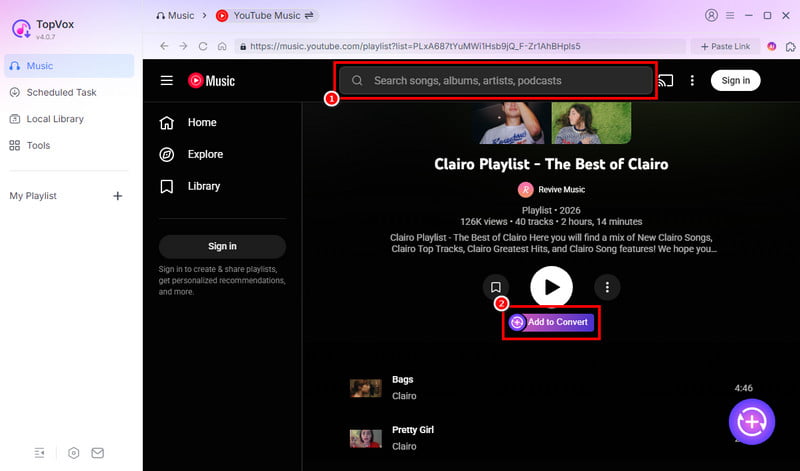
Step 3. Once you find the music you want, click + Add to select individual tracks. To save an entire album or playlist, choose + Add to Convert instead. All selected items will appear in the Scheduled Task section, making it easier to organize and manage multiple downloads.
Step 4. Before starting the download, customize the output settings. You can adjust the format, bitrate, sample rate, and audio quality. Select MP3 as the output format, then click Convert All to begin converting your YouTube Music tracks to MP3.
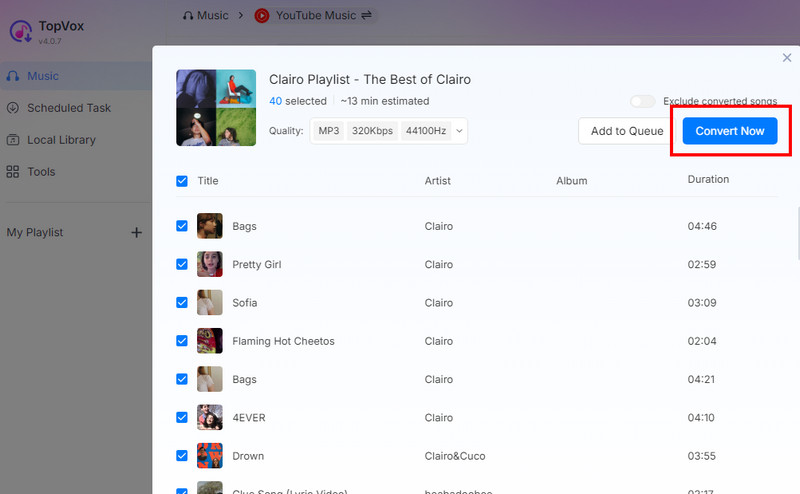
With TopVox YouTube Music Converter, you can easily download music from YouTube to a computer. It supports batch downloading, high-quality output, and converts tracks into CD-compatible formats for smooth burning and offline playback.
100% Secure. No virus.
100% Secure. No virus.
Part 4. Burn MP3 Files to a CD
Once your MP3 files are ready, you can transfer them to a physical disc using the built-in tools on Windows or Mac. This process is simple and lets you create an Audio CD that plays on most CD players, car stereos, and DVD systems.
Here's how to burn music from YouTube to a CD:
Method 1. Windows Media Player (Windows)
Windows Media Player is one of the easiest ways to burn MP3 files directly to a CD. It comes pre-installed on most Windows systems and provides a straightforward drag-and-drop burning interface. It also automatically organizes your tracks in a burn queue for a convenient process.
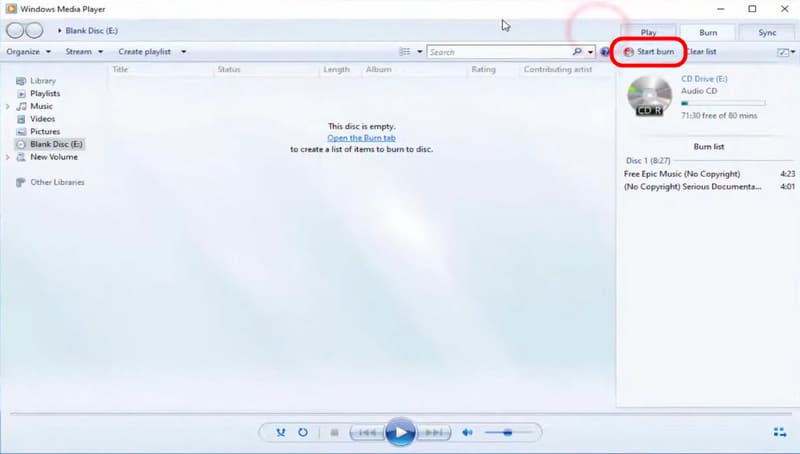
Step 1. Insert the blank CD into your system's disc drive and open Windows Media Player. Move to the Burn tab, then drag your converted music files into the burn list panel.
Step 2. Open the Burn options menu to choose the disc type. After setting up everything, click Start burn to start writing your MP3 songs onto the CD.
Method 2. iTunes (Mac & Windows)
iTunes also lets you easily create an audio CD from your MP3 library. It offers a clean interface for managing playlists. It ensures smooth syncing between your music library and disc creation tools. It is especially useful for users who want better control over playlist order.
Step 1. Open iTunes, click File, then choose Add File to Library to import your converted MP3 songs. Create a new playlist and drag all your selected tracks into it for better organization.
Step 2. Insert a blank CD, then right-click the playlist and select Burn Playlist to Disc. In the settings window, choose Audio CD as the format before starting the burn process.
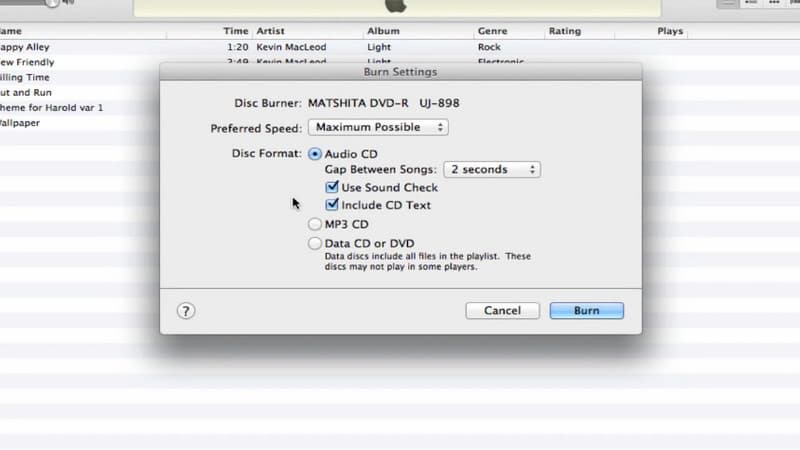
Both Windows Media Player and iTunes offer simple, effective ways to burn MP3 files to a CD. Windows Media Player is ideal for a quick, straightforward drag-and-drop burning process, while iTunes offers better playlist control and organization. Either method can create an Audio CD for playback in car stereos, home systems, and standard CD players.
Conclusion
Mastering how to burn music from YouTube to a CD gives you a reliable way to enjoy your favorite tracks offline. While the process may seem technical at first, it becomes simple once you follow the correct steps. To make everything easier and more efficient, using TopVox YouTube Music Converter is highly recommended. It helps you quickly convert YouTube Music to high-quality audio files ready for CD burning, without hassle.
TopVox YouTube Music Converter
Rated on Trustpilot >  4.8/5
4.8/5
- Download and convert YouTube Music songs, albums, playlists, etc., with a success rate of up to 99%.
- Keep original quality, retain ID3 tags, offer lightning-fast speed and lifetime updates.
100% Secure. No virus.
100% Secure. No virus.