
How to Add Music to iMovie from Spotify: A Full Tutorial
 by Ethan Carter | May 25, 2026 | How to
In the music streaming app market, Spotify is the most popular and leading option, despite the rise of multiple competitors. Unfortunately, Spotify’s library is completely locked within the app due to strong DRM protection. In this article, we will provide the best solution to bypass this issue and enable adding music to iMovie from Spotify. This guide will help you learn how to access Spotify music for video editing, specifically in Apple’s primary editing program.
100% Secure. No virus.
100% Secure. No virus.
Part 1. Why Can’t I Add Spotify Music to iMovie
Media files in Spotify, both music and podcasts, are highly protected by Digital Rights Management (DRM). This system is designed to provide copyright protection for media files uploaded online for public consumption. This system prevents using Spotify music as an editing asset in iMovie.
Additionally, Spotify uses an uncommon audio format, OGG Vorbis, which adds another challenge when using such media files for basic functions such as listening to entertainment and as an editing asset. Instead of using popular formats such as MP3, M4A, AAC, WAV, and more, Spotify’s use of an uncommon file type is another form of security.
Downloaded audio from Spotify Premium is also encrypted in the app’s cache files, and mining its music files is highly complicated.
100% Secure. No virus.
100% Secure. No virus.
Part 2. The Best Way: Topvox All Music Converter
Since Spotify’s audio library is heavily protected by DRM, using these media as video editing assets could be challenging. Fortunately, there are dedicated DRM music converters that allow you to download audio from streaming services, such as TopVox All Music Converter.
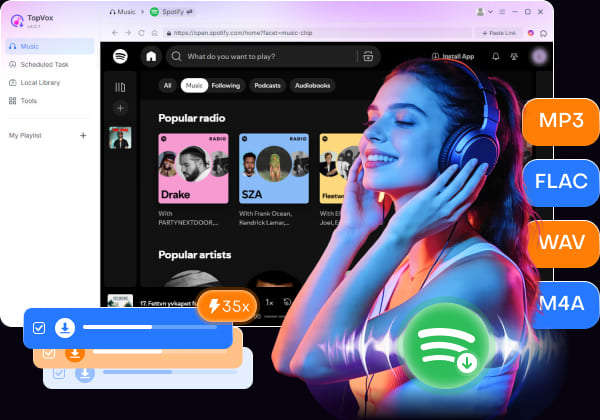
When it comes to downloading audio from streaming apps, TopVox is one of the most reliable tools on the market, offering efficient processing speeds during the conversion and download. It also offers multiple conversion options, and the audio quality can be retained at a 320 kbps bitrate or saved as lossless FLAC or ALAC.
With TopVox’s high-performance features, the tool is an excellent choice for downloading Spotify media as an editing asset. To learn more about the program, please read its main features below and refer to our three-step guide on using it.
Key Features:
- It can batch convert and download Spotify albums, playlists, podcasts, and audiobooks for offline listening.
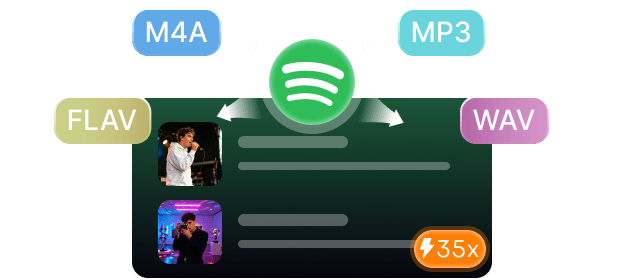
- Converts downloaded Spotify audio to accessible MP3, M4A, WAV, FLAC, AIFF, or ALAC formats.
- Hardware-accelerated and offers 35× faster downloading and conversion speed.
- Offers multiple audio quality options, from standard 320 kbps to lossless quality.
- Maintains the media file’s ID3 tags and metadata, including artist, album, title, genre, and cover art.
Make sure to download the program first to make following our guide easier.
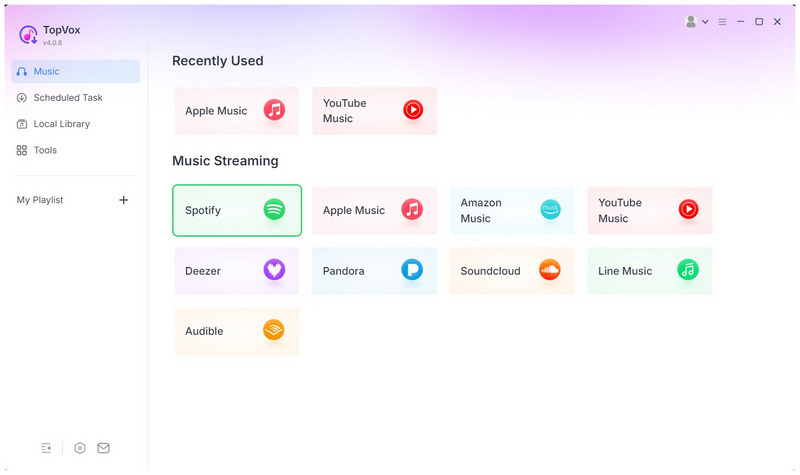
Step 1. Open TopVox All Music Converter and select Spotify among the available streaming services.
Step 2. Navigate through Spotify’s menu and go to the album, playlist, or song you want to download. Then select Add to Convert on the collection title or next to a single song to add it to the conversion list.
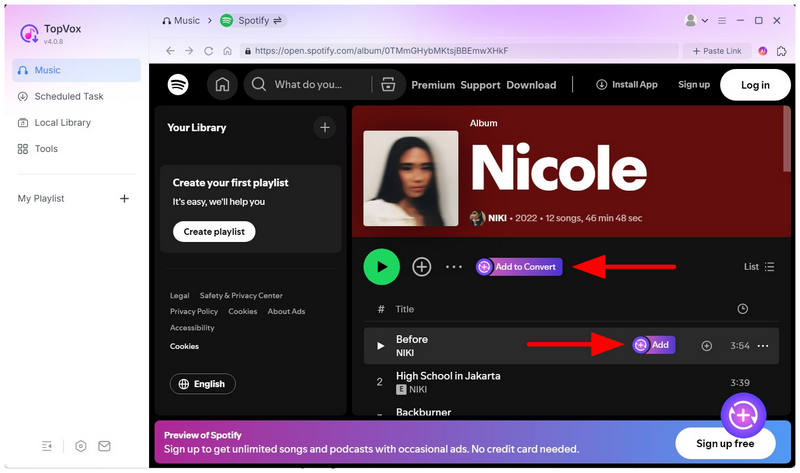
Step 3. Once you are done selecting the Spotify media you want to download, click on the Add button in the lower-right section of TopVox. Then, select Convert Now in the pop-up menu to begin converting the DRM-protected files to MP3 format by default.
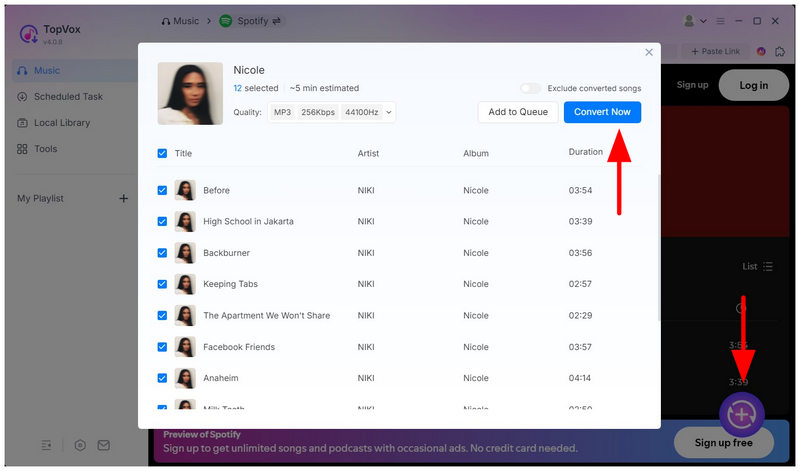
Once you have downloaded the converted Spotify audio back into your computer, you can now open it in iMovie just like any other local audio file. Learn how to add music in the iMovie editor in the next section of the article.
100% Secure. No virus.
100% Secure. No virus.
Part 3. How to Add Spotify music to iMovie
Once you have downloaded the music from Spotify that you want to use for editing, all you have to do is learn how to add the downloaded audio to your iMovie app, whether you are using the Mac or the iOS version.
How to Add Spotify Music on Mac
Step 1. Open iMovie on Mac and select the Audio & Video tab in the program’s main taskbar, then select Music.
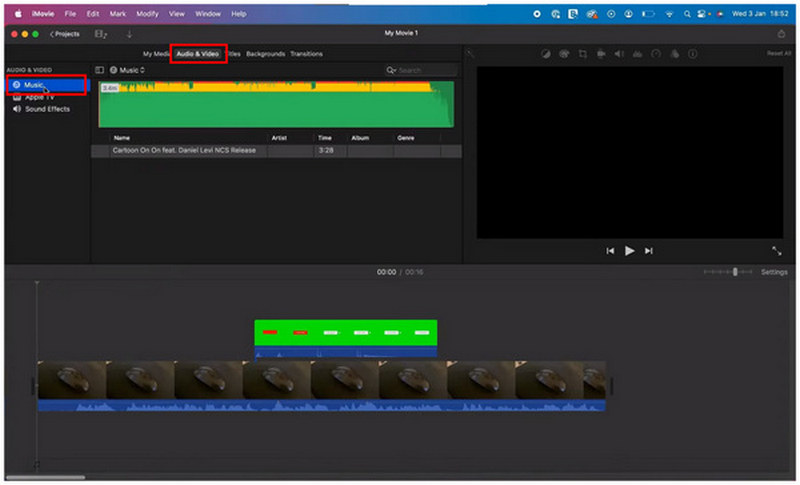
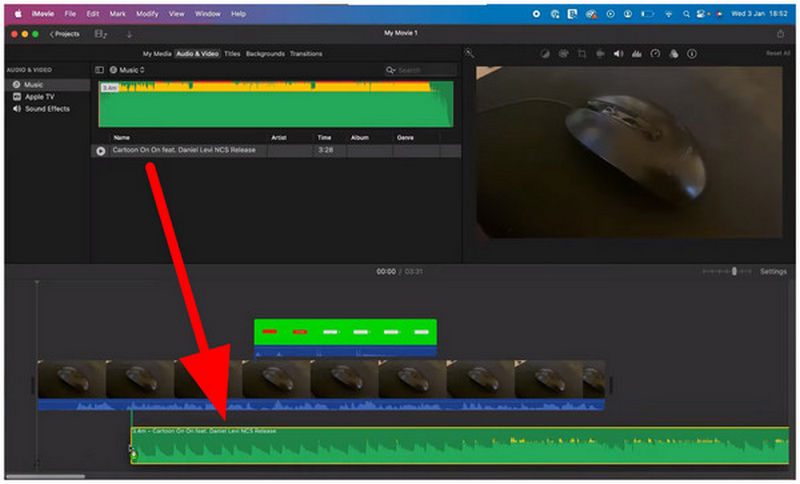
Step 2. Select the audio you want to use for editing in the Music menu. Then, drag-and-drop it to the Editing Timeline.
How to Add Spotify Music on iPhone/iPad
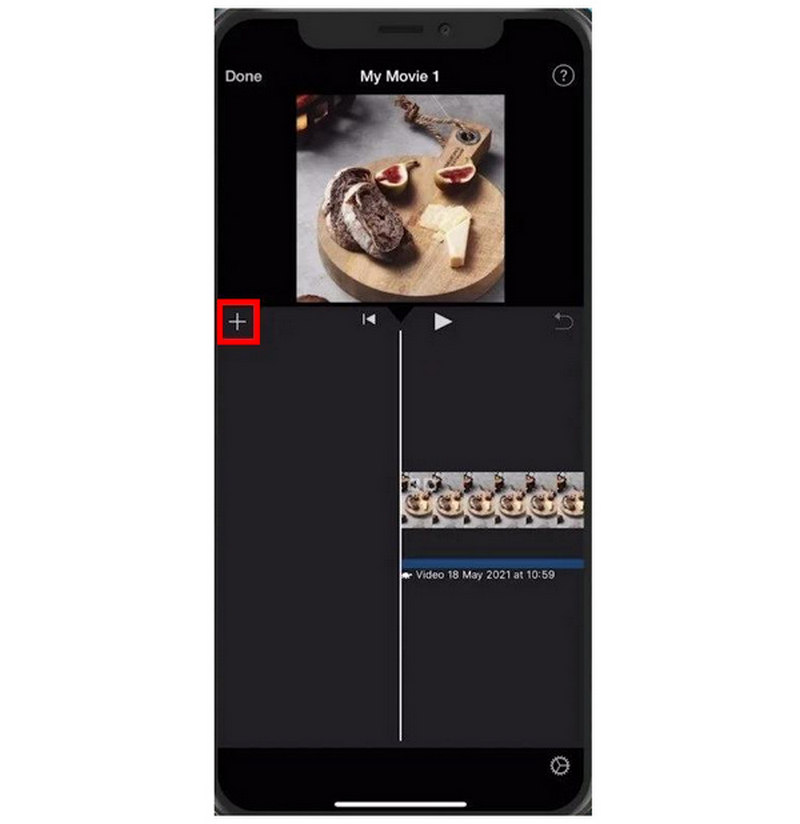
Step 1. In the editing menu of iMovie for iOS, select the Add button on the lower left section of the preview screen.
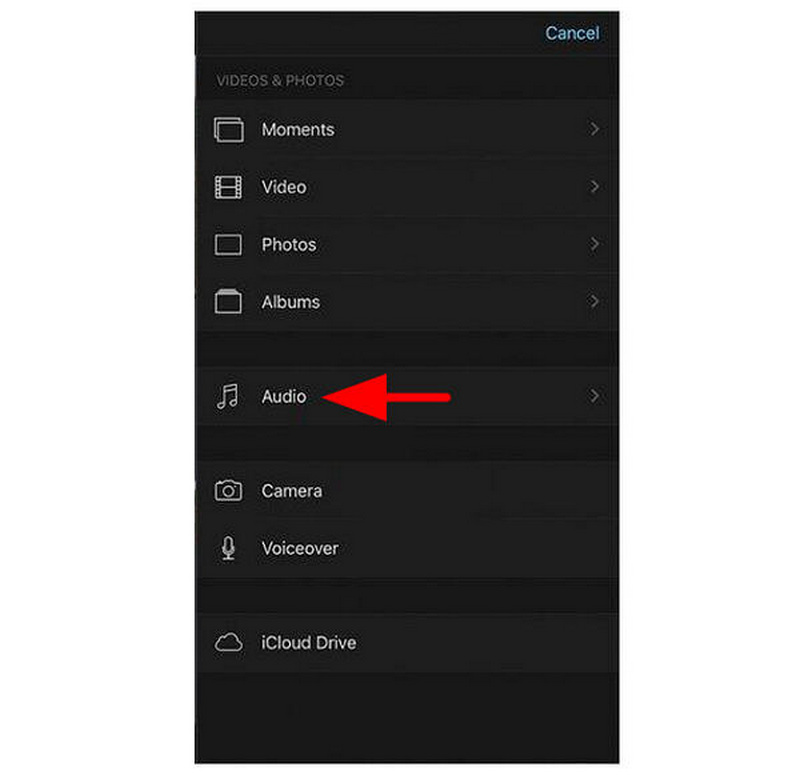
Step 2. In the menu that will open, select Audio.
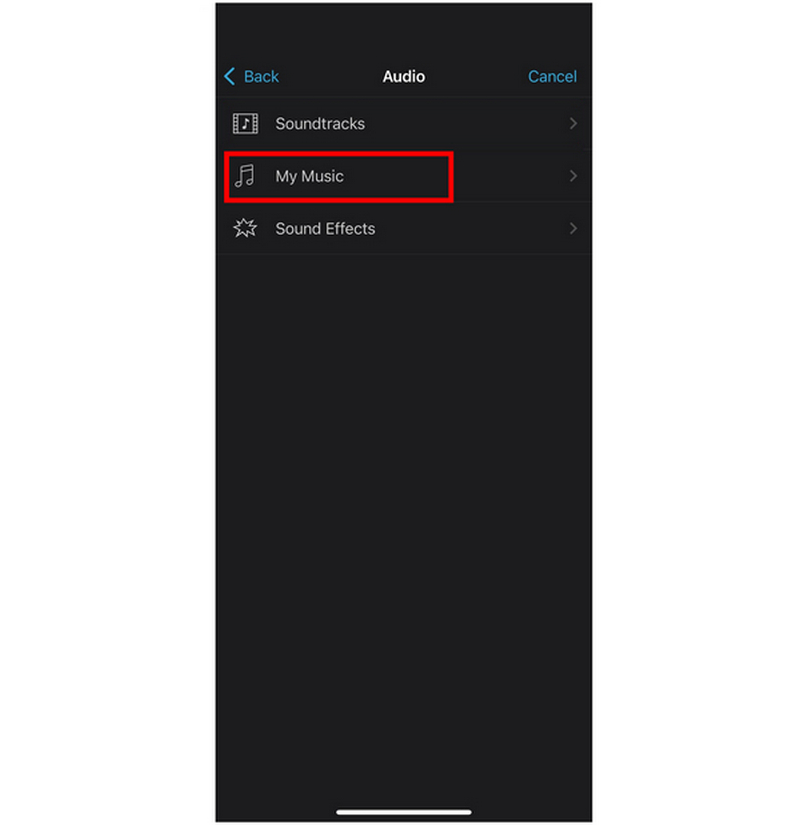
Step 3. In the Audio menu, select My Music, then navigate to your files to find the downloaded Spotify movie you want to use for editing.
Conclusion
Now that we have provided the best options for adding Spotify media to iMovie editing projects, we hope you can now enjoy the virtually unlimited music and audio files available on Spotify. If you are looking for a solution to bypass DRM protection on Spotify or other music streaming apps, make sure to use TopVox All Music Converter, available for download via the link below.
TopVox Spotify Music Converter
Rated on Trustpilot >  4.8/5
4.8/5
- Download and convert Spotify songs, albums, playlists, etc., with a success rate of up to 99%.
- Keep original quality, retain ID3 tags, offer lightning-fast speed and lifetime updates.
100% Secure. No virus.
100% Secure. No virus.