
How to Sync Apple Music to iPod Classic: A Full Tutorial
 by Owen Bannett | May 28, 2026 | How to
Music streaming apps are now the standard for music consumption because they are accessible on smartphones, which are essential tools in modern times. However, the charm of music players remains unmatched, as they are still great devices for high-quality offline music playback. Unfortunately, syncing Apple Music files to an iPod Classic is a modern-day challenge because DRM and licensed content cannot be copied directly to an iPod. With that in mind, we will provide the best solutions for this problem, including the best third-party option alongside the official option you can use.
100% Secure. No virus.
100% Secure. No virus.
Part 1. Can an iPod Classic Play Apple Music
No, the iPod Classic is a completely offline device, and it was primarily developed as a music player. Although it resembles old-school smartphones, it is not equipped with WiFi, and installing apps is definitely not available. As such, using the Apple Music app is impossible.
When it comes to transferring music from Apple Music to an iPod, it is also tricky since media from the streaming app is heavily protected by Digital Rights Management (DRM) and the iPod Classic does not support audio files with modern DRM protection from Apple Music, Spotify, and other streaming services.
If you want to listen to Apple Music offline, you have to do it on your smartphone while subscribed to their premium plan, or you can use DRM converter tools to convert DRM-protected music into regular audio files.
100% Secure. No virus.
100% Secure. No virus.
Part 2. Download Apple Music Playlists to iPod Classic (Complete Solution)
Although you can't use Apple Music on the iPod Classic, you can still use the streaming app as your primary source for music files. However, you need to use a reliable DRM converter to download files from Apple Music. As such, TopVox Apple Music Converter should be your top choice.
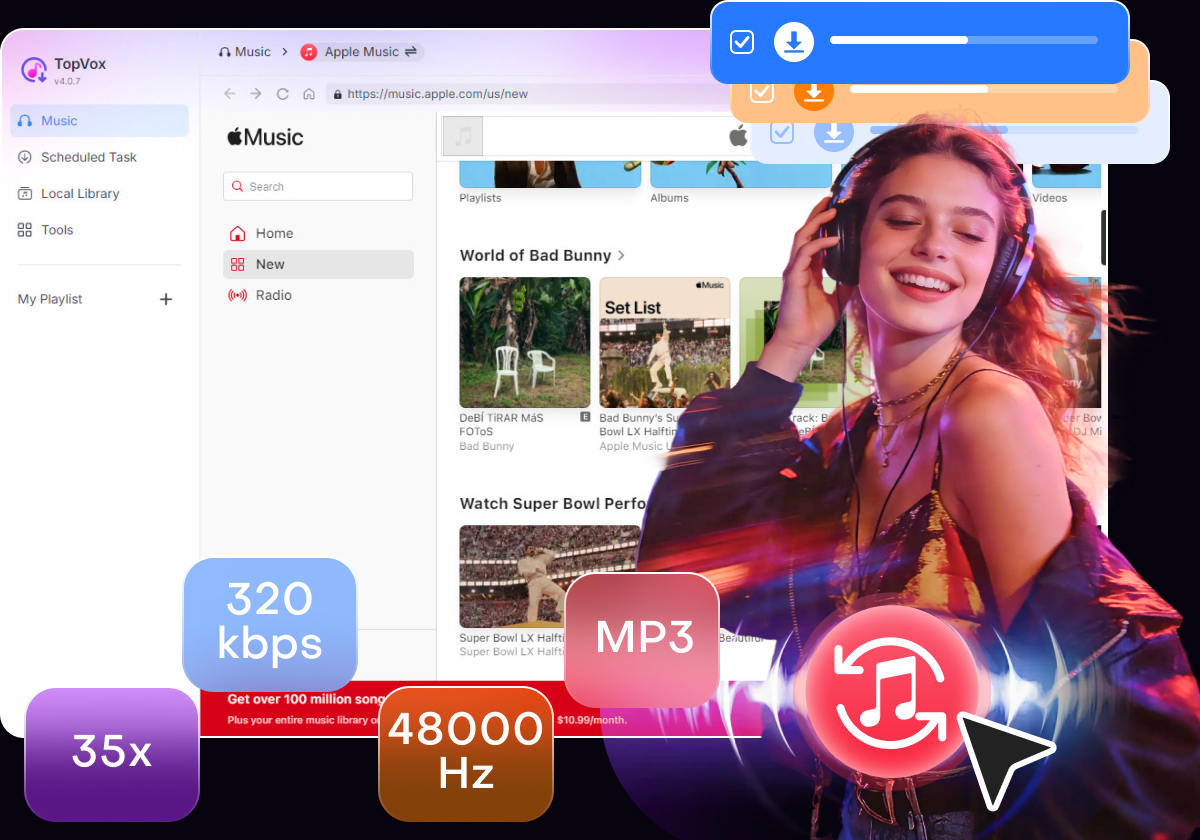
Developed to convert DRM-protected tools to high-quality audio, TopVox is your perfect solution if you are looking for the best tool to download music and sync it to your iPod music player. This was made possible by the program’s versatility in saving downloaded files as MP3 and M4A (AAC), both of which are supported formats for the iPod Classic.
To learn more about the program designed to handle Apple Music, make sure to read its main features below. Then refer to our guide below for the steps to download files from Apple Music.
Key Features of TopVox Apple Music Converter:
- High-performance conversion and downloading speed.
- Converts DRM-protected songs from Apple Music to regular audio files.
- Capable of batch downloading playlists and albums.
- Downloads Apple Music media in standard iPod formats (AAC and MP3).
- Downloaded audio may be saved at 128 kbps, 320 kbps, or lossless quality.
Before proceeding with our guide, make sure to download TopVox Apple Music Converter first to make it easier to follow our tutorial.
100% Secure. No virus.
100% Secure. No virus.
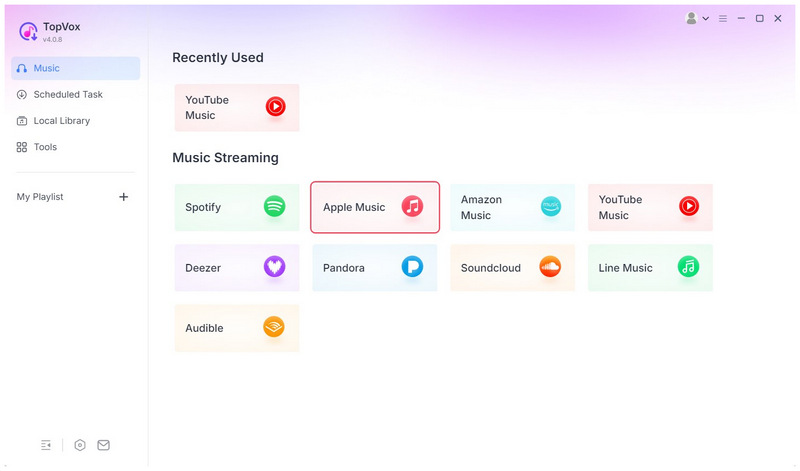
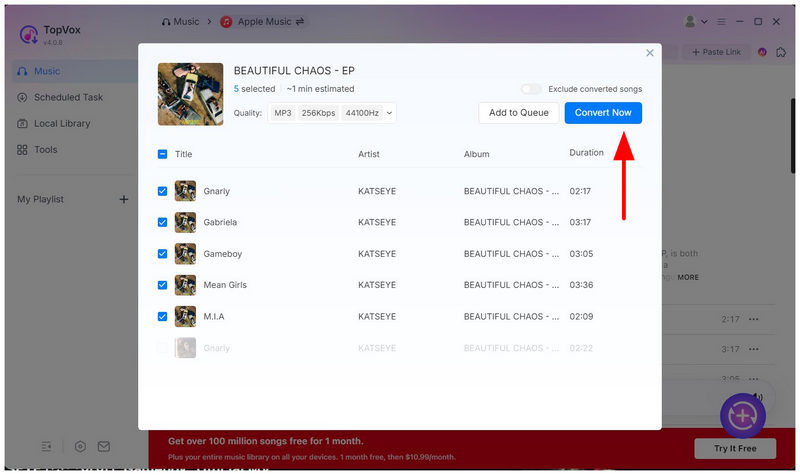
Step 1. Open TopVox Apple Music Converter and select Apple Music.
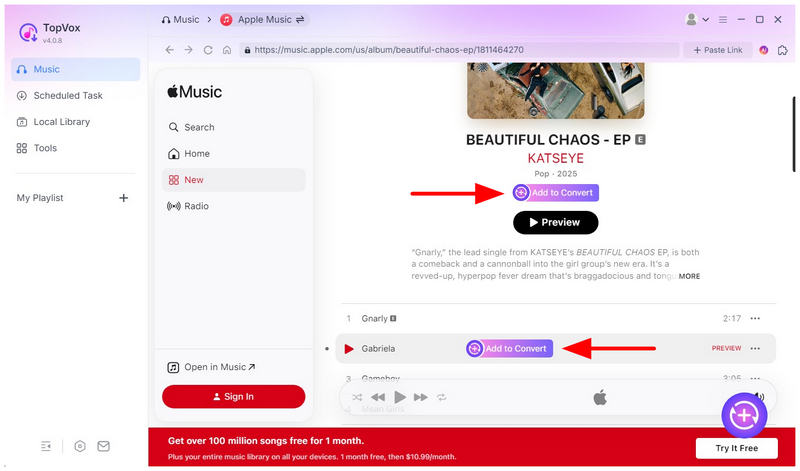
Step 2. Navigate the Apple Music library and select the song, album, or playlist you want to download. Then select the Add to Convert option in the playlist or next to a single song to download it.
Step 3. Once you have selected the music you want to download, click the Add button to open your list. Then select Convert All to convert the M4A files you downloaded from Apple Music.
Part 3. Sync DRM-free Apple Music Playlists to iPod Classic (Official)
Unfortunately, syncing DRM-free music from Apple Music to an iPod Classic is not officially available. Since modern releases on streaming services are protected by modern DRM, transferring them is not as simple as it would be.
However, you can use iTunes syncing to indirectly transfer downloaded files from TopVox Apple Music Converter to your iPod. To learn how, read our guide below.
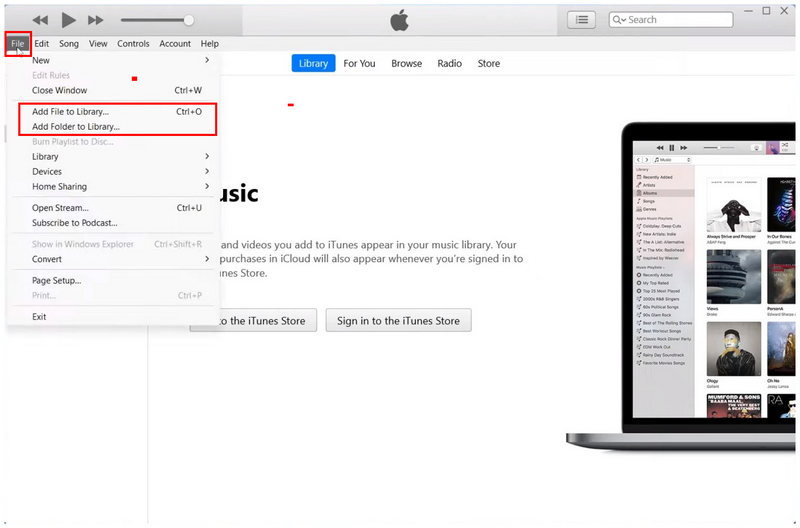
Step 1. Open iTunes and select File, then click Add File to Library or Add Folder to Library to upload the downloaded Apple Music files to your iTunes library.
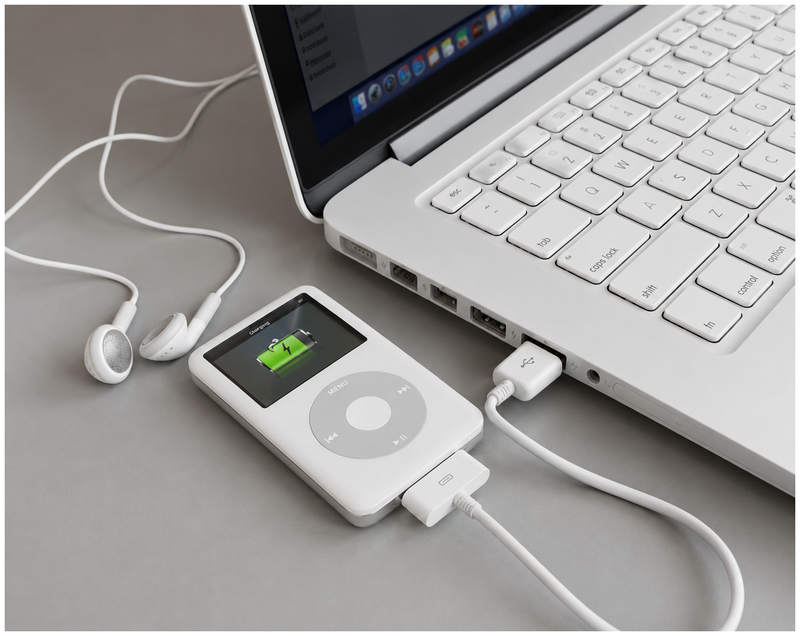
Step 2. Connect your iPod Classic to your computer where your iTunes app is open.
Step 3. Once your device is recognized in the iTunes menu, select it, then click Sync to synchronize the music content of your iTunes library with your iPod.
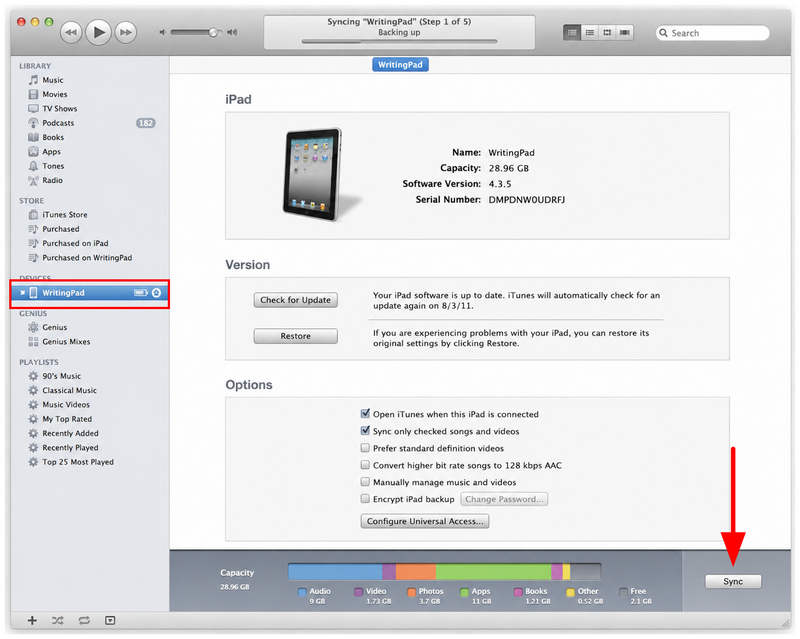
Simply wait for the syncing process to finish. Once done, the content of the iTunes library will now be synced to your iPod Classic. You have essentially transferred the Apple Music audio to your iPod.
Conclusion
Now that we have provided the best option for syncing Apple Music files to the iPod Classic, we hope this article has offered a modern solution to your music and entertainment problem. Fortunately, DRM converter software can bridge this technological gap, and TopVox Apple Music Converter is an excellent choice.
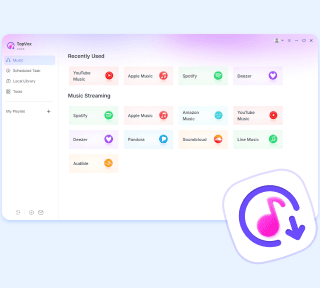
TopVox Apple Music Converter
Rated on Trustpilot >  4.8/5
4.8/5
- Download and convert Apple Music songs, albums, playlists, etc., with a success rate of up to 99%.
- Keep original quality, retain ID3 tags, offer lightning-fast speed and lifetime updates.
100% Secure. No virus.
100% Secure. No virus.