
How to Add iTunes or Apple Music to iMovie for Video Editing
 by Ethan Carter | May 25, 2026 | How to
When using iMovie as an editing tool, accessing the wide Apple Music and iTunes libraries provides virtually limitless background music options, making it a solid choice for high-quality video production projects. Unfortunately, iMovie does not have a direct connection to Apple Music due to the streaming platform's strict DRM, making it difficult to use it for editing assets. In this article, we will provide practical solutions to enable adding Apple Music and iTunes audio to iMovie. We will provide the best options to use these resources for iMovie editing, including the most reliable third-party solution and two official Apple-native options.
100% Secure. No virus.
100% Secure. No virus.
Part 1. Ultimate Way to Add iTunes/Apple Music to iMovie
When selecting the best tools to import iTunes or Apple Music content to iMovie, the easiest solution is to use a converter tool that can download DRM-protected files. In this case, TopVox All Music Converter should be your top choice.
Although a third-party solution, using TopVox to convert Apple Music audio into a regular audio file is by far the easiest way to add music to iMovie; this will allow you to use iMovie’s add audio function as directly as possible, especially when you save the converted audio into MP3, M4A, ALAC, or any Apple-supported format of your choice.
To learn more about the program’s practicality and performance, download the tool using the link below and read our three-step guide for using it.
100% Secure. No virus.
100% Secure. No virus.
Key Features of TopVox All Music Converter
- Downloads DRM-protected songs, podcasts, and audiobooks from Apple Music and iTunes storage.
- Designed for batch downloading playlists, albums, and audio collections.
- Converted files from Apple Music will retain their original ID3 tags and metadata.
- Built-in web players to easily open Apple Music.
- Superb speed, efficient conversion, and downloading process.
Process 1: Convert Apple Music to an MP3 File
100% Secure. No virus.
100% Secure. No virus.
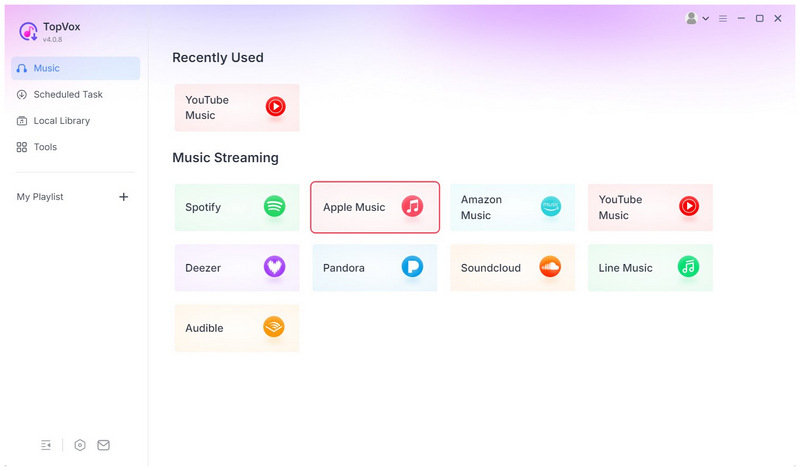
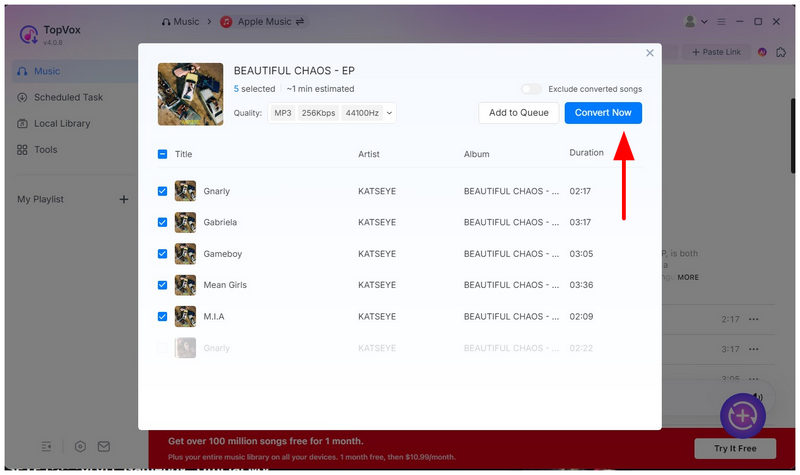
Step 1. Open TopVox All Music Converter and select Apple Music.
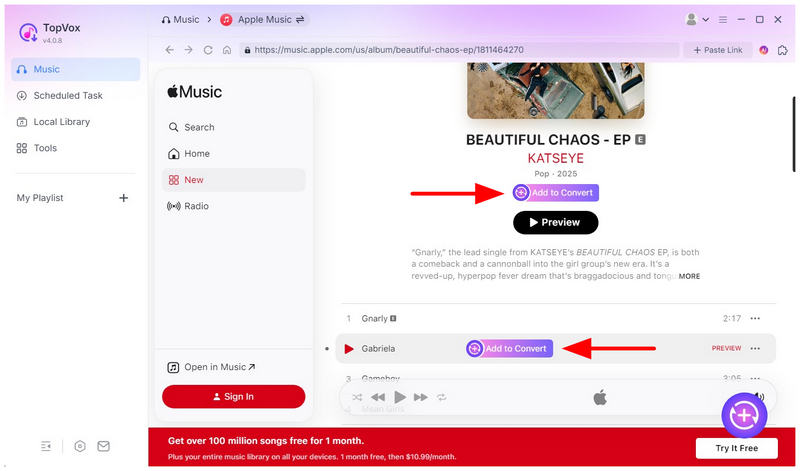
Step 2. Navigate the Apple Music library and select the song, album, or playlist you want to download. Then select the Add to Convert option in the playlist or next to a single song to download it.
Step 3. Once you have selected the music you want to download, click the Add button to open your list. Then, select Convert All to begin converting the M4A files you downloaded from Apple Music.
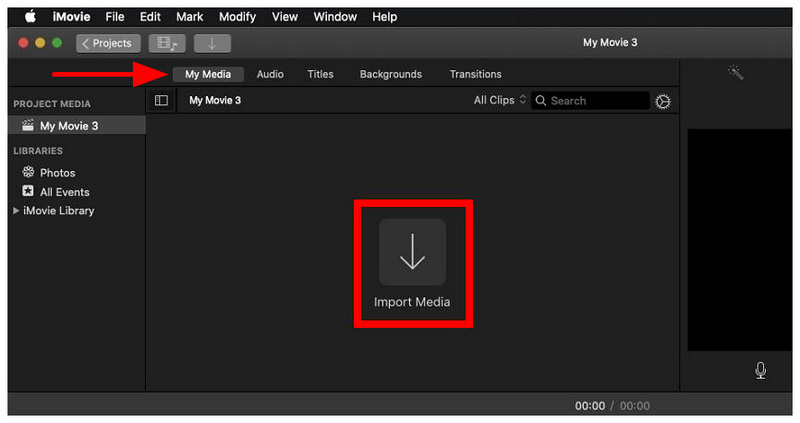
Process 2: Import iMovie on Mac/iPhone
Step 1. Open iMovie and then select Import Media under the My Media tab.
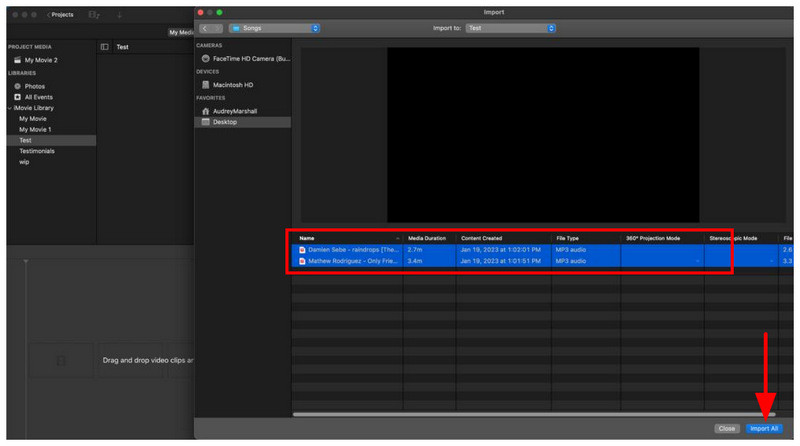
Step 2. In the Import menu, navigate through your files to find the converted Apple Music you want to add. Once located, select them and click on Import All.
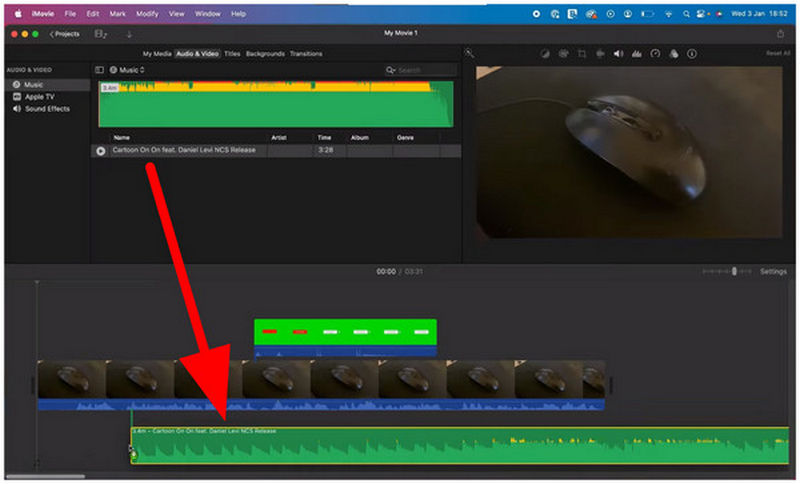
Step 3. Once the audio files have been imported into iMovie, drag them onto the editing timeline to use in your editing project.
100% Secure. No virus.
100% Secure. No virus.
Part 2. Official Ways to Add iTunes/Apple Music to iMovie
With the best option for using Apple Music as an editing resource, let us now move forward to the best built-in solution for editing in Apple Music. However, be aware that the first method we selected is more of an alternative to downloading music. To users focused on editing in iMovie, make sure to read the second method we have provided.
Method 1: Import Songs from Apple Music
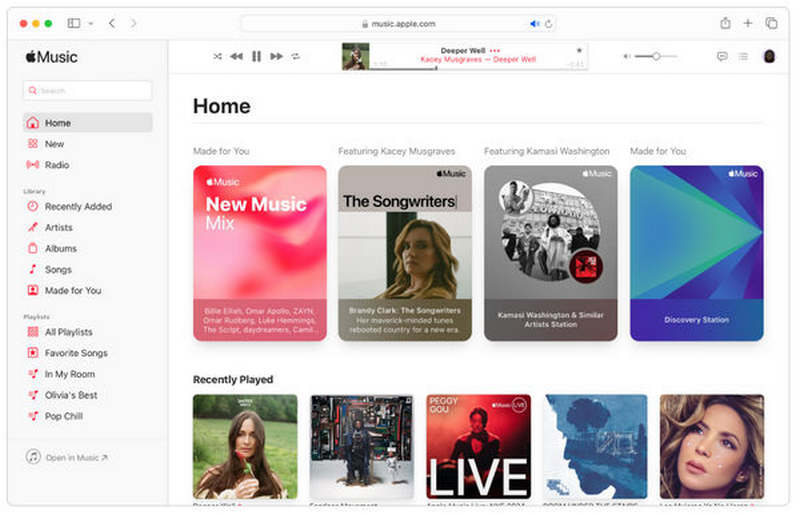
Step 1. Open Apple Music and find the audio you want to add to your library.
Step 2. Once you have selected the music, right-click it and select Add to Library from the options that open.
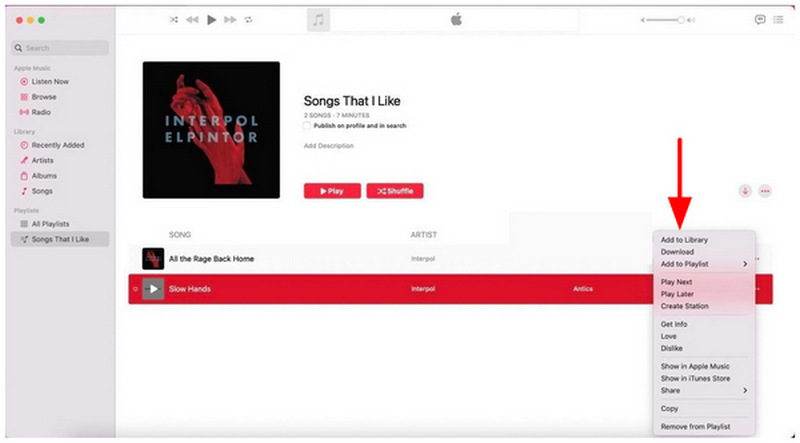
Although this option does not necessarily import songs from Apple Music, adding the audio you want to listen to your Library is the next-best way to import it. This essentially saves the file you just selected to your profile.
Method 2: Add iTunes Music to iMovie
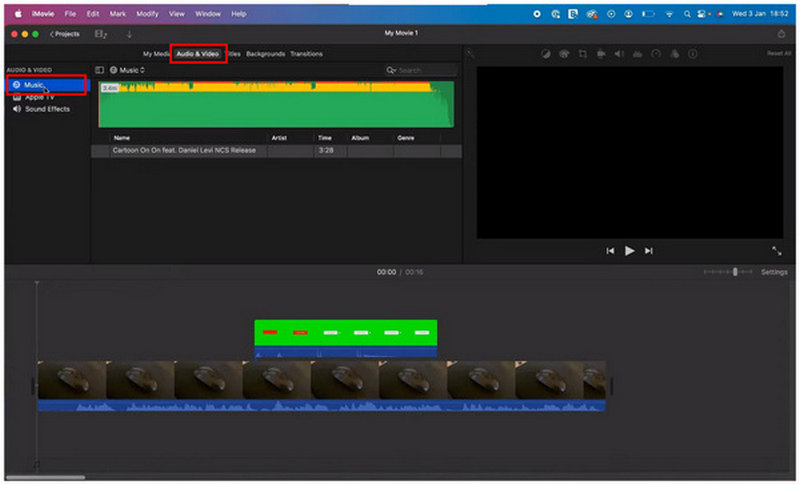
Step 1. Open iMovie and go to the Audio & Video tab in the taskbar. Then, select Music under the audio & video settings.
Step 2. In the Music tab, select the audio you want to edit. Then, click and drag it to the Editing Timeline to use the file for editing.
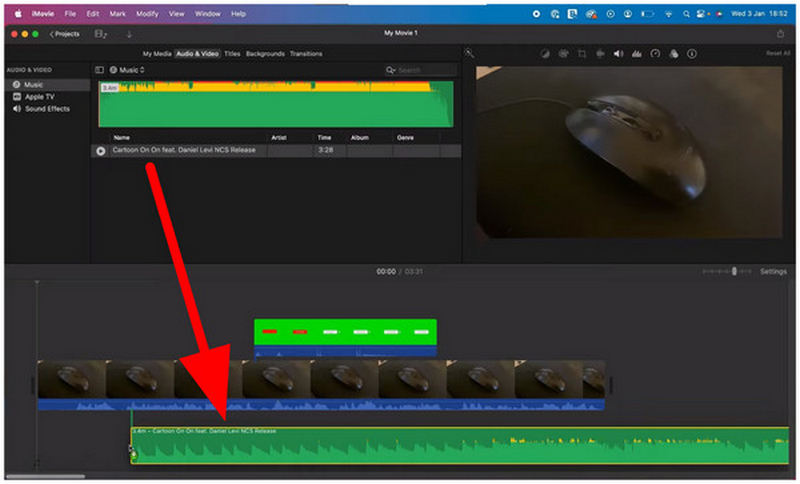
Since iTunes music can be saved locally on your device, selecting the Music option in iMovie lets you access these files. This is a direct solution for users who want to use their purchased iTunes media for iMovie editing projects.
Conclusion
Now that we have provided three different methods for adding iTunes or Apple Music audio in iMovie, we hope you can enjoy a smoother editing process, as you can now use these options to incorporate Apple Music audio into your editing projects. Although it is a third-party solution, we highly recommend using TopVox All Music Converter to download Apple Music audio files to your local drive. Hence, they are accessible for editing in iMovie.
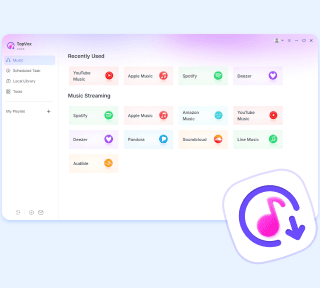
TopVox Apple Music Converter
Rated on Trustpilot >  4.8/5
4.8/5
- Download and convert Apple Music songs, albums, playlists, etc., with a success rate of up to 99%.
- Keep original quality, retain ID3 tags, offer lightning-fast speed and lifetime updates.
100% Secure. No virus.
100% Secure. No virus.